Windows 10’s Mail app usually works fine but occasionally, you might encounter issues ranging from not being able to sync emails to the app crashing as soon as it’s opened.
If you’re experiencing any issues with the Windows 10 Mail app not working on Windows 10, here are some methods to try and fix the problem.
**Make Sure Your Internet Is Working**
The Mail app connects to the internet to send and receive emails. If there’s an issue with your internet connection, this sending and receiving process can’t take place.
Therefore, ensure that your internet connection is active and working as it should.
Launch a browser on your computer, open a site, and see if it loads. If it does, great. If the site fails to load, you need to fix your network issues first.
Update Windows 10
You should try and keep your Windows 10 PC updated with the latest version because these updates often patch existing bugs on the system.
Updating your PC may fix your issues if a system bug is the cause.
- * Press Windows + I keys to open the Settings app.
- If this doesn’t take you to the main settings page, click on the **Home **button on the top left corner.
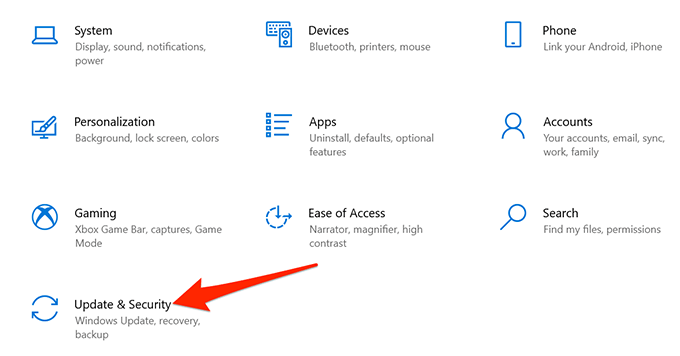
- Select Update & Security at the bottom.
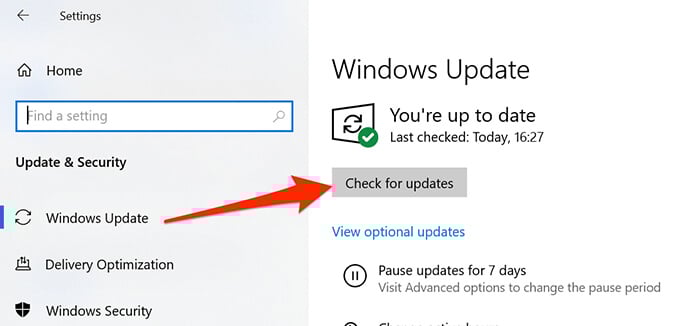
- Select **Windows Update** in the left sidebar.
- Select **Check for updates** on the right pane.
- Reboot your computer when the updates are installed.
- Open the **Mail** app and see if it works.
**Allow the Mail App Through Windows Firewall**
The firewall on your PC decides what incoming and outgoing connections are allowed on your machine and may cause the Mail app to have issues where it can’t send or receive new emails.You can whitelist the Mail app in Windows Firewall to fix your issue.
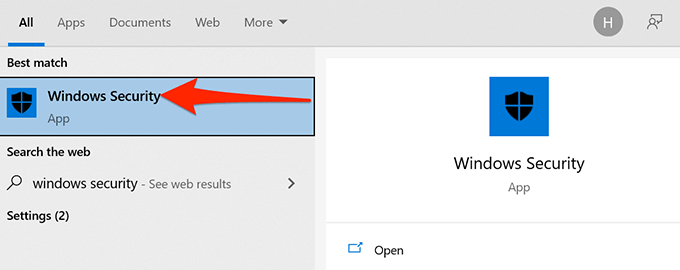
- Open the Start menu, type Windows Security, and select it in the results.
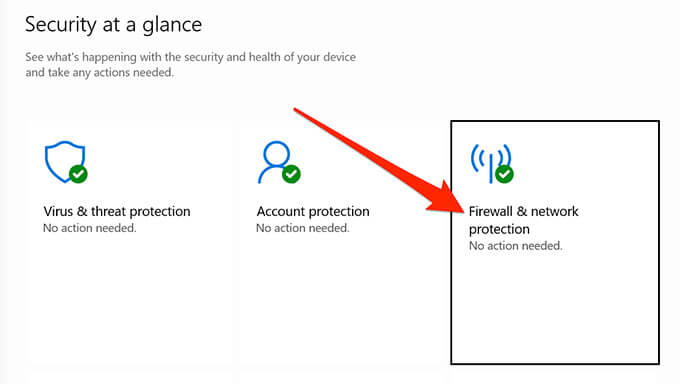
- Select **Firewall & network protection **on the main settings page.
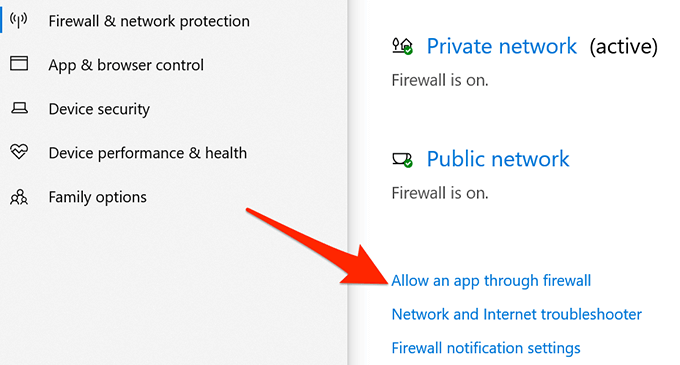
- Select **Allow an app through firewall**.
- Select the **Change settings** button at the top right.
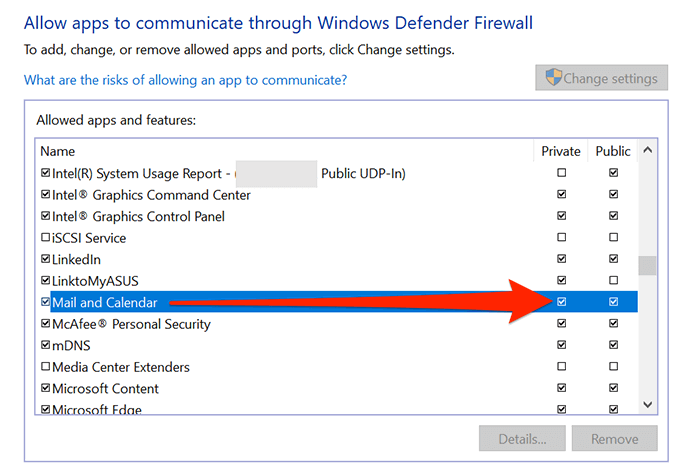
- Scroll down the list and find **Mail and Calendar**.
- Enable both **Private** and **Public** checkboxes next to the **Mail and Calendar** entry.
- Select **OK** at the bottom to save your settings.
**Fix Incorrect Date and Time**
Having the wrong date and time set on your PC can cause the Mail app not to sync your emails. Setting the correct date and time should fix your issue.
- Launch the Start menu, search for Settings, and select Settings in the results.
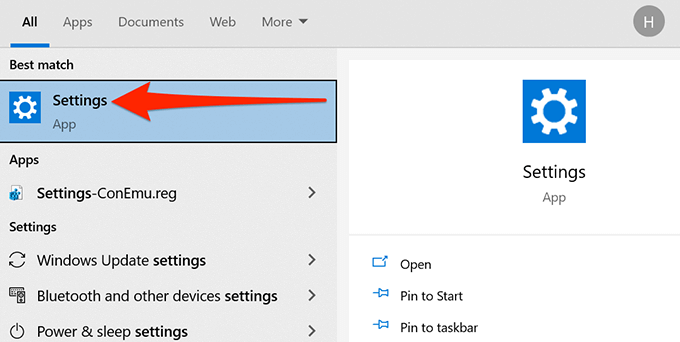
- If this doesn’t take you to the main settings page, click on the **Home **button on the top left corner.
- Select **Time & Language** on the following screen.
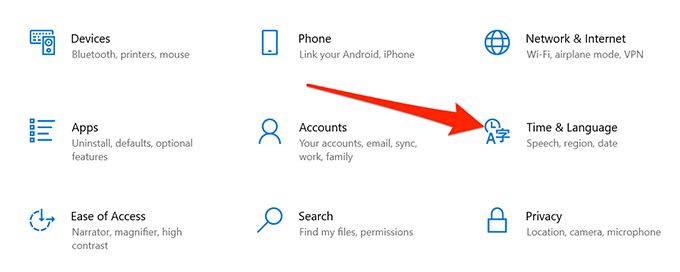
- Toggle on the **Set time automatically** and **Set time zone automatically** options.
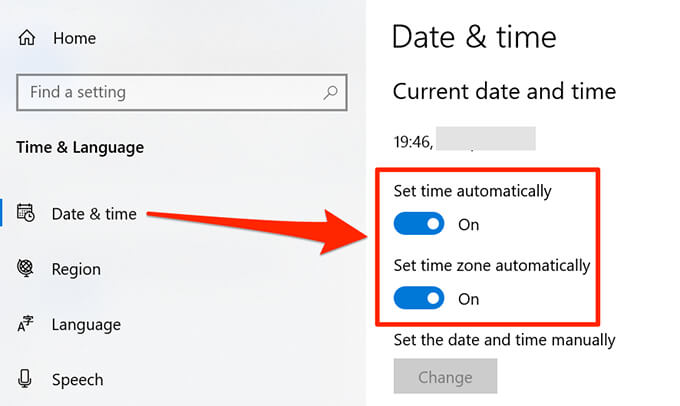
- Your PC should now have the current date and time.
**Enable Mail’s Privacy Options**
In Windows 10, there’s an option that helps you choose what apps can access your emails. The Mail app must be on this list in order for it to access your emails.You can check and enable this access in the Settings app.
- Press the Windows + I keys at the same time to open Settings.
- Select Privacy on the Settings window.
- Select **Email, **in the left sidebar.
- Turn on Allow apps to access your email on the right pane.
- Under the Choose which apps can access your email section, make sure the toggle next to Mail and Calendar is turned on.
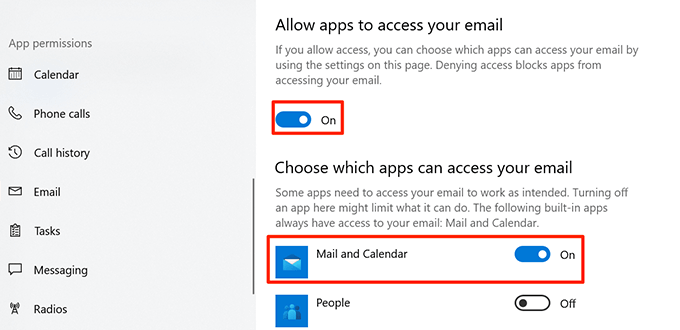
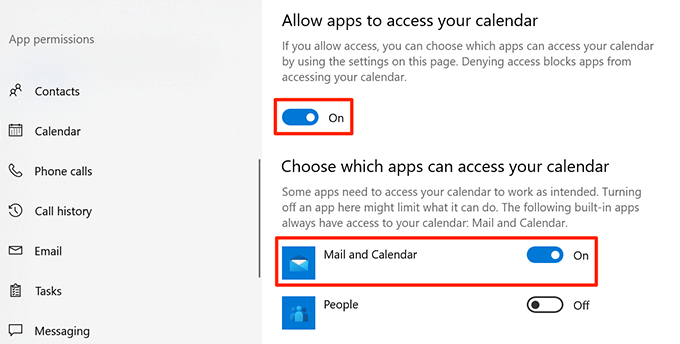
- Now select **Calendar** from the sidebar on the left.
- Toggle the **Allow apps to access your calendar** and **Mail and Calendar options **to the **On **setting.
**Toggle the Sync Settings Option**
It’s worth toggling off and on the sync settings option in Settings to see if this resolves the Mail app not working issue in Windows 10.
- Open the Settings app on your PC.
- Select Accounts in Settings.
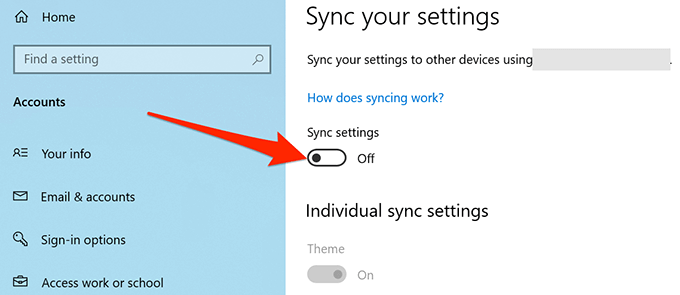
- Select **Sync your settings, **on the left sidebar.
- Turn off the Sync settings option on the right.
- Restart your PC.
- When your PC boots back up, repeat steps 1-3.
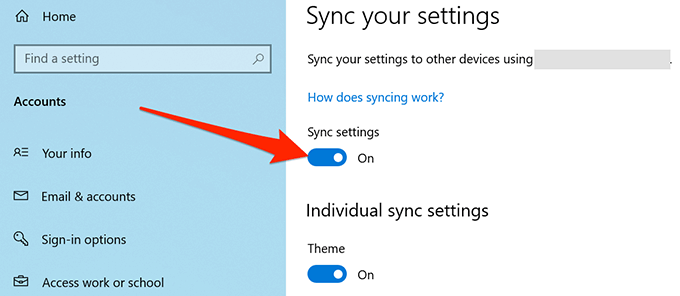
- Turn on the **Sync settings** option on the right.
**Use Windows Store Apps Troubleshooter**
One of the many troubleshooters in Windows 10 is Windows Store Apps troubleshooter that helps detect and fix issues with the Store apps, including the Mail app.
Follow the steps below to run this troubleshooter to see if it can fix your problem.
- Access the Settings app.
- Select Update & Security at the bottom.
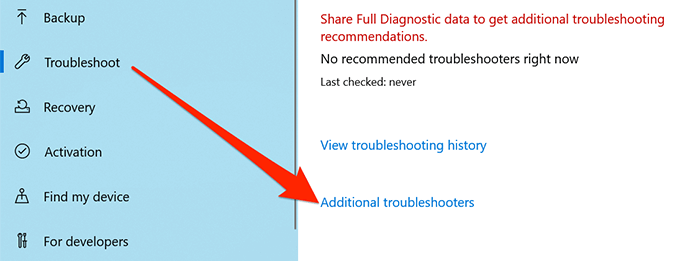
- From the left sidebar, choose Troubleshoot.
- Select Additional troubleshooters on the right pane.
- Scroll down the troubleshooters list and select **Windows Store Apps**.
- Select **Run the troubleshooter**.
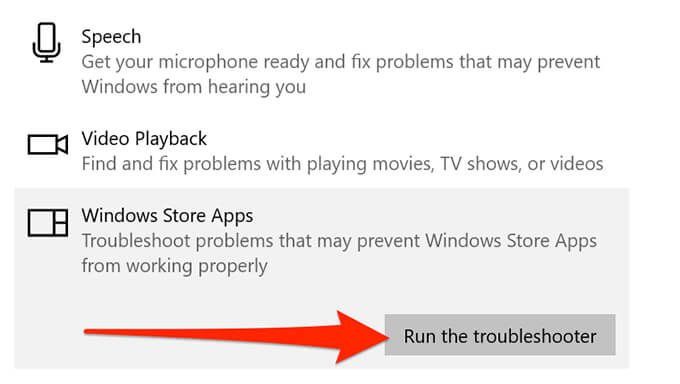
- Wait for the troubleshooter to find and fix issues with your apps.
**Clear the Microsoft Store Cache**
While Microsoft Store cache files are not directly linked to the Mail app, it’s worth clearing these files to see if that fixes your Mail issues.
- Close Microsoft Store if it’s already open on your PC.
- Press the Windows + R keys to open Run.
- Type wsreset.exe in the Run box and click Ok
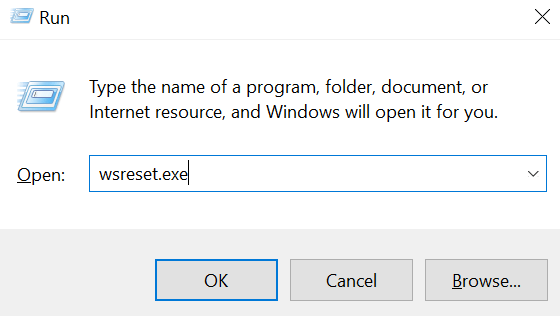
- A Command Prompt window will open. Wait for about half a minute and the window will automatically close.
- Open the **Mail** app and see if it works.
**Fix Corrupt Files**
Corrupt files on your PC can cause various issues, including making the Mail app dysfunctional. You can use Windows 10’s built-in file checker to find and fix faulty files.
- Open the Start menu, type Command Prompt, and select Run as administrator.
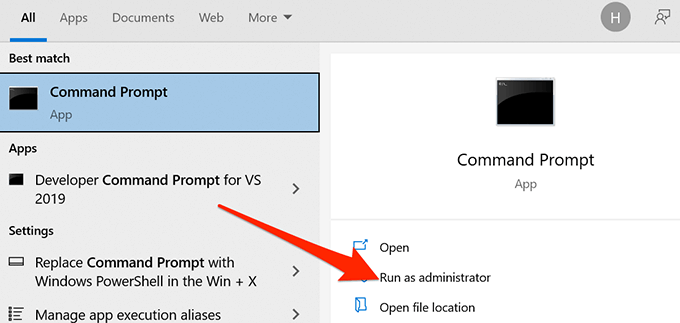
- Select **Yes** in the User Account Control prompt.
- Type **sfc /scannow*** *in the Command Prompt window and press **Enter**.
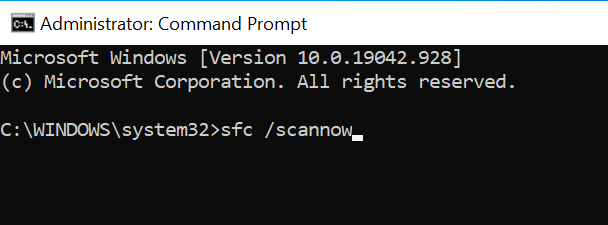
- Allow Windows 10 to scan and fix corrupt files on your PC.
**Reset the Mail App**
Reset the Mail app if it doesn’t function the way it should. However, resetting removes all pre configurations and you will have to reconfigure the app with your email account settings.
- Open the Start menu, type Settings and select the Settings app.
- Select Apps on the Settings screen.
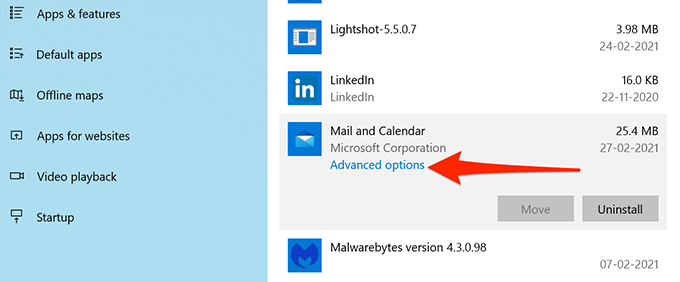
- Scroll down the apps list and select Mail and Calendar.
- Select Advanced options.
- Scroll down the following screen and select **Reset**.
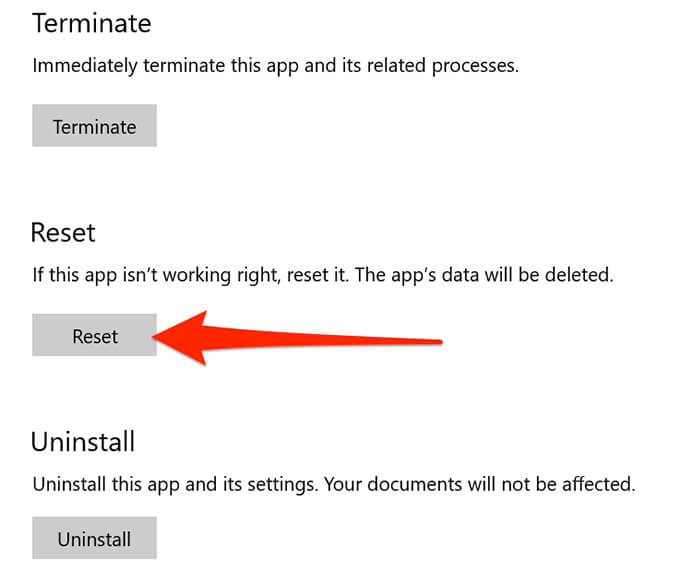
- Select **Reset** in the prompt.
Mail is now reset and ready to be configured with your email account.
How did you fix the Mail app issues on your Windows 10 PC? Let us know in the comments below.