Spotify might be the biggest name in music streaming, but it’s not without issues. Whether you’re using the service on a desktop or mobile device, connectivity problems, obsolete files, and incompatible settings can result in random pauses and error codes. Rarely they can be severe enough to crash Spotify.
So if Spotify keeps crashing without warning on your PC, Mac, iPhone, or Android, you must work your way through the fixes below to get it working correctly again.
1. Force-Quit Spotify and Restart
When Spotify crashes or hangs at launch, it’s best to force-quit the app completely before the next attempt at opening it. That helps fix minor problems most of the time.
Spotify Crashing on Windows
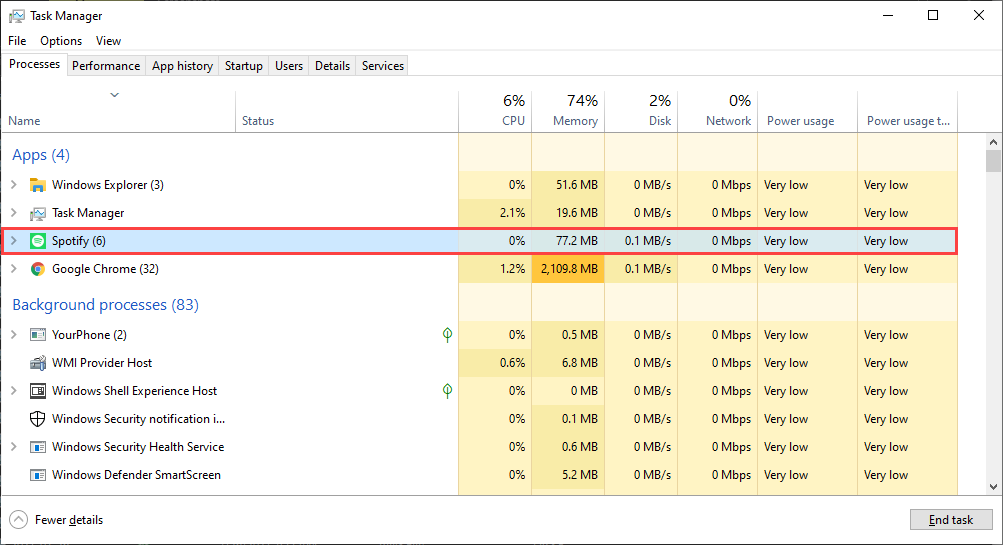
On Windows, open the Task Manager (press **Control **+ **Shift **+ Esc) and select More details. Then, under the **Processes **tab, choose **Spotify **and choose End task.
**Spotify Crashing on Mac**
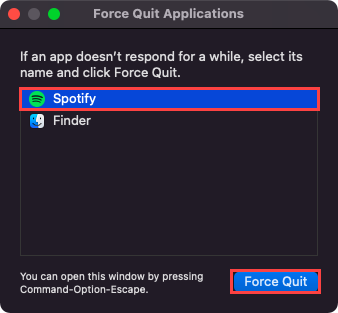
If you use Spotify on a Mac, open the **Apple **menu and select Force Quit. Then, choose **Spotify **and select the **Force Quit **button on the list of apps that show up.
**Spotify Crashing on iPhone & Android**
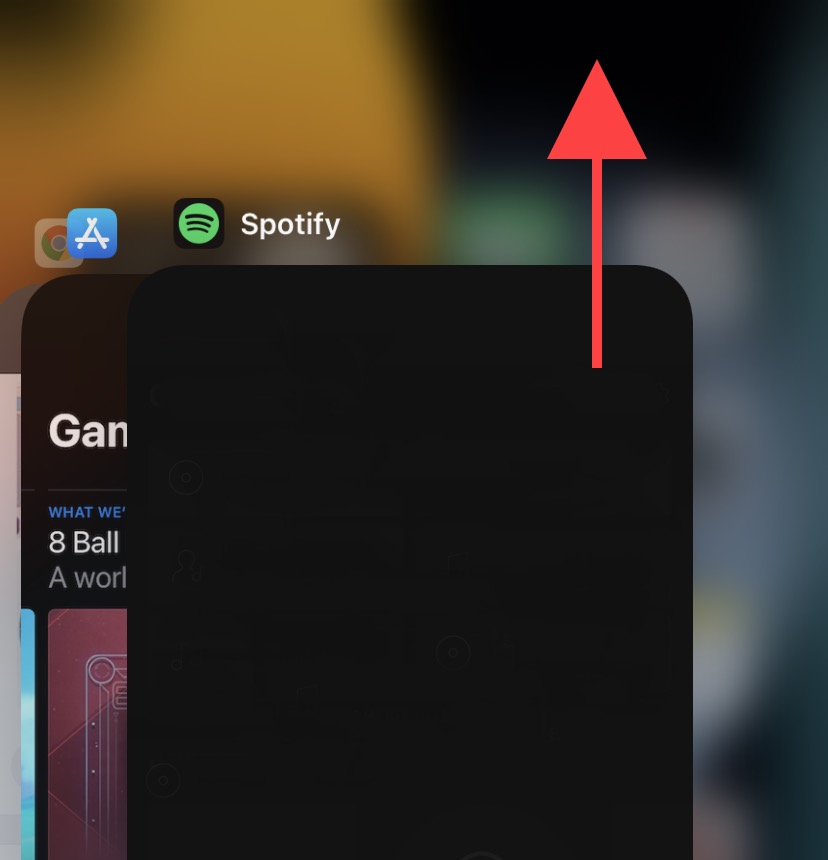
On an iPhone or Android smartphone, start by swiping up from the bottom of the screen to reveal the device’s app switcher. Then, select and drag the **Spotify **card to the top of the screen to force-quit it.
2. Run as Administrator (Windows Only)
If you use Spotify on Windows, loading it as an administrator can help sort issues brought about by insufficient app permissions. To do that, open the **Start **menu and search for Spotify. Then, select Run as Administrator.
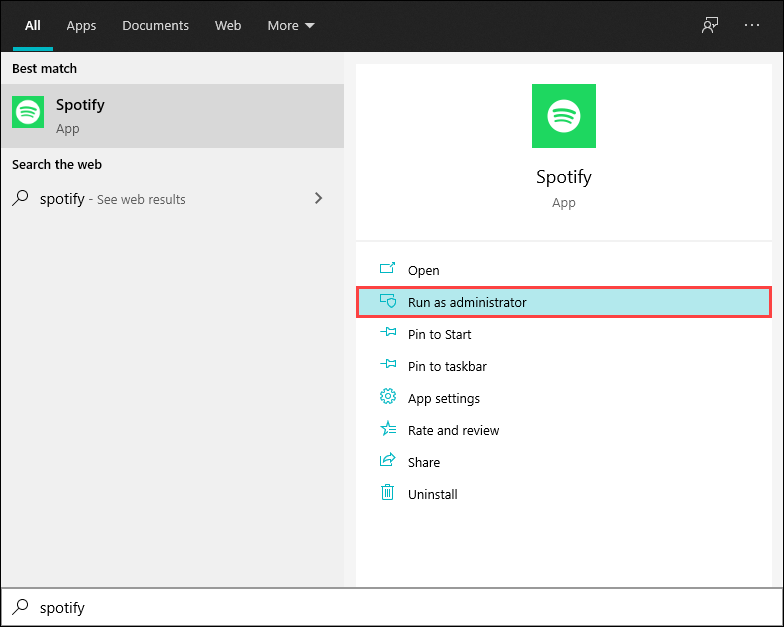
If that helps, learn how to set up Spotify to launch as an administrator always.
3. Restart Desktop or Mobile Device
Bugs and glitches within the system software can crop up randomly and prevent applications from functioning normally and can make Spotify keep crashing. The best way to fix that is to restart your Windows, macOS, iOS, or Android device. So try that now before proceeding with the rest of the fixes.
4. Update the Spotify App
Spotify receives frequent updates that improve the stability of the app. Try updating it to the latest version and check if that helps.
Windows & Mac
Open the **Spotify **menu and select **Help **> About Spotify. If you see any pending updates, select Click here to download to apply them.

Note: If Spotify doesn’t stay open long enough for you to update it, you must re-install the program. More about that later.
iPhone & Android
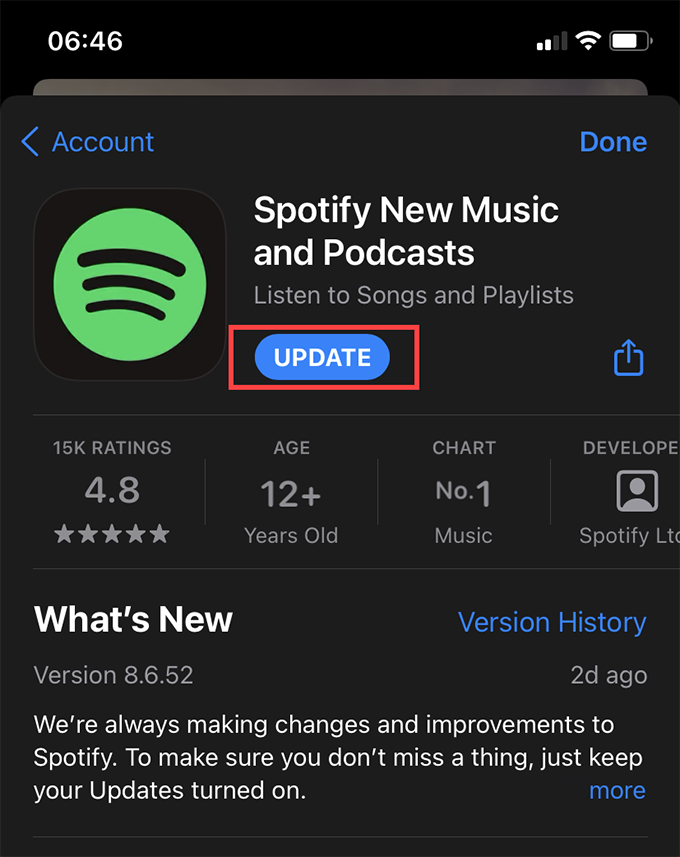
Open the App Store (iOS) or the Play Store (Android) and search for Spotify. If you see an **Update **button listed next to Spotify on the search results, tap it to update the app.
5. Check for Spotify Outages
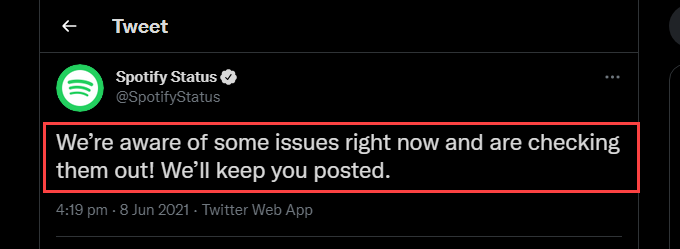
If the issue persists, you might want to check if there’s a Spotify outage. You can do that by visiting the Spotify Status account on Twitter. If it has acknowledged an issue, you must wait until Spotify fixes that.
6. Check for Connectivity Issues
Connectivity problems on your end might also cause the app to crash. If you notice poor internet connectivity while navigating the internet or while using other apps, try these quick fixes: * Soft-reset your router.
- Renew the IP lease.
- Clear the DNS cache.
- Switch to a different Wi-Fi connection.
- Switch to using cellular data on your mobile data.
7. Log Out/Log Back In to Spotify
Try logging out and then logging back into Spotify. You can do that by selecting your profile to the top-left of the desktop app and selecting Log out. On mobiles, go to **Home **> **Settings **and select Log out.
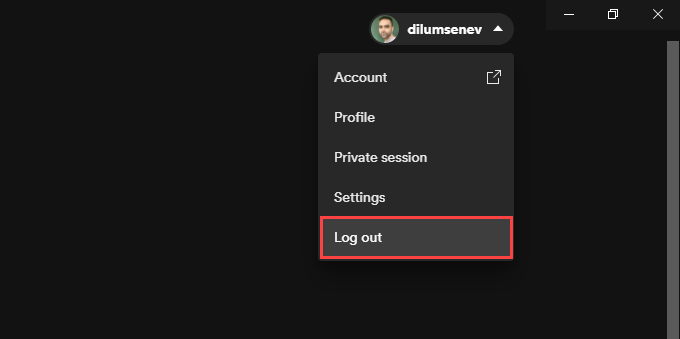
If the app crashes soon after you open it, use the Spotify Web Player to sign out of your account across all devices.
8. Update the System Software on Your Device
It’s also a good idea to update the system software on your device. That should help fix any Spotify-related issues that stem from incompatibilities with the system software.
Windows
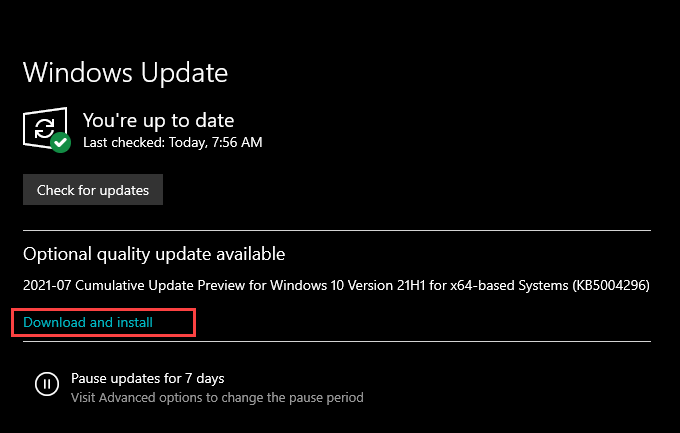
Go to **Start **> **Settings **> Update & Security > Windows Update. Then, select Check for updates. If you see any pending updates, tap Download and install.
**Mac**
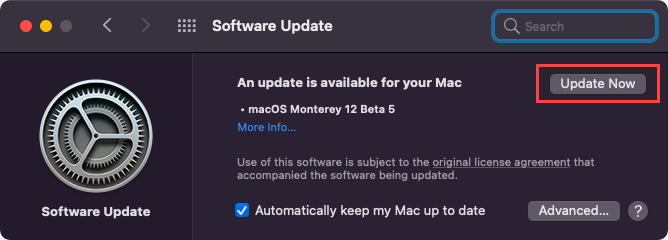
Open the **Apple **menu and go to **System Preferences **> Software Update. Follow that by selecting Update Now to update to the latest version of macOS.
**iPhone & Android**
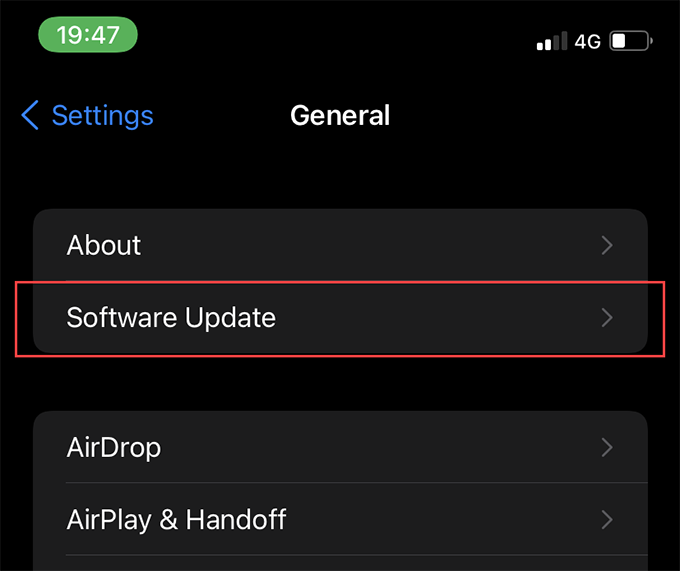
On the iPhone, open the **Settings **app, go to **General **> Software Update, and tap Download and Install to apply all pending updates.
On Android, go to **Settings **> **System **> **Advanced **> System update to update to the latest system software version as supported by your device.
9. Clear the Spotify Cache
When you stream songs in Spotify, the app caches data locally to speed things up. However, obsolete or corrupt files within the Spotify cache can cause issues, so you should try deleting them.
Windows
Press **Windows **+ R to open the **Run **box. Then, depending on whether you use the standard or the Microsoft Store version of Spotify, follow by copying and pasting the relevant folder path:
- Microsoft Store Version: %localappdata%\Packages\SpotifyAB.SpotifyMusic_zpdnekdrzrea0\LocalCache\Spotify\Data
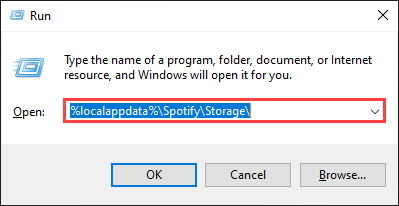
Select **OK** and delete all contents within the folder that shows up.
**Mac**
Open Finder and select Go > Go to Folder. Then, copy the following folder path and select Go:
~/Library/Application Support/Spotify/PersistentCache/Storage
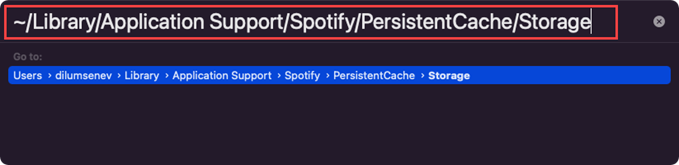
Delete all contents within the folder that shows up.
iPhone & Android
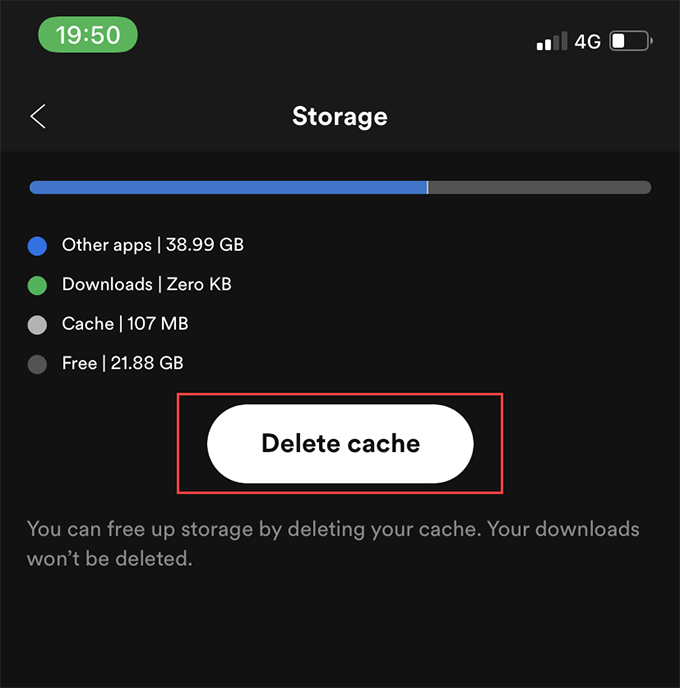
Open the Spotify app and select the **Home **tab. Then, tap the **Settings **icon and select Storage. Follow that by selecting Delete cache.
10. Disable Hardware Acceleration (Windows & Mac Only)
The desktop version of Spotify uses a feature called Hardware Acceleration to improve performance. But sometimes, that can also cause Spotify to keep crashing.
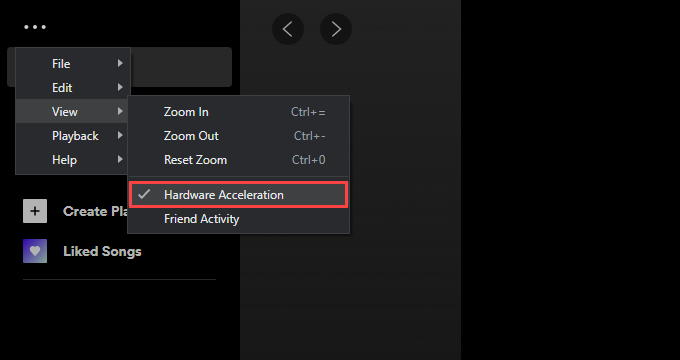
You can fix that by deactivating Hardware Acceleration. To do that, open the **Spotify **menu, point to View, and select Hardware Acceleration.
Conversely, the app could crash if you’ve previously disabled Hardware Acceleration. In that case, reactivating the functionality can help.
11. Update Audio and Video Drivers (Windows Only)
If you use Windows, consider updating the audio and video drivers for your PC. You can get the latest driver updates by visiting the device manufacturer’s website. Alternatively, you can use a driver updater tool to get everything up-to-date automatically.
12. Reinstall the Spotify App
If none of the fixes above worked, reinstalling Spotify just might. Not only do you get a fresh instance of the app to interact with, but a reinstallation also guarantees that you have the latest version of Spotify on your device.
However, the procedure will also delete any songs you’ve downloaded locally, so you’ll have to redownload them from scratch.
Windows
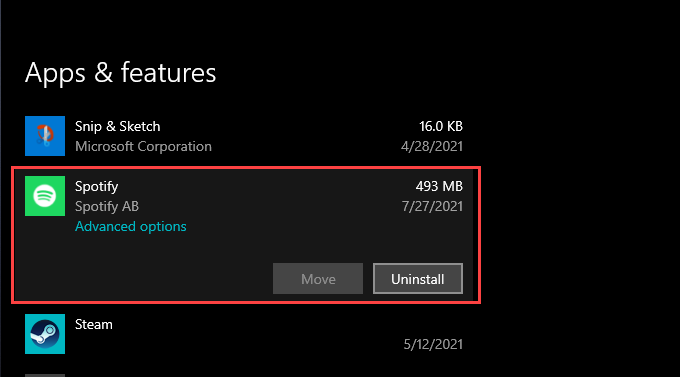
Open the **Start **menu and go to **Settings **> Apps. Then, locate **Spotify **and select Uninstall. Follow by reinstalling Spotify via the Spotify website or the Microsoft Store.
**Mac**
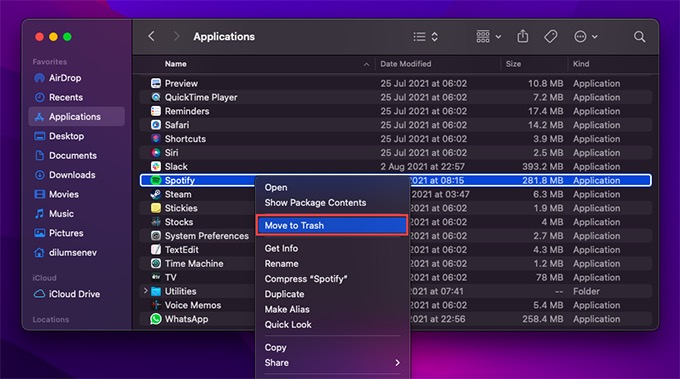
Open Mac’s **Applications **folder and drag **Spotify **to the Trash. Then, reinstall Spotify after downloading the installer from the Spotify website.
**iPhone & Android**
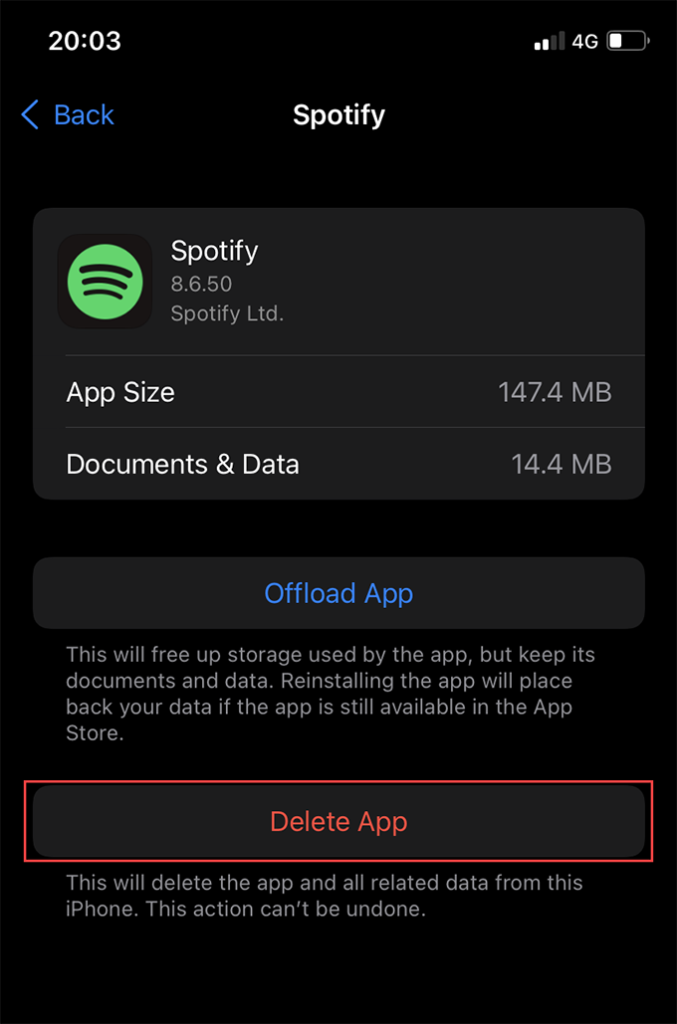
On the iPhone, open the **Settings **app and go to **General **> **iPhone Storage **> Spotify. Then, tap Delete App. Follow that by reinstalling the app from the App Store.
On Android, open the Play Store and tap your profile icon. Then, select Manage apps & devices > Installed. On the list of apps that show up, select Spotify and tap the **Trash **icon. Follow that by reinstalling Spotify after searching for it via Play Store.
Try the Spotify Web Player
The fixes above should’ve hopefully stopped Spotify from crashing on your PC, Mac, iPhone, or Android. However, if the issue persists, contact Spotify Support or wait for a newer app update. Of course, you can always use the Spotify Web Player in the meantime.