Using keyboard shortcuts with either the Snipping Tool or Snip and Sketch just makes life easier. Both Snipping Tool and Snip & Sketch, which can be used to take screenshots of the computer screen, are already part of your Windows 10.
We can also take screenshots using OneNote, if we have it. Keep in mind that these two tools might not be ideal for every situation. Check out our ultimate guide to taking screenshots for more information.
Source Microsoft
What Is The Windows Snipping Tool?
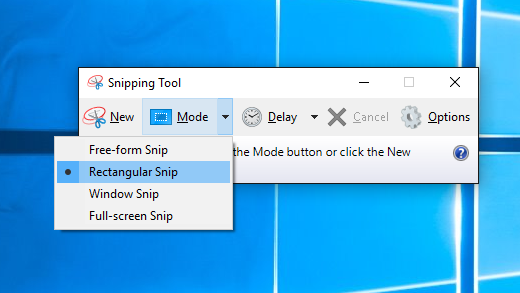
For a Windows utility that’s been around for 17 years, lots of people still don’t know it exists. It’s a simple, easy to use, screenshot utility. You can use it to capture an entire window, a rectangular part of your screen, or use the freeform tool to draw around things and capture just that uniquely shaped part of the screen.
The newest version even has a delay feature. This makes it easier to capture pop-out or right-click menus.
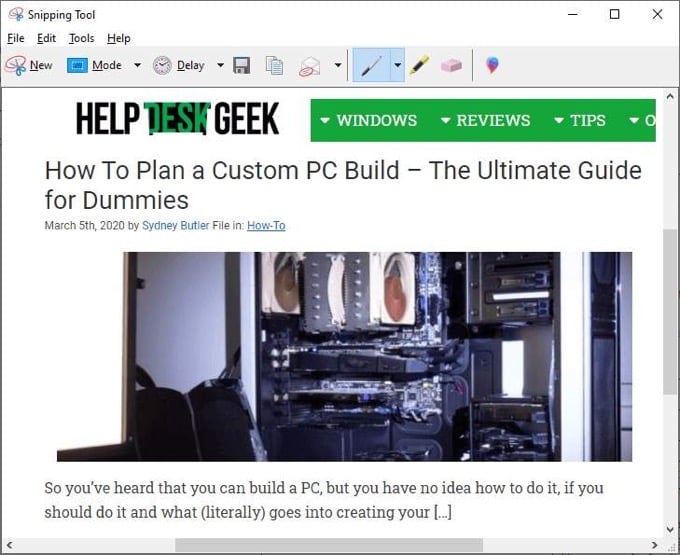
You can take the capture and make notes or draw on it to really highlight what you want to show. From there, sharing it is easy too. You can copy and paste it into a document or email, or just email it to someone directly from the Snipping Tool.
What Is Windows Snip and Sketch?
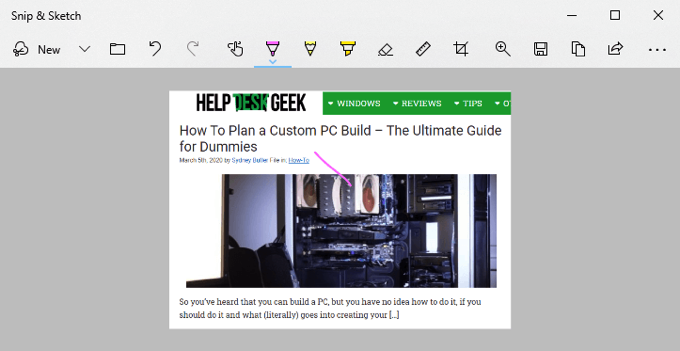
Since Windows Snipping Tool is 17 years old, Microsoft decided to put together a similar but updated screen capture tool. Snip and Sketch came out with the Windows 10 October 2018 Update. If you don’t have it, you can also get Snip and Sketch from the Windows Store.
**Windows Snipping Tools Shortcuts**
For these shortcuts to work, Snipping Tools must be open and be the app that has the focus. It can’t be open and behind anything, or the shortcuts do not work. There is no keyboard shortcut to open Windows Snipping Tools. We could make a keyboard shortcut to open Snipping Tools, though.
In the list of shortcuts below, **Alt + N **means to press the **Alt **key and the **N **key at the same time. If it says **Alt + T then P **that means press the **Alt **key and the **T **key at the same time and release, **then **press P.
| Keyboard Shortcut | What it Does |
| Alt + N or Ctrl + N |
Starts a new screen capture |
| Alt + M |
Set the screen capture mode**. **Use ↑ and **↓ **arrow keys to choose from: Free-form snip, Rectangular tool, Window snip, Full-screen snip. Then press **Enter **to commit the choice. |
| Alt + D |
Set the delay for starting the capture.** **Use ↑ and ↓ arrow keys to choose from: No delay, 1 Second, 2 Seconds, 3 Seconds, 4 Seconds, 5 Seconds. Then press **Enter **to commit the choice. |
| Ctrl + S |
Save the screen capture |
| Ctrl + C |
Copy the screen capture |
| Ctrl + E |
Edit in Paint 3D |
| Ctrl + P | Print the screen capture |
| Alt + F | Access File menu |
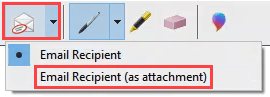
| Alt + F then T then E |
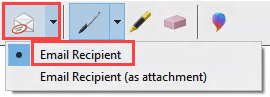
Send as an e-mail. Requires Outlook installed. |
| Alt + F then T then A |
Send as an attachment in an e-mail. Requires Outlook installed. |
| Alt + T then P |
Select Pen tool |
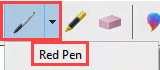
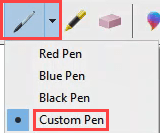
| Alt + T then P then R |
Red Pen |
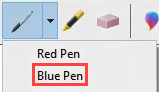
| Alt + T then P then B |
Blue Pen |
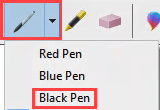
| Alt + T then P then L |
Black Pen |
| Alt + T then P then P |
Custom Pen |
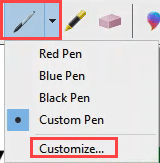
| Alt + T then P then C |
Customize Pen |
| Alt + T then H |
Select Highlighter tool |
| Alt + T then E |
Select Eraser tool |
| Alt + T then O | Set Snipping Tool Options |
| F1 | Snipping Tool Help |
| Esc | When in the middle of getting a screen capture, Esc cancels it out, by escaping. |





Snip and Sketch Keyboard Shortcuts
Snip and Sketch can be opened using a keyboard shortcut, which makes it very handy to use. Make note of that. Unfortunately, there aren’t Windows snipping tool shortcuts to choose the delay time or type of snipping tool to use.

Once we’re in a tool, like the Highlighter tool, use the keyboard shortcut combination again to access the tools options. We can navigate through options using the arrow and Tab keys, and use Enter to make selections.
| Keyboard Shortcut | What it Does |
| Shift + Windows Key + S |
Opens Snip and Sketch screen capture bar. This only allows for taking the screen capture.It does not open the full Snip and Sketch app for editing. |
| Ctrl + N or Alt + N |
New screen capture |
| Ctrl + O or Alt + O |
Open a file for editing |
| Ctrl + P |
Print screen capture |
| Ctrl + Z |
Undo edit |
| Ctrl + Y |
Redo edit |
| Ctrl + T or Alt + T |
Toggle Touch Writing on and off. For use with touch screens. |
| Ctrl + B or Alt + B |
Ballpoint pen tool |
| Ctrl + C or Alt + I |
Pencil tool |
| Ctrl + H or Alt + H |
Highlighter tool |
| Ctrl + E or Alt + E |
Eraser tool |
| Ctrl + R or Alt + R |
Crop tool |
| Ctrl + Z or Alt + Z |
Zoom tool |
| Ctrl + S or Alt + S |
Save capture |
| Ctrl + C or Alt + C |
Copy capture |
| Ctrl + A or Alt + A |
Share capture |
| Ctrl + M or Alt + M |
Opens See more menu |
| Esc | When in the middle of getting a screen capture, Esc cancels it out, by escaping. |




Putting It All Together
Screen captures are a great way to tell a story. Whether it’s for helping someone else out, asking for help, or just sharing something interesting or funny, screen captures are great.
Take the time to try all of the key combinations and you’ll find that you can do almost anything you want with these tools without touching your mouse. That’s faster and easier on the hands.
Got any good screen capture tips or other favorite tools? We’d love to hear about it in the comments below. Know someone who isn’t sure how to explain what’s on their screen? Send them a link to this article. Help them out.