If you’re sick of a basic blue background or that same old picture wallpaper on your Windows PC, why not try a video wallpaper? You’ll need a third-party app to do it, but here are our favorites- free and paid.
You might not have realized the depth of personalization available in Windows. One of the more exciting features is the ability to apply live wallpapers. Rather than a static image, you can see a moving video as your desktop background instead.
If you prefer, you can also check out our YouTube channel, where we posted a short video going over how to use video wallpapers in Windows.
Set a Video Wallpaper with DeskScapes
DeskScapes is a premium customization app that lets you personalize your desktop background by setting videos, images, and animated wallpapers. It’s our favorite pick due to its extensive library of wallpapers, the ability to set playlists and create your own animations, and good controls for multiple monitors.
You can try out a free trial for 30 days and purchase it for $3.99.
After installing, follow these step-by-step instructions to set a video wallpaper using DeskScapes:
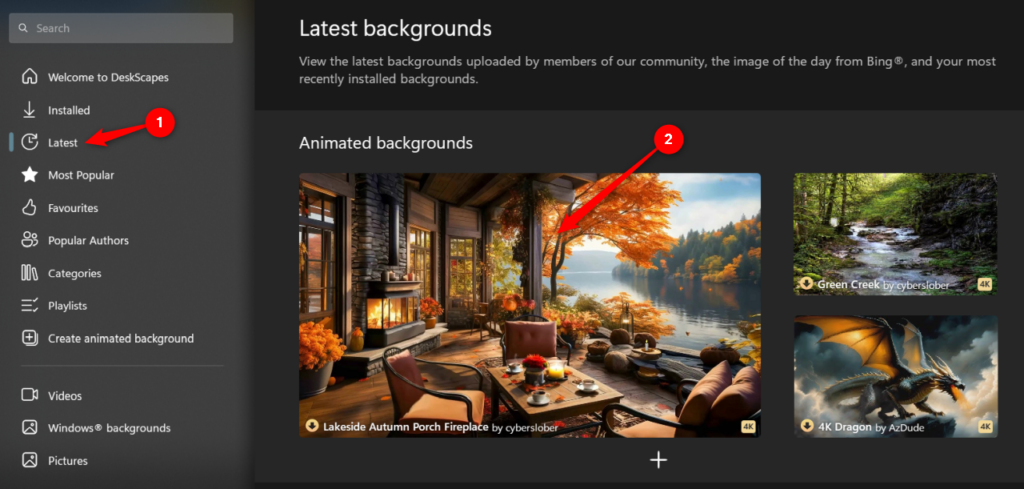
- * The left pane in DeskScapes lets you browse for different wallpapers. You can view the latest backgrounds, the most popular, your favorites, or your own videos or static images. You can also view playlists you’ve created and even create your own animated background.
- After you’ve chosen a category, select the wallpaper you want on the right.
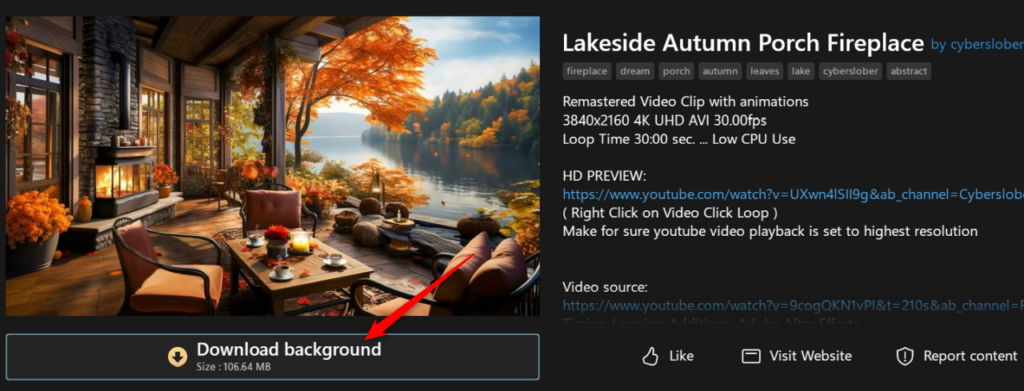
- Here, you can view details about the background. If you like what you see, select **Download Background**.
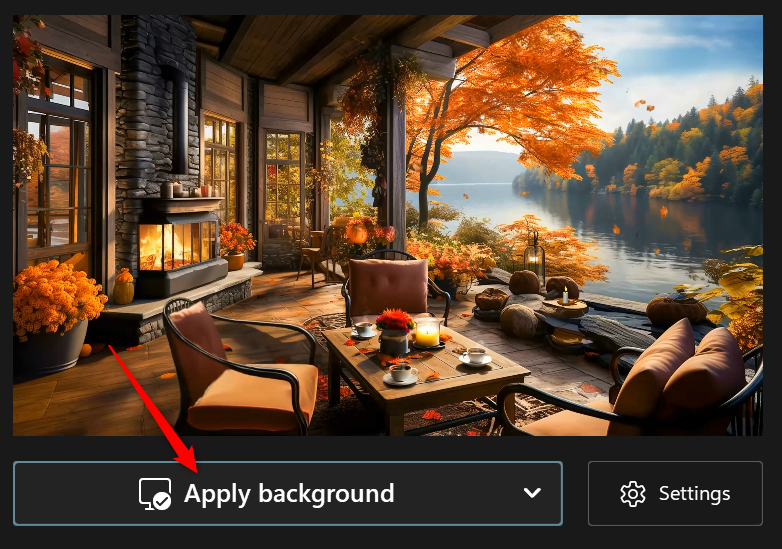
- After the background is downloaded, select **Apply Background**. You can also use the **Settings** button to control how the background fits your screen, playback speed, and volume.
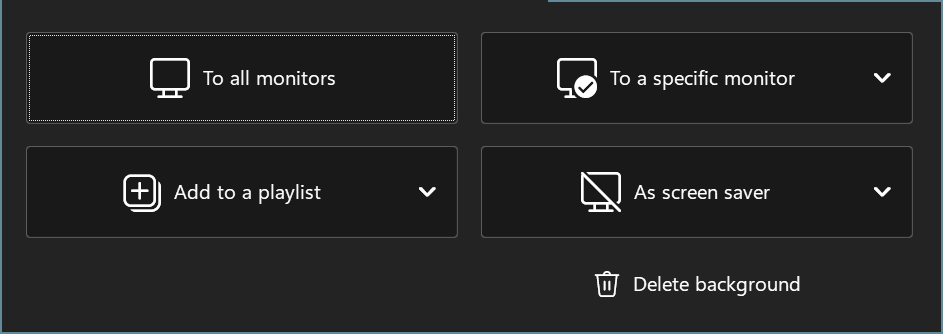
- After selecting **Apply Background**, use the pop-up window to set options like setting the background for all monitors or a specific monitor, adding it to a playlist, and setting it as a screensaver.
And now, you can sit back and enjoy your new animated background.
**Set a Video Wallpaper with VLC**
It should be no surprise to anyone familiar with the free and open-source VLC media player that it includes a feature allowing you to apply videos as desktop wallpapers.
VLC can play almost every type of video imaginable, so if you’re looking for ways to apply a video as wallpaper to a Windows desktop, this is one of the quickest and easiest methods.
There are downsides to using VLC for this. You can only keep the video as wallpaper while VLC is open and playing your video (though you can loop the video). And, while you can have an open window in front of your video, you won’t be able to see your desktop icons while it’s playing. It’s a fine way to apply a temporary video wallpaper, but if you want something more permanent, one of the other apps in this tutorial will be better.
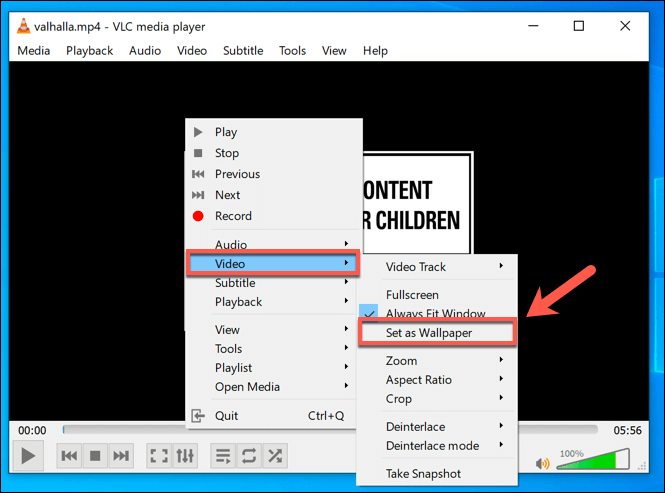
To use a video as a wallpaper with VLC, follow these steps:
- Open VLC and begin playing your video. Right-click the playback window, then click Video > Set as Wallpaper to apply the video as your desktop wallpaper.
- To end your video wallpaper, stop the video in the VLC player window or close VLC entirely. This will return your desktop to the default static wallpaper you had applied previously.
**Set YouTube and Other Videos as Backgrounds with Push Video Wallpapers**
Another good dynamic wallpaper app is Push Video Wallpapers, a free app ($10 purchase to avoid upgrade suggestions) that lets you apply local videos, animated GIFs, or even YouTube videos as video wallpapers for your desktop.
Push Video Wallpapers includes sample videos and GIFs for you to try out when you first install the app, but you also can use local videos, GIFs, or YouTube videos. You can even create playlists.
To use a video as a wallpaper with Push Video Wallpapers, follow these steps:
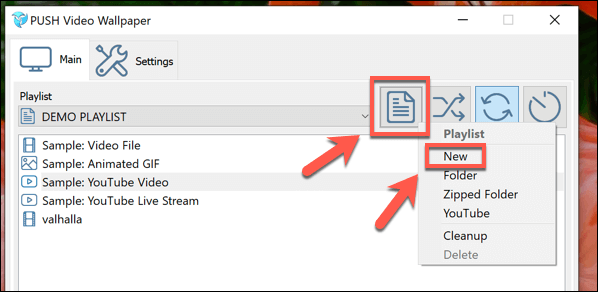
- Once Push Video Wallpapers is installed, create a new playlist by clicking the Playlist icon in the top-right. From the drop-down menu, click New.
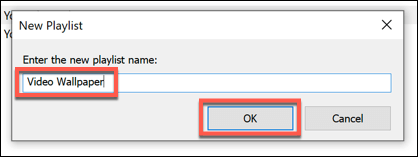
- In the **New Playlist** window, type a name for your new wallpaper playlist, then click **OK** to save.
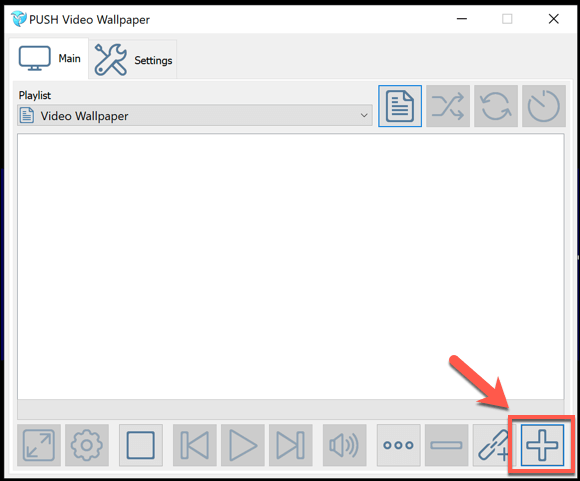
- Select your new playlist from the drop-down menu. To add a new video or GIF, click the **Plus/Add **icon in the bottom-right corner of the settings window.
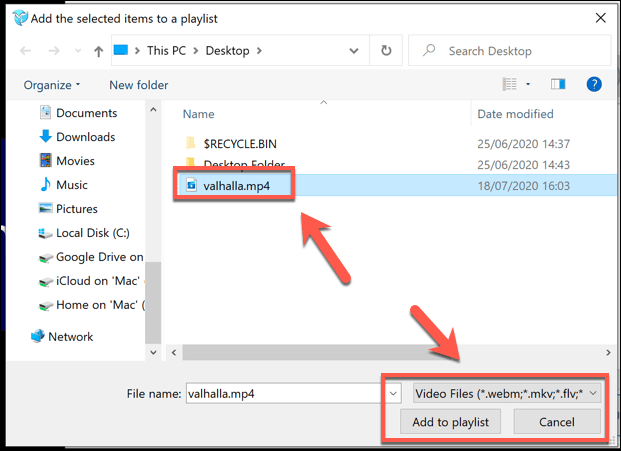
- In the selection window, locate your video or GIF files. You may need to switch between **Video Files** and **Image Files** in the file type drop-down menu at the bottom right. Once you’ve selected your content, click **Add to Playlist** to add it to your playlist.
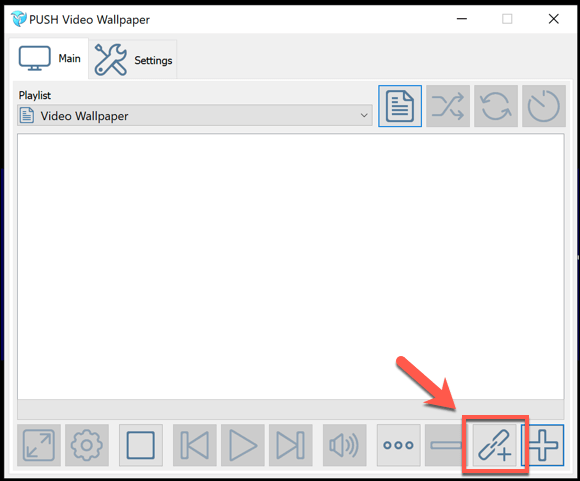
- To add YouTube and other network or internet videos, click the **Add URL **icon in the bottom-right corner.
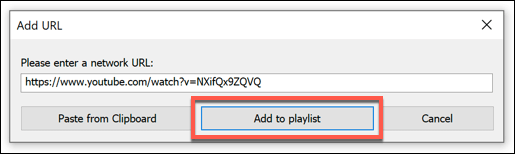
- Paste the URL to your video in the **Add URL **window, then click **Add to Playlist** to add it to your playlist.
- If you want to use a YouTube playlist for video wallpapers, click the **Playlist **icon in the top-right, then select **YouTube** from the drop-down menu.
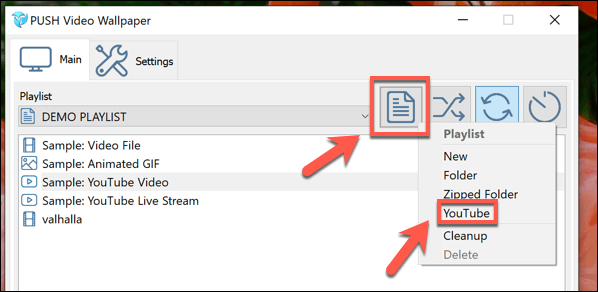
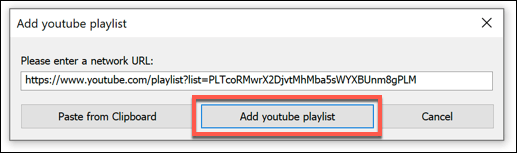
- In the **Add YouTube playlist **window, add the URL to your YouTube playlist or video. Click **Add Youtube Playlist** to add the videos from the playlist to your local Push Video Wallpaper playlist.
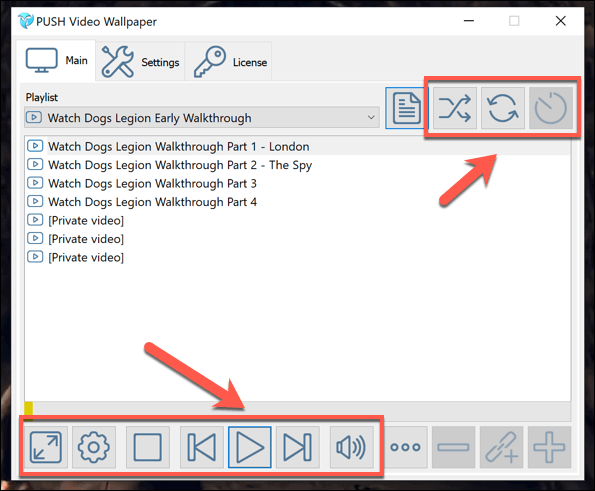
- You can control your Push Video Wallpapers playlist using the options at the bottom of the window, with standard video playback options to play, pause, skip, and more. You can also set your playlist to repeat and randomize using the options in the top-right corner.
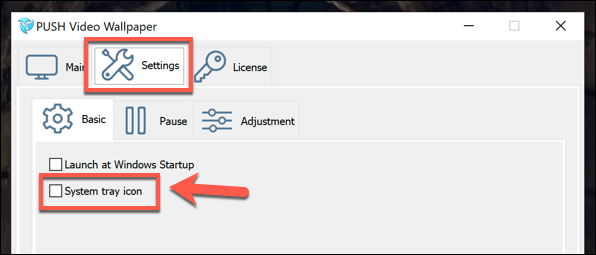
- To hide your Push Video Wallpapers window from view, you can minimize it. You can also add it as a system tray icon (hiding it in the notifications area in your taskbar) by clicking **Settings > Basic > System Tray Icon**.
Push Video Wallpapers is a great, free option to turn any video or GIF into a playlist to use for video wallpapers. The only limitation for free users is a regular reminder asking you to upgrade, which costs around $10 for a single license.
Set a Video background with the Desktop Live Wallpapers App
Another great app is Desktop Live Wallpapers, which, like Push Video Wallpapers, lets you add your own videos and use them as live video wallpapers for your desktop.
The free version of Desktop Live Wallpapers only supports WMV video files and has limited playback controls, but you can upgrade to Desktop Live Wallpapers Pro for $3.99.
To set a video background using Desktop Live Wallpapers, follow these steps:
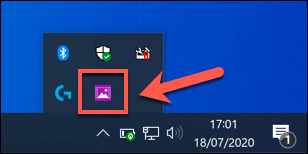
- Once installed, Desktop Live Wallpapers will appear as a system tray icon in the notifications area of your taskbar. Double-click this icon to access the settings menu.
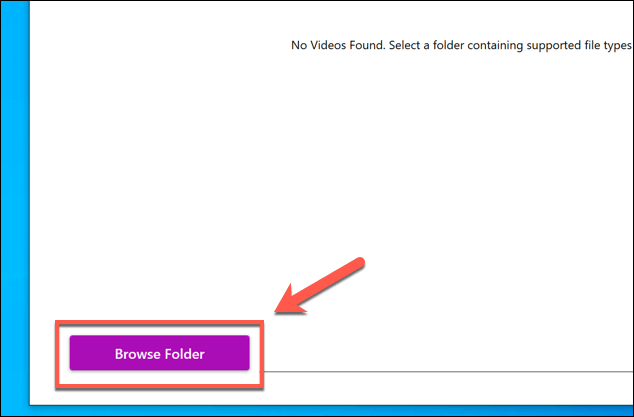
- You’ll need to add a folder that Desktop Live Wallpapers can monitor for videos. To add a video folder, click the **Add Folder **button.
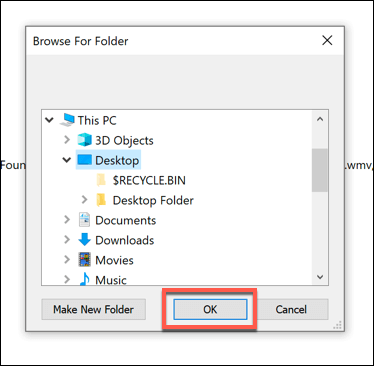
- Select a folder to monitor in the **Browse For Folder** window, then click **OK** to add it to the list. Any videos it finds will appear in the main videos list, with videos playing automatically as your desktop wallpaper at this point.
- Desktop Live Wallpapers will load the videos from this folder to your list. If you add any additional videos to this folder, click the **Refresh Folder **button to update the list.

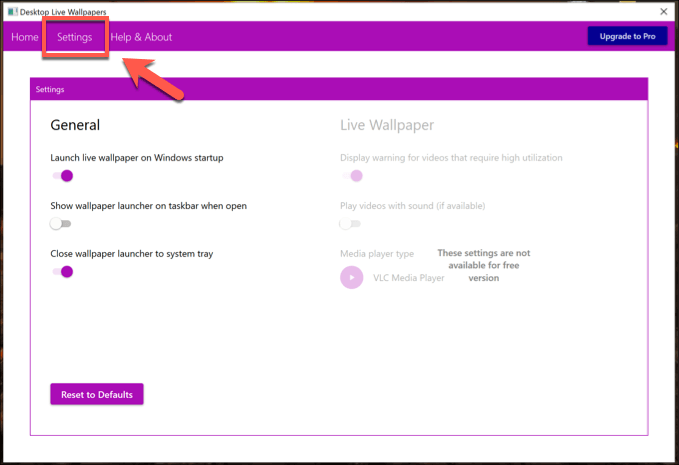
- To change your playback settings, click the **Settings** tab. From here, you can change the boot-up launch options, preferred background video player, and other playback options (including the ability to disable sound).
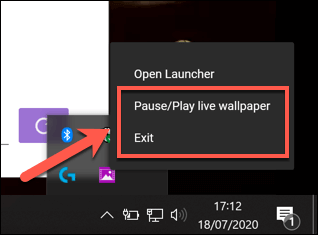
- To stop video playback at any time, you’ll need to right-click the system tray icon and click the **Pause/Play live wallpaper **option. Alternatively, you can click **Exit** to close Desktop Live Wallpapers and terminate the video playback, returning your wallpaper to normal.
**Alternatives To Video Backgrounds In Windows 10**
You have alternatives if you don’t want to use a video as your wallpaper on Windows. You can use high-resolution 4K wallpapers instead, giving you a bright and colorful desktop without worrying about battery life (for laptops) or resource usage from continuous video playback. Be sure to check out our guide to changing your desktop background in Windows to learn how.