When someone asks you to share your PC’s Wi-Fi connection, what do you do? You can hand them the Wi-Fi password so they connect their device directly to the network. Or, you could share your PC’s internet using the Windows “Mobile hotspot” feature that converts your computer into a makeshift router.
If you don’t remember the network’s security key, we’ll show you how to find saved Wi-Fi passwords in Windows. This tutorial also covers steps to set up and use mobile hotspot to share your computer’s internet.
View Wi-Fi Password via Control Panel
The Windows Control Panel offers an easy and non-technical approach to checking the security details of your network connections. You can open the Control Panel settings app through Windows Search or Windows Settings. We’ll show you how to do both.
Method 1: Open Control Panel Settings through Windows Search
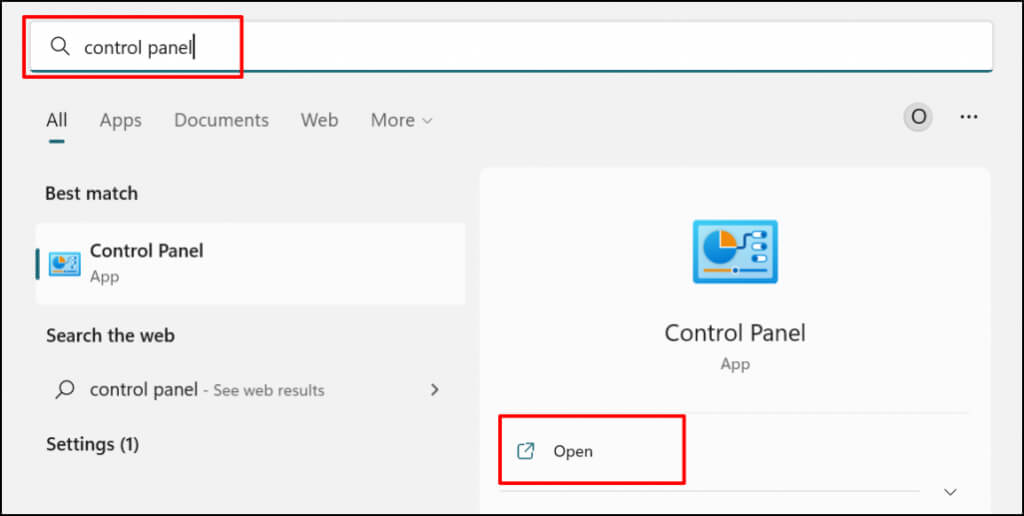
- Type control panel in the Windows Search bar and select Open below the Control Panel app.
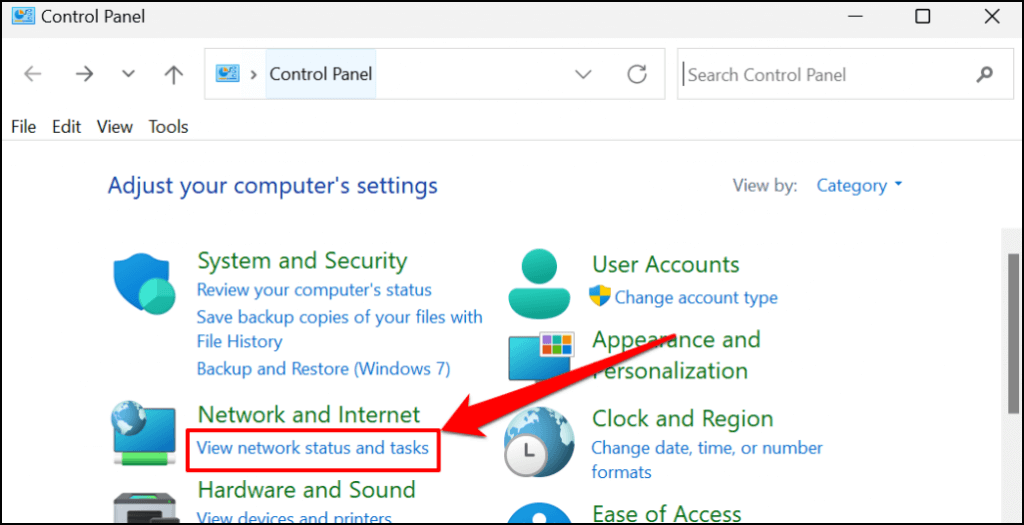
- Select **View network status and tasks** in the “Network and Internet” category. That’ll open the “Network and Sharing Center” window.
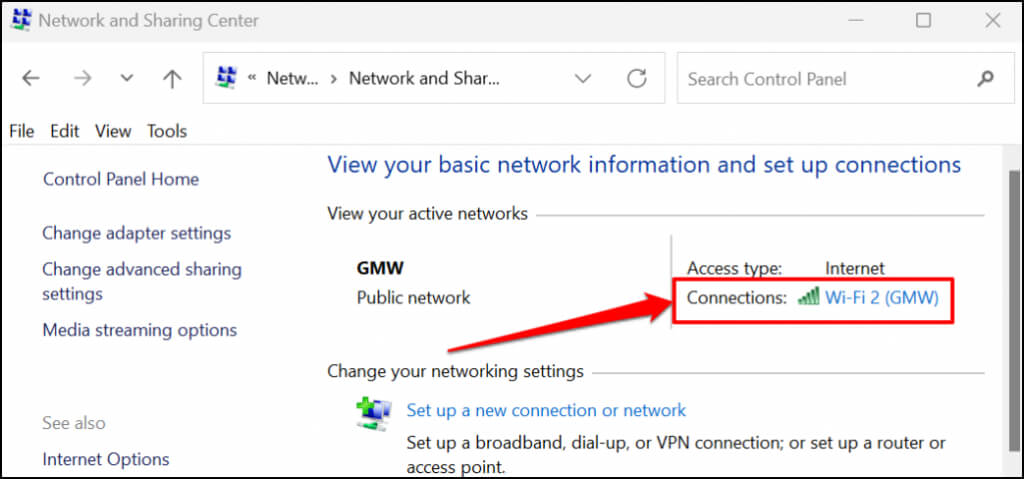
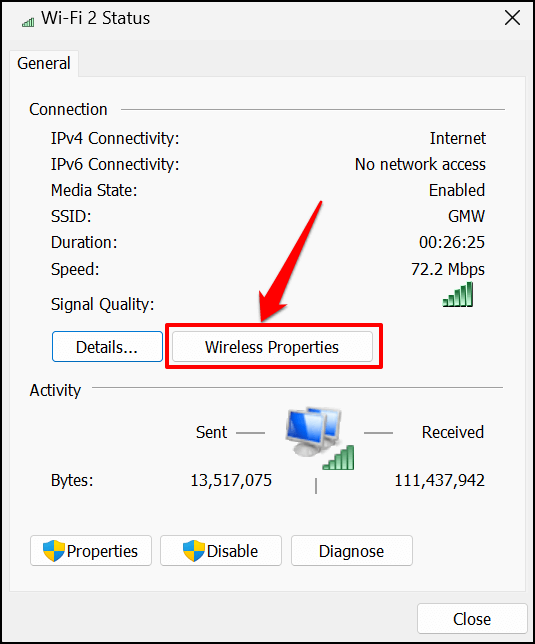
- Select your active Wi-Fi network in the “Connections” row.
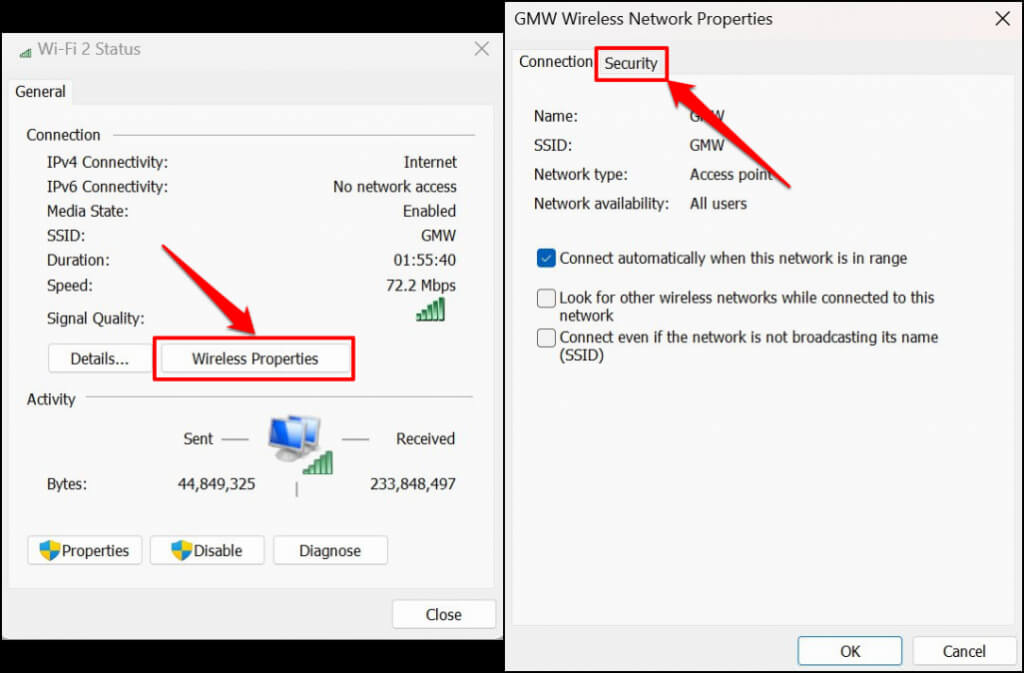
- Select the **Wireless Properties** button.
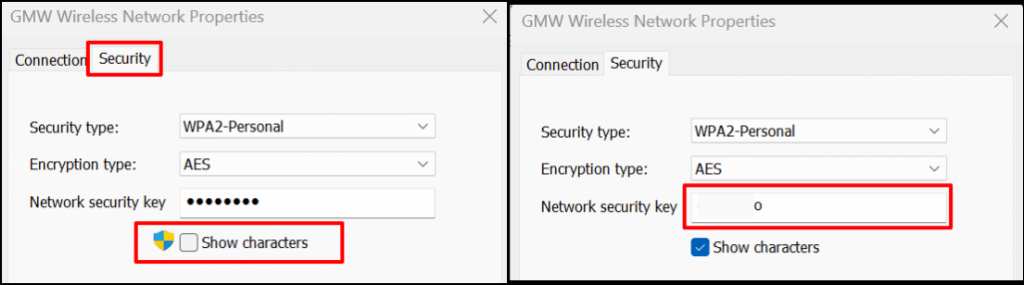
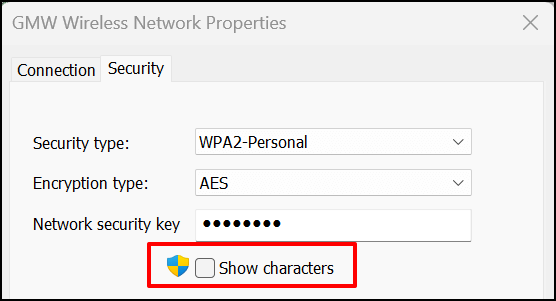
- Head to the “Security” tab on the Wi-Fi status page and select the **Show characters** checkbox. You should see the Wi-Fi network’s password in the “Network security key” box.
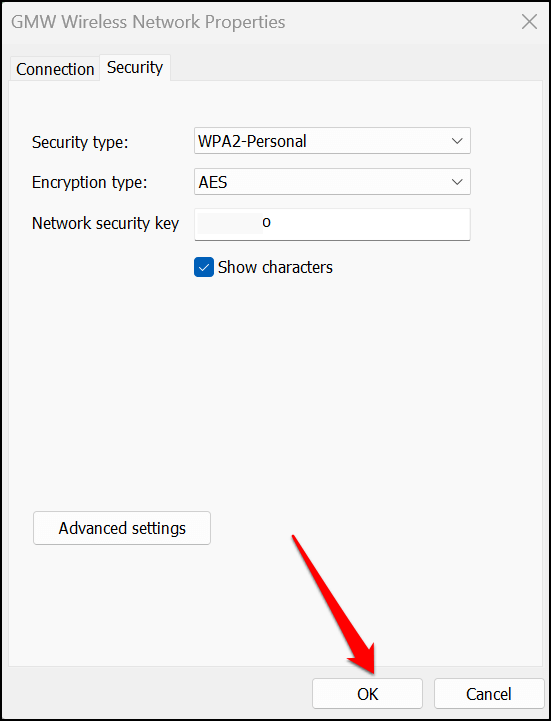
- You can copy the network’s security key to your PC’s clipboard. Select **OK** to close the Wireless Network Properties dialog box.
Method: From the Windows Settings Menu
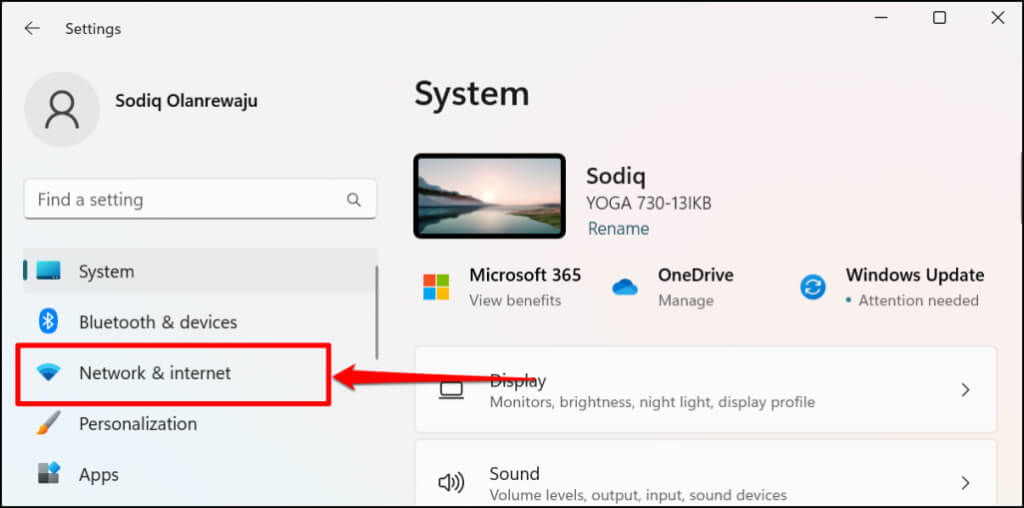
- Open Settings (press **Windows key** + **I**) and select **Network & internet** on the sidebar.
A quicker alternative is to right-click the Start menu or press Windows key + X and select Network Connections.
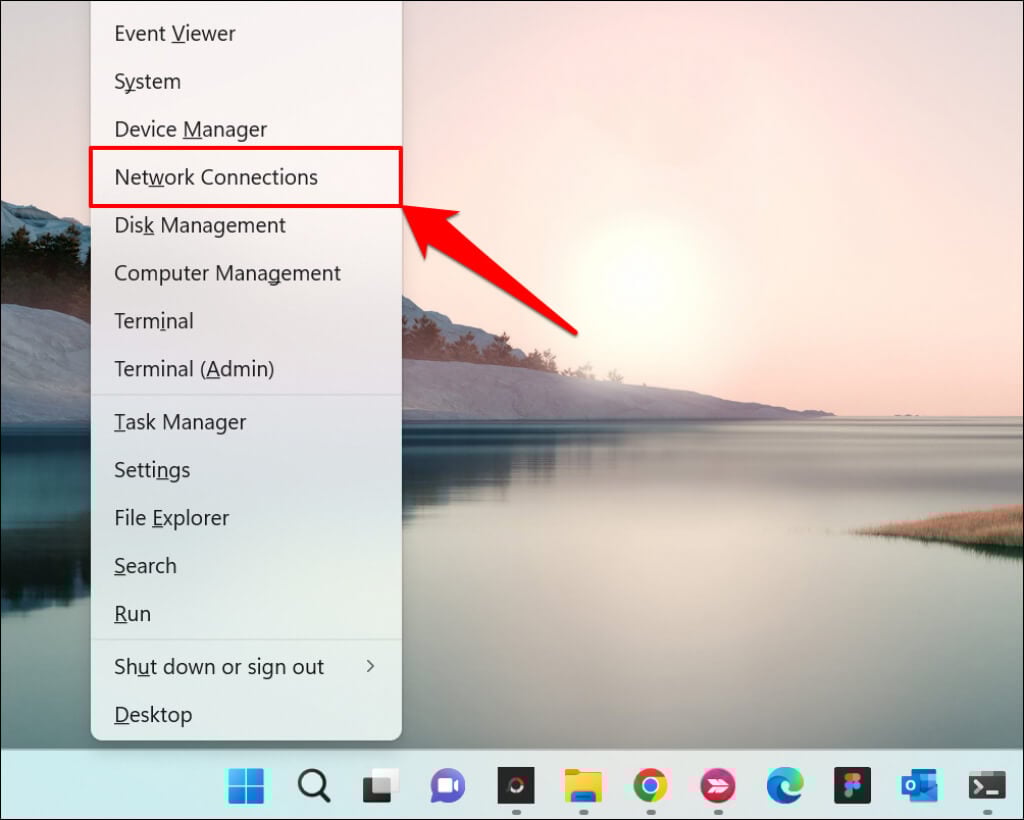
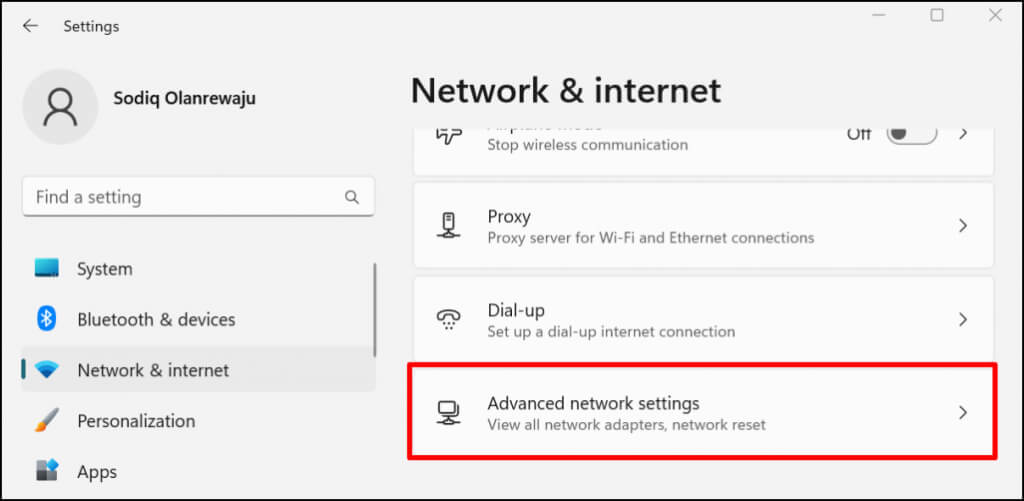
- Select **Advanced network settings** at the bottom of your Network & internet settings menu.
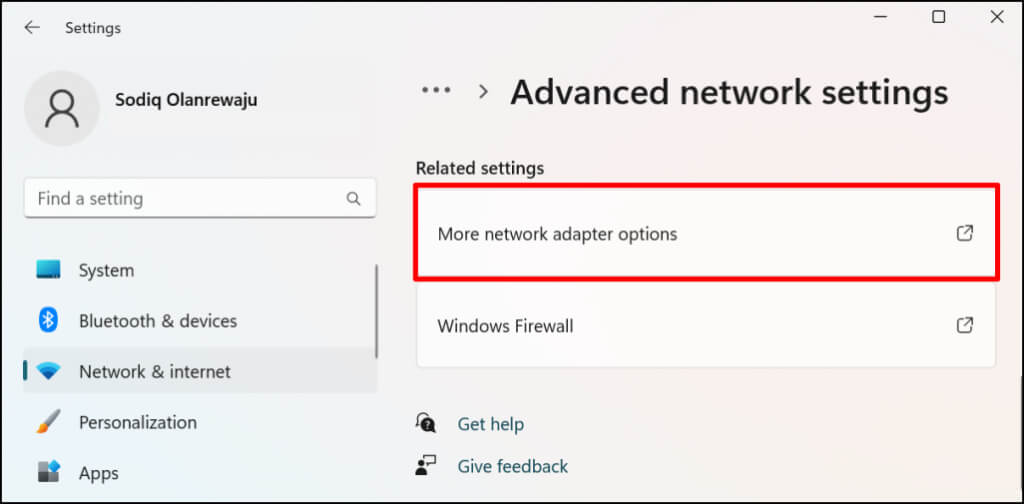
- Scroll to the Related settings section and select **More network adapter options**.
- Right-click the Wi-Fi adapter of the active connection and select **Status**.
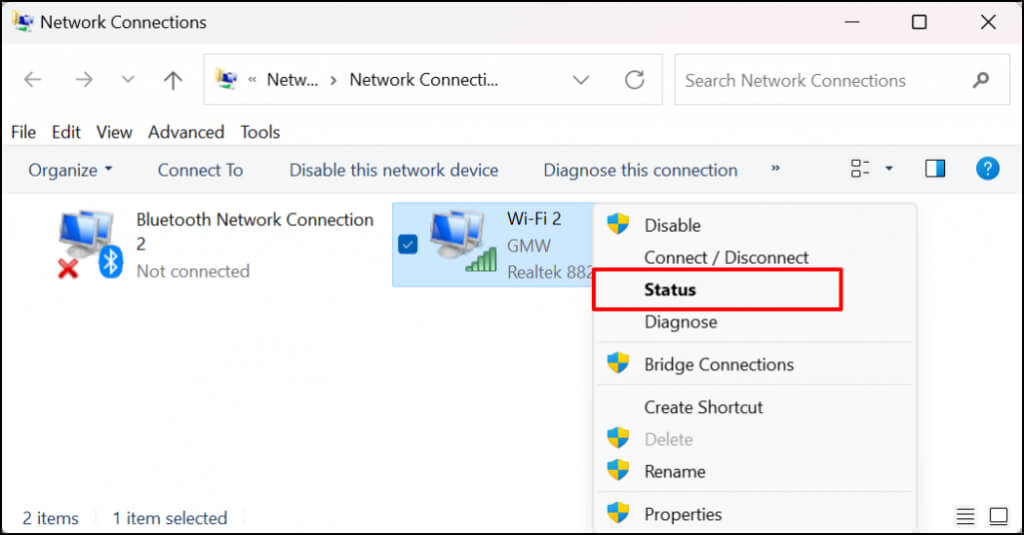
- Select **Wireless Properties** and head to the **Security** tab on the next page.
- Check the **Show characters** box to see the network’s password.
See Wi-Fi Password in Windows Powershell
You can view Wi-Fi passwords in Windows 10 and 11 by running specific Powershell commands.
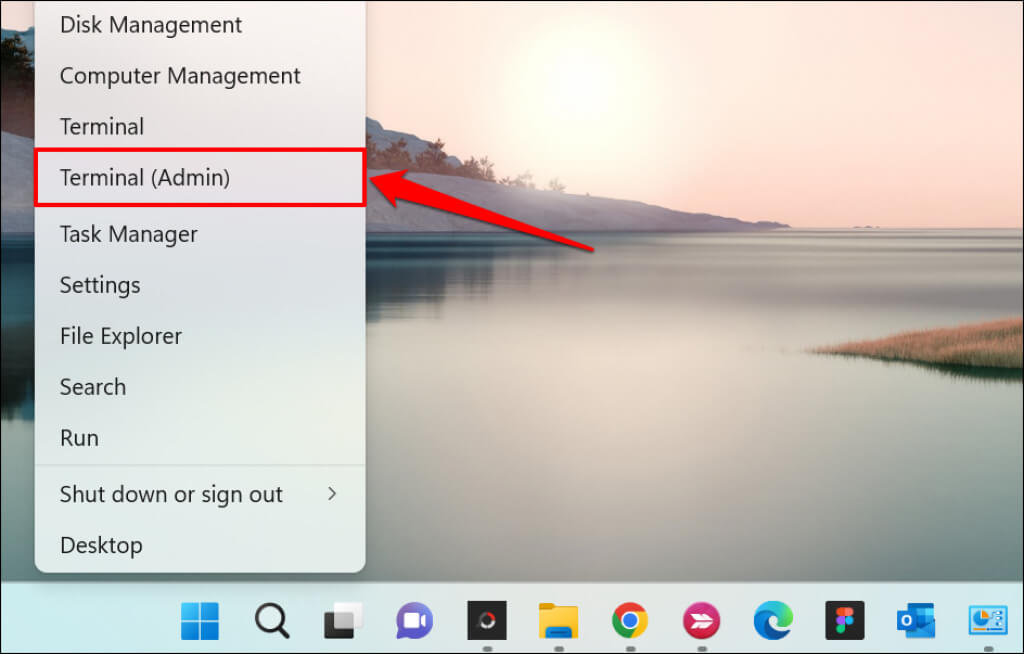
- Press Windows key + X and select Terminal (Admin) on the Quick Access menu. That’ll launch a Powershell tab in the Windows Terminal.
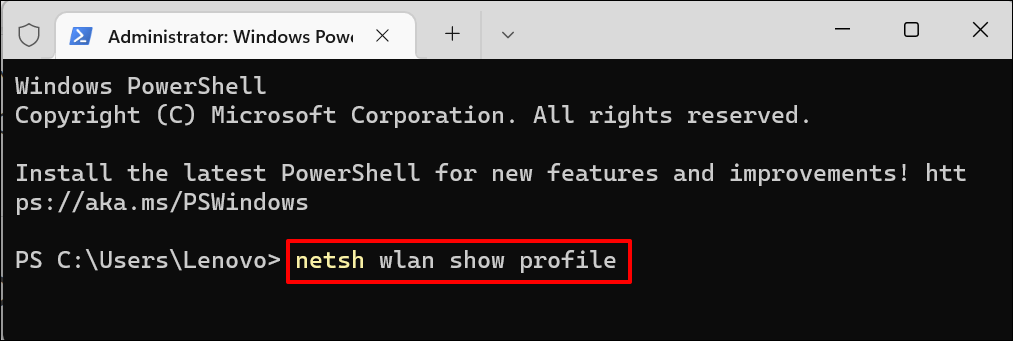
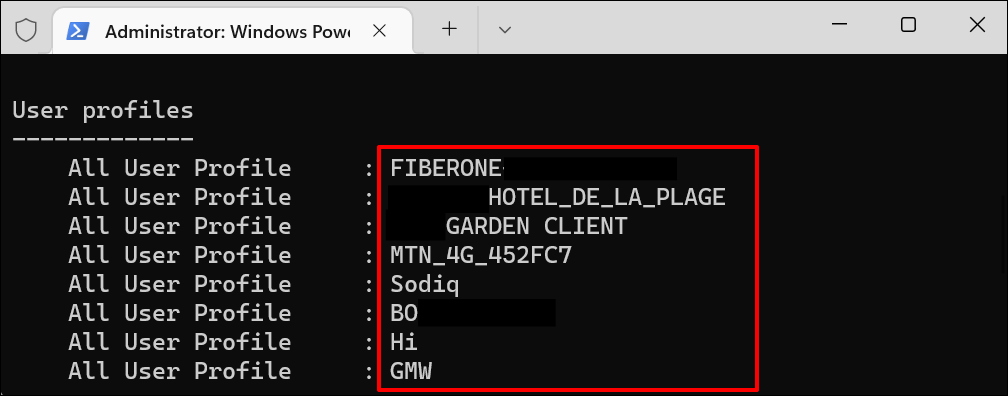
- Type or paste **netsh wlan show profile** in the terminal and press **Enter**.
- Take note of the network’s name or SSID (Service Set Identifier) on the “User profiles’ list.
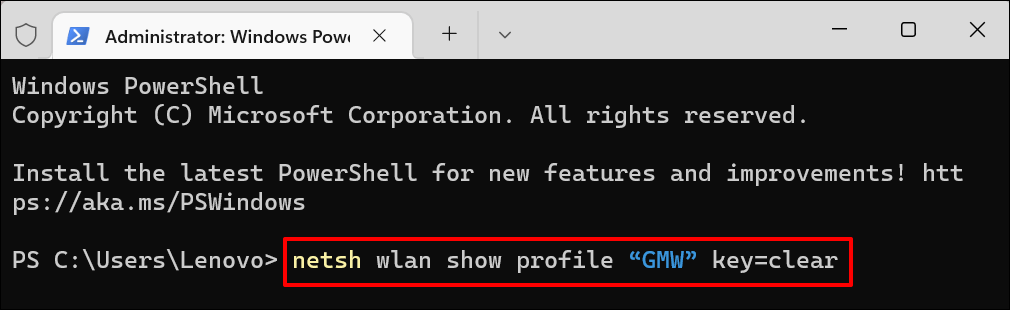
- Next, paste **netsh wlan show profile “Wi-Fi name” key=clear** in the Powershell terminal. Replace **Wi-Fi name** with the network’s name/SSID and press **Enter** to run the command.
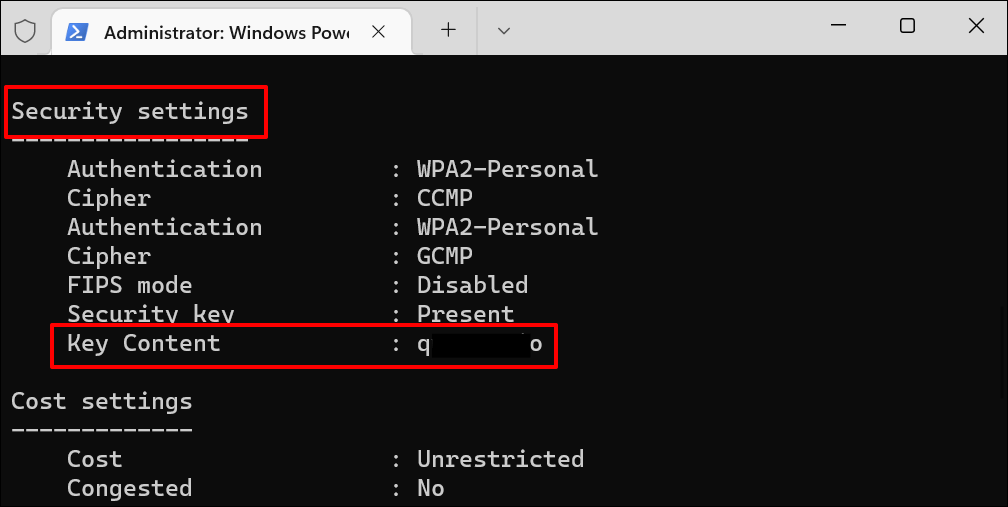
- You’ll see a bunch of information about your connection. Scroll to the “Security settings” section and check the **Key Content** row for your Wi-Fi network’s password.
View Wi-Fi Password in Command Prompt
Run the commands below to view Wi-Fi network passwords in Windows 11 using Command Prompt.
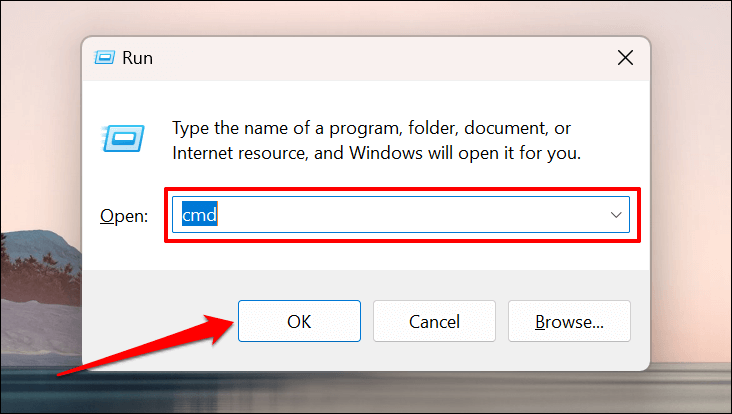
- Press the Windows key + R, type cmd in the Run box, and press Enter or select OK.
- Type or paste **netsh wlan show profiles** in the console and press **Enter** to run the command.
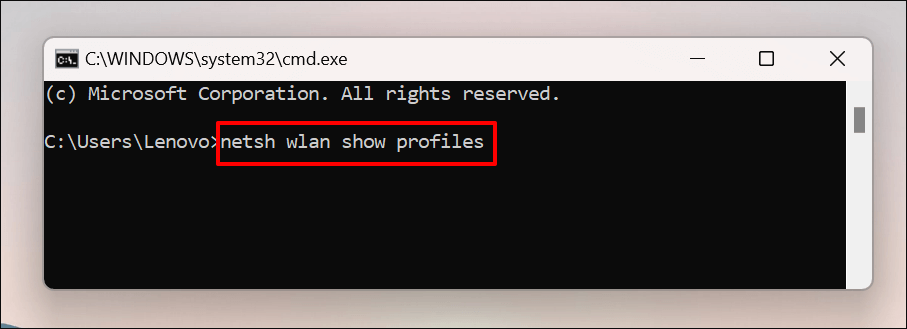
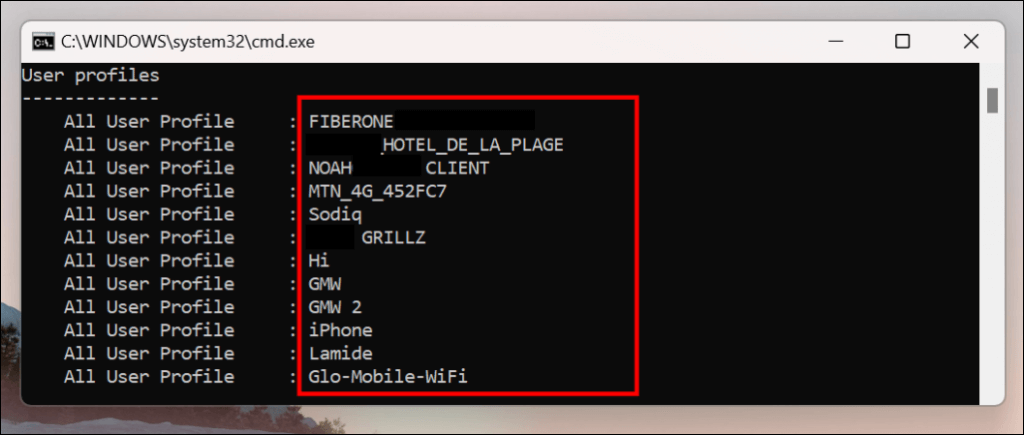
Command Prompt will display all saved Wi-Fi networks on your computer. Go through the profiles and note the WI-Fi network whose password you want to check.
- Type or paste **netsh wlan show profile name=profilename key=clear** in the console. Replace **profilename** with the name of the Wi-Fi network.
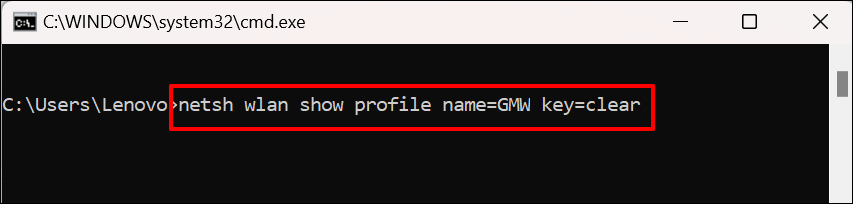
If the network’s profile name is “ABC Wi-Fi,” the command should look like this: netsh wlan show profile name=ABC Wi-Fi key=clear. Network names are case-sensitive, so ensure you enter the profile name as it appears in step #2.
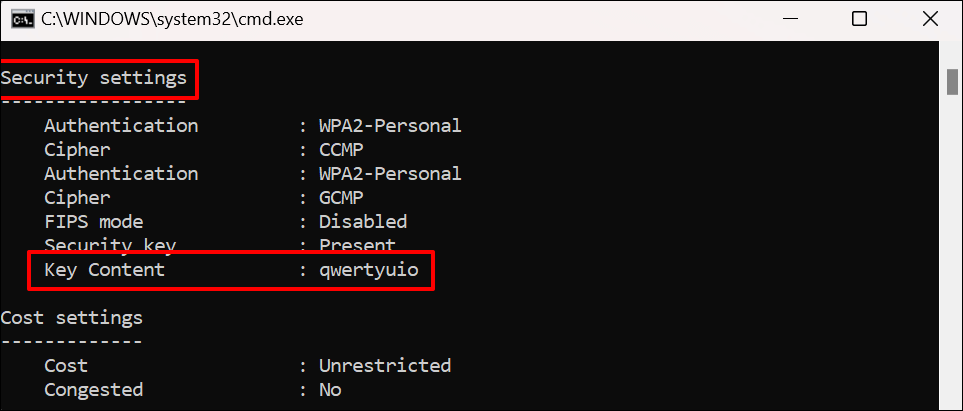
- Scroll to the ”Security settings” section and check the Key Content row for the network’s password.
Use Third-Party Software
Viewing Wi-Fi passwords via Control Panel, Command Prompt, or WIndows Terminal can be stressful. They involve a lot of steps and commands that you most likely will forget.
WirelessKeyView is a popular app that provides a one-click solution for checking Wi-Fi network passwords in Windows. The app is free, easy to use, safe, and void of complex steps or commands.
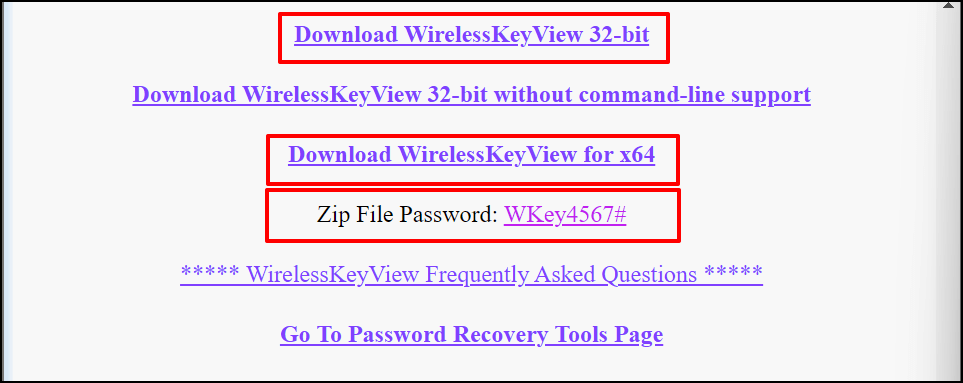
Visit the developer’s website and download either the 32-bit or 64-bit version of the software. Don’t know which version to download? Refer to this tutorial on checking whether you have a 32-bit or 64-bit Windows PC. Take note of the “Zip File Password” on the download page. You’ll need the password to unlock/unzip the installation file on your computer.
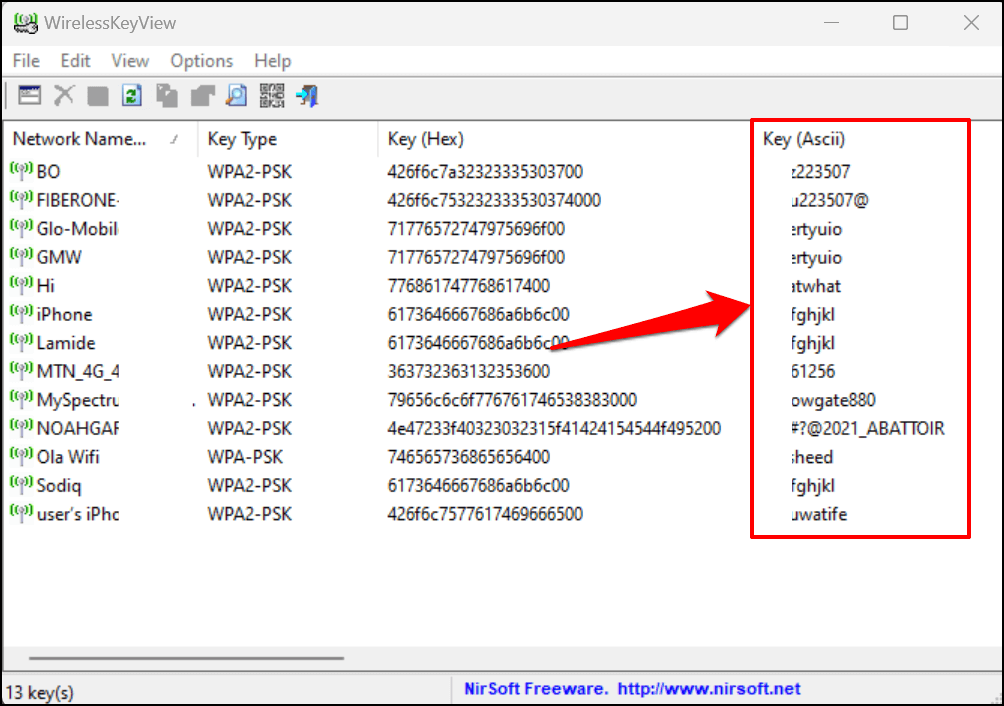
Install the WirelessKeyView software and launch the app. You’ll find information about all previously-used Wi-Fi networks on the app’s dashboard. Network passwords are in the Key (Ascii) row.
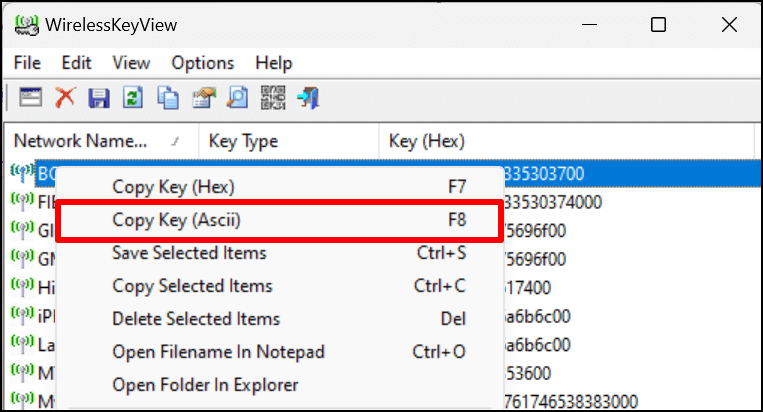
Select a network and press F8 to copy its password quickly. Alternatively, right-click the network and select Copy Key (Ascii).
Share Wi-Fi Connection via Hotspot
Windows 10 and 11 have a “Mobile hotspot” functionality that lets you share your computer’s internet over Wi-Fi or Bluetooth.
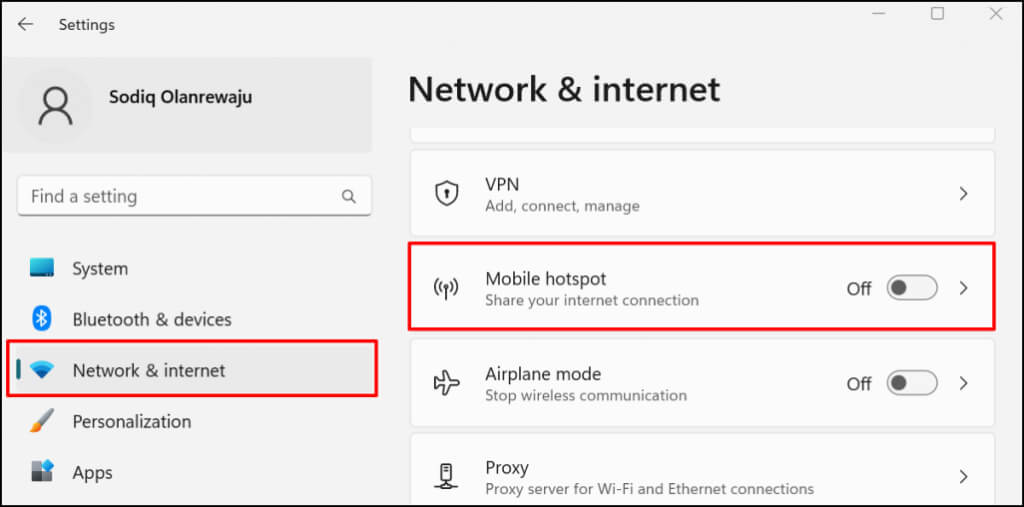
- Go to Settings > Network & internet and select Mobile hotspot.
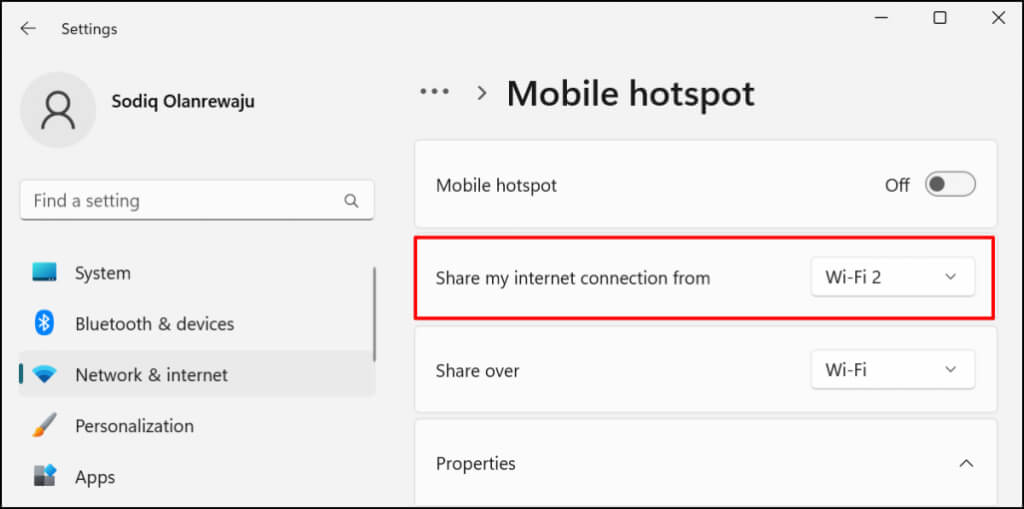
- Expand the **Share my internet connection from the drop-down** menu and select the active connection source—Ethernet or Wi-Fi.
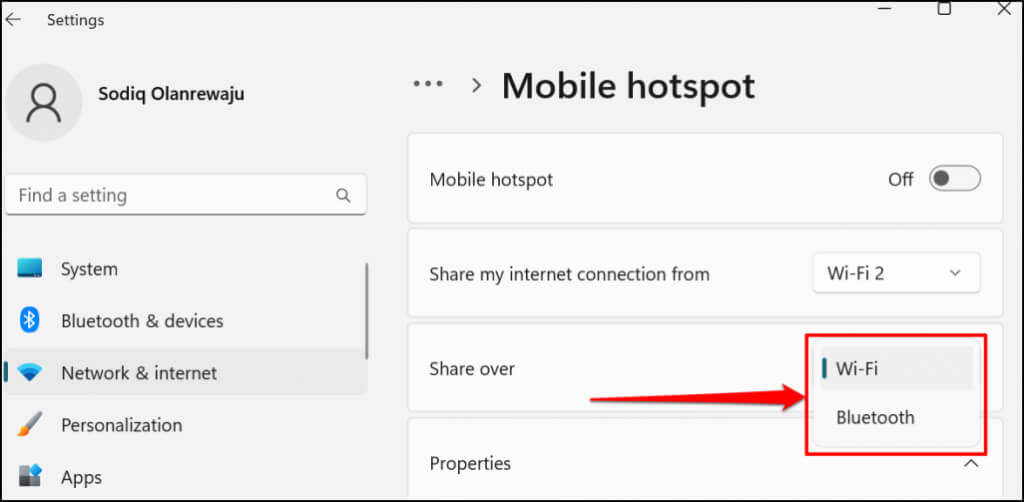
- Next, select how you want to share your connection—via Wi-Fi or Bluetooth.
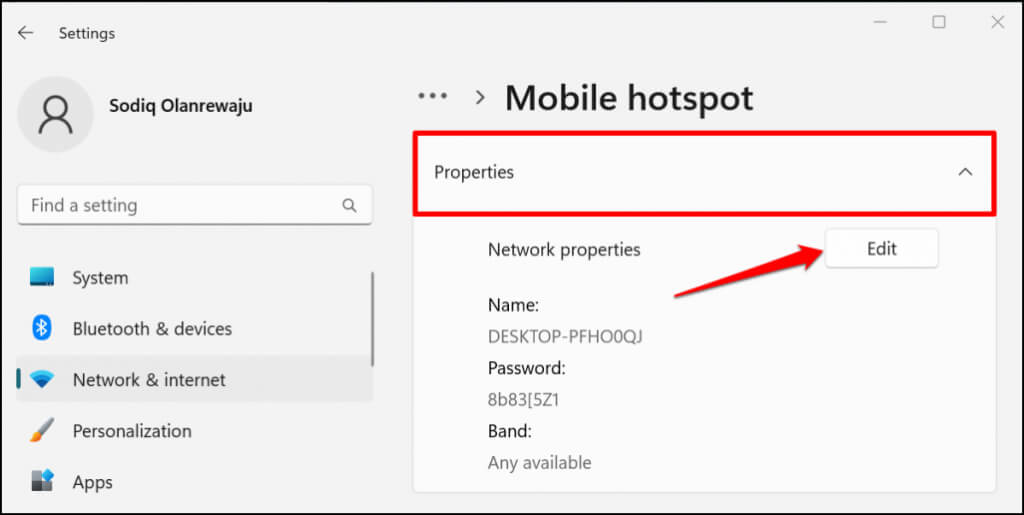
- If you choose to share your connection over Wi-Fi, expand the **Properties** section to check the mobile hotspot credentials. Select **Edit** to change the hotspot name and password.
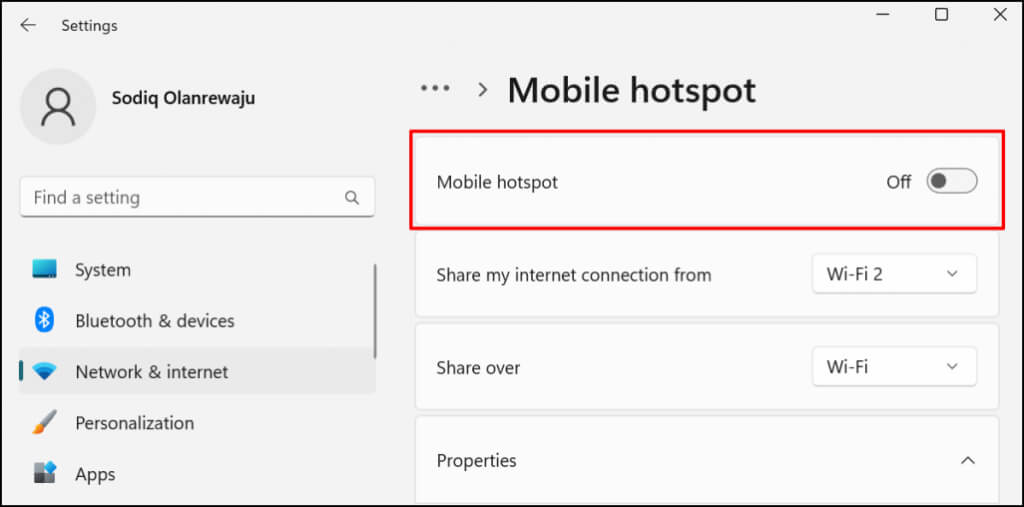
- Go to the top of the page and toggle on **Mobile hotspot** to share your PC’s connection with nearby devices.
Add Mobile hotspot to the Windows Action Center to share your internet without going through the Settings app.
Press Windows key + A to open the Windows 11 Action Center and select the pen icon in the bottom-right corner. Select Add, choose Mobile hotspot, and select Done.
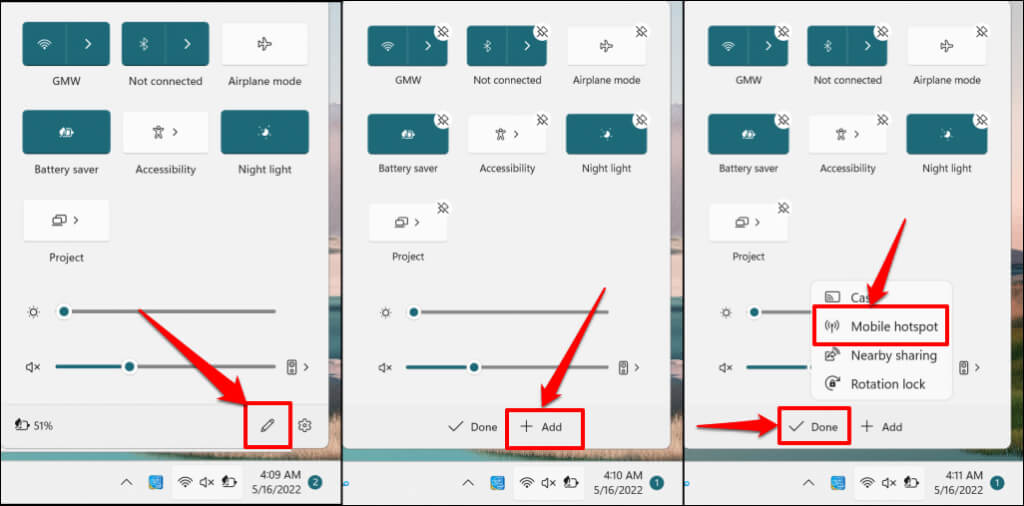
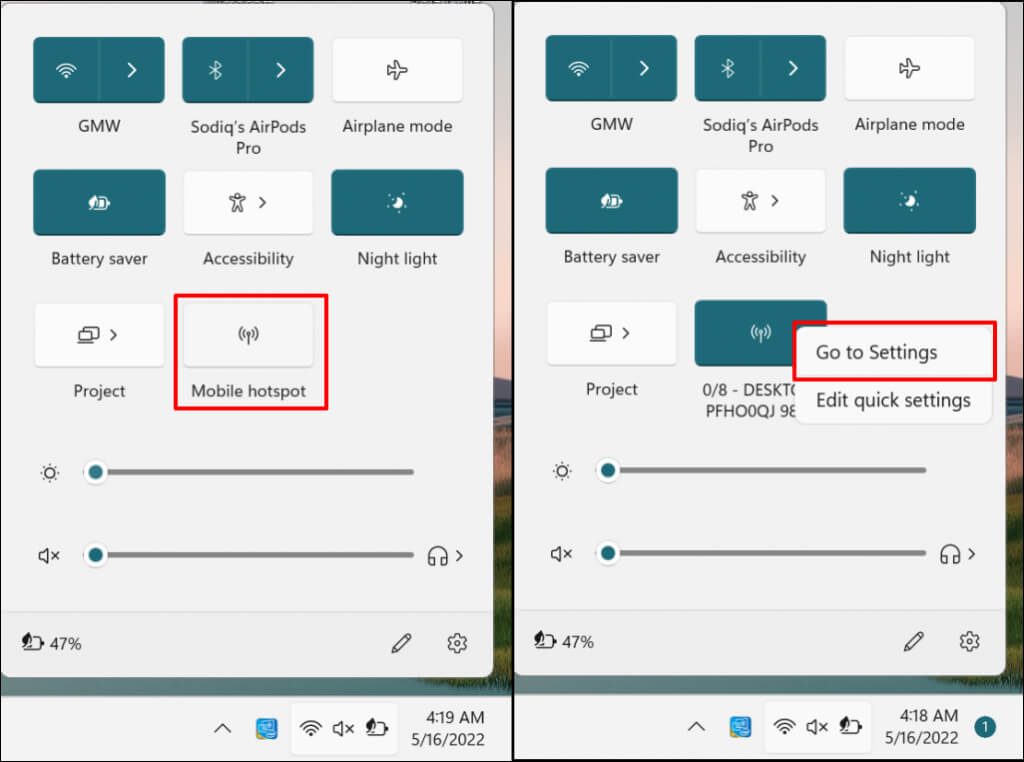
You should now be able to enable and disable mobile hotspot from the Action Center. To open the Mobile hotspot settings, right-click on Mobile hotspot and select Go to Settings.
Retrieve Wi-Fi Passwords and Share Your Internet
Some private network administrators frown against unauthorized Wi-Fi usage or password distribution. Before sharing a wireless network’s password, ensure you have permission to do so. If you’re having issues using mobile hotspot, disable VPN and firewall connections on your PC, and try again. Restart your computer if the problem persists. Likewise, ensure your device’s operating system is up-to-date.