Generally, when scanning multiple pages, the scanning device creates a new file for each scan. This works if the scanned pages don’t need to be combined. However, when scanning a multi-page document, sometimes it may be useful to make one PDF file containing all your scanned pages.
You can scan multiple pages into one PDF file in nearly all the popular platforms, namely Windows, macOS, Android, and iOS.
Scan Multiple Pages Into One PDF on Windows Using NAPS2
Windows PCs come preloaded with a utility called Windows Fax and Scan to help users scan documents. This utility, however, can’t make a single PDF from multiple scans.
This is where the batch scan mode of a free and open-source app like NAPS2 can scan multiple pages and save them in one PDF file.
If you’ve already installed the drivers for your scanner, here’s how you use this app to scan your multiple pages into one PDF:
- * Connect the scanner to the Windows PC using a cable.
- Download, install, and launch the NAPS2 app on the PC.
- On the main app screen, select Profiles. Add a profile for the scanner to the app.
- Select New on the following screen to add a new profile.
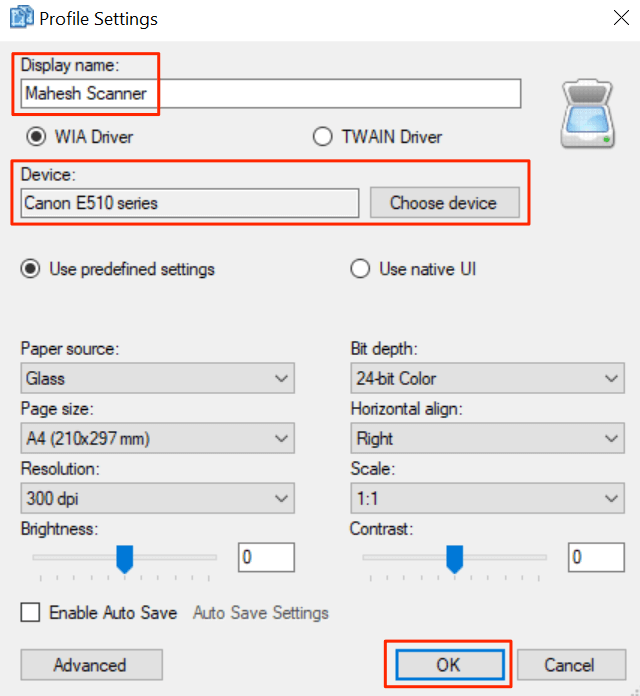
- Enter a name for the profile at the top; this could be any name of your choice.
- Then, select Choose device, select your scanner from the list, and select OK.
- Configure various options on the screen, and then select OK at the bottom.
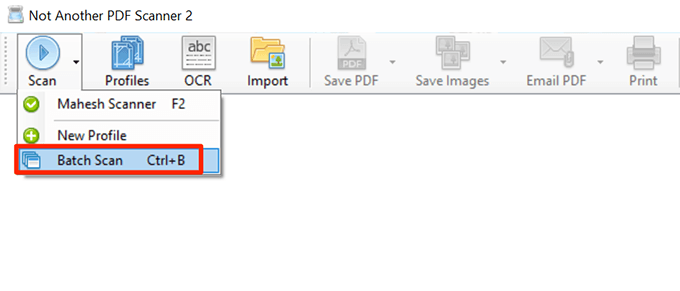
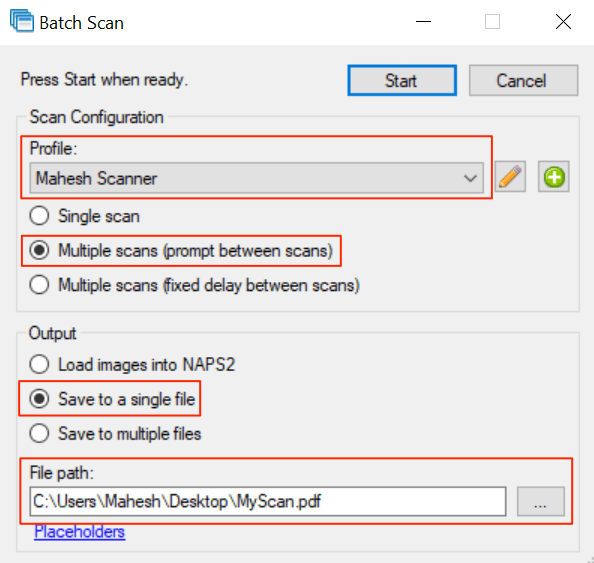
- Select **Done** to close the Profiles window. * Put the first page into the scanner. * Come back to **NAPS2**, select the small arrow next to **Scan**, and select **Batch Scan**. Alternatively, press the **Ctrl + B** keyboard shortcut.
- In the window, select the newly created profile from the **Profile** dropdown menu. * Choose **Multiple scans (prompt between scans)**. * In the **Output** section, select **Save to a single file**. * Then, select the three dots in the **File path** field to choose a folder to save the PDF file in. * Lastly, select **Start** at the top to start scanning the page.
- When the first page is scanned, a prompt on your screen will appear. Put the next page into the scanner and select **Scan** in this prompt.
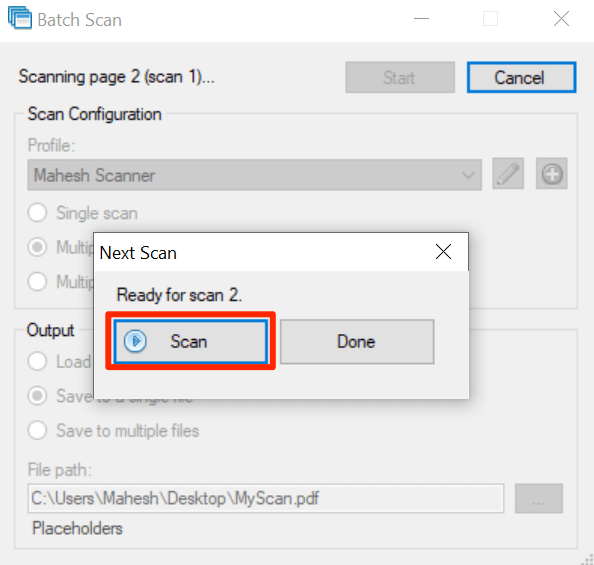
- After scanning all the pages, select **Done** in the prompt.
A single PDF containing all the scans should be available in the specified directory.
Scan Multiple Pages Into One PDF on macOS Using Preview
On macOS, the built-in Preview app can be used to make one PDF out of multiple scans.
Steps to use Preview to scan multiple pages into a single PDF:
- Make sure the scanner is connected to the Mac with a cable.
- Select the Launchpad in the Dock on your Mac, search for Preview, and open the app.
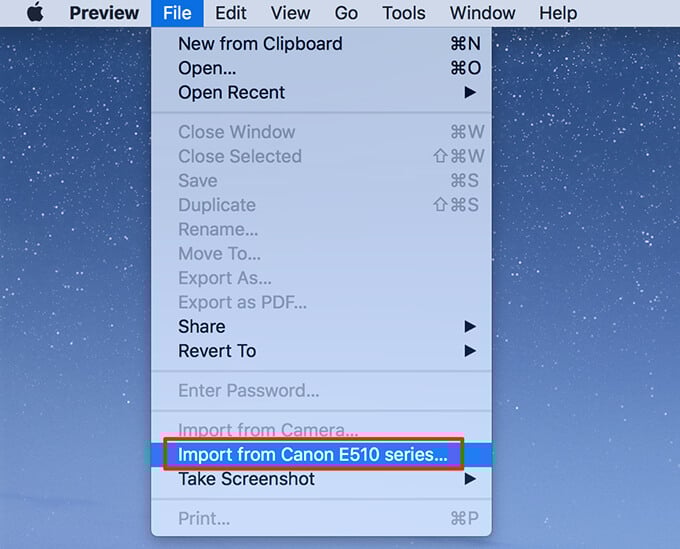
- When Preview opens, select the File menu and select Import from.
- If you don’t see any options on your screen, select **Show Details** at the bottom. * Select **PDF** from the **Format** dropdown on the right. * Check the **Combine into single document** option. * Adjust other options as needed. * Select the scan preview on the left and press **Command + A** on your keyboard. This selects your entire scan. * Select **Scan** at the bottom.
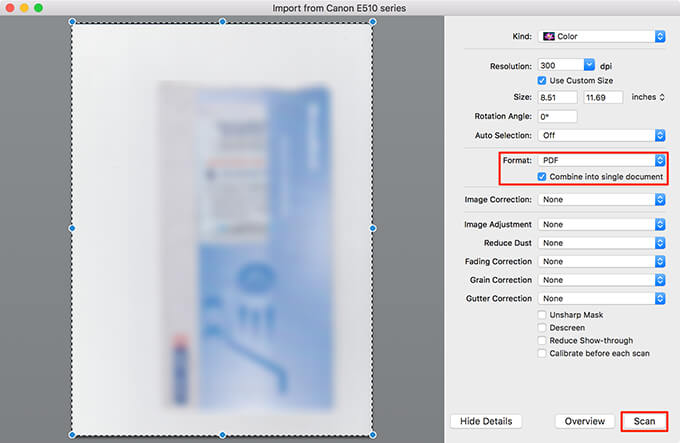
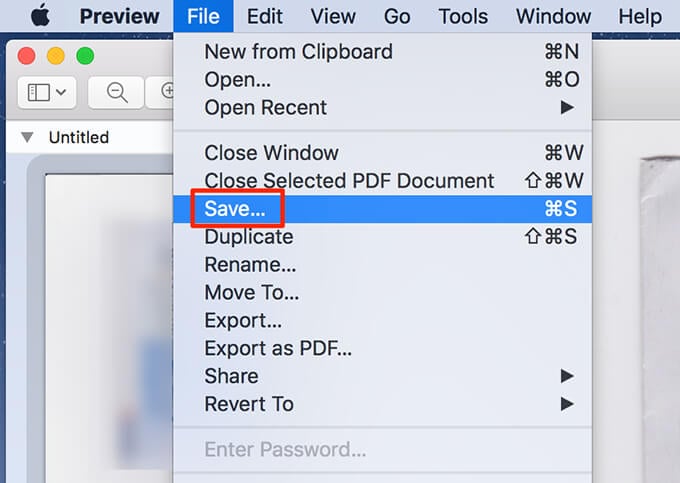
- Put the next page into the scanner, and select **Scan** in Preview. * Select the Preview window in the background to view the PDF file. * Select the **File** menu and select **Save** to save the file.
In addition to Preview, you can use Image Capture to scan multiple pages into one PDF file on macOS.
Scan Multiple Pages Into One PDF File on Android Using Google Drive
Google Drive is one of severalapps that can be used to combine multiple page scans into a single PDF file.
Here’s how you do that:
- Install the Google Drive app on your phone.
- Launch the Google Drive app, and tap the **Add (+) **icon at the bottom-right corner.
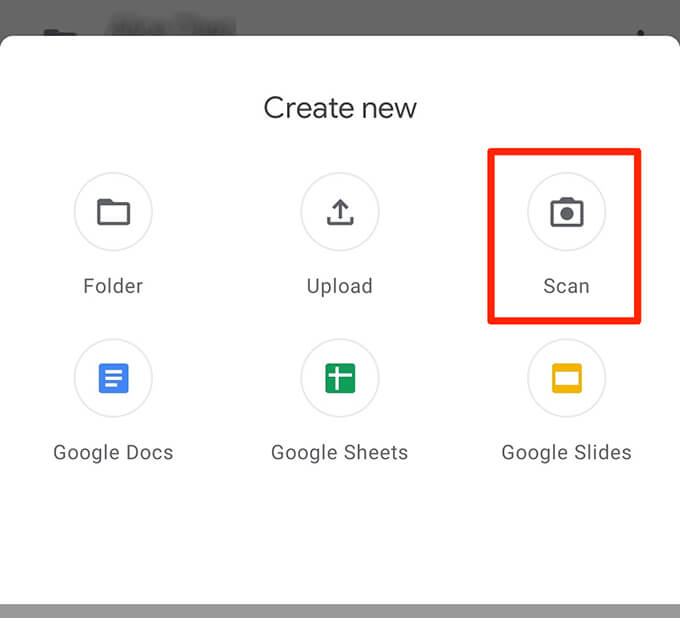
- Select Scan to open the scan function.
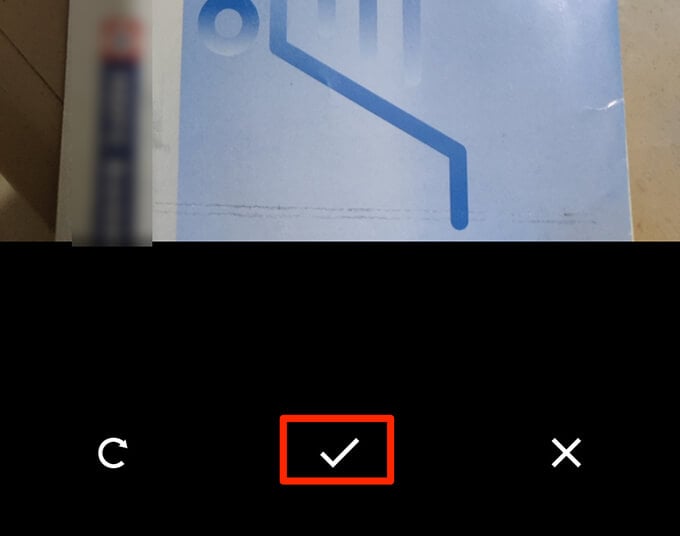
- To begin scanning, point the phone’s camera towards the page to be scanned. Tap the shutter button when the document appears properly in the camera frame * If the result looks good, tap the check icon to save the first scan, else tap **X** to re-start the scan process.
- Preview the first scan. To add a page to this new PDF, tap the **Add (+)** icon at the bottom-left corner.

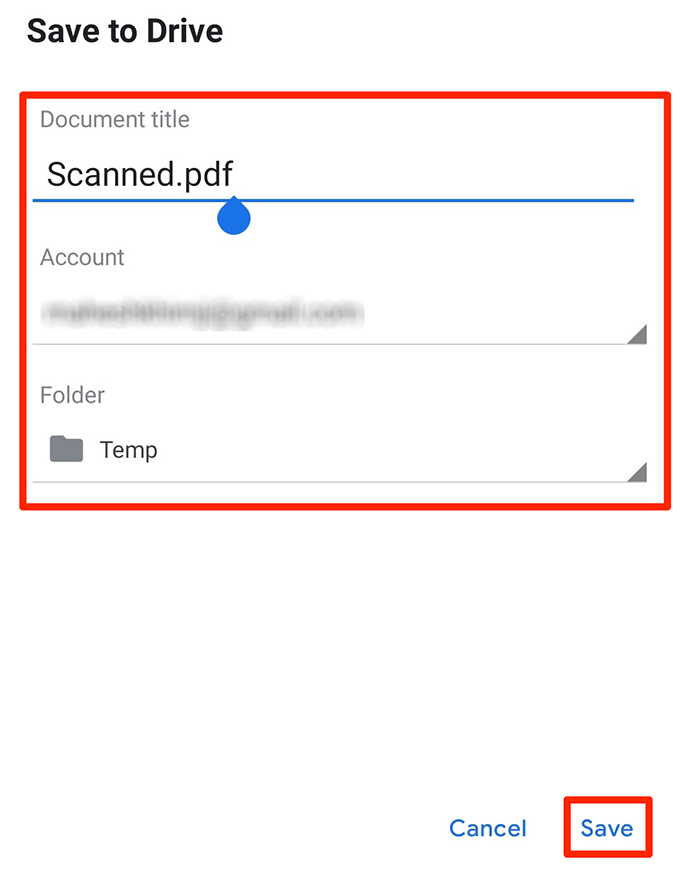
- Repeat this process for all the pages of the document. * Finally, tap **Save** to save the single PDF containing the multiple scans.

- Name the PDF, choose an account, select a folder to save the file in, and tap **Save**.
Scan Multiple Pages Into One PDF File on iOS Using Apple’s Notes
When using an iPhone or iPad, use the Apple’s Notes app to scan multiple pages into one PDF file.
To use this feature, make sure the iPhone or iPad runs iOS 11 or later. Check the current iOS version by going to Settings >** General > About** on the device. You’ll see theiOS version next to Software Version.
Upon confirming that the device runs the supported iOS version, follow these steps to scan multiple pages into one PDF file:
- Open the Notes app on the device.
- Tap the icon at the bottom-right to create a new note.
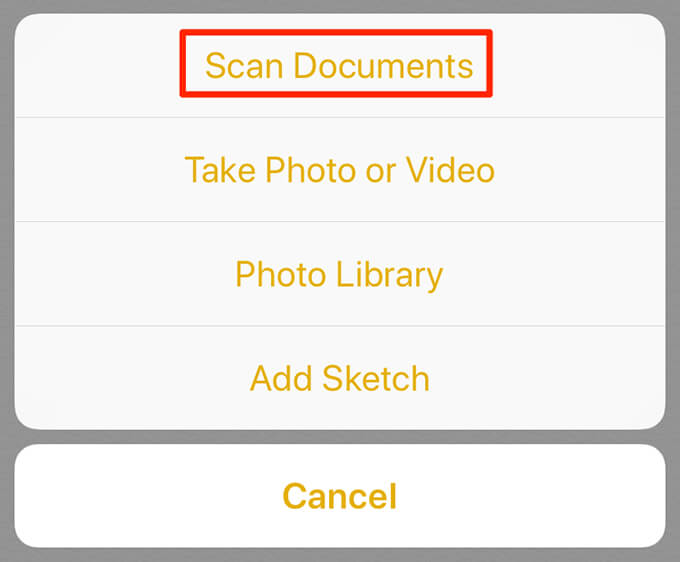
- On the new notes screen, tap the Add (+) sign at the bottom and choose Scan Documents.
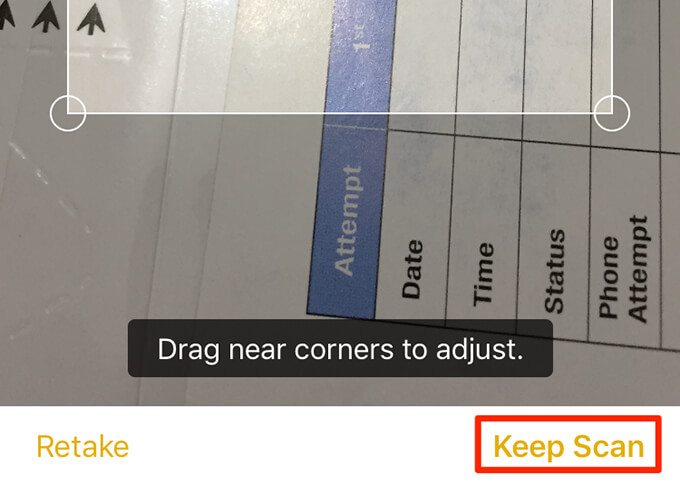
- Point the camera towards the document, and press the shutter button to take a photo of the document. * Adjust the scanned photo using the handlers on the screen. Tap **Keep Scan** at the bottom if the scan looks good. Otherwise, tap **Retake** to take a new photo of the page.
- Repeat steps for all the pages. * When all the pages are scanned, tap **Save** at the bottom-right corner.

- Tap the newly scanned document in Notes.
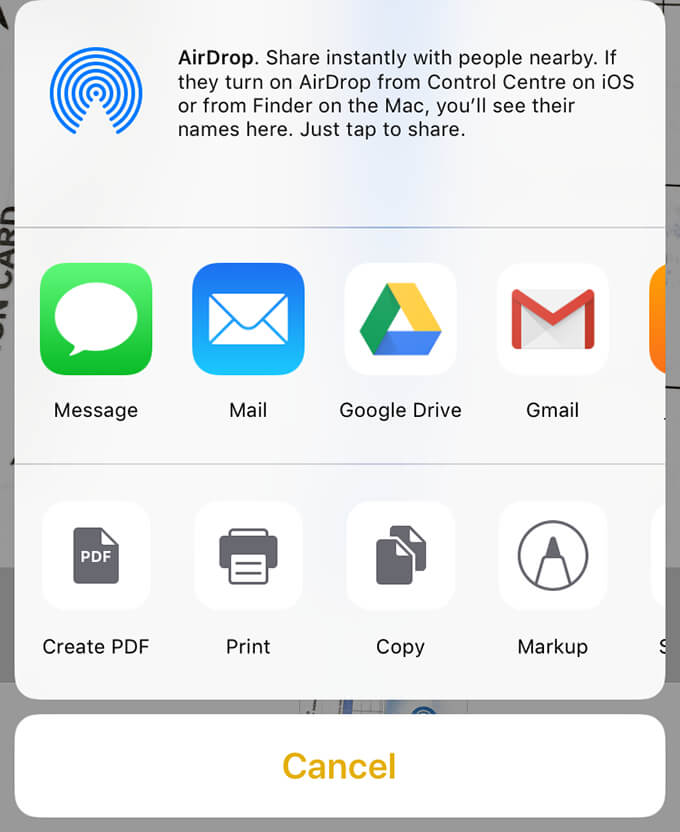
- Tap the share icon at the top-right to share the multiple scanned pages as a single PDF file.
Bonus Tip: Use Your Scanner’s Default App to Make PDF Files
Nearly all scanner manufacturers have apps to help scan documents. Enable this option in these apps to combine multiple scans into one PDF file.
Brands like HP, Epson, and Canon have instructions on their sites on how to make one PDF from multiple scanned pages. Hopefully, one of the methods above will allow you to create your PDF quickly. If you have any questions, feel free to leave a comment.