The number of times I’ve closed my browser or shut off my computer, forgetting that I have dozens of open tabs borders on embarrassing. Sometimes it took hours of research to find all the tabs again.
Most browsers now sport features that allow you to recover closed tabs quickly. If you weren’t aware of this, read on to see how to recover closed tabs in any web browser.
Vector illustration of simple flat web browser
1. Microsoft Edge
Follow one of these steps to reopen tabs in Microsoft Edge.
One-click Method
- * Right-click the tabs bar at the top of the window.
- Select Reopen Closed Tab.
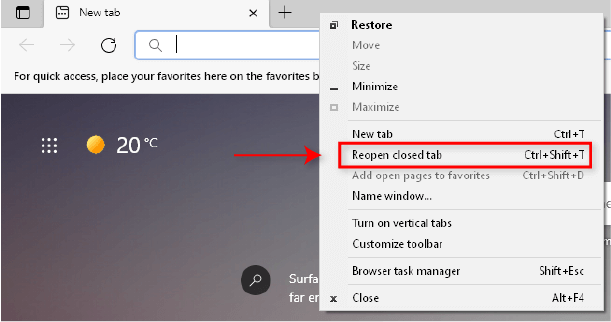
- Continue to select **Reopen Closed Tab** as many times as you need to recover the correct tab.
**Check Your History**
- Launch **Microsoft Edge**. * Click on the **three dots **at the top right of the window.
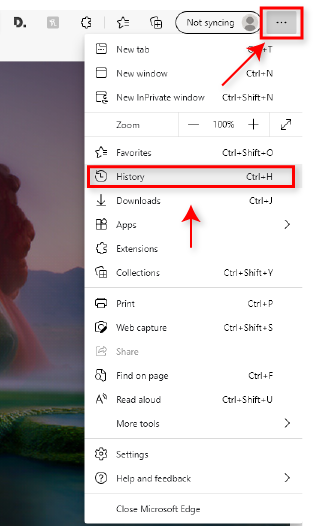
- Select **History** and select **Recently Closed**.
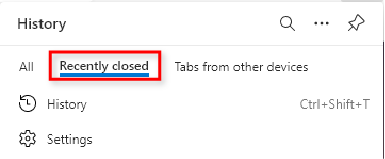
- Choose the desired website.
Note: This works for Microsoft Edge on your Android as well.
Launch Microsoft Edge With Reopened Tabs
If you want to close Edge and reopen it with the previously open tabs, use this setting.
- Launch Microsoft Edge.
- Click on the three dots at the top right of the window.
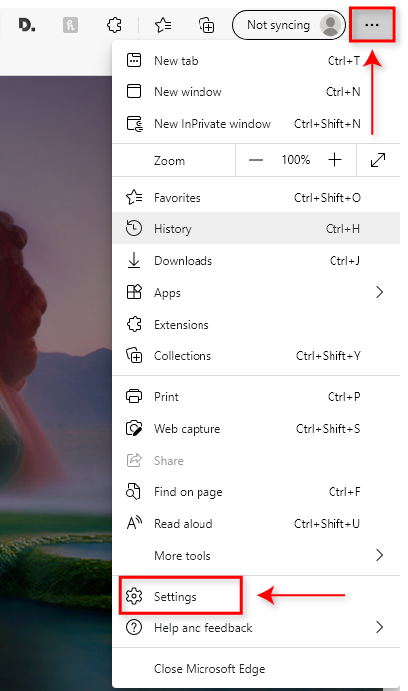
- Select **Settings **then **On startup** from the left-hand menu.
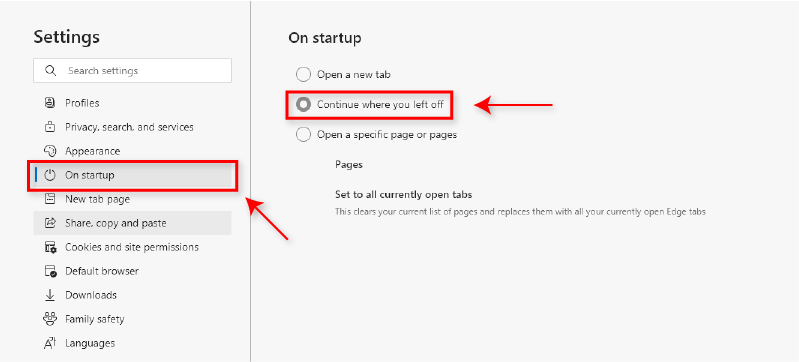
- Select **Continue where you left off**.
When you open Microsoft Edge, it will automatically reload any open tabs when you previously closed the browser.
2. Mozilla Firefox
Recovering closed tabs in Firefox is very similar to Microsoft Edge.
One-click Method
- Right-click the tabs bar at the top of the window.
- Select Reopen Closed Tab.
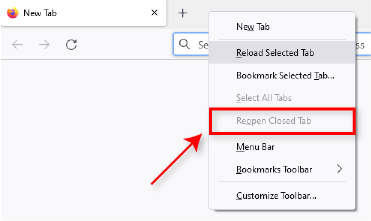
- Continue to select **Reopen Closed Tab** as many times as you need to recover the correct tab.
**Check History**
- Launch **Mozilla Firefox.** * Click on the **menu** button at the top right of the window.
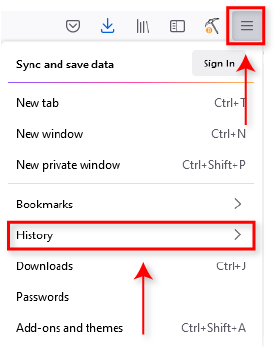
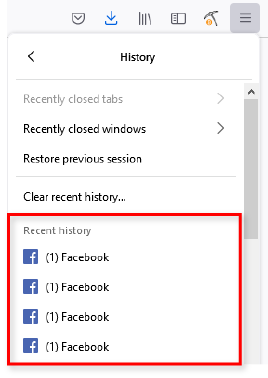
- Select **History** and then **Recently Closed Windows.** * Select the website you want. * Alternatively, select the website from beneath **Recent history**.
**Restore Previous Session**
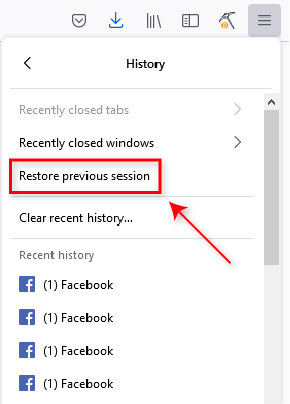
- Launch **Mozilla Firefox.** * Click on the **menu** button at the top right of the window. * Click **History,** then select **Restore Previous Session**.
**Launch Mozilla Firefox with the Previous Session**
- Launch **Mozilla Firefox.** * Click on the **menu** button at the top right of the window and select **Settings**. * Select **General**. * Below **Startup**, click **Restore previous session**.
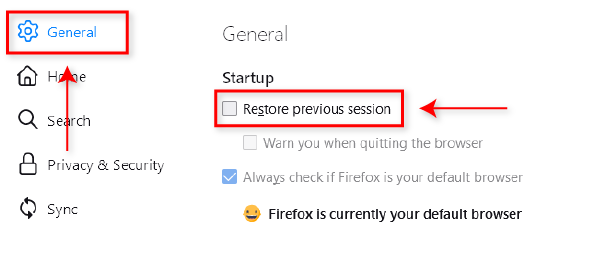
Firefox will now automatically reload any tabs that were open when you closed it previously.
3. Google Chrome
Google Chrome offers four simple ways to reopen closed tabs.
One-click Method
- Right-click the tabs bar at the top of the window.
- Select Reopen closed tab.
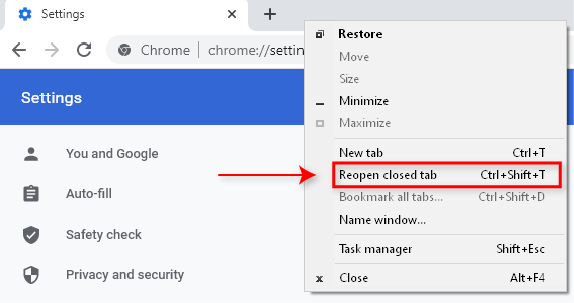
- Continue to select Reopen** closed tab** as many times as you need to recover the correct tab.
**Quick Shortcut**
- With Google Chrome open, simply press **Ctrl + Shift + T** to reopen the previously closed tab.
**Right-click the Taskbar Icon**
- With Chrome open, right-click the **Chrome****icon** in the taskbar. * At the top of the pop-up window, you’ll see **Recently closed**.
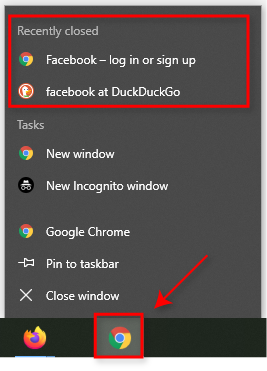
- Select the website you want.
**Check your History**
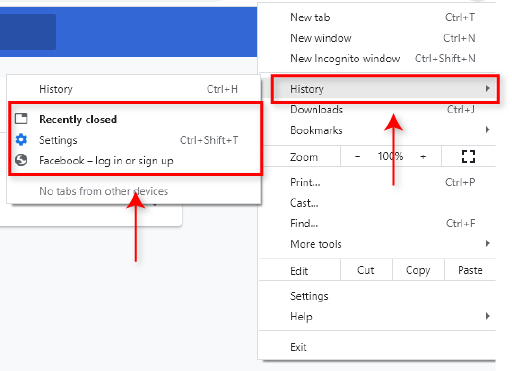
- Select the **three vertical dots** at the top-right of the window. * Select **History**, then select the desired website under **Recently closed**.
4. Safari
Safari is a little different from the other browsers, but it’s just as easy to recover closed tabs.
One-click Method
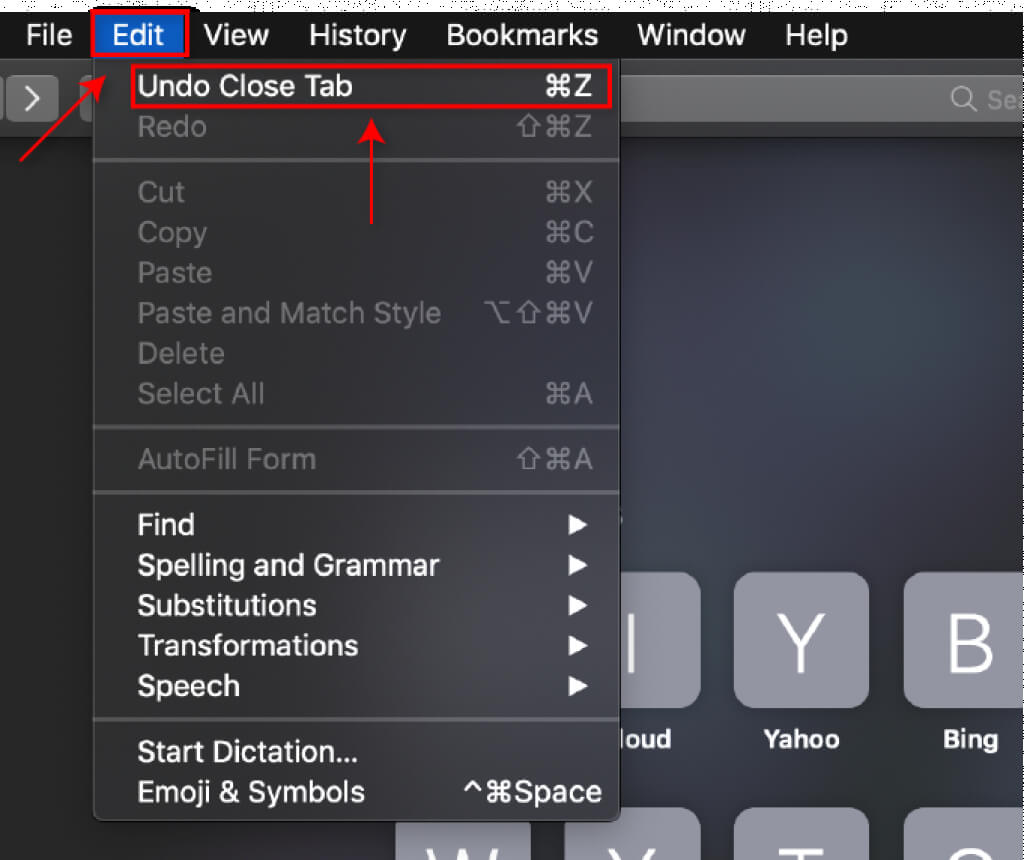
- Select Edit and select **Undo Close Tab. **
**Shortcut Method**
- Use the shortcut **Command + T **to reopen the last closed tab. * Repeatedly press the shortcut until the desired tab reopens.
**New Tab Icon**
- Launch **Safari**. * Press and hold the New** Tab **icon (the **plus** symbol at the top right of the window). * In the dropdown menu, you will see **Recently Closed Tabs**. * Select the desired website.
**Check Your History**
- Launch **Safari**.
- Select the **History** tab, then select **Reopen Last Closed Tab**.
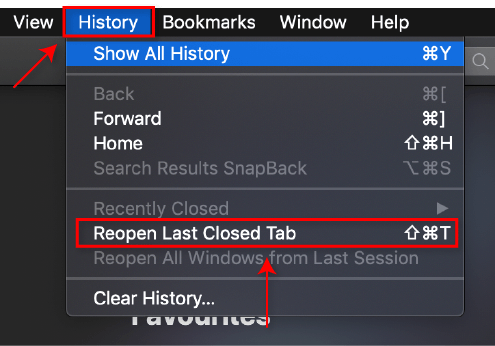
- Select the desired website.
If these methods don’t work, repair Safari and then try again.
Never Lose Your Tabs Again
Everyone’s been there, but luckily it’s now easy to reopen closed tabs in any current web browser. If you have other tips, let us know in the comments below!