Installing and running Linux Apps on your Chromebook expands its capabilities with more productivity tools. This tutorial will explain how to install and run Linux apps as well as offer some suggestions on which to use.
If you don’t already know, the latest versions of Chrome OS allow you to install Linux natively without having to create a separate install. The default distro that gets installed seems to be Debian. There is currently a feature request that will give you the option to install other distros like Ubuntu or Fedora.
Check Your Chrome OS Version
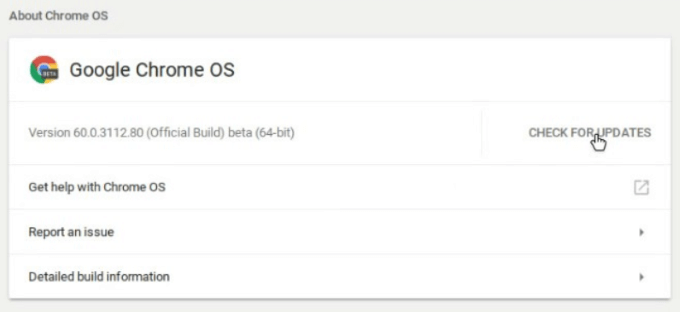
To install Linux apps on a Chromebook, you must be running Chrome OS 69 or later. Check which version you are running by: * Clicking your profile picture (lower right-hand corner)
- Navigating to Settings
- Clicking on the **Hamburger icon **(upper left corner)
- Choosing About Chrome OS
If you are not running the latest version, you will see Check for updates. Download the latest version and restart your Chromebook.
**Enable The Linux (Beta) Platform**
If you don’t see this option, it means that your device isn’t supported. You will need to upgrade to a newer model to use Linux apps.

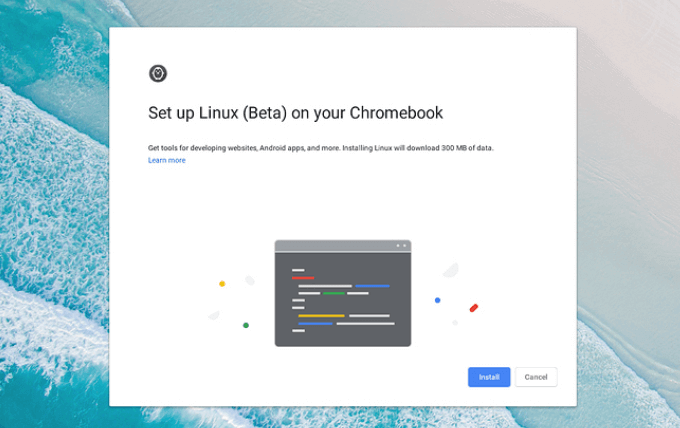
- Click the Install button. The time the process takes will depend upon the computing resources of your Chromebook and your Internet speed.
- When the installation is complete, a terminal window will open. Once you have access to the terminal window, initiate your first set of update commands.
Use Terminal Commands To Install Apps
Linux terminal commands are an easy way to get going. Start by typing the following commands in the Terminal and then hit Enter:
sudo apt-get update
sudo apt -y upgrade
When on the desktop, Linux requires you to type in your password when using the sudo command. There is no need to do so on your Chromebook.
Install Linux Apps On a Chromebook
sudo apt install [app name]
During the installation, you will see a lot of text scrolling across the screen as the components are downloaded, unpacked, and installed.
- To see your newly installed apps, look in your Chrome OS launcher.
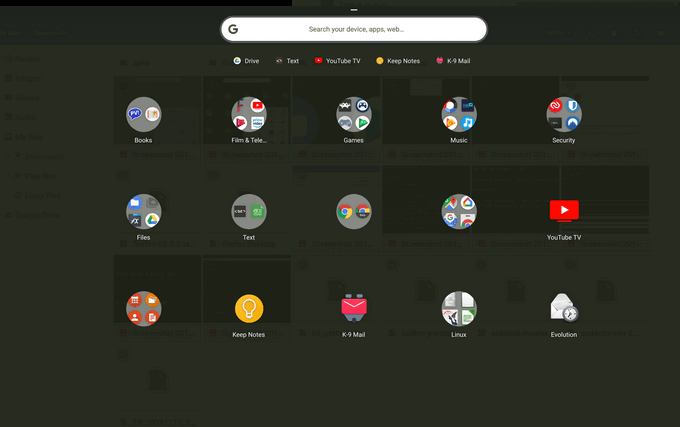
Installed Linux apps are located inside the Chrome OS Launcher along with web apps, Android apps, and everything else you have on your device.
Not sure which apps to try? Below are some of the best app solutions for tasks that are not sufficiently filled by Android and web apps.
LibreOffice
Although the easiest ways to edit documents on a Chromebook are Microsoft Office Online and Google Docs, these platforms are not able to open all file formats.
LibreOffice is an alternative open-source office suite that supports a vast number of file formats and works on a variety of platforms.
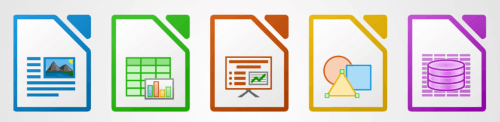
LibreOffice includes a:
- Spreadsheet (Calc)
- Vector graphic editor (Draw)
- Presentation editor (Impress)
- Formula editing (Math)
To install LibreOffice on your Chromebook, use the following command from Terminal:
sudo apt install -y libreoffice libreoffice-gtk3
This command will install two packages. The first is LibreOffice itself. The second is the plugin that enables it to fit in with the Chrome OS Linux theme.
GIMP
GIMP is a powerful photo editor. Users can perform several tasks, including drawing with various brushes, using multiple image layers, and blurring parts of an image.
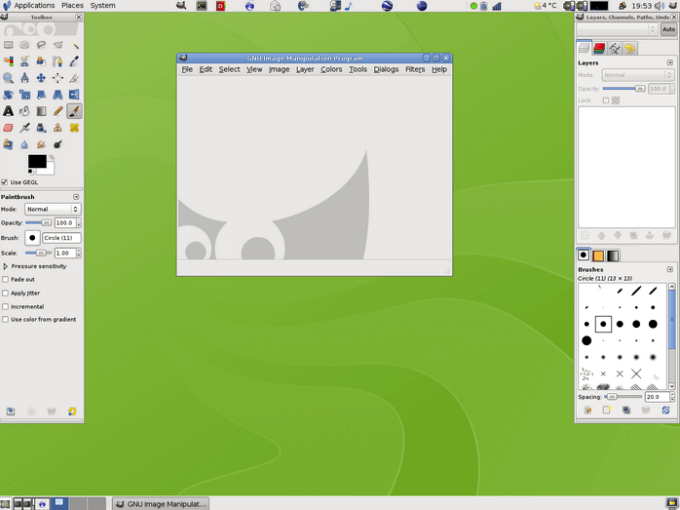
With GIMP, users can open and save many different file types, including BMP, JPEG, PNG, and PSD.
sudo apt install -y flatpack
sudo flatpak install https://flathub.org/repo/appstream/org.gimp.GIMP.flatpakref -y
Visual Studio Code
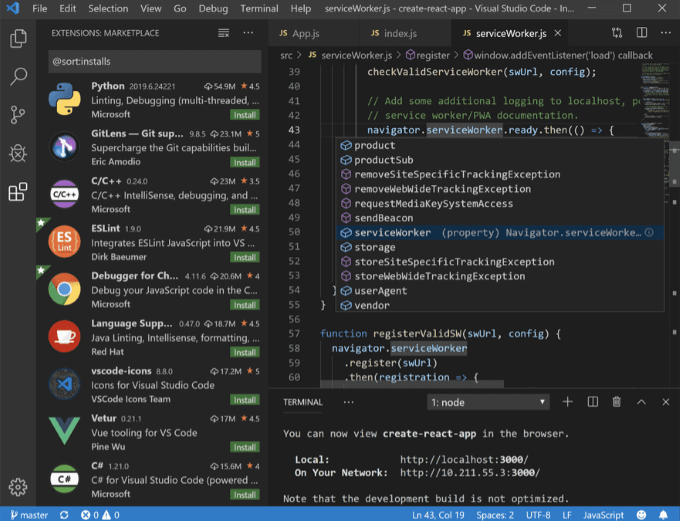
Visual Studio Code is a code editor with many features including debugging, support for Git, and auto-complete for popular languages.
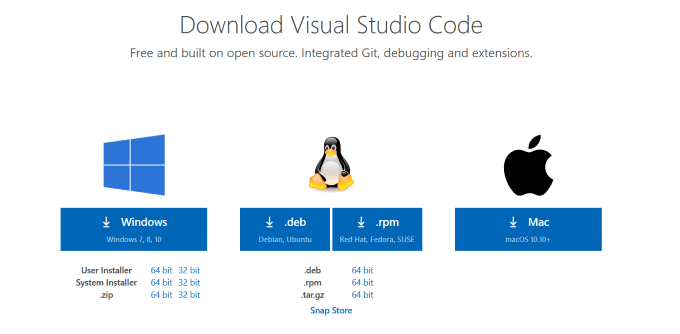
- When the download is complete, go to the Downloads folder in the Chrome Files app. To install it, double-click on the .deb file.
Evolution
For those who want a stand-alone email and calendar program, Evolution is an app you will want to download. It puts your contacts, emails, calendar, memos, and tasks into a single easy to use interface.
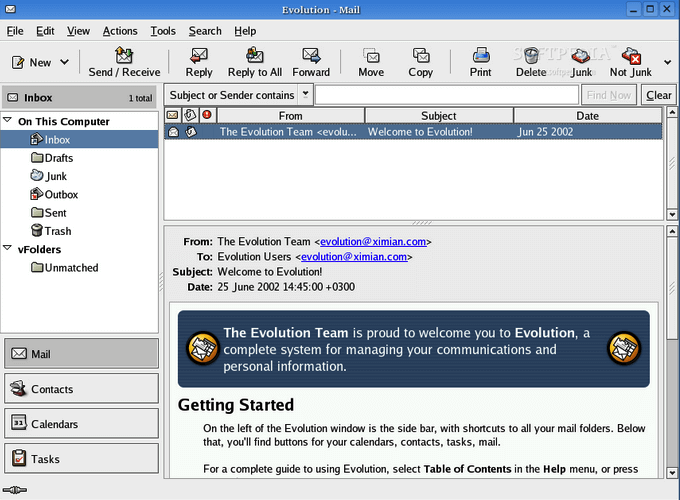
Evolution works well with any standard IMAP-enabled or POP accounts as well as Gmail.
sudo add-apt-repository ppa:gnome3-team/gnome3-staging
sudo apt-get update
sudo apt-get install evolution
Install and run Linux apps on your Chromebook to add functionality, expand its potential as a business tool, and improve your Chromebook experience.