As long as your Microsoft Office apps can validate the authenticity of your license, the apps continue to function as usual. However, if there’s ever an issue validating the license, your apps will display a message that says “There’s a Problem with Your Office License.”
If you’re experiencing this issue with your Office apps and you’re confident that your license should be working, there are a few methods you can follow to get around the problem.

**Update Your Windows 10 PC**
It’s possible the “There’s a Problem with Your Office License” error doesn’t have anything to do with your Office apps. It might be that you’re using an old version of the operating system, and that version is causing issues with your apps.
In this case, a quick and easy way to remedy the problem is to update your Windows PC. Here’s how you do just that:
- * Open the Settings app on your Windows 10 PC by pressing Windows + I keys together.
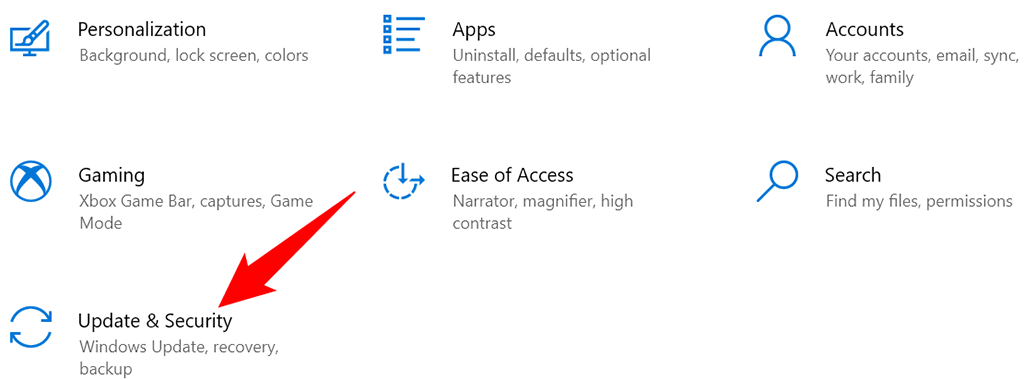
- Select Update & Security on the Settings window.
- Choose **Windows Update** from the sidebar on the left. * Select **Check for updates** on the right pane.
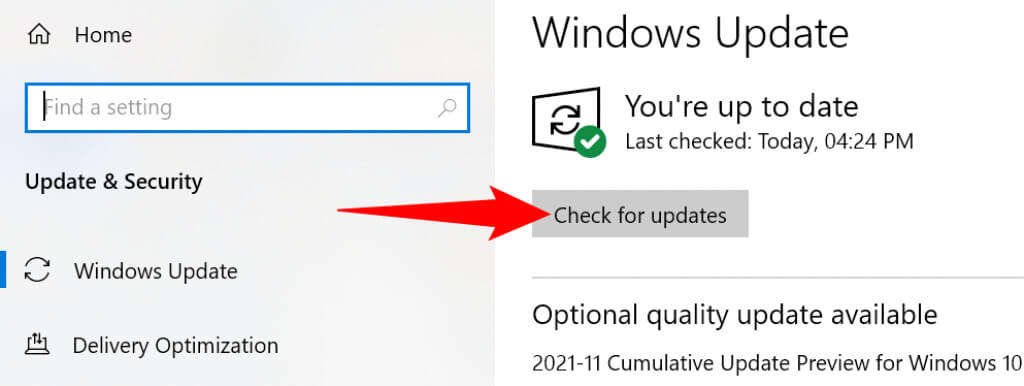
- If an update is available, install the update and restart your PC. * Launch an Office app, such as **Word**, and see if the issue persists.
**Update Microsoft Office Apps to Fix the “There’s a Problem With Your Office License” Issue**
Like Windows 10, you should also keep your Office apps up to date to ensure they are bug-free. It’s possible an existing bug is causing your Office apps to display the “There’s a Problem with Your Office License” error.
You can initiate the update from any Office app. We’ll use Word.
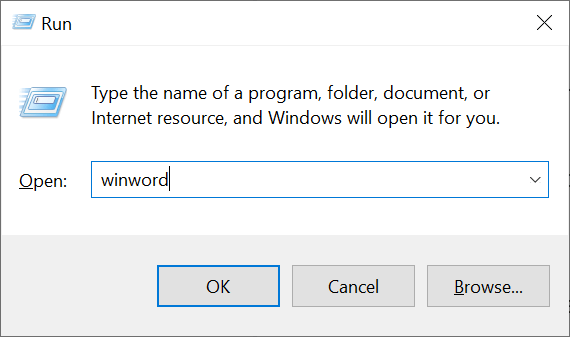
- Launch Microsoft Word on your computer. A quick way to do this is to press Windows + R, type winword in the Run box, and press Enter.
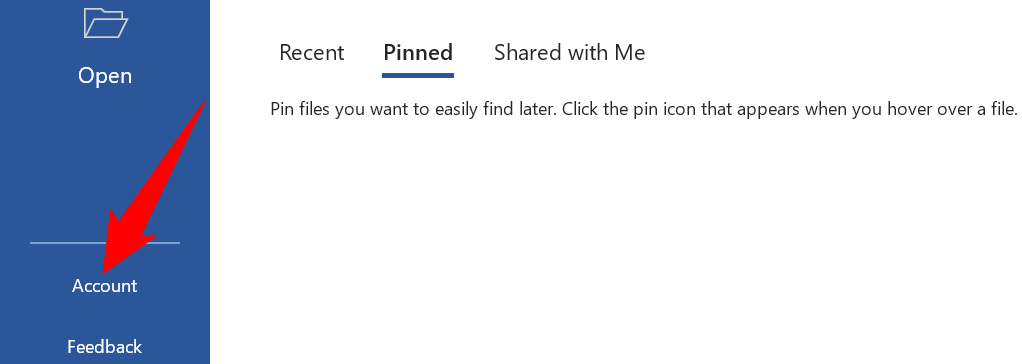
- Select **Account** from Word’s sidebar on the left.
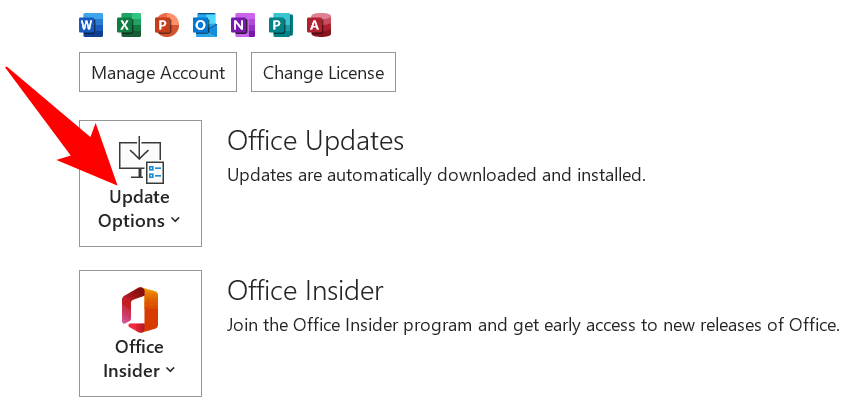
- Choose **Update Options** beside **Office Updates** on the right.
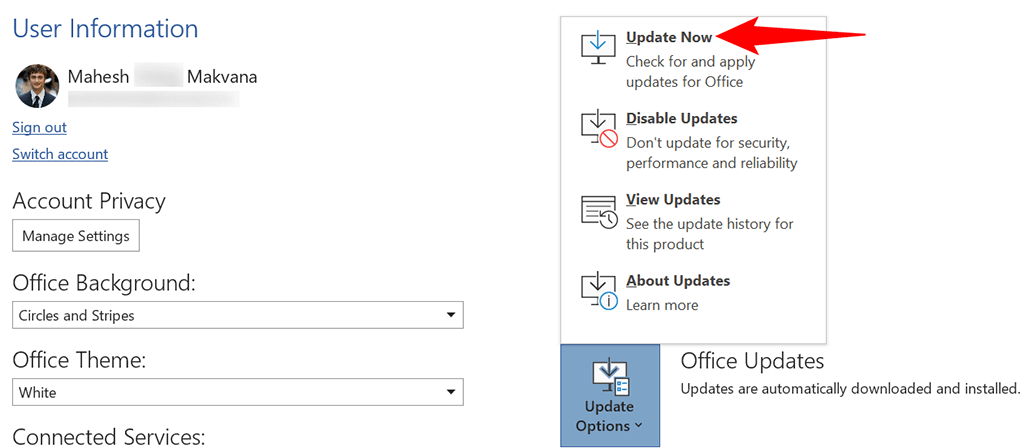
- Select **Update Now** from the menu that opens to check for available Office updates.
- Install the available updates.
**Log Out and Then Log Back Into Your Office Apps**
When you experience a license-related issue with your Office apps, your apps may be facing issues connecting to your linked account to fetch your license data. This usually happens due to a minor glitch in the connection.
To resolve this, try logging out of Office apps and then logging back in. This will establish a fresh new connection and should likely resolve your issue. Keep your account’s username and password handy, as you’ll need those details to log back into your account.
- Launch an Office app on your computer. We’ll use Word.
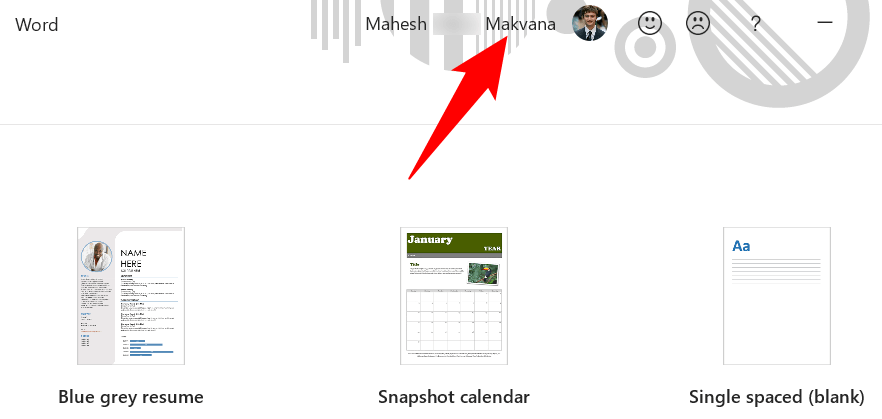
- Select your current account at the top of the Word interface.
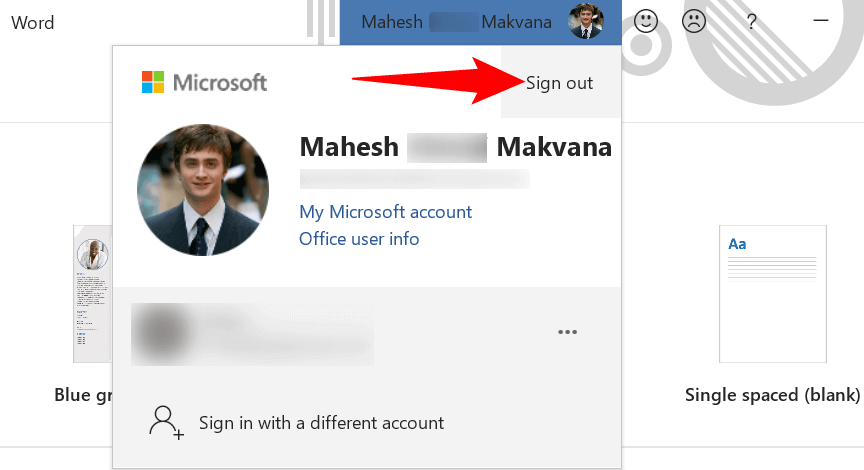
- Choose **Sign out** at the top-right corner of the account box.
- Select **Yes** in the **Remove Account** prompt to remove your current account from your Office apps.
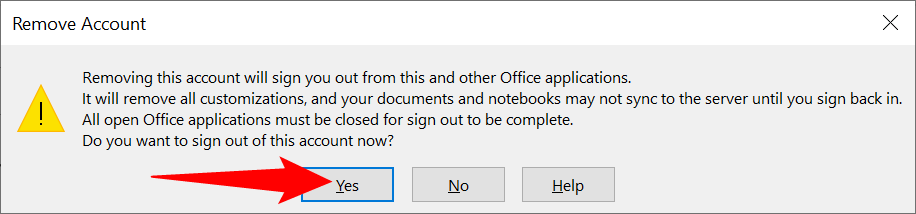
- Close the **Word** app. * Relaunch the **Word** app and sign back into your account.
**Repair Microsoft Office to Resolve the “There’s a Problem With Your Office License” Error**
Like other apps, Microsoft Office apps also experience various random issues from time to time. One way to fix these issues is to use your Windows PC’s repair option. This option repairs any problems with all your Office apps in a few easy clicks.
To start the repair process:
- Close all the Office apps on your PC.
- Launch the Settings app by pressing Windows + I keys together.
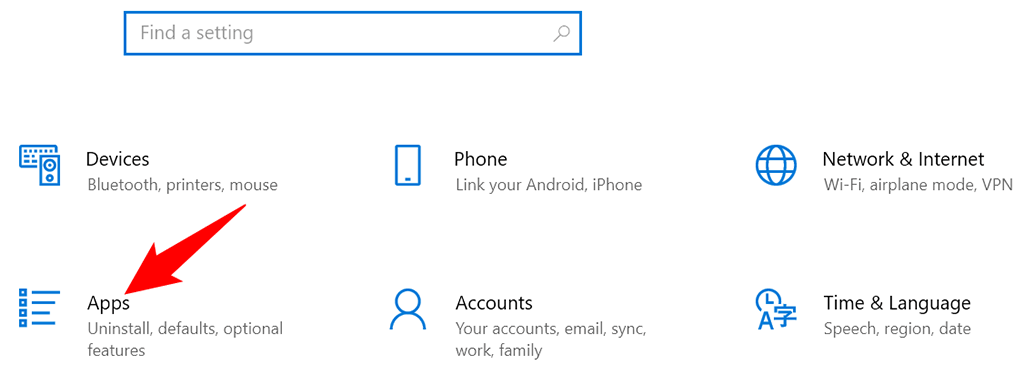
- Select Apps on the Settings window.
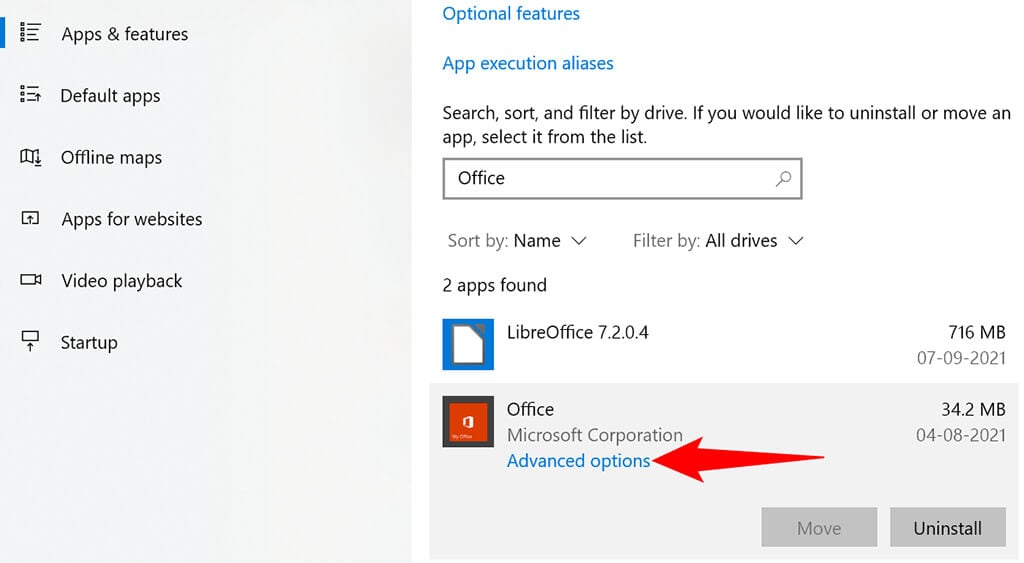
- You’ll see a list of all your installed apps. Find and select **Office** on this list. Then, choose **Advanced options** from beneath the app name.
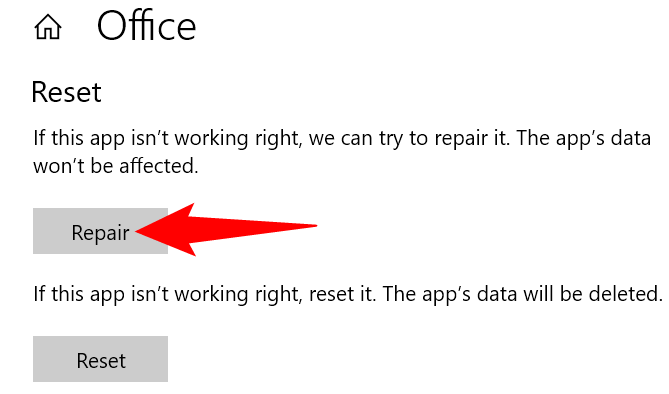
- Scroll down the **Office** page to the **Reset** section. Then, select the **Repair** button to start repairing your Office apps.
- Windows will start repairing your apps. When that’s done, you’ll see a checkmark next to the **Repair** button. You may now close the **Settings** app. * Launch an Office app and see if it still displays the error message.
**Switch Microsoft Office License**
If you’ve bought multiple types of Office licenses with your single Microsoft account, make sure you’re using the appropriate license with the Office apps on your PC. An incorrect license can cause your apps to display a “There’s a Problem with Your Office License” error.
Luckily, Microsoft Office allows you to switch to a different license from within the apps. Here’s how to do that:
- Launch an Office app on your PC. We’ll open Word.
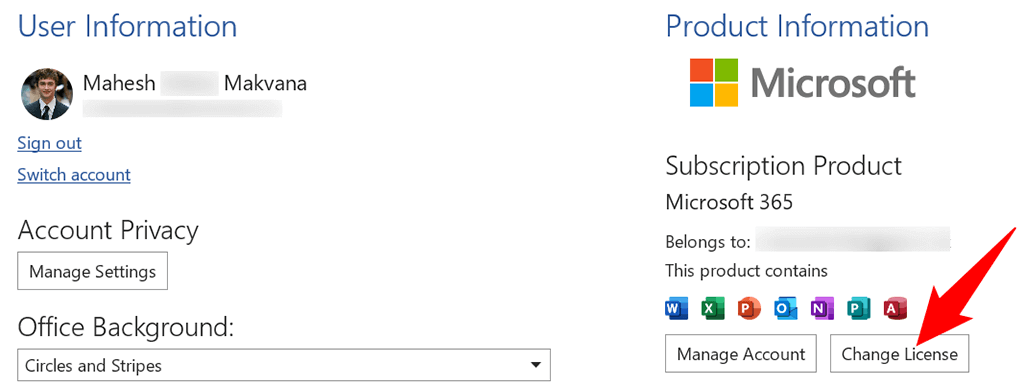
- Select **Account** from the sidebar on the left.
- Choose **Change License** in the pane on the right.
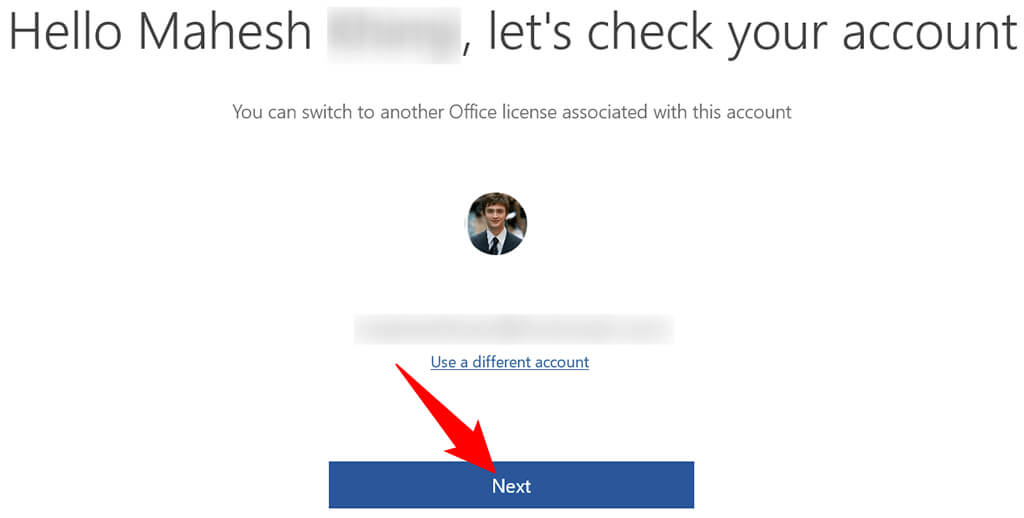
- You’ll see a window with your Microsoft account details on it. Select the **Next** button in this window.
- Choose an appropriate license from the multiple licenses shown on your screen. Your Office apps will use this license for activation.
If you don’t find the expected license in your Microsoft account, it may be that you’ve purchased that license from another account. In that case, sign out of your account in your Office apps, and then sign back in with the account that has the license attached to it.
It’s Easy to Deal With Most Office License Problems
Most Office license-related issues occur due to minor glitches with the Office apps, your computer, or your Microsoft account. By following a few easy fixes outlined above, you can fix your license problems and get going with your Office work.