The “scratch disks are full” error in Photoshop usually occurs when there’s no memory space available on your computer to store Photoshop’s temporary files. When this error comes up, Photoshop either crashes or does not load at all.
There are a few things you can do to fix this “scratch disks are full” error in Photoshop. This includes letting Photoshop use more RAM and deleting the temporary files to regain your memory space.
If you’d prefer to watch a video, check out our YouTube channel where we made a short walk-through video showing some of the fixes mentioned below in our article.
Free-Up Memory Space On Your Computer
When the above error happens, the first thing to do is clear all the junk files from your computer. This’ll free-up your memory space that Photoshop can then use to store temporary files.
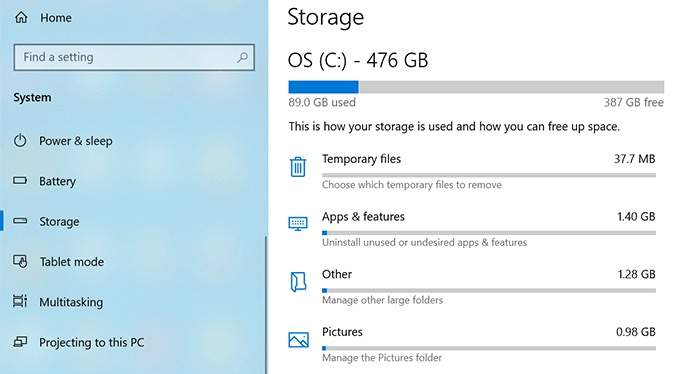
Check Your Storage On Windows
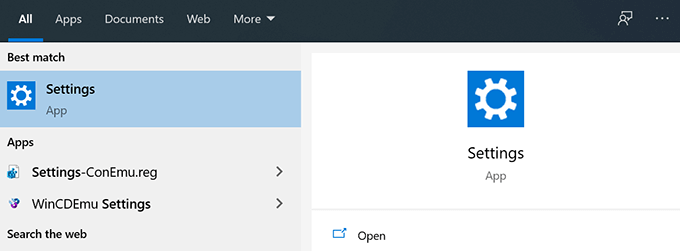
- * Open the Settings app.
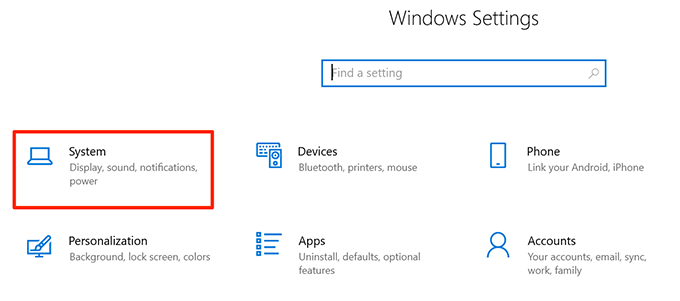
- Click **System** on the following screen.
- Select **Storage** to view your computer’s storage details.
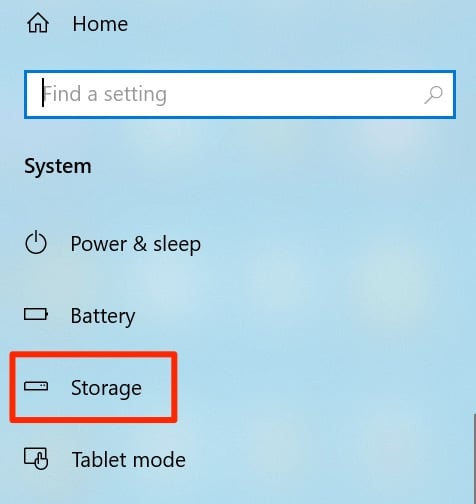
- You’ll see what’s occupying what amount of memory. This’ll help you decide what to delete.
**Check Your Storage On Mac**
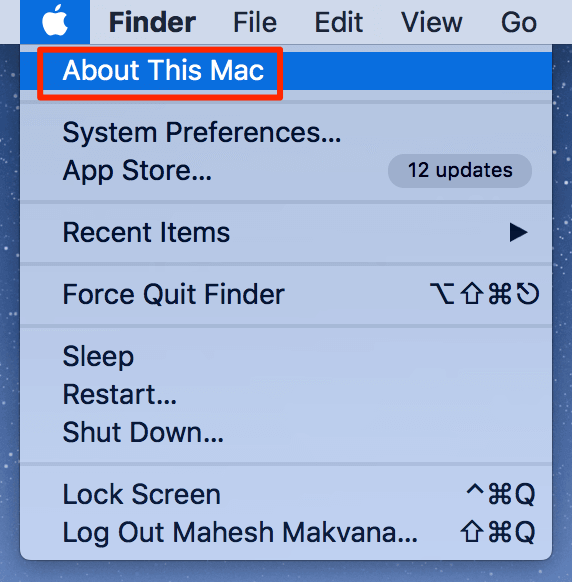
- Click the Apple logo at the top-left corner and choose **About This Mac**.
- Click **Storage** at the top and choose **Manage**.
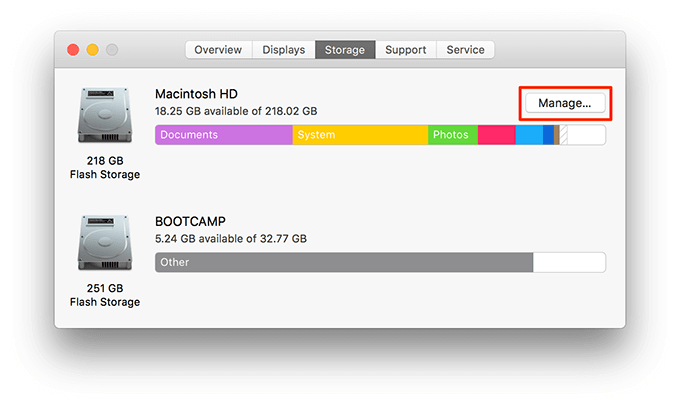
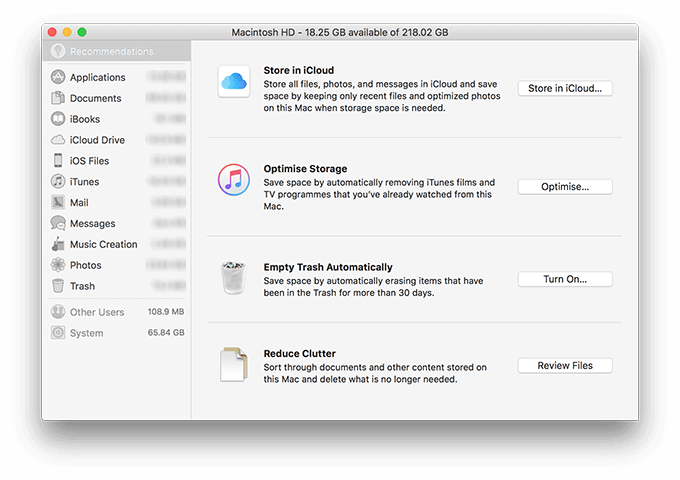
- It’ll show what content is using what amount of space as well as offer recommendations to free-up memory.
**Delete Photoshop Temporary Files**
Photoshop creates and stores temporary files on your storage. These files can be safely deleted after you’ve closed Photoshop. This helps you regain some of your memory space.
- Press the Windows + R keys at the same time to open Run, type the following into it, and press Enter. %temp%
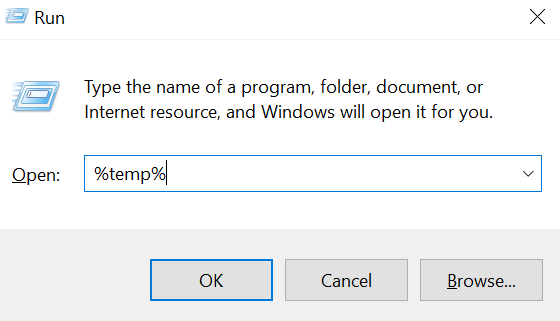
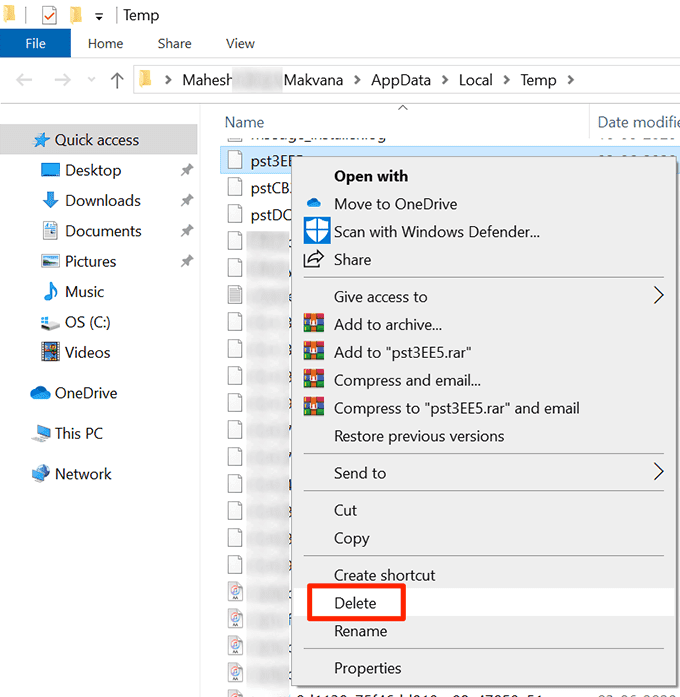
- When the temporary folder opens, find the files named **Photoshop** or **PST**. * Right-click those files and select **Delete**.
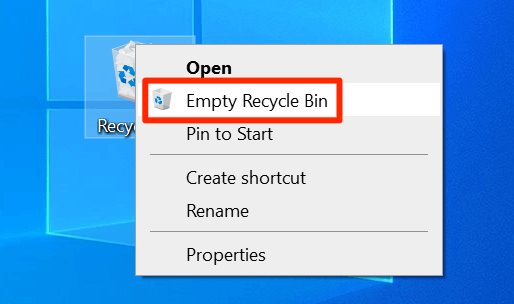
- Right-click the **Recycle Bin** on your desktop and select **Empty Recycle Bin**.
- On Mac, use **Spotlight** to search for temporary files and delete them.
**Change The Scratch Disk On Startup**
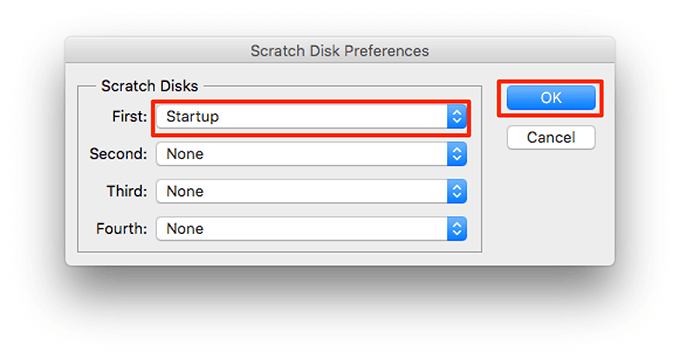
If you have assigned multiple scratch disks to Photoshop, you can actually switch between them on Photoshop’s startup. This solution works great when Photoshop doesn’t open as a result of the “scratch disks are full” error.
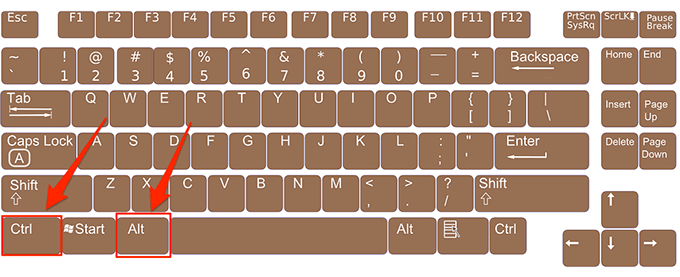
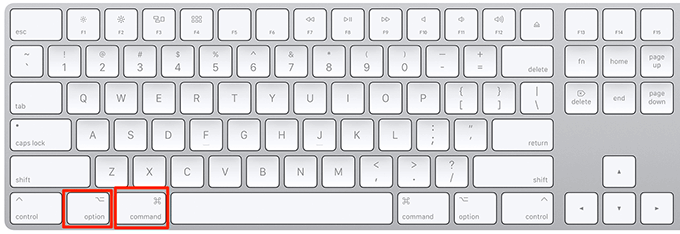
- On Windows, launch Photoshop and press and hold down the Ctrl and Alt keys at the same time.
- On Mac, open **Photoshop** and press and hold down the **Command** and **Option** keys simultaneously.
- Select a new scratch disk from the **Startup** dropdown menu and click **OK**.
**Change The Scratch Disk Drive In Photoshop**
By default, Photoshop only uses your operating system’s drive as the scratch disk. If you have multiple drives or partitions, you can get Photoshop to use them and avoid the “scratch disks are full” error.
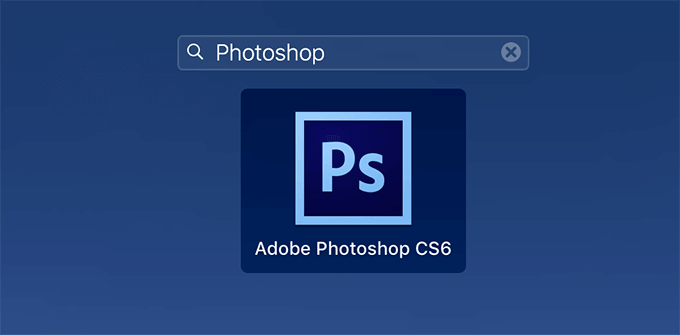
- Launch Photoshop on your computer.
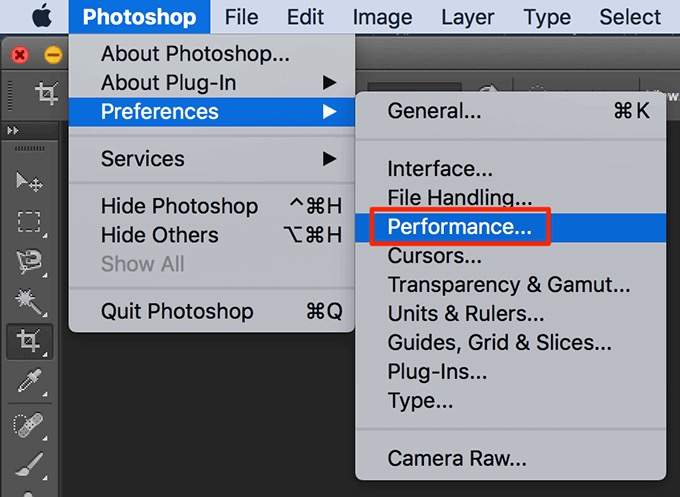
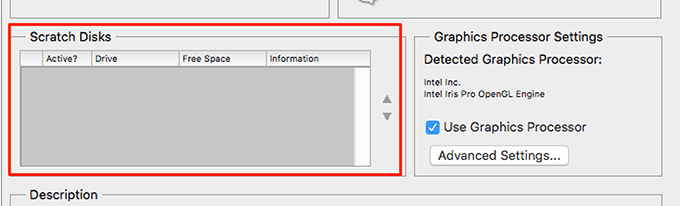
- Click the **Photoshop** menu at the top, select **Preferences**, and choose **Performance**.
- Enable and disable scratch disks in the **Scratch Disks** section.
**Disable The Auto Recovery Feature In Photoshop**
Photoshop automatically saves your files as you work on them but this increases the amount of memory it uses on your computer. If auto-recovery saving isn’t much use to you, you can disable it to save some space on your scratch disks.
- Launch Photoshop on your machine.
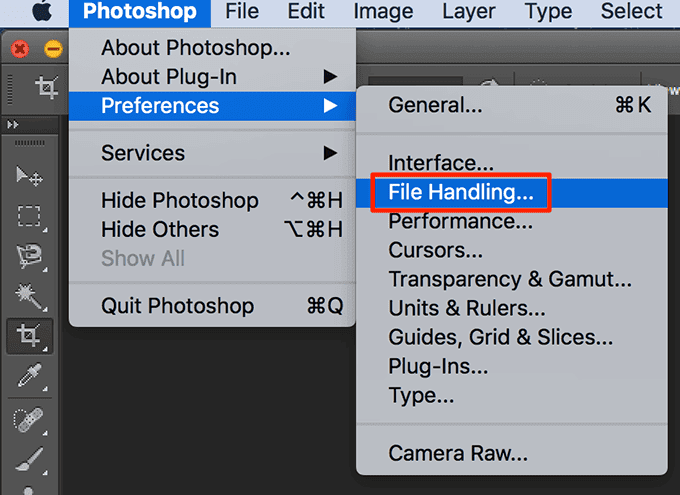
- Click **Photoshop** at the top, select **Preferences**, and choose **File Handling**.
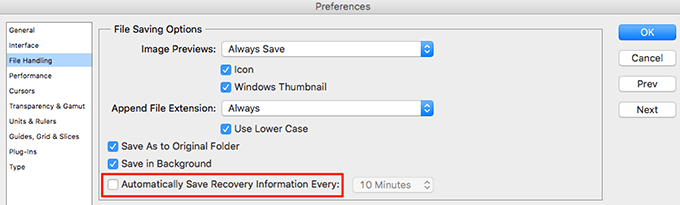
- Untick the box that says **Automatically Save Recovery Information Every**.
**Let Photoshop Use More RAM**
One way to fix the scratch disk issues with Photoshop is to allow Photoshop to use more RAM. This’ll let it store more temporary files on the RAM space on your scratch disks.
- Open Photoshop on your computer.
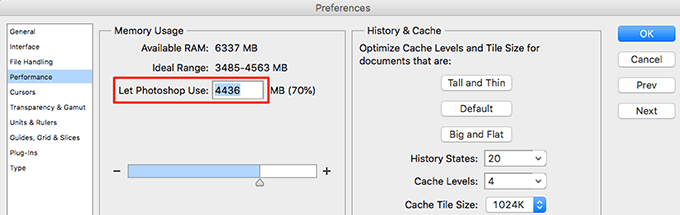
- Click the Photoshop option at the top, select Preferences, and choose Performance.
- On the right-hand side pane, you’ll see a box labeled as **Let Photoshop Use**. In the box next to this option, enter the amount of RAM that you want for Photoshop to use. Then click **OK**.
**Delete The Photoshop Cache Files**
Each time you make a change to an image in Photoshop, an older unchanged version of your image is saved as a cache file on your computer. These files eventually grow and start taking too much of your memory space.
You can clear these cache files to possibly fix the scratch disks error but at the cost of not being able to revert changes for your image.
- Access Photoshop on your machine.
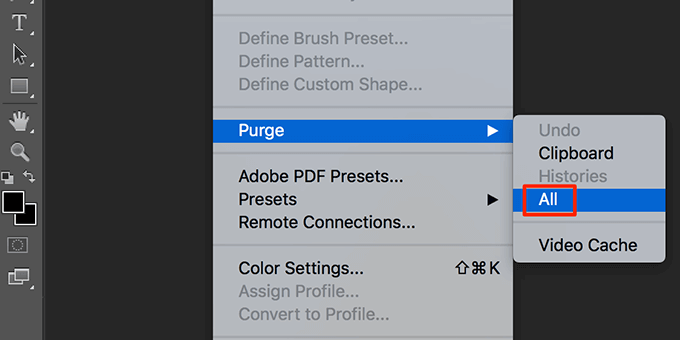
- Click the Edit menu at the top, select Purge, and choose All. This’ll delete all the Photoshop cache files.
**Reset The Values For Crop Tool**
The crop tool in Photoshop lets you crop your photos by your specified size. If you choose the wrong units while specifying the size, say choosing centimeters instead of pixels, you end-up making your image extremely large.
That image occupies a large amount of memory space which causes the “scratch disks are full” error in Photoshop.
- Access the crop tool in Photoshop and remove any values from the given boxes.
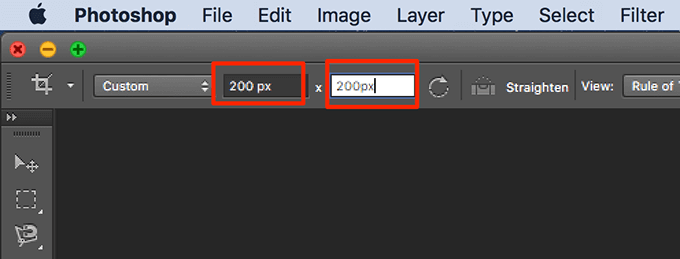
- When you enter any values, use pixels as the unit whenever possible.
**Defrag Your Hard Drive**
It’s worth defragging your scratch disk drive in Windows to get some continuous memory space for Photoshop to use. This should help you get rid of the scratch disks error in the app.
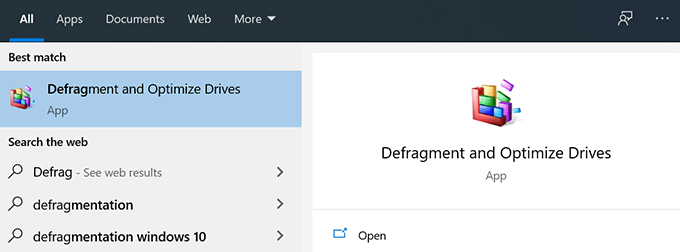
- Search for Defrag in the Start Menu search and click Defragment and Optimize Drives.
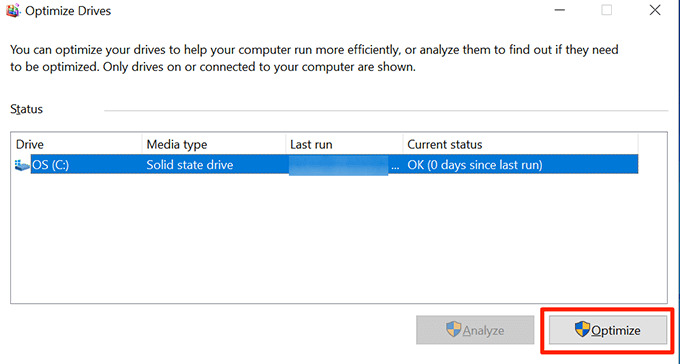
- You’ll see your hard drive partitions listed on the following screen. Select the one that you use as your scratch disk and click the **Optimize** button.
**Reset Photoshop Preferences**
If you’ve made loads of changes to your Photoshop preferences, one or many of those tweaked options may be causing the issue. Resetting the Photoshop preferences to the defaults should fix this for you.
- Quit Photoshop on your computer.
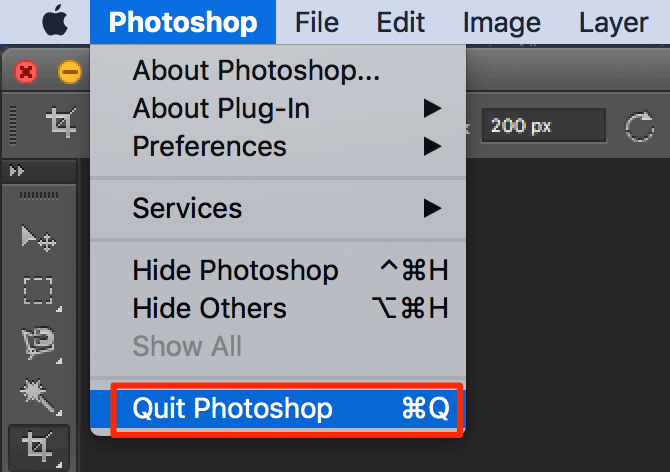
- Press and hold down the **Shift + Ctrl + Alt** (Windows) or **Shift + Command + Option** (Mac) and launch **Photoshop**.
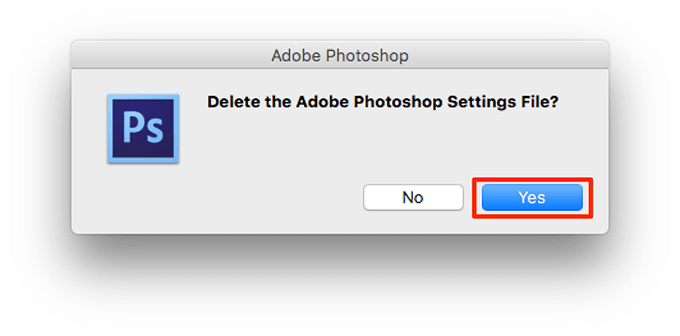
- You’ll get a prompt asking if you want to delete the Photoshop settings file. Click **Yes** to delete the files.
How did you fix the “scratch disks are full” error in Photoshop? Let us and our readers know in the comments below.