Getting a blue screen of death is bad. But with it, at least your computer will tell you that there’s something wrong. On the other hand, if you end up with a black screen of death, you’re on your own. You’re left guessing what the problem is.
Let’s look at the causes and solutions on how to fix a black screen of death error on Windows 10. This way, you can resolve the issue without having to immediately ditch your computer.

Find Out If Your Computer Is Working
A possible cause of a black screen issue is that the setup process during a Windows 10 installation is not yet complete. If you have large data files from an earlier Windows installation, don’t be surprised if the setup takes up hours of your time.
If you didn’t know this, you must have went ahead and assumed Windows is already installed. If so, it must be the reason why you now have a black screen. The solution is to find out if your computer is still working. * Locate the LED that shows hard drive activity. Now, observe it.
- If this light is blinking, it means the setup process is still ongoing. In this case, all you have to do is wait for it to finish.
- If it’s not lighting up, it means the setup process is stuck, and it can’t proceed further.
Turn Off Your Computer
As the setup process is not getting you anywhere, it means you have to try again.
Turn To Safe Mode
If the root of the problem is a hardware performance issue, then loading up only the essential programs will save the day.
To boot your system into Safe Mode, start your PC and once you see the sign in screen, hold down shift. Then choose the power button and go with Restart.
Wake Up Your Display
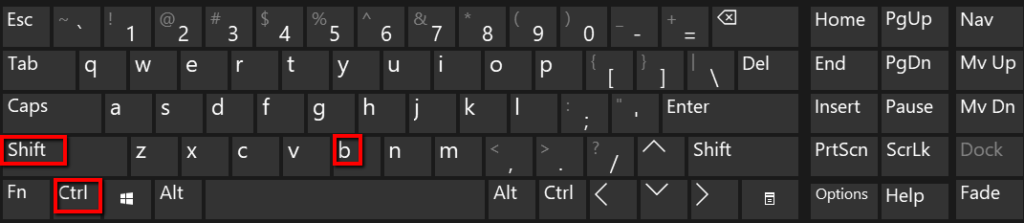
Your computer can also give you the black screen of death if Windows 10 isn’t detecting the display. The straightforward solution: force it to wake up. Just turn to your keyboard for this.
- Then hit ctrl, shift and B.
Reinstall The Video Card
Another possibility is a defective video card. What you need to do is reinstall it.
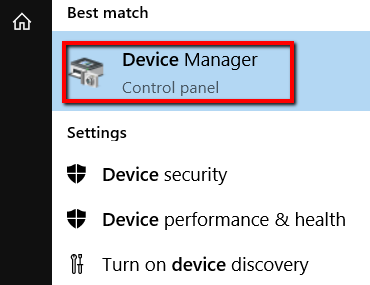
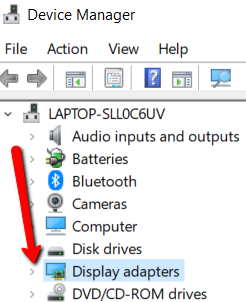
- Scroll down until you come across Display adapters. Expand this section by clicking the arrow next to it.
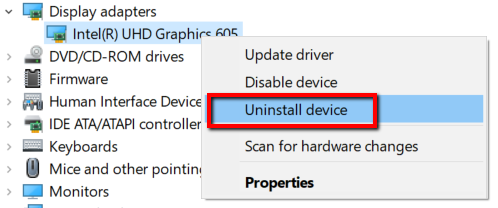
- There, choose your display adapter. Right-click on it and choose Uninstall device.
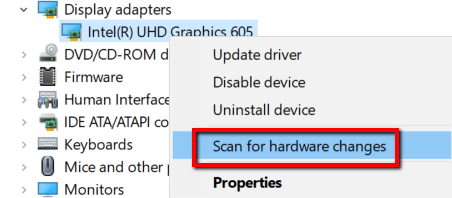
- Once it’s uninstalled, right-click on this section again. Then select **Scan for hardware changes **to make it reappear for you to reinstall it.
Update Your Driver
If your video card is not defective, it could be outdated. If so, it’s also a cause of a black screen.
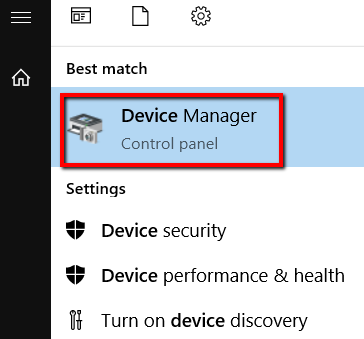
- Go to **Display adapters **and expand it. Select your display adapter and right-click on it. Now, choose Update driver.
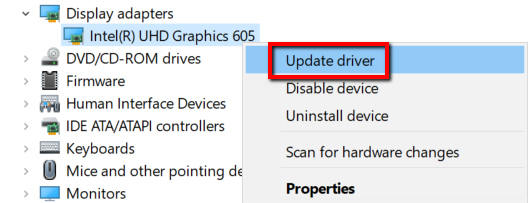
Stop RunOnce Processes
If you get a black screen after you log in, the problem could be from a process that’s running.
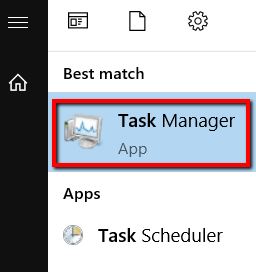
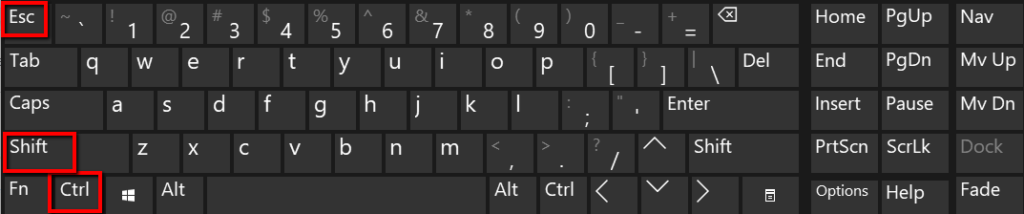
- You can also press **ctrl **and **shift **and esc. Doing this will also open your Task Manager.
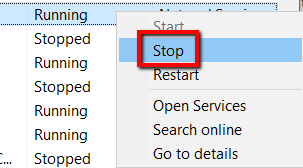
- There, check for a RunOnce.exe process. If it’s running, right-click on it and select Stop.
- For the change to take effect, restart your computer. You can do this by hitting the restart button.
- Another option is to let **Task Manager **pave the way. To start with this, go to File.
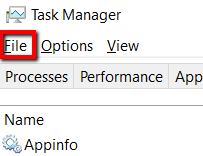
- Select Run new task.
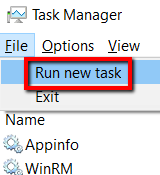
- There, key in **cmd **and press OK.
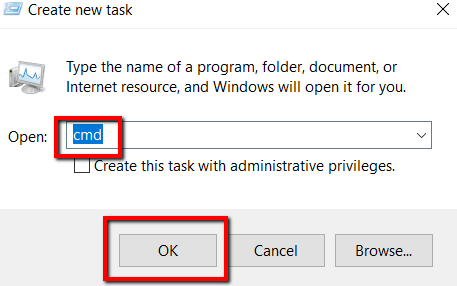
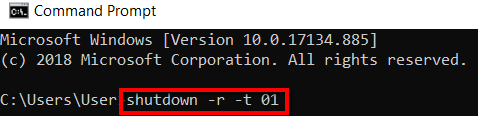
- At the command prompt window type in shutdown -r -t 01 and press enter.