What can be more annoying than seeing the error “Spotify Can’t Play This Right Now” when you want to listen to that one special song? Getting this same error again on the song you try to play next.
There can be various reasons why Spotify can’t play songs. Maybe you can’t play a song in your region for copyright reasons, or perhaps it’s your hardware or software settings that are causing problems. Either way, you can easily fix this error by using one of the methods listed below.

In the Spotify mobile app, select the gear icon to open Settings. Then scroll down and select Log out. After you’re logged out, log back into your account and check if the error disappeared.
3. Restart Your Spotify App
Your Spotify app might be slow or frozen and cause glitches. Restarting the app, just like restarting your computer, might be one of the easiest solutions to try.
Quit Spotify and then reopen it again. Then select the song you were trying to listen to and try playing it again.
4. Update Your Spotify App
Your Spotify app may be outdated. The bug can disappear when you download an update and upgrade your Spotify to the latest version. To manually update your Spotify desktop app, follow the steps below.

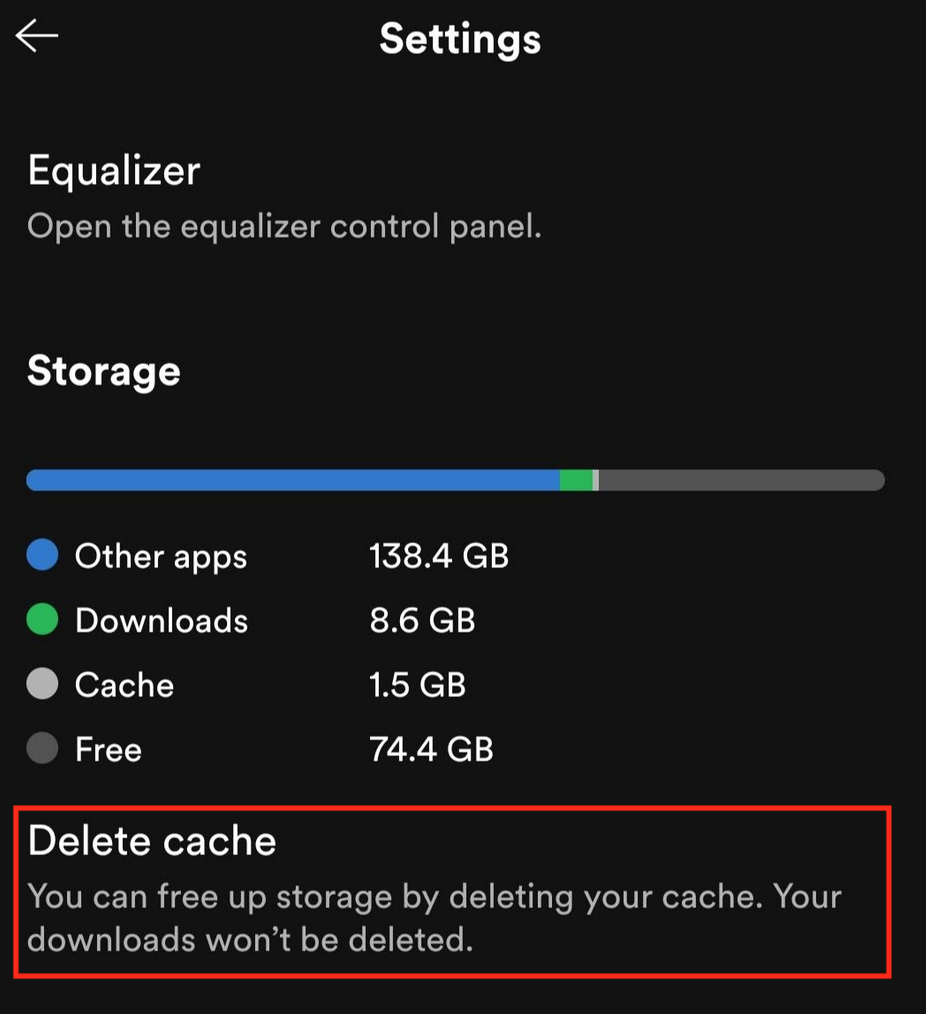
On mobile, you can free up storage space by clearing your cache on Spotify. To do that, go to Settings > Storage > Delete Cache.
- * Open the Spotify **Settings**.
* Select **Music Quality**.
* Under **Music Quality**, select **Automatic** to let Spotify automatically adjust the quality according to your subscription level. Alternatively, you can manually select the quality level of anything lower than **Very High**.
**7. Disable Crossfading**
Crossfading is one of the handy Spotify features that can provide a smooth transition between songs making your Spotify experience more pleasant. However, it might also be causing issues with playback. Try disabling crossfading and then enabling it again to see if this is the problematic feature.
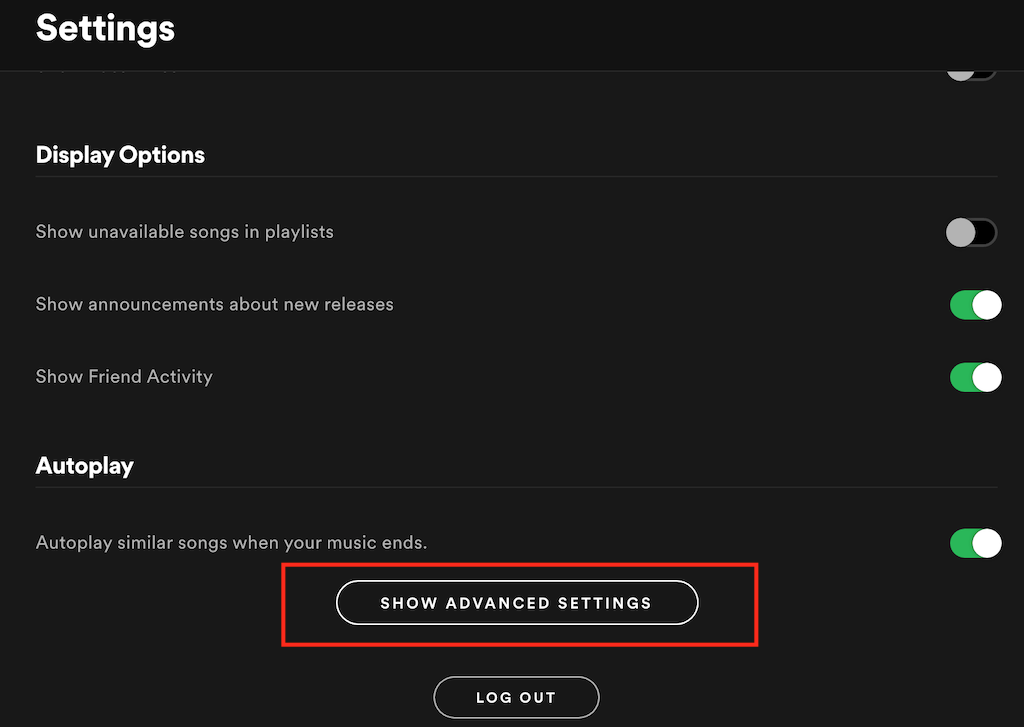
- Open the Spotify Settings.
- Scroll down and select Show Advanced Settings.
**8. Turn Off Hardware Acceleration**
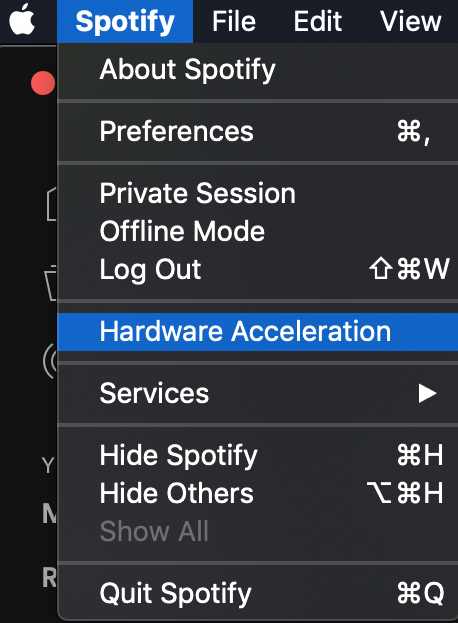
Spotify has an option to turn on hardware acceleration on your computer. It’s a process that uses your computer hardware and Spotify’s software to optimize Spotify’s performance. However, if your hardware isn’t good enough for this, it might start causing Spotify errors.
To turn off this feature in Spotify, open Spotify Menu and deselect Hardware Acceleration. Spotify will then prompt you to restart the app.
- Open Spotify **Settings**. * Scroll down to **Display Options**.
- Toggle the **Show unavailable songs in playlists** on.
Now the unavailable songs will appear greyed out so that you know in advance that you won’t be able to play them in your region.
10. Reinstall Spotify
Finally, if all else fails, uninstalling and reinstalling the Spotify app can help you remove any corrupted files or bugs causing errors. Before you do it, note that you’ll have to download all your downloaded files from Spotify all over again after you reinstall the app on your device.
Other Ways to Troubleshoot Spotify
Don’t panic if you find that Spotify isn’t playing songs for you. There can be dozens of reasons why this is happening and hundreds of troubleshooting techniques that you can use to get Spotify up and running again. Make sure to follow all of the instructions, and you’ll get your music back in no time.
Have you ever encountered song-playing errors on Spotify? How did you go about fixing them? Share your experience with fixing Spotify errors with us in the comments section below.