Windows’ “SmartScreen can’t be reached right now” error occurs when the SmartScreen feature fails to scan your file’s contents. You may be trying to install an app, and since your PC’s security feature can’t check whether your file is safe, you get the above error message. You can use a few ways to fix this error on your PC, and we’ll show you how.
SmartScreen can’t scan your file because your internet connection isn’t working, Microsoft’s servers are down, your PC has a minor glitch, your VPN or proxy server isn’t functioning as expected, and more.
If you find that Microsoft’s servers are down, you’ll have to wait until the company fixes the server issues. You should be able to use SmartScreen when Microsoft has restored its server functionalities.
Restart Your Windows PC
If your Windows PC has a minor glitch, that may be why you can’t use SmartScreen to scan your files. One way to resolve your PC’s minor issues is to restart your PC.
Giving your computer a reboot turns off and back on all system features, fixing many minor issues with those items.
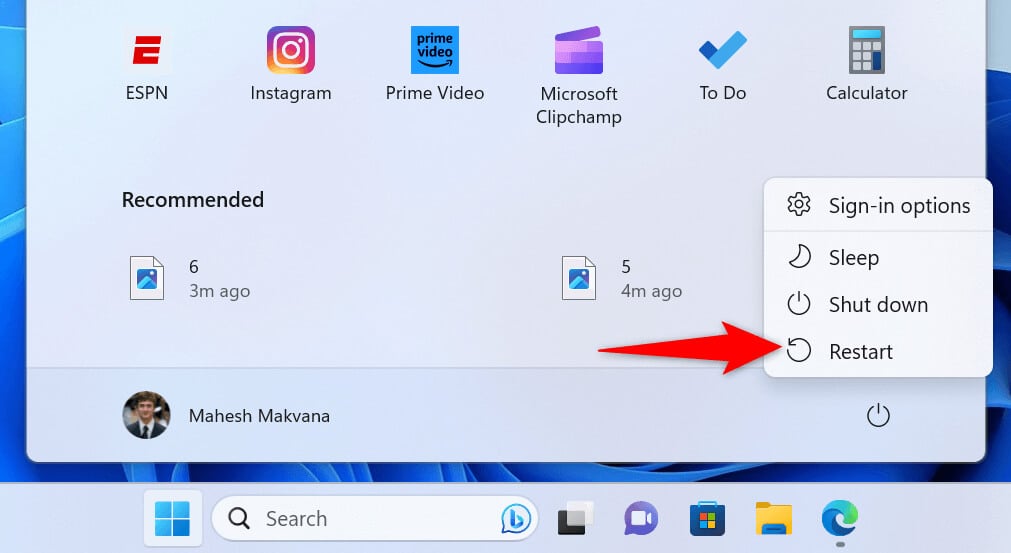
- * Open the Start menu using the Start menu icon or the Windows key on your keyboard.
- Select the Power icon in the menu and choose Restart.
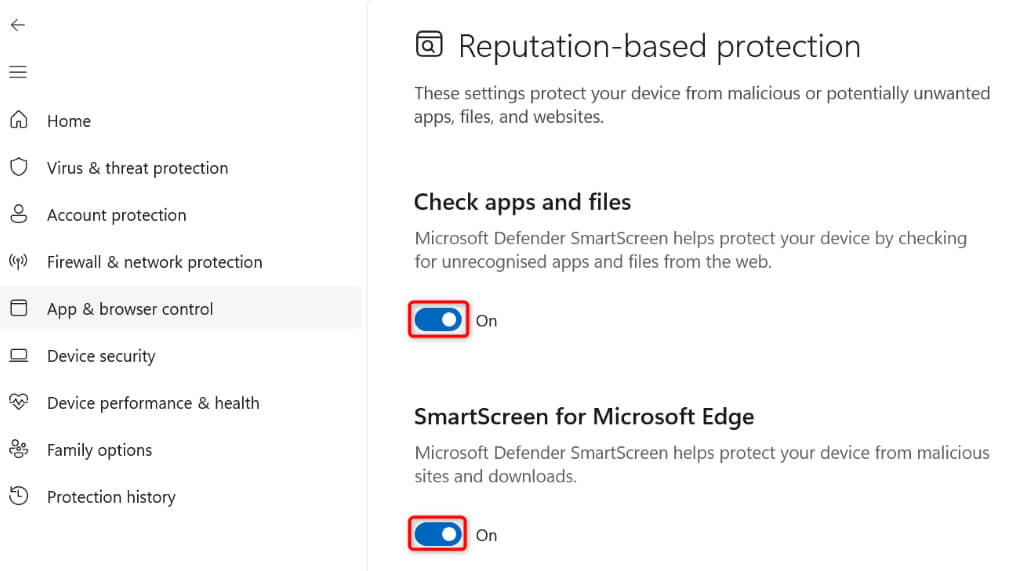
- Turn on the Check apps and files, SmartScreen for Microsoft Edge, Potentially unwanted app blocking, and SmartScreen for Microsoft Store apps options.
- Select Set up next to Use a proxy server and toggle off Use a proxy server.
On Windows 10
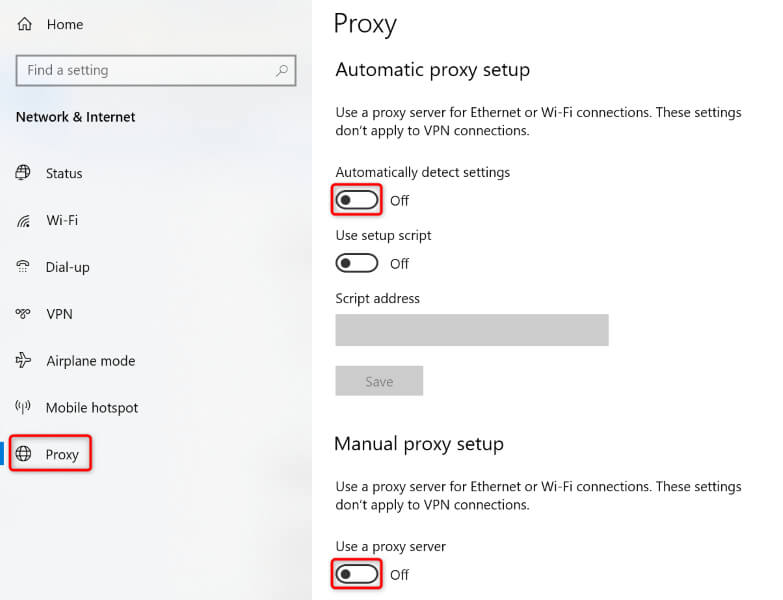
- Launch Settings by pressing Windows + I. * Select Network & Internet in Settings. * Choose Proxy in the left sidebar.
- Turn off the Automatically detect settings option on the right.
- Select Full scan and choose Scan now at the bottom.