Checking for errors and editing your document is part of the writing process. One of the most common mistakes people make in MS Word and Google Docs is typing the wrong spelling. If you want to edit a word or a phrase in your document, you must first search for it.
This post will teach you how to find and replace words in MS Word and Google Docs. It will also cover both the desktop and mobile versions of these programs.

**Replacing Words in MS Word (Desktop)**
- * Open Microsoft Word document on your computer. Press the **Ctrl + H **keys or click **Home, **then go to** Replace**.
* Enter the word or phrase that needs to be changed on the **Find** box to locate them.
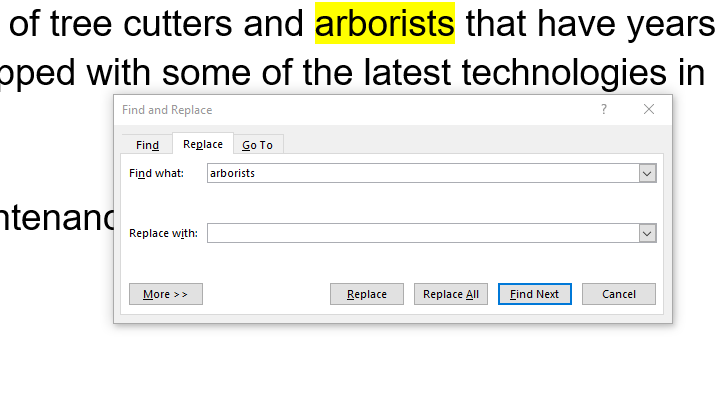
- Delete the words you want to change and type in their replacement. You can also select one of the words or phrases using the **Next **and **Previous **buttons. * Click **Replace All **to update all the words or phrases you typed on the Find box at once.
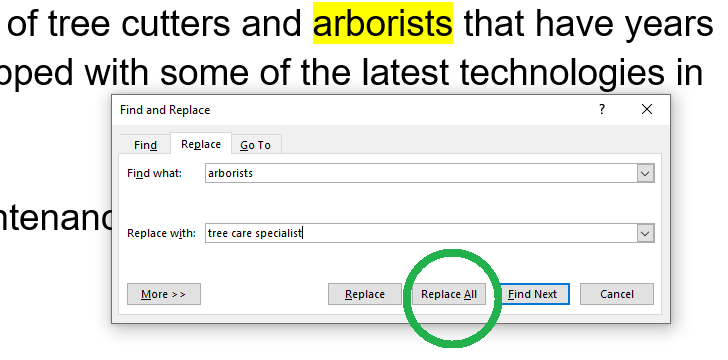
- Click **Save **to keep the changes you have made.
Note: MS Word will help you recover changes to a file or recover unsaved documents if your PC crashes.
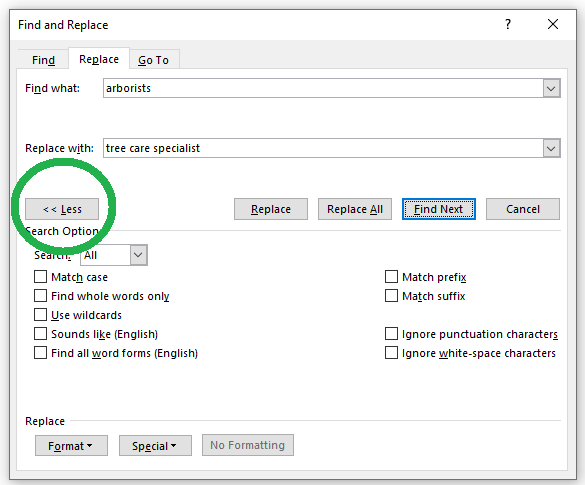
The newest version of MS Word also has several other search options you can use to refine your searches further.
**Find and Replace Words in MS Word (Mobile)**
- Tap the MS Word app on your Android device and open the document you want to edit.

- Tap the **Magnifying glass** icon on the upper part of your screen to open the **Find…** panel.
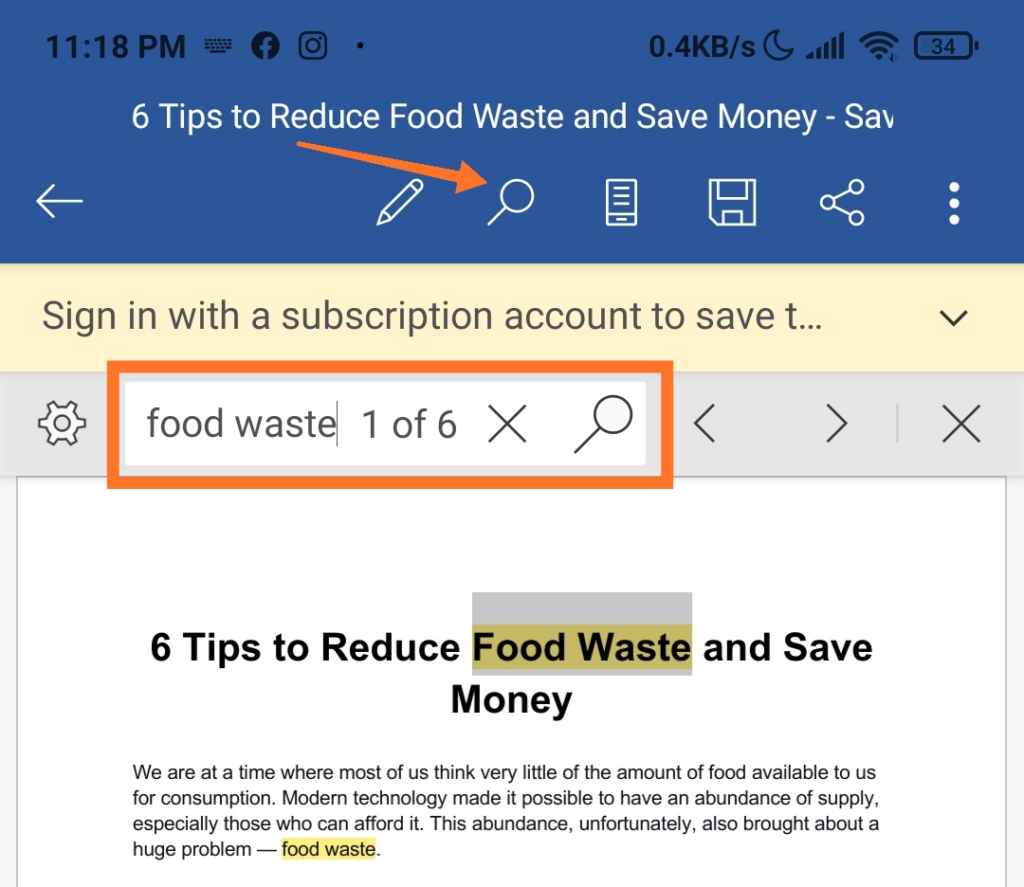
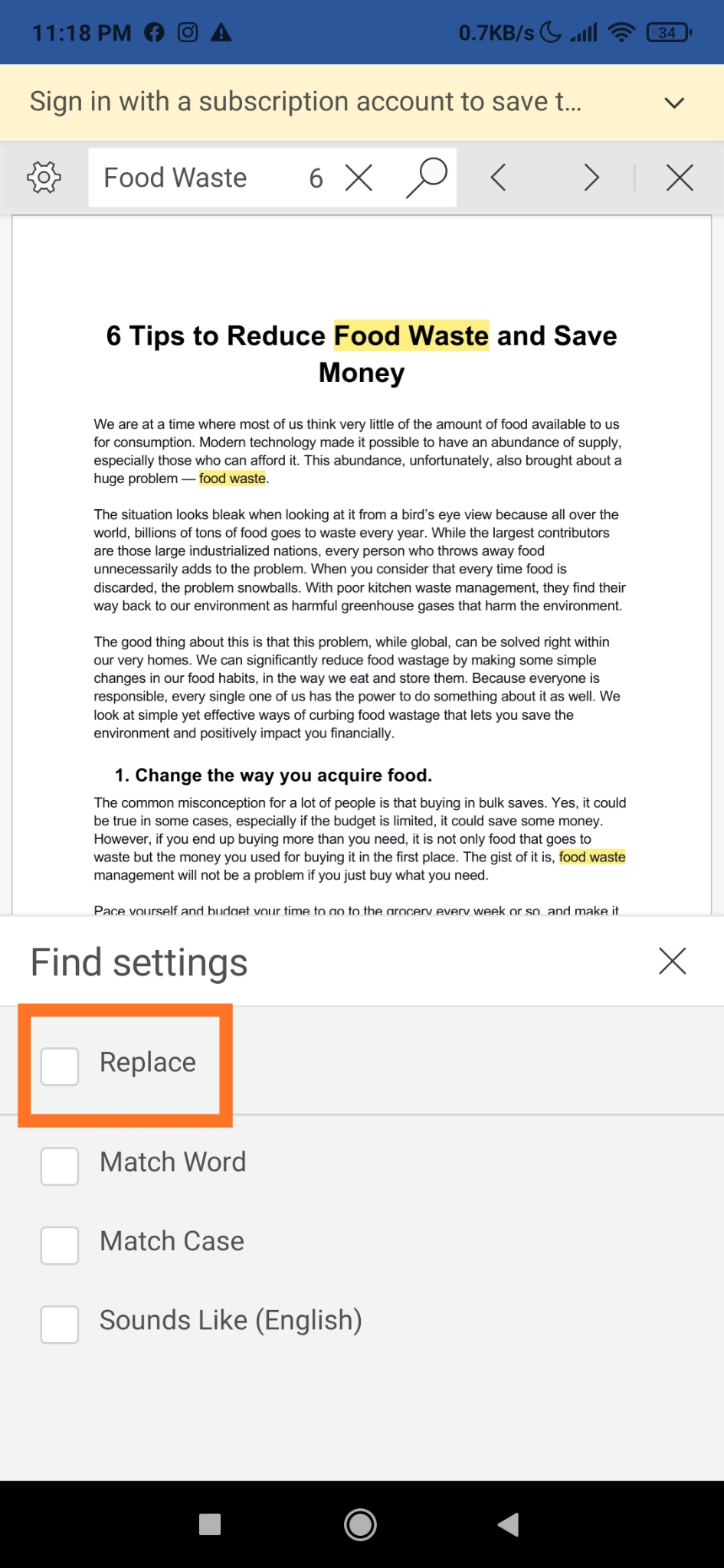
- Type the word or phrase on the **Find** box that you want to change to locate them on the document. * You can also tap the **Previous** and** Next **arrows to navigate the other locations of the word or phrase. * To replace a word or phrase, tap the **Settings **button (gear icon). Tick the **Replace **box that appears at the bottom of the document.** **
- Type in the word or phrase you want as a replacement on the **Replace…** box on the upper portion of the screen.
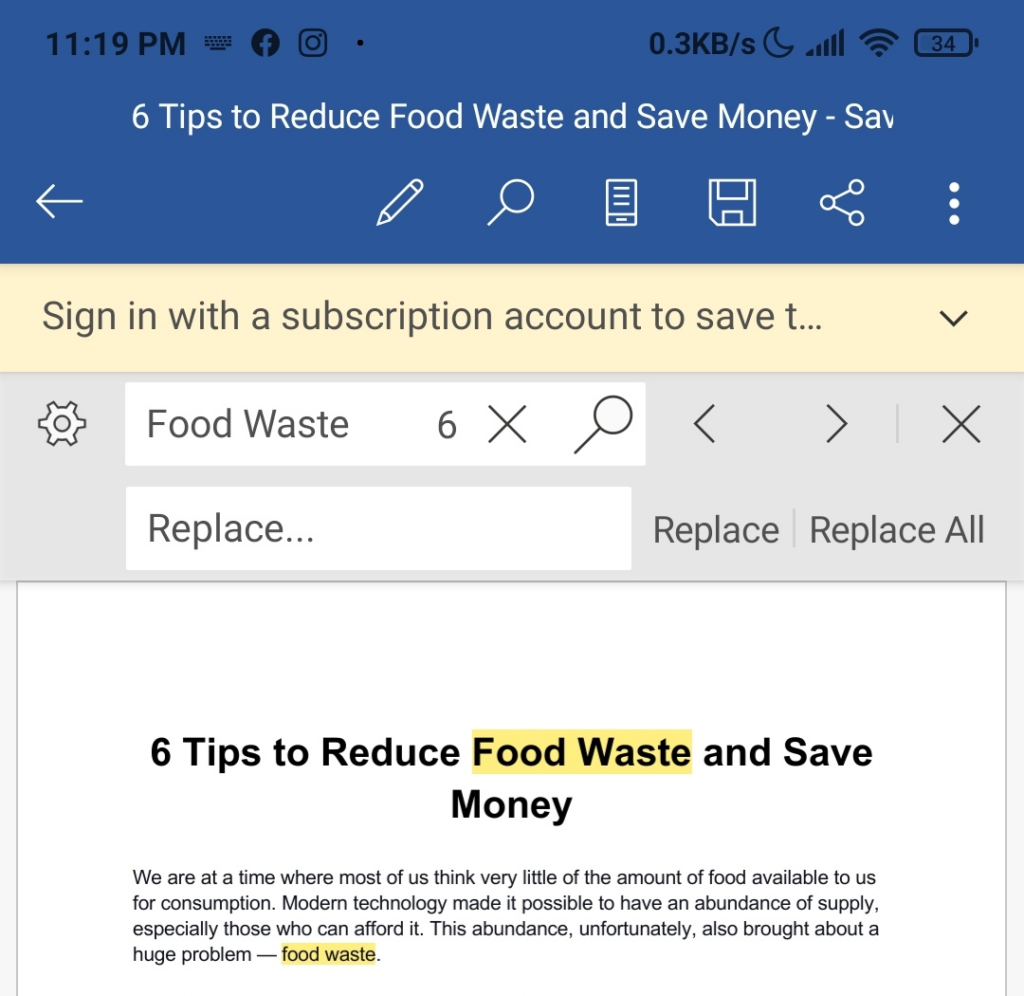
- Tap **Replace** if you want to edit only the highlighted word or phrase. You can also replace all the instances of the word or phrase in the document by tapping **All**. * Tapping on the **X** button icon will close the Find panel.
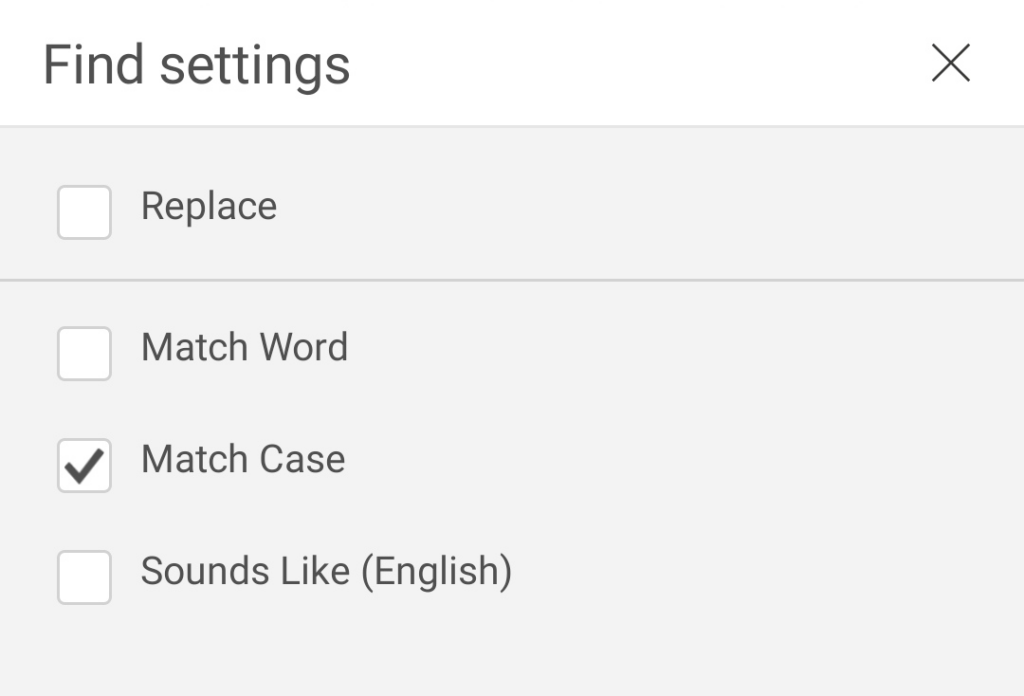
The MS Word app also has additional Find Options, which gives you more editing features. Below are some of the things you can do using these functions:
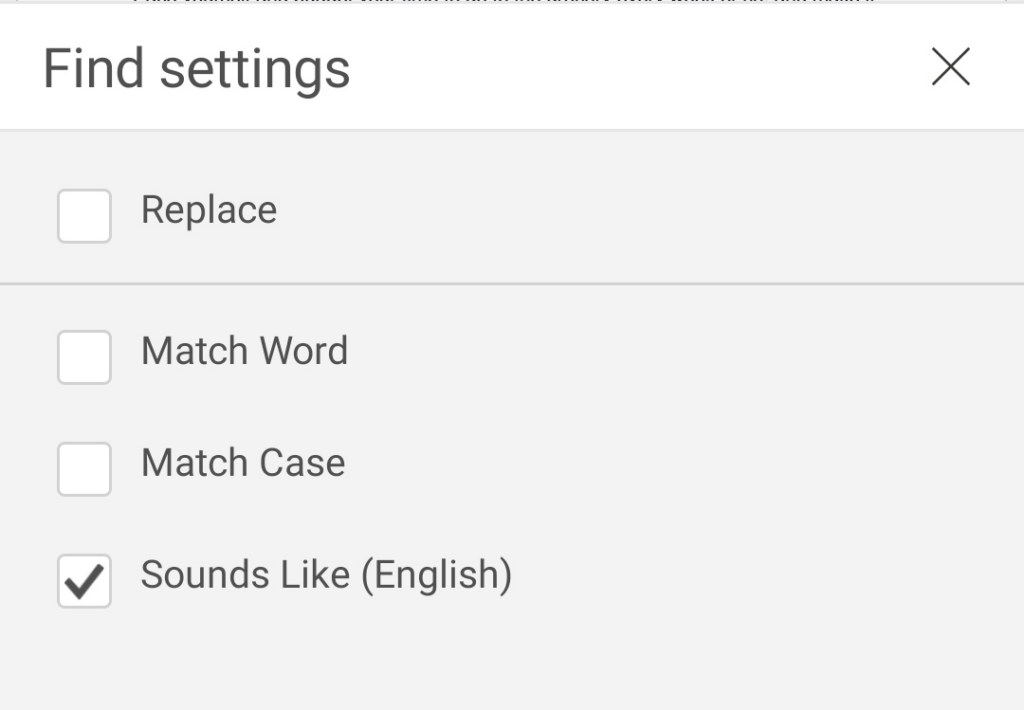
- Selecting Sounds like (English) will only search terms similarly sounding with the text you typed in the box. For example, if you type “to,” it will also highlight “too” and “two.”
**Find and Replace Words in Google Docs (Browser)**
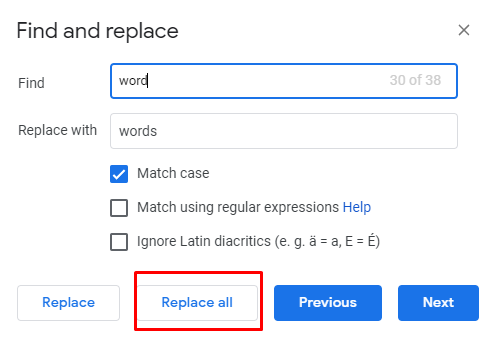
- Open Google Docs on any browser. * Press the** Ctrl + H key**. This command will open a **Find and replace** tab.
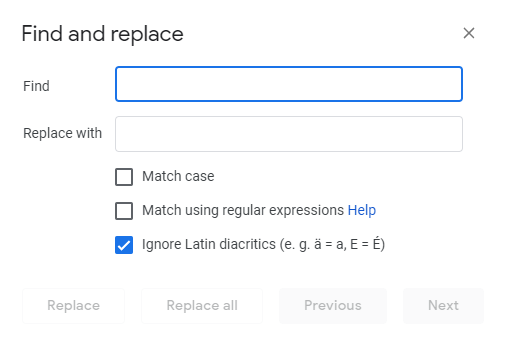
- Type the word you want to search for in the **Find** box. Tick** Match case **if the word is capitalized or is an acronym.
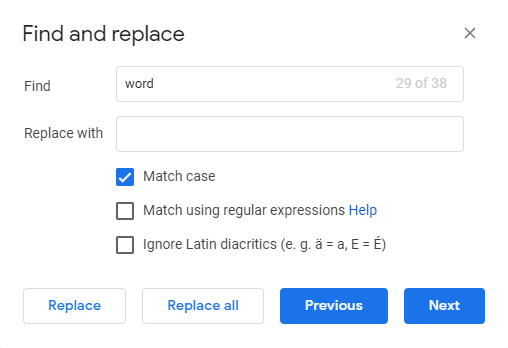
- You can also tick **Match using regular expressions **for searching regular expression patterns that the engine tries to match in the input text. Meanwhile, **Ignore Latin Diacritics** will disregard special characters like Umlaut (Ä, which equals A).
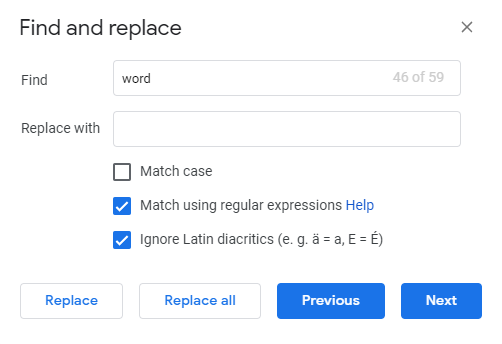
- Type the replacement word in the **Replace with** box.
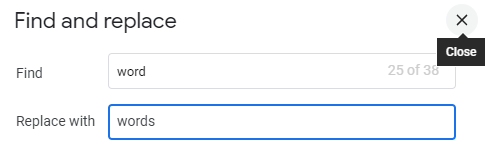
- Click **Replace all **if you want to change all of the said words. Use **Previous** and **Next **to locate the specific word. If you’re going to replace only that word, click **Replace**.
**Find and Replace Words in Google Docs (Mobile)**
- Tap the Google Docs app and open the document you want to edit. * Tap the** three dots** icon (**⋮**). Then, tap **Find and replace**.
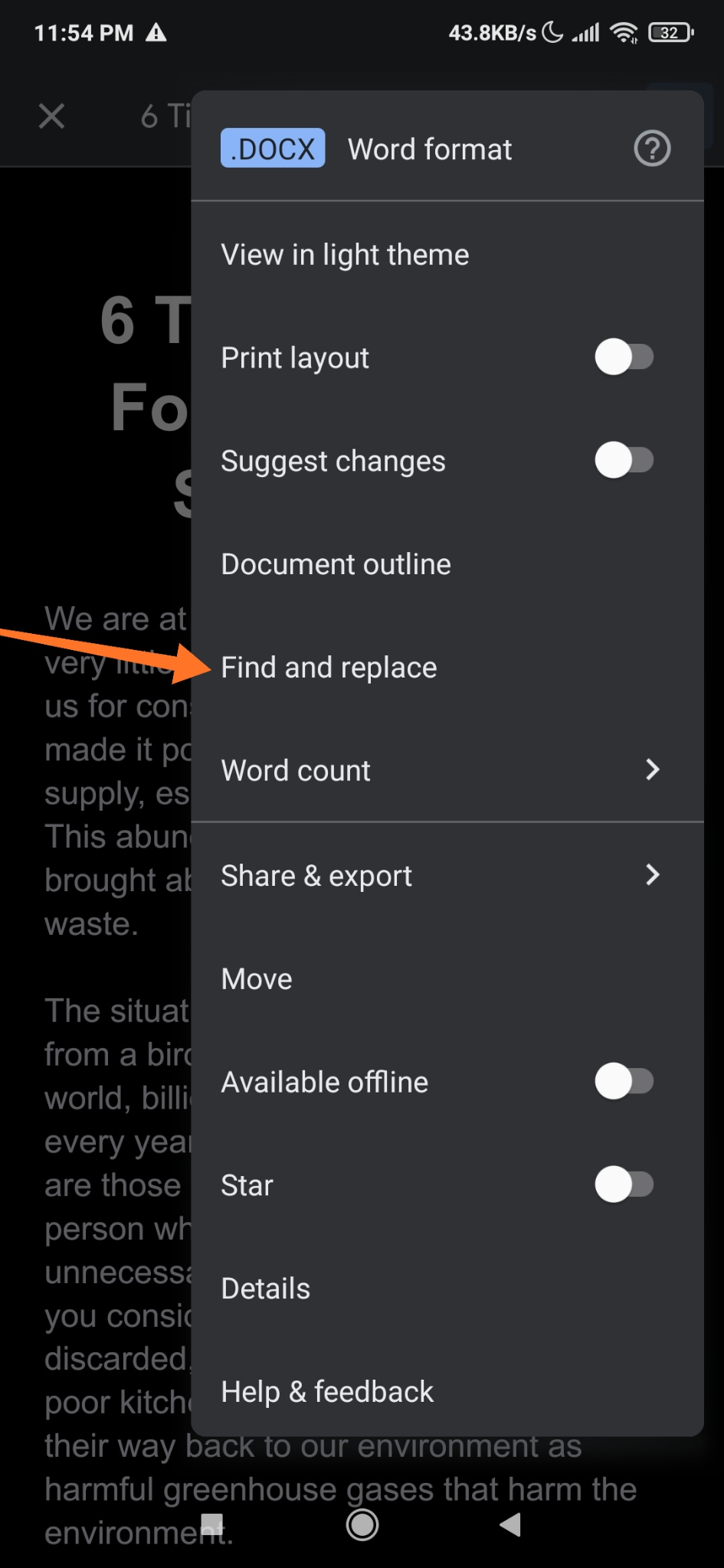
- Type the word you wish to modify. Double-check its spelling. * Tap **Search**. If you want to search the words with exact upper and lower cases, tick **Match case**. If you’re looking for regular expression patterns that the engine tries to match in the input text, tick **Match using regular expressions**.

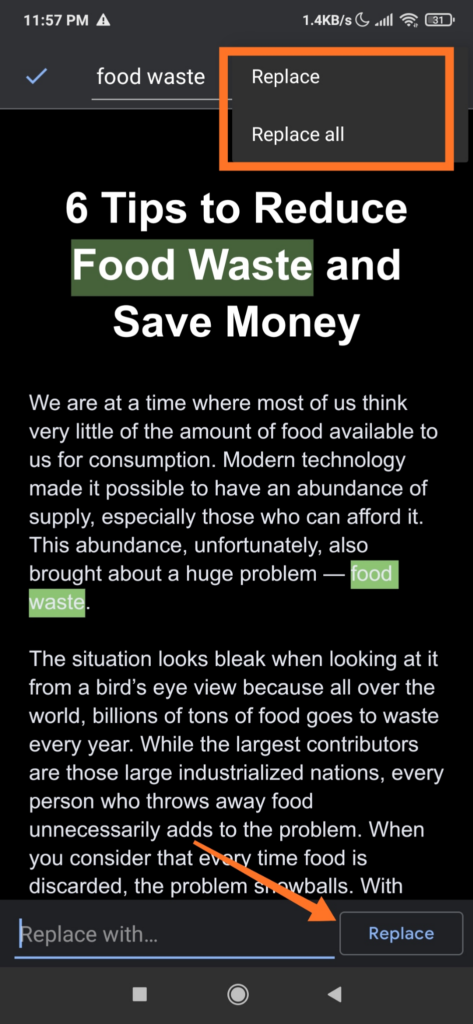
- Now, you can view the instances of the word on the top right of the screen. To switch between the words, tap the **Previous** and **Next** arrows.

- Type the word you want as a replacement. If you want to change the highlighted word, tap **Replace. **To change all instances of the word, tap **Replace all**.
**How’s Your Wordsmithing? **
Finding and replacing words in MS Word and Google Docs is easy to do, especially once you get the hang of it. You can also use different search options to ensure that you won’t miss any word that you want to edit.