If you work with Microsoft Word a lot and find yourself doing the same things repeatedly, create a macro. Macro is a shortening of the word macroinstruction, which means a series of instructions to accomplish a task.
The great thing about creating macros in Word is that you don’t need to know how to program. If you can press record and stop, you can do this.
**Aren’t Macros Dangerous?**
Have you heard about macros being bad because they can contain viruses? Although you do have to be careful about opening Office documents from unknown people because they might have malicious macros, that’s not an issue here. You make your own macro, so you know it’s not a virus.
How To Record A Macro in Word
For this example, you’re going to create a macro in Word to insert your signature at the end of a document.
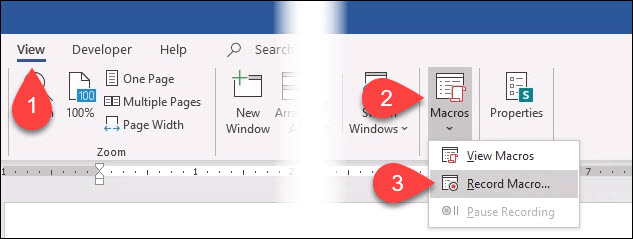
- * With Word open, go to the **View **tab.
- Select the down arrow under the **Macros **button.
- Select **Record Macro… **a new window will open.
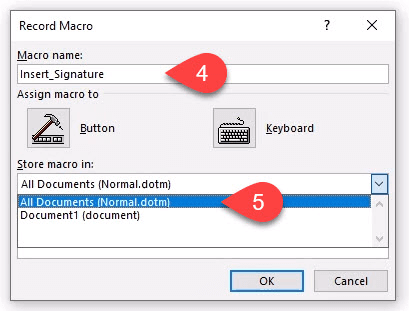
- In the **Macro name: **field, enter a meaningful name for the macro. Spaces are not allowed. Use an underscore or dash. * In the **Store macro in:** dropdown, you can select what documents you want this macro to be used. If you choose All Documents (Normal.dotm), the macro will be available to you in every new Word document you make from now on. If you choose a single document, it will only apply to that single document. It’s usually best to choose **All Documents**.
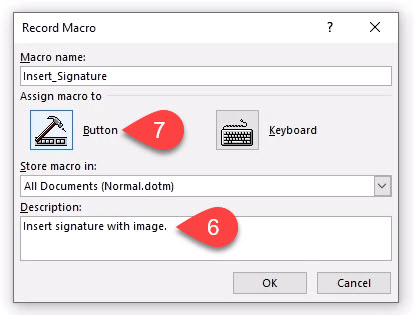
- In the **Description: ** field, write what the macro does. This is a simple macro with a descriptive name, but as you get confident with macros you’ll do more complex things, so a description is always a good idea. * You can choose **Assign macro to** either a button you’ll create with the **Button **or hotkeys you can choose using the **Keyboard **button. There’s already a lot of shortcut keys for Word, so a button may be best. Select **Button**. A new window will open called **Word Options**.
- Here you’ll assign the macro a button on the Word Ribbon. Select **Customize Ribbon**. * In the **Choose commands from:** dropdown, select **Macros**. This will show us our macros in the area beneath it.
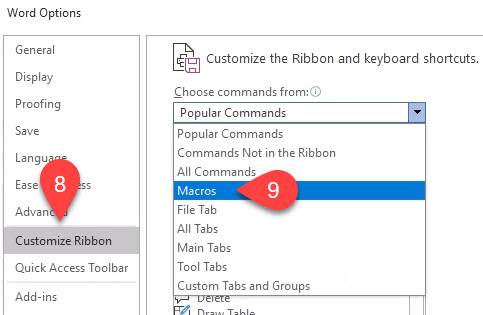
- You need somewhere on the ribbon to put the macro. For this example, select **Home **in the Main Tabs area.Then select **New Group**. * Select **Rename** so you can give it a meaningful name. * In the **Rename** window, select one of the icons to represent the group then enter **My Macros **in the **Display name **field. * Select **OK** to apply it. You’ll see the change in the **Main Tabs **area.
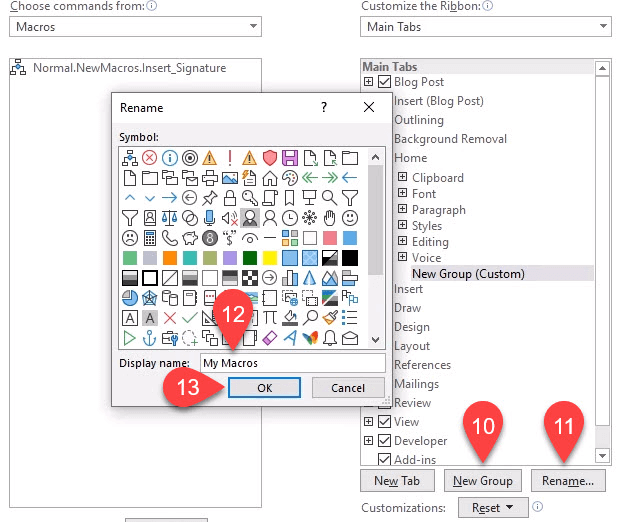
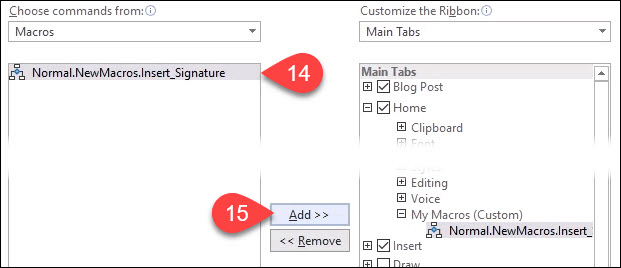
- With the new My Macros selected in the Main Tabs area, select the **Normal.NewMacros.Insert_Signature **macro. * Select **Add** to insert it into the My Macros group.
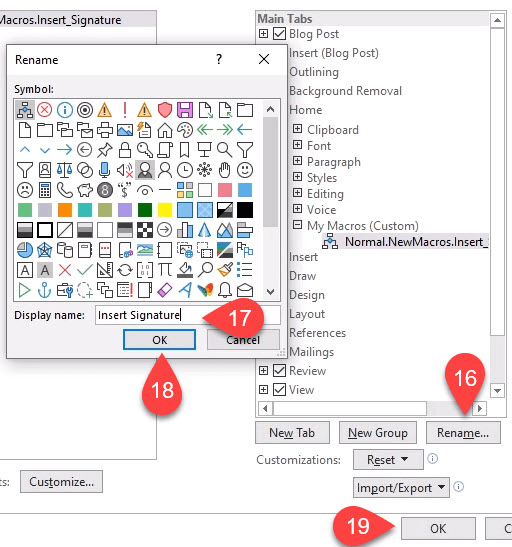
- Of course, you’ll want to rename it. With the macro selected in the Main Tabs area, select **Rename…** * In the Rename window, select an icon and enter a simple name in the **Display name: **field. * Select **OK **to commit the change. You’ll see the change in the Main Tabs area. * Select **OK **below the Main Tabs area to finish creating the button for the macro.
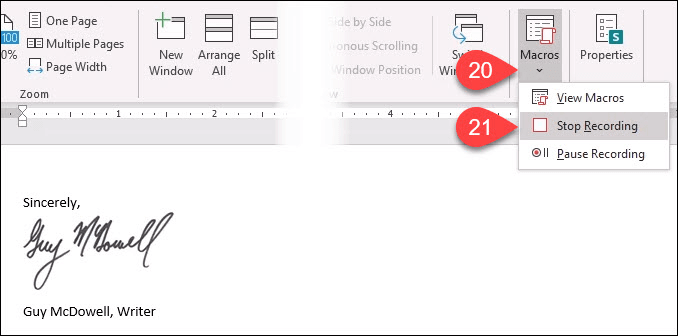
- Go ahead and create whatever signature block you’d like. Add in a scan of your signature or other images. Whatever you’d like. When done that, select the down arrow under the **Macros** button. * Select **Stop Recording**. That’s it. Your Insert Signature macro is made.
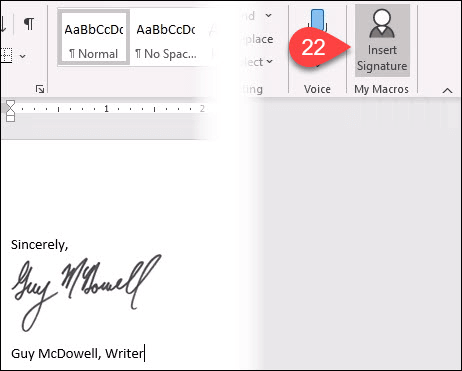
- Test it out by finding the **Insert Signature** button you created in the Home tab and select it. Your signature block should magically appear exactly as you designed it.
**How To Write a Macro**
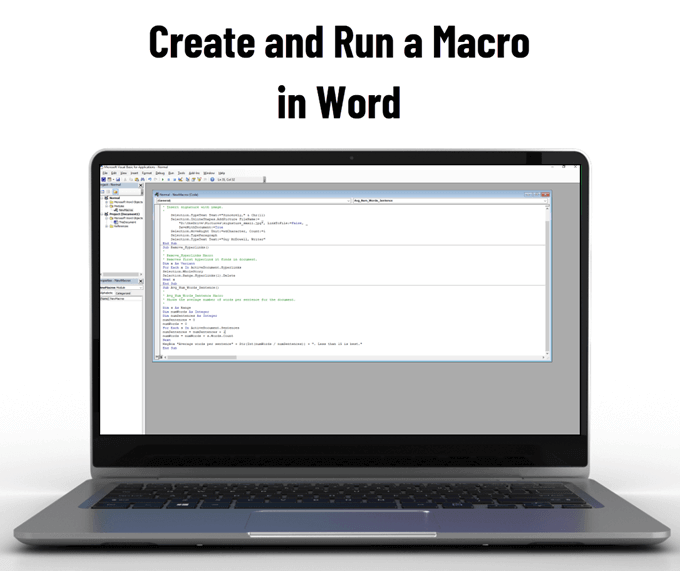
For most macros, the recording method is the most efficient way to create them. Eventually, you’ll want to do something more complex. This requires writing the macro in the Visual Basic for Applications (VBA) language. We’ve got the best VBA guide for beginners, so bookmark that. Let’s create a macro to give us the average words per sentence to help us tell when we’re being wordy.
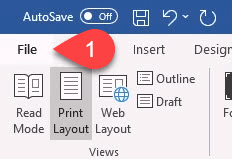
- You need access to the **Developer **tab which is hidden by default in Word. In the top-left corner of Word, select File.
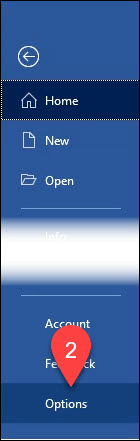
- Near the bottom-left, select **Options**.
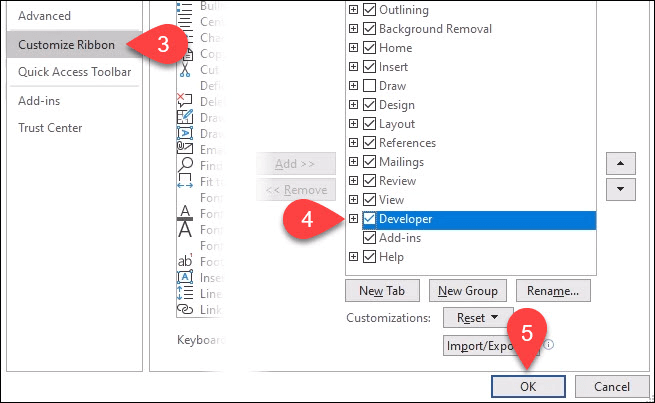
- In the window that opens, select **Customize Ribbon**. * On the right side, look for **Developer **and put a checkmark next to it. * Select **OK** to close the window. The **Developer **tab will now show.
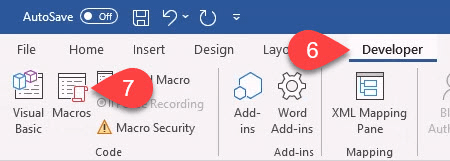
- Select the **Developer **tab. * Select the **Macros** button.
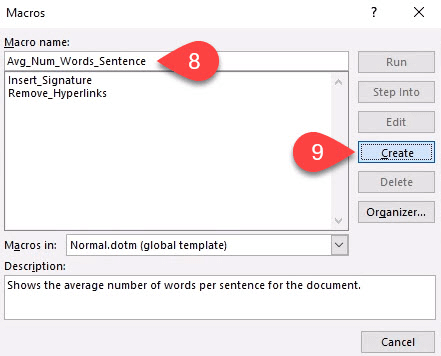
- Enter a meaningful name in **Macro name:** Leave the **Macros in: **as Normal.dotm so it will apply to all Word documents. Always enter a description in the **Description: **area. * Select **Create**. The **Microsoft Visual Basic for Applications **development tool will open.
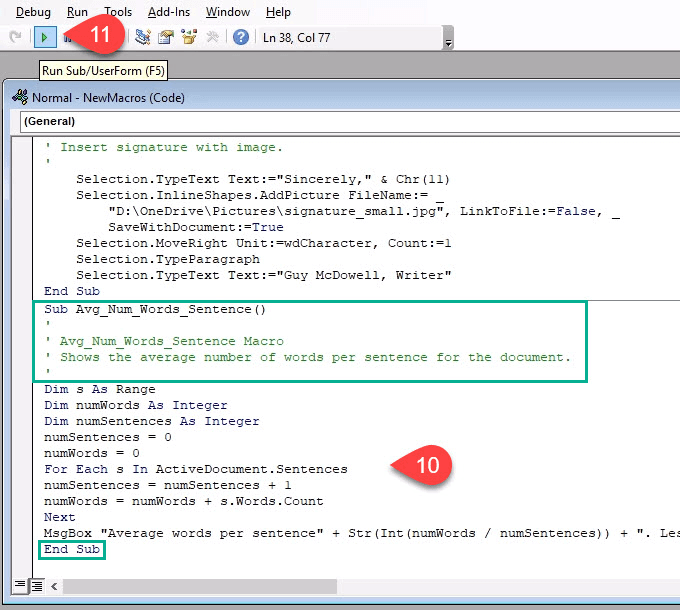
- The code that’s shown in the green rectangles below should already be there with some blank space between them. Copy and paste the following code into that space:
Dim s As Range Dim numWords As Integer Dim numSentences As Integer numSentences = 0 numWords = 0
For Each s In ActiveDocument.Sentences numSentences = numSentences + 1 numWords = numWords + s.Words.Count Next
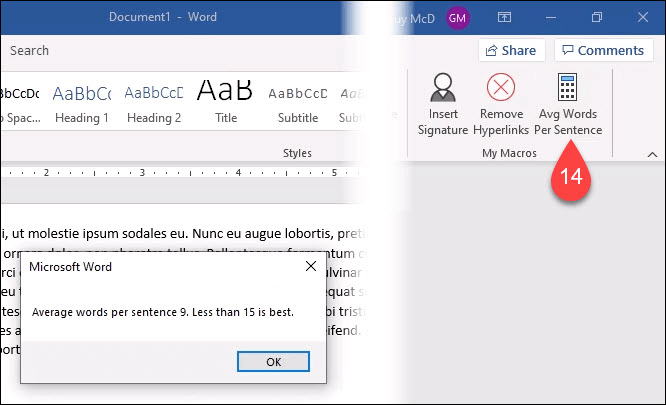
MsgBox “Average words per sentence” + Str(Int(numWords/numSentences)) + “. Less than 15 is best.”
- Select the **Run **button to test the code. If it doesn’t run as expected, edit the code until it runs the way you want.
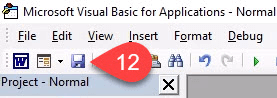
- Select the **Save **button and close the development window.
- Create a button in the Word ribbon using the same method as shown in the “How to Record a Macro” instructions above.
- Find the button you just created and test it.
**My Macro Doesn’t Work When I Save My Word Document**
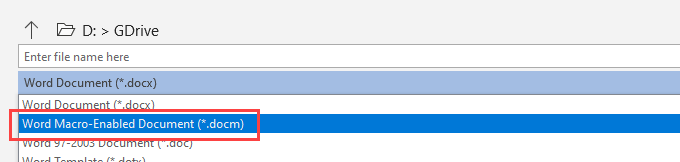
Word defaults to save with the file extension .docx, which doesn’t allow macros to automatically run. If you want the macro to run, you’ll need to change the file type to Word Macro-Enabled Document (*.docm).
This filetype exists partly to combat macro security issues. If you see this file extension on a document you weren’t expecting to receive, be suspicious.
**What Else Can I Do With Macros?**
You can create macros in Excel, Outlook, even PowerPoint. Anything that you’re currently doing manually, you should be able to record or write a macro to do it. Using macros in Word along with great Windows shortcut keys will amplify your productivity tenfold.