Microsoft Teams is a popular collaboration app you can use when working with colleagues from within or outside your or organization.
You can keep your shared files in one place for every member to access, or use the meeting, call, chat, or poll features to engage and stay connected with your teammates wherever they are.
Better still, you can use Teams as a web app or a standalone app on your computer and mobile device without a Microsoft 365 subscription.
If you’ve been tasked with coordinating your teammates, use this guide to learn how to create a team in Microsoft Teams.
How to Create a Team in Microsoft Teams
Before creating a team in the Teams app, you should know that the feature is only available for Microsoft 365 Business subscribers so you won’t find it on Microsoft 365 Family or personal plans.
If you’re using Microsoft 365 Business but you don’t have the authorization to create a team, consult your IT administrator to give you access to create teams.
Plus, the number of licenses you purchase determines the number of users who can access the app’s full features. If you lack the budget for more licenses, you can invite more Microsoft 365 users who don’t have access to Teams as guest users but they won’t have full access as the licensed users.

Once you create a team, you can share files with teammates, or hold on-the-spot meetings and conversations.
You can also call anyone from Teams if your organization has set up the calling feature, catch up on all unread messages, replies, and mentions, schedule meetings, and more.
Note: You can have up to 2,500 members in a single team, which includes licensed users and guests.
How to Create a Team in Microsoft Teams on a Computer
Microsoft Teams is easy to set up and use on your computer, smartphone, or tablet. You can build a team: * From scratch
- From a template
- From an existing group
Create a Team from Scratch
- Download Microsoft Teams on your computer or mobile device. You can also use Teams online, and then create a user account or sign in with the Teams login credentials provided by your organization. Once you sign in, select the **Teams **icon to get started.
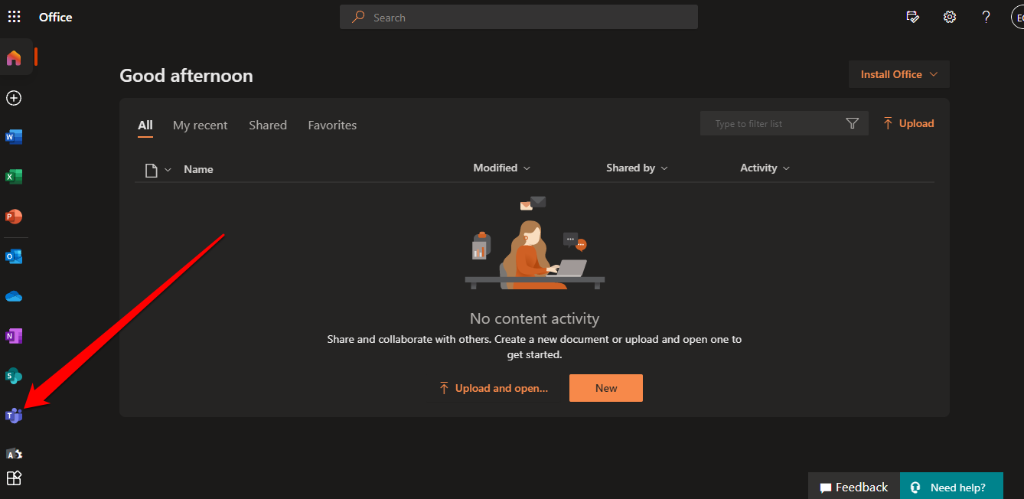
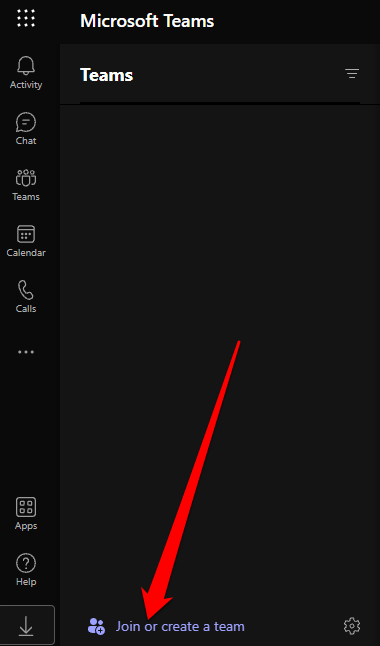
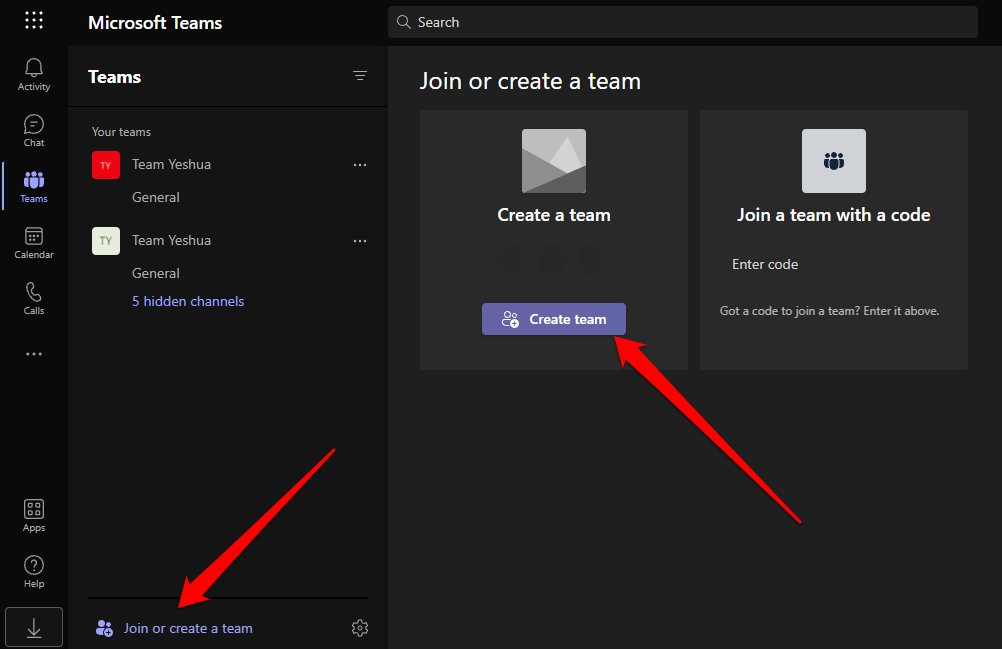
- To start a new team, select** Join or Create a Team** link in the bottom-left corner.
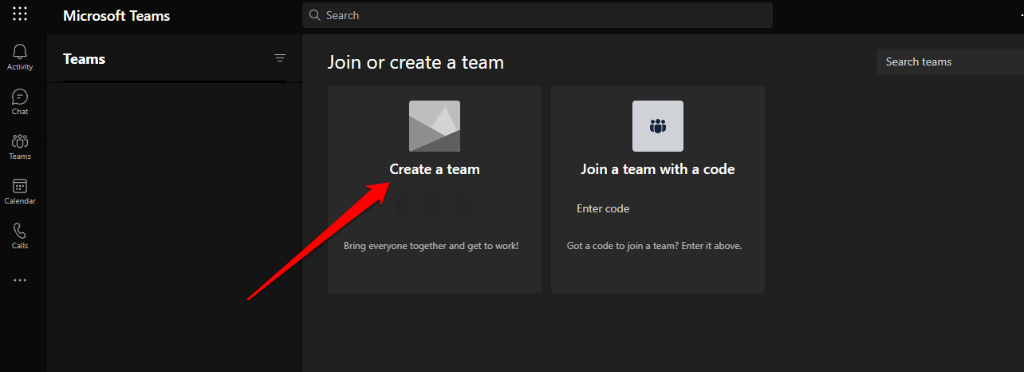
- Select the **Create a team** option.
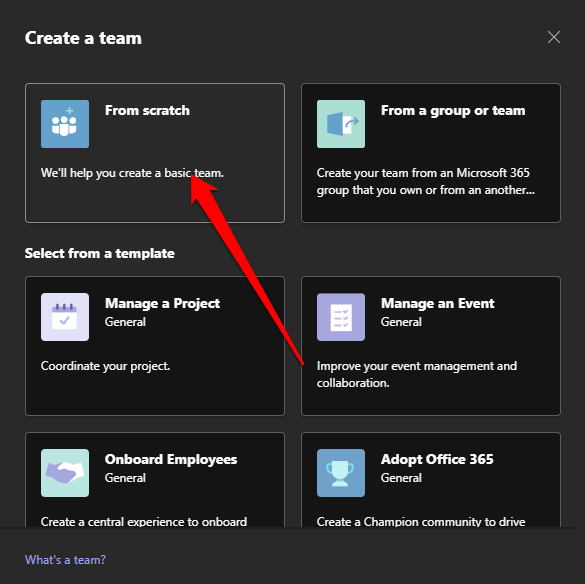
- Next, select **From scratch**.
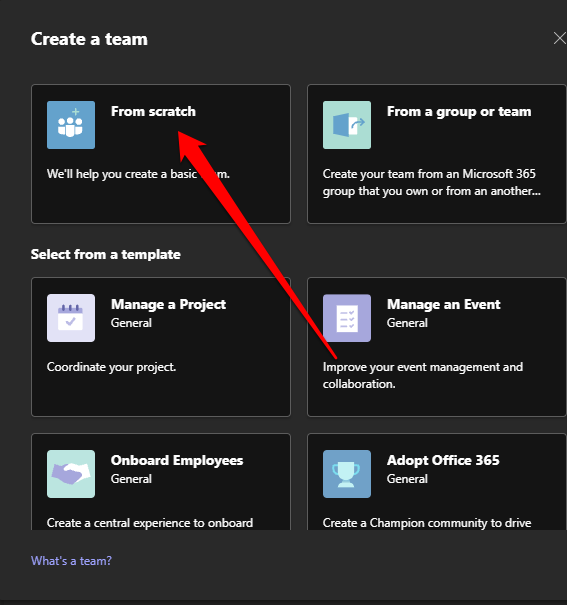
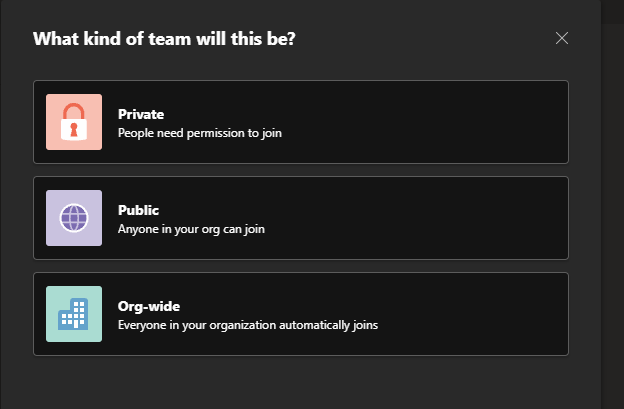
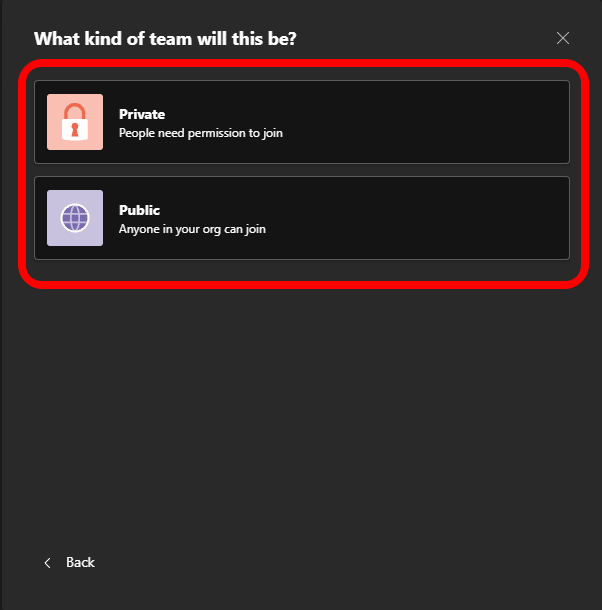
- In the **What kind of team will this be** popup, select Public, Private, or Org-wide:
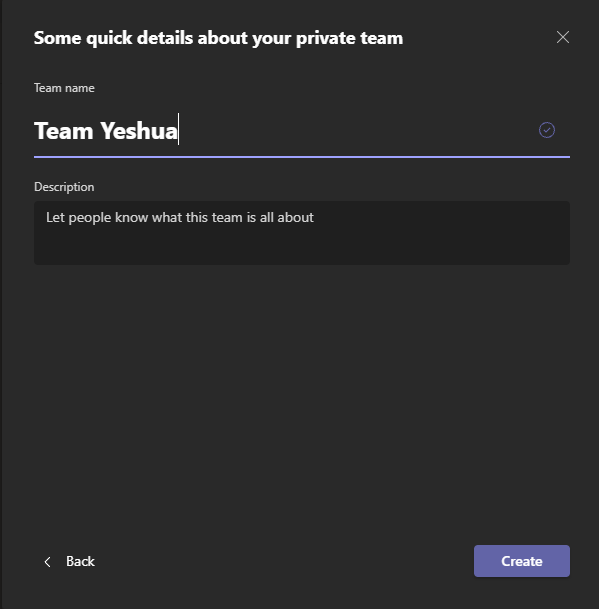
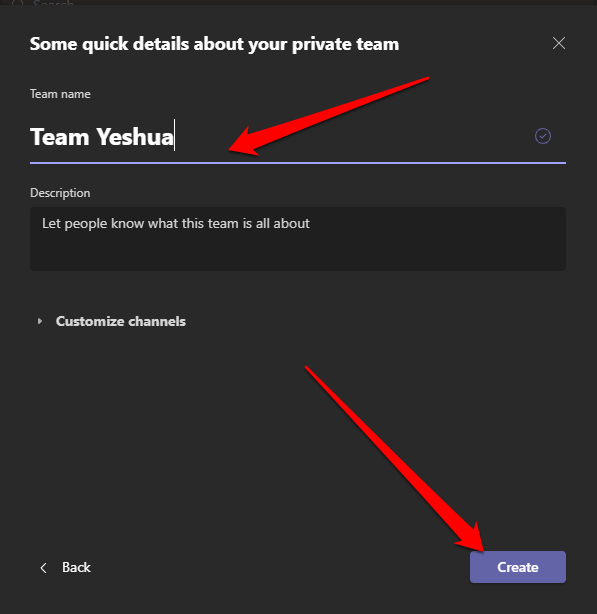
- Give the team a **name** and then add a **description** if you want.
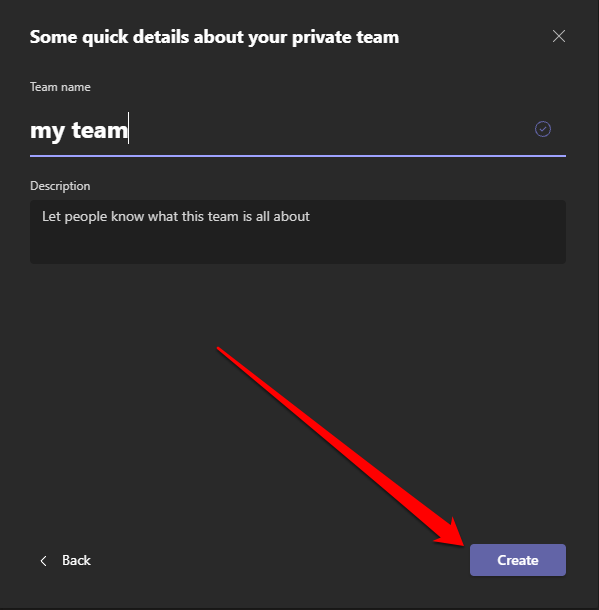
- Select **Create**.
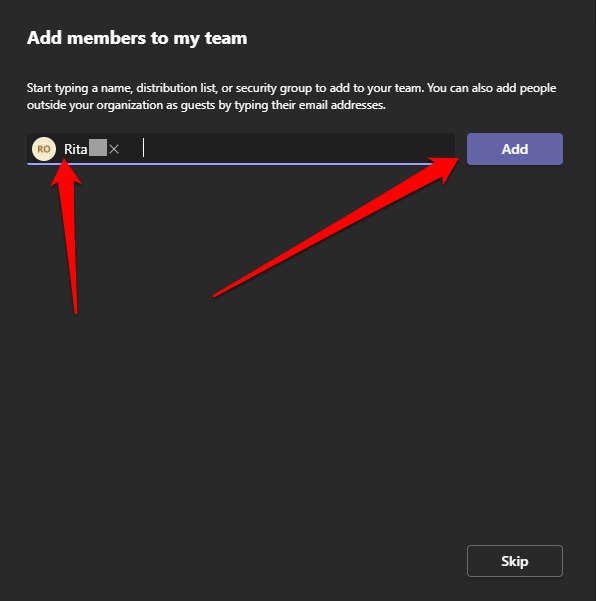
- Add **members **to your team.
**Create a Team from a Template**
Microsoft Teams provides premade templates you can use to quickly create a team in Microsoft Teams.
- Go back to the **Create a team** options menu and pick a **template **under the **Select a template** section.
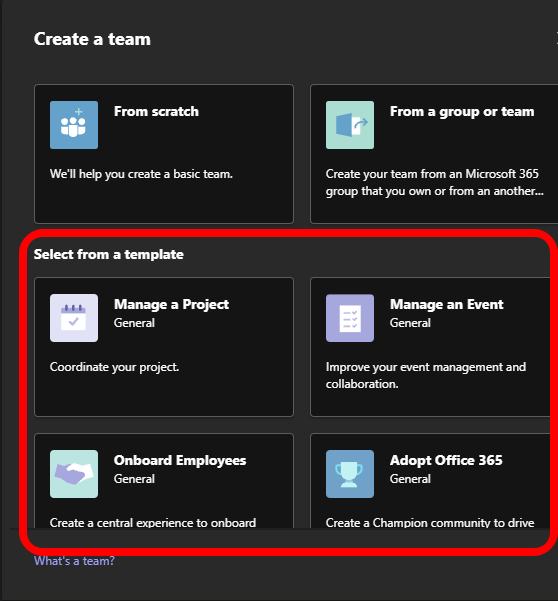
- The team templates come with different channels and built-in apps. If you want to change the template and get one that’s suited to your needs, go back to the previous screen and select a different template.
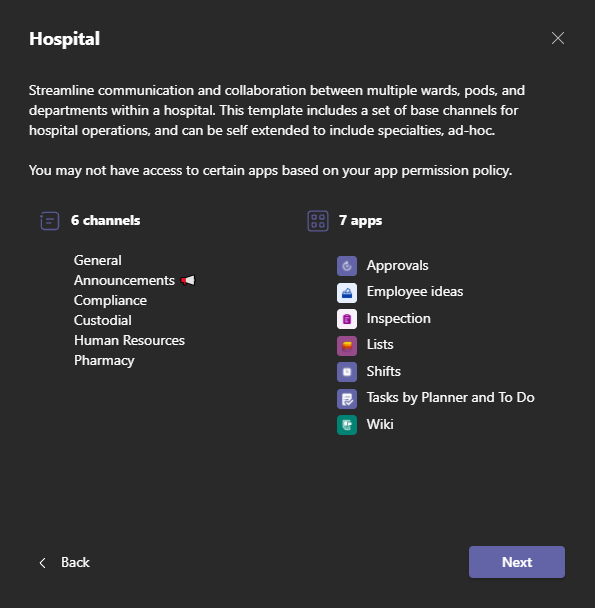
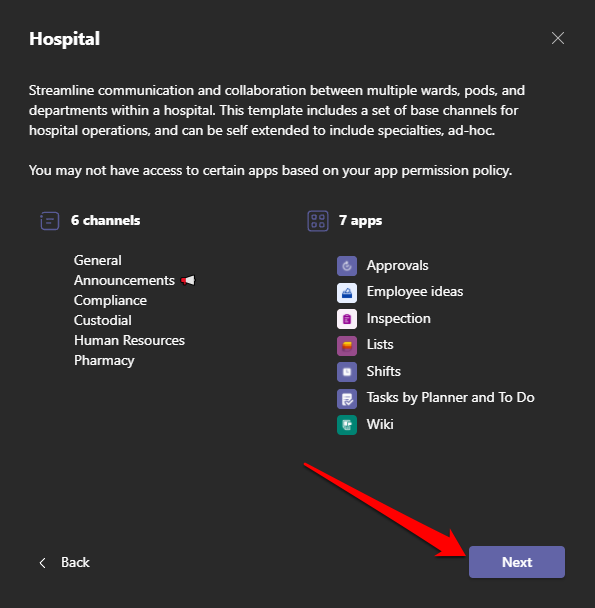
- Select **Next**.
- Select **Private **or **Public **in the **What kind of team will this be** window.
- Give your team a **name **and **description** and then select **Create**.
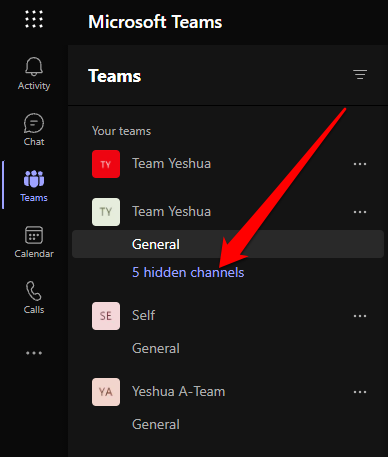
- Next, select the channel. If they’re hidden, select the **hidden channel** link to see the available channels.
**Create a Team from an Existing Group/Team**
You can also build a team from an existing group or team. If a single group is handed two different tasks, or if a team has the same template you are planning to use, this is the best way to save time when building a team.
Note: Admins can create templates from existing teams.
- Select From a group or team in the Create a team menu.
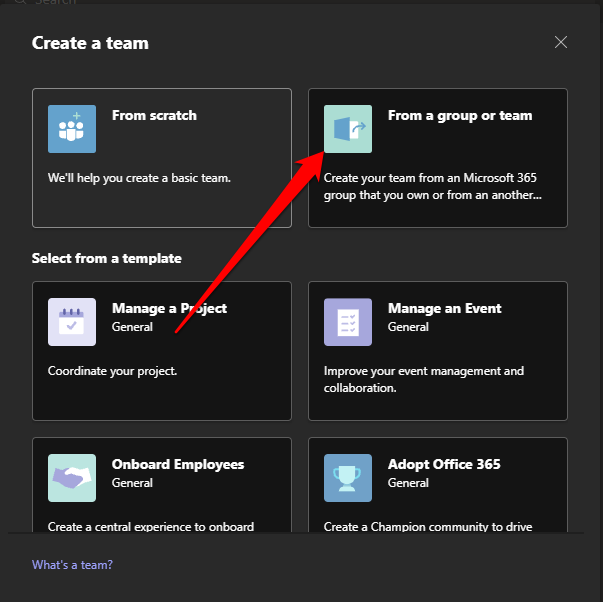
- Next, select **Team**.
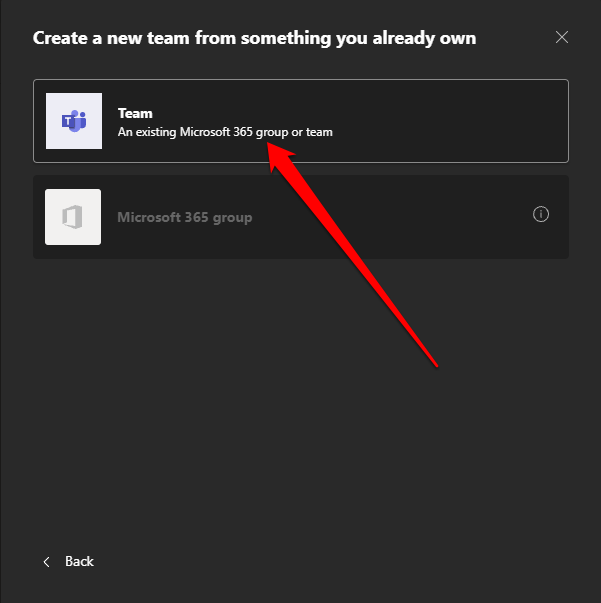
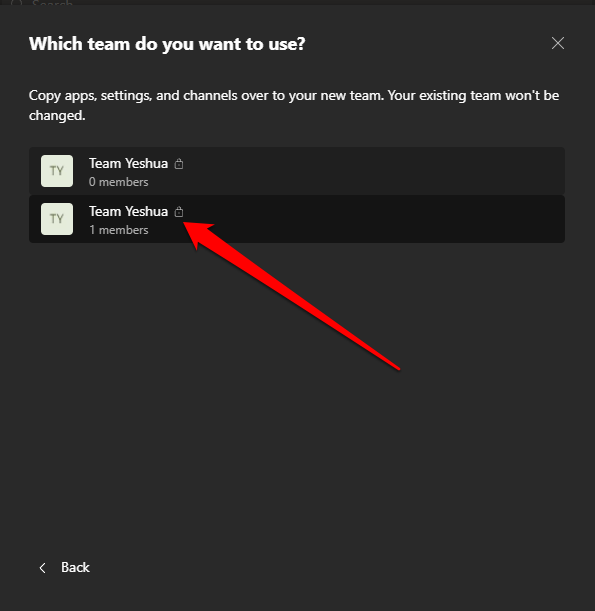
- Choose the team you want to use to create the new team.
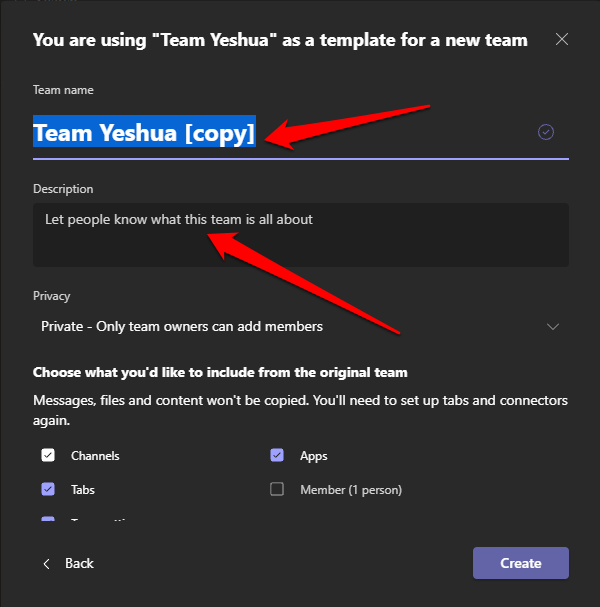
- By default, the team name will be the current one for the existing team and will appear as **Team Name (copy)**. You can give the team a new name and then add a **description**.
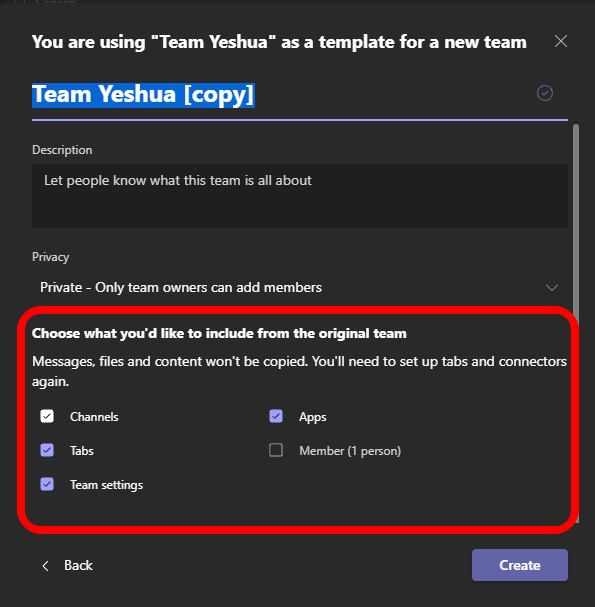
- Choose what to **import **to the team like members, apps, team settings, tabs, and channels from the existing team.
- Select the **privacy setting** for the team: Private or Public.
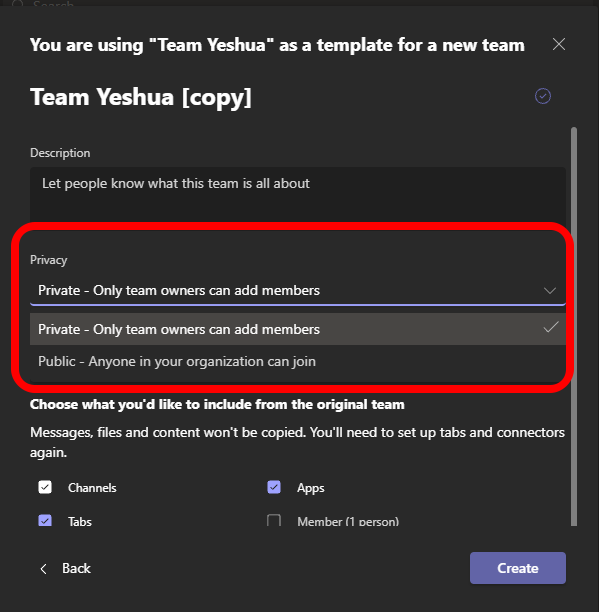
- Finally, select **Create **to create the team in Microsoft Teams.
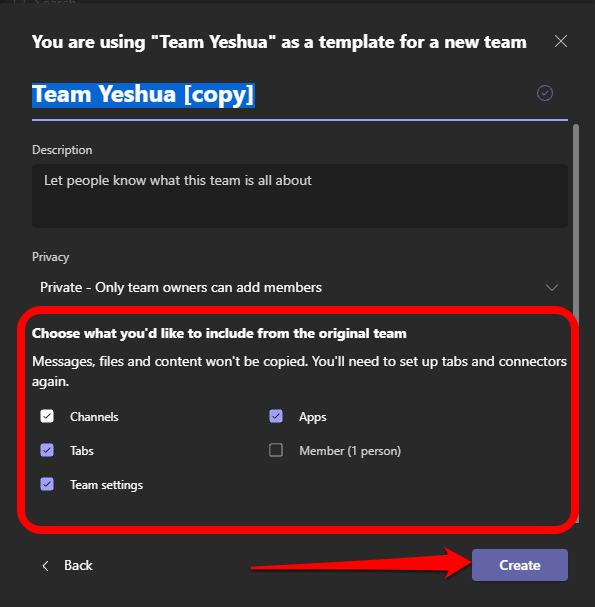
**Note**: You’re not limited to the setting from the original team or the members. So, you can add any number of channels, teams, reselect your members, and more.
You can also create a team in Microsoft Teams from an existing Office 365 group if you own such a group with fewer than 5,000 people. The steps to do this are similar to creating a team from an existing team, except you’ll select create from a Microsoft 365****group in the Create a new team from something you already own section.
Once your team is ready, it will be named from the 365 group name, and all members will automatically be added to it.
How to Create an Organization-wide Team in Microsoft Teams
If you’re an administrator, you can create an organization-wide team for your company, provided it has less than 10,000 members.
Note: You can’t add guest users to an organization-wide team, and you can create only five organization-wide teams in one organization.
- Select Join or Create a team > Create a Team.
- Next select **From scratch**.
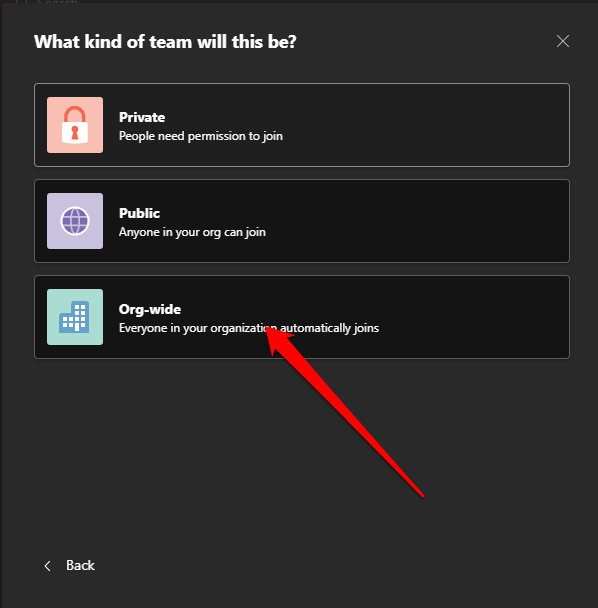
- In the **What kind of team will this be** section, select **Org-wide**.
- Give the team a **name, **add a **description** and then select **Create**.
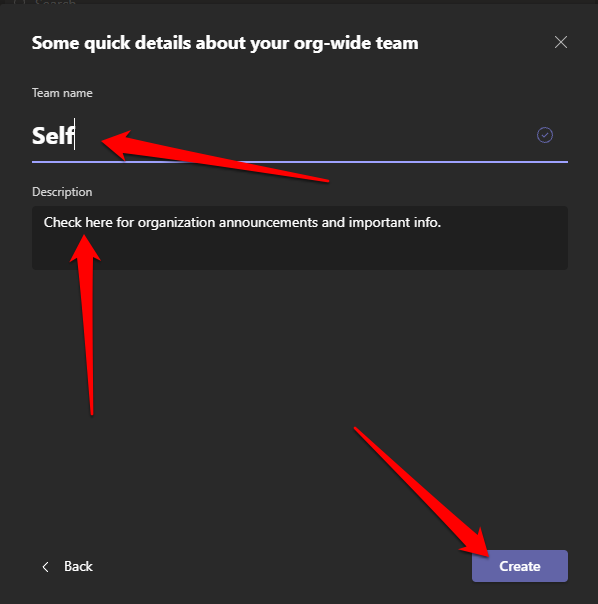
Your team is ready to use, and everyone in the organization has full access to it.
How to Create a Team in Microsoft Teams on a Mobile Device
You can also create a team in Microsoft Teams via the mobile app on your smartphone or tablet.
- Download Microsoft Teams app on your device and sign in using your Microsoft 365 Business login credentials.
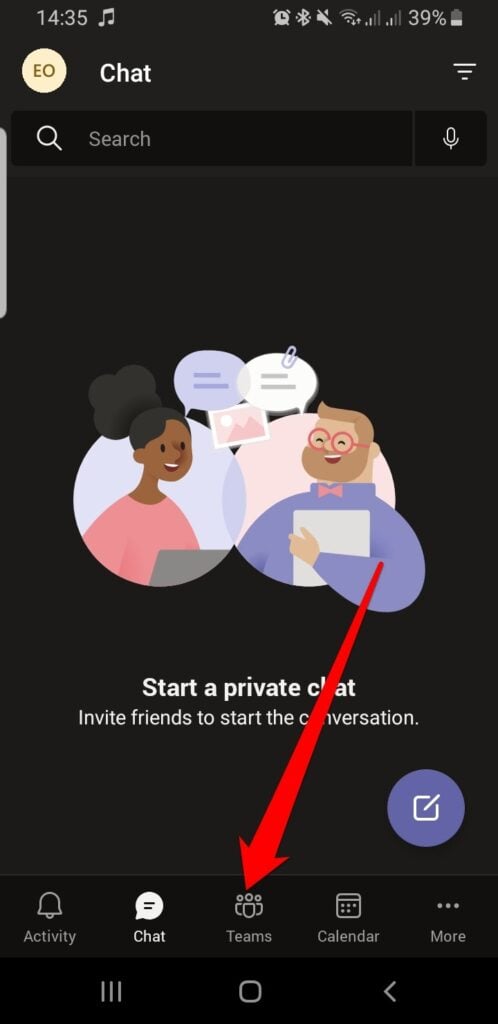
- Open **Teams app **and tap **Teams **icon.
- Tap the **Menu **(three dots).
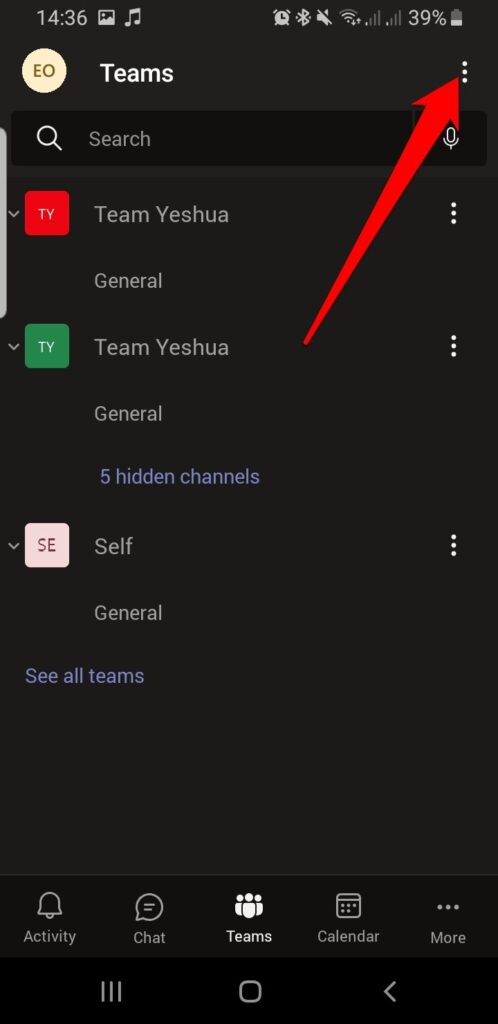
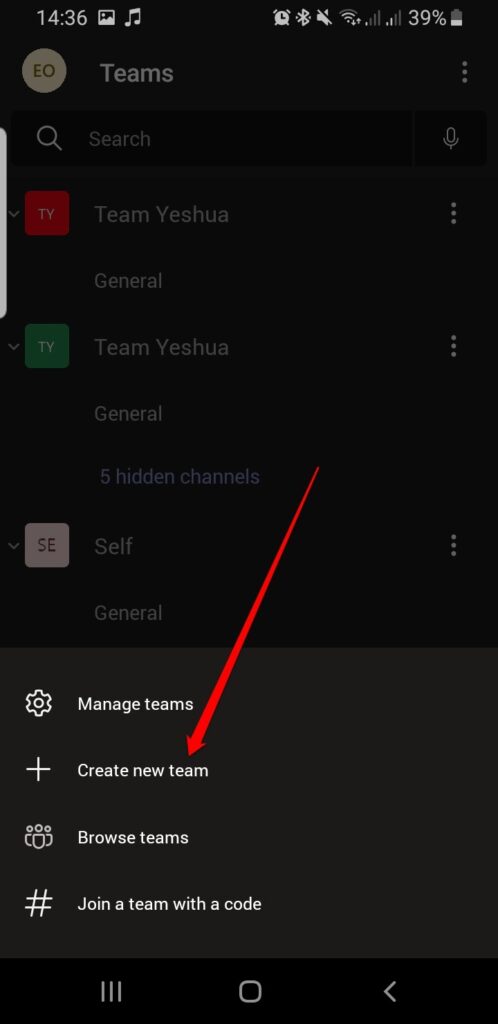
- Next, tap **Create new team**.
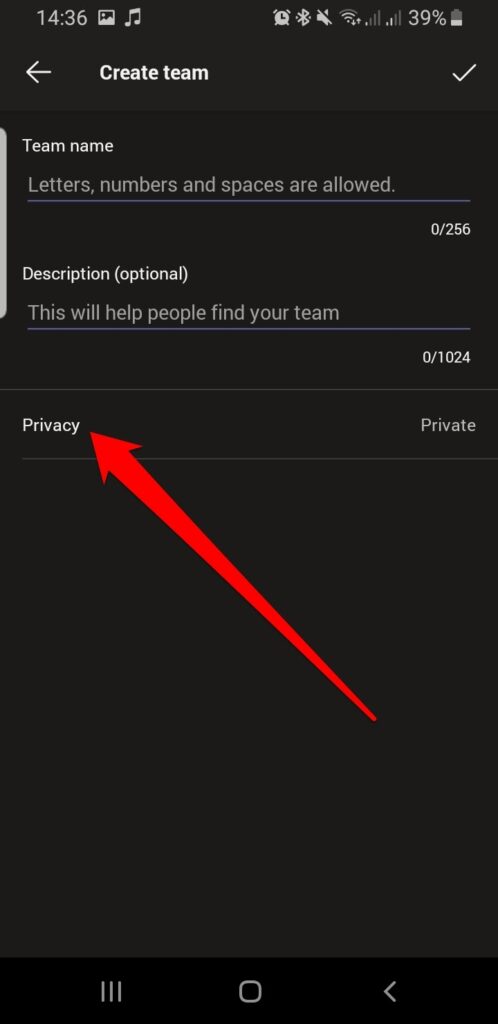
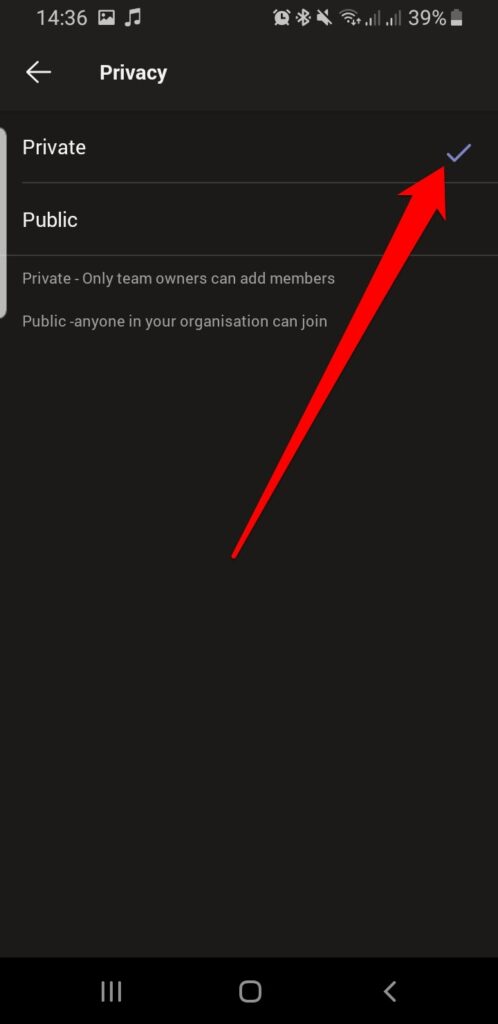
- Give the team a **name **and **description **and then select the **Privacy **setting for your team (Private or Public).
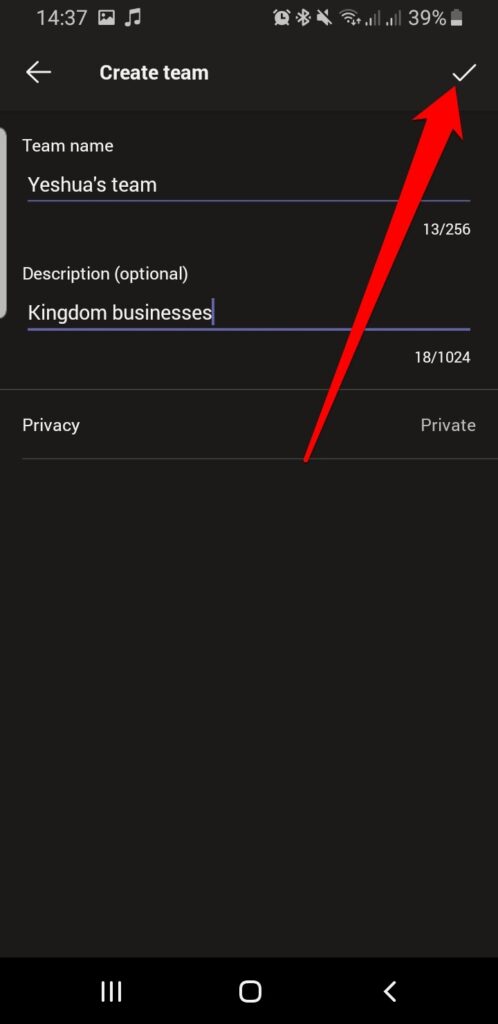
- Tap the **check mark **at the top right corner to create the team.
- Add members to your team by entering their name or email addresses and then tap the **check mark **at the top right corner of the screen.
**How to Add Members to Your Team**
Now that you have a team in Microsoft Teams, you can add members to it depending on the team’s confidentiality. If it’s a public team, everyone can join and have full access to it.
For a private team, you can add members in two ways: manually or using an invite link.
Add Members to a Private Team in Microsoft Teams Manually
- Select **Options **in the team page next to the team name.
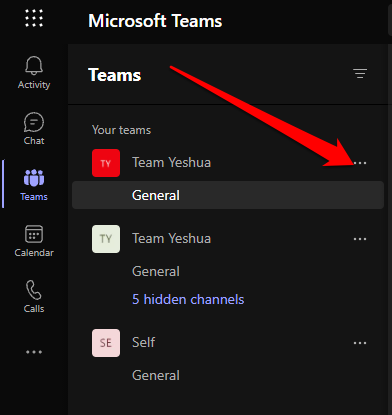
- Next, select **Add Member**.
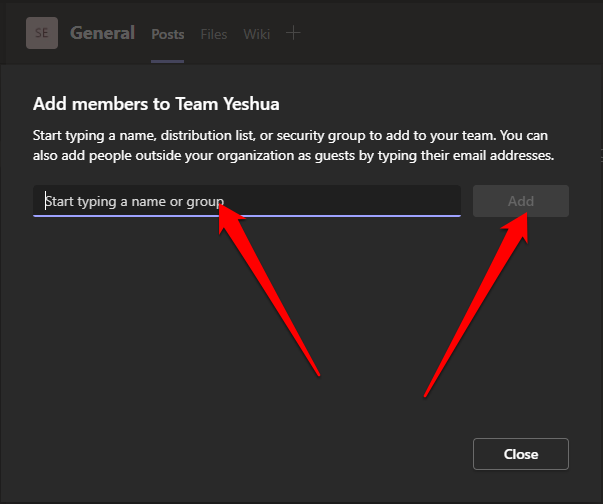
- Type the member’s name or names and select **Add**.
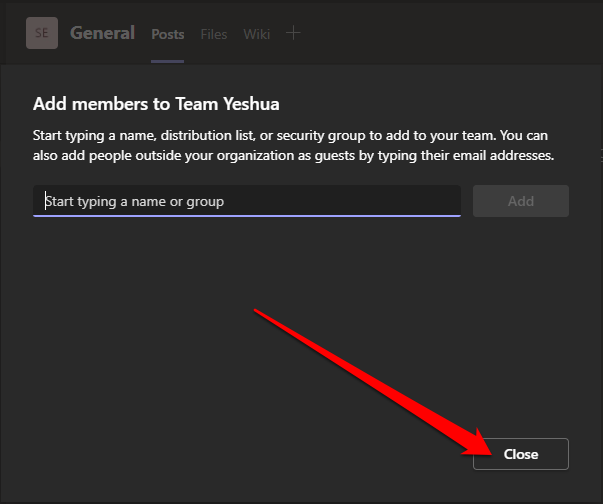
- Select **Close**.
**Add Members to a Private Team Using an Invite Link**
If you have a team link, you can share it with the member/members you want to join the team.
- Select **Options **(three dots) next to the team name.
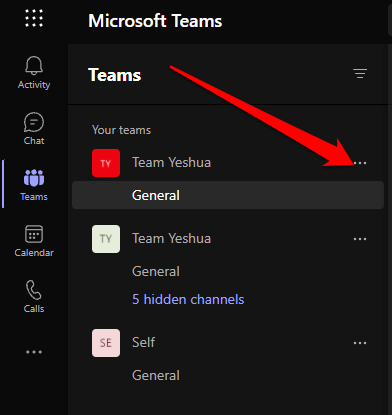
- Next, select **Get a link to team**.
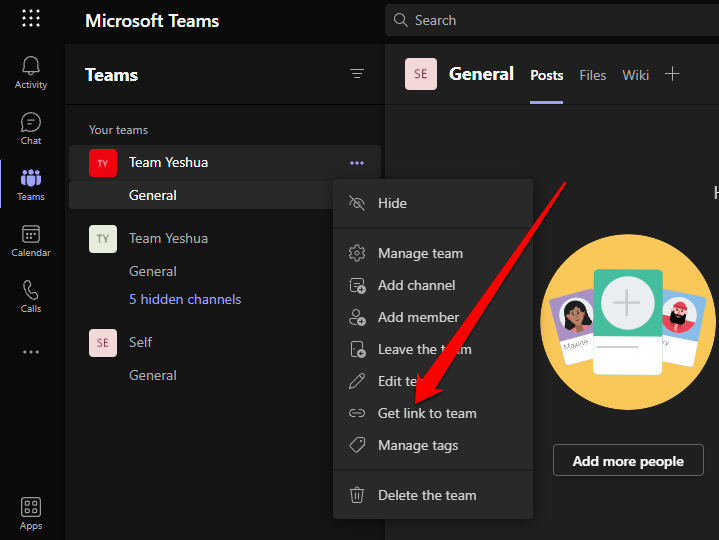
- Copy the invite link and paste it into the direct chat box in Teams or send the link via email or any other messaging app.
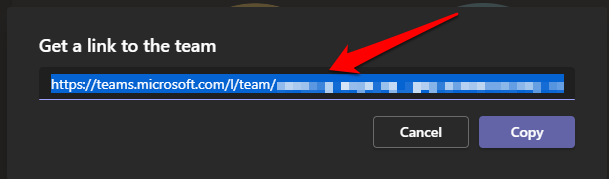
Note: To add members who aren’t part of your organization to the team you just created, select Add a Member in the team options, and enter their email addresses. Doing this will add them as guests, meaning they’ll be restricted to that team — not the organization-wide team.
How to Delete a Team in Microsoft Teams
If the team has run its course and you don’t need it anymore, you can discard it to have a leaner number of teams in your organization.
Computer
- Go to team Options.
- Select **Delete the team**.
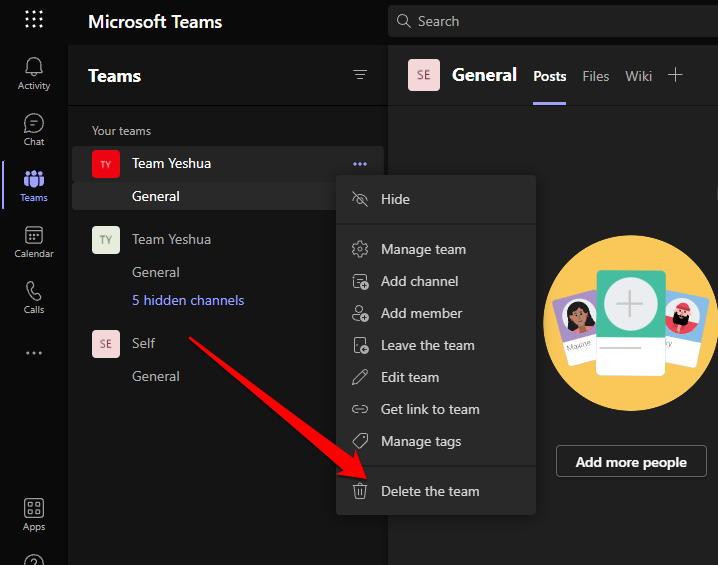
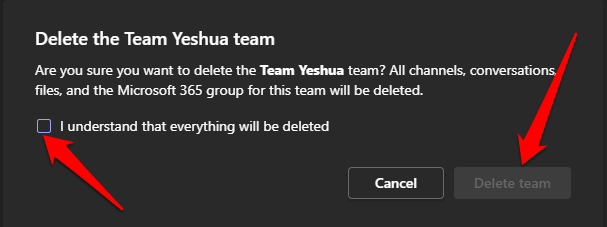
- Next, check the **I understand that everything will be deleted **box. All your channels, conversations, files, and the Microsoft 365 group for this team will be deleted. Select **Delete team **to confirm the cancellation.
**Phone/Tablet**
If the team has served its purpose, you can delete it in a few quick taps.
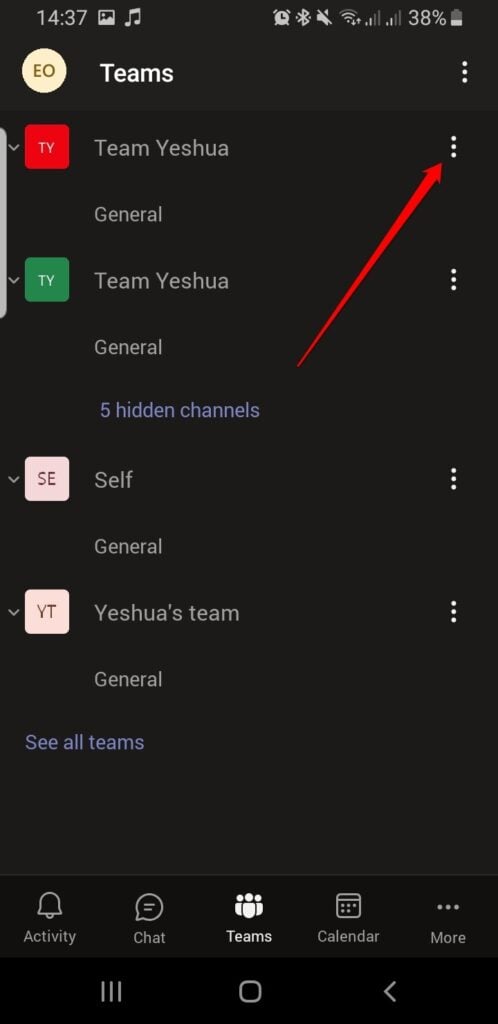
- To delete the team, tap **Options **(three dots) next to the team name.
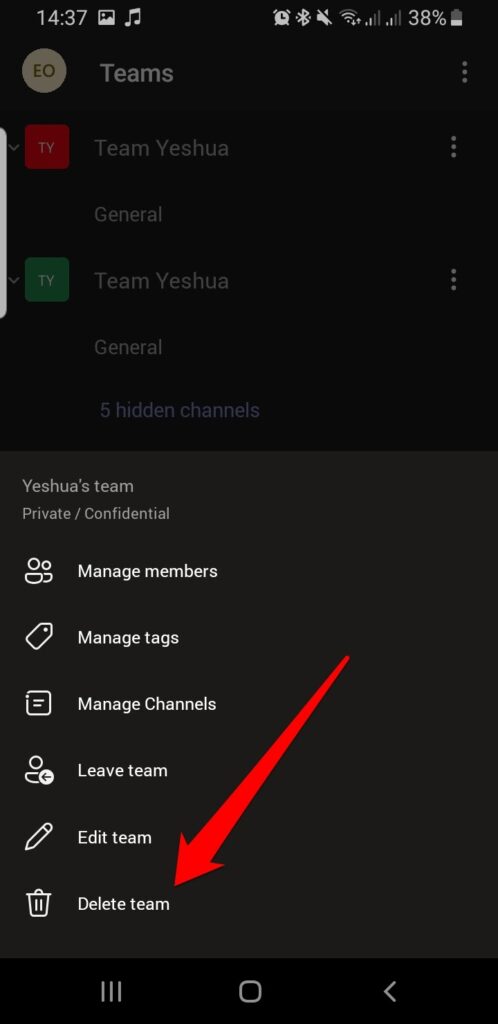
- Tap **Delete team**.
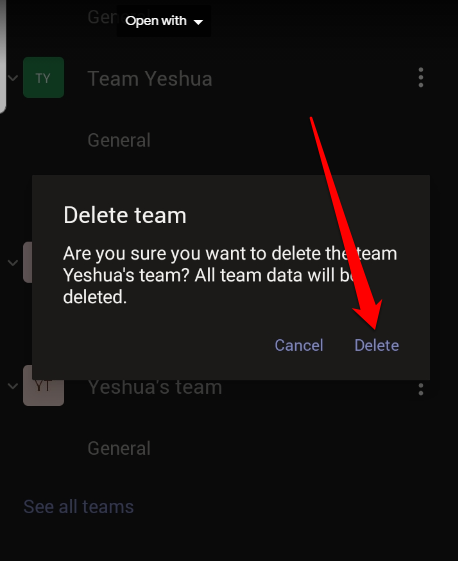
- Next, tap **Delete **to confirm the cancellation.
**Collaborate and Get Tasks Done**
Working as a team in an organization is a great way to delegate or share tasks and get them done.
If you have a remote team and need more tools to work together than just Microsoft Teams, turn to our guide on the best collaboration tools for remote teams.
Leave a comment and let us know if this guide helped you create your team in Microsoft Teams.