MySQL is a Relational Database Management System (RDBMS). It handles database instructions and can manage many databases at the same time.
For example, if you want to create a new database or add data to an existing database, you send a message to the MySQL server, give it the data you want to add, and tell it where to add it.
Whether your business is small or large, your data is an essential element. To ensure that your valuable information is secure from damage, theft, or the effects of a disaster, backup your MySQL database. This article will explain several ways to do that.
Backup MySQL Database Using phpMyAdmin
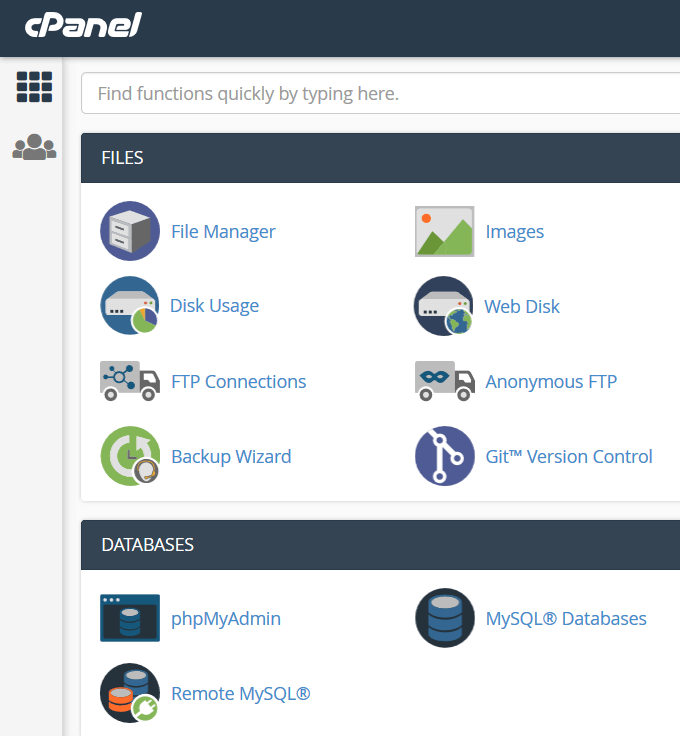
Create an export or backup file of your MySQL database by accessing the phpMyAdmin tool from your web hosting control panel such as cPanel. We will use cPanel for the purposes of this article. * Start by logging into your cPanel and clicking on phpMyAdmin.
- Choose the MySQL database you want to back up from the navigation panel on the left sidebar. Then click the export link located on the top navigation bar.

- From the Export page, you will see two options: **Custom **and Quick. Select the Custom option.
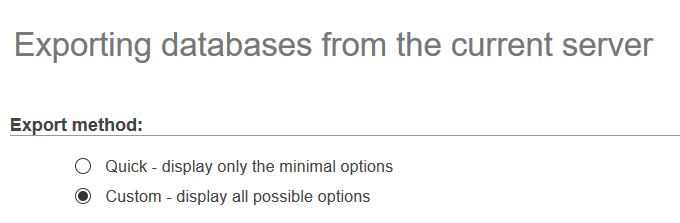
- After choosing Custom, you will see a list of your databases. You can select one, some, or all. The default setting is to backup all.
- Under the Output options, choose gzipped for Compression. Leave the other options as the defaults.
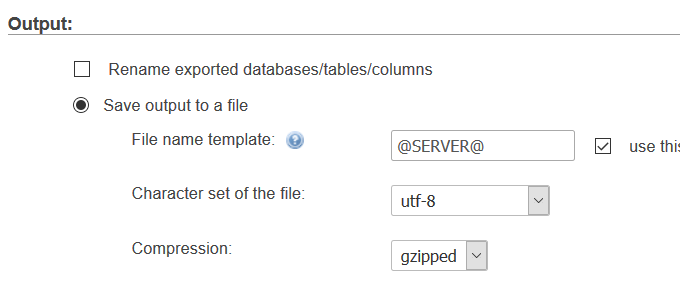
- Click the Go button to start the backup and download your file. The name of your file will be YourDatabaseName.sql.gz file.
The time it takes for the backup to complete will depend upon the size of your database.
Backup MySQL Database With mysqldump
Use the mysqldump command to create a text file dump of your database that will be managed by MySQL. A text file dump is a text file that includes the SQL commands you need to recreate your database from scratch.
mysqldump database_name > database_name.sql
This command will create the backup and send it to a .sql file. It will only make a copy of your database and won’t affect it.
mysqldump –databases database_one database_two > two_databases.sql
Database_one refers to the name of the first database and database_two is the name of the second database you want to back up. Both will be backed up into a single database.
mysqldump –all-databases > all_databases.sql
Backup MySQL Database Using Cron Jobs
A cron job is a Linux command used to execute a task at a specified time automatically. We will explain how to use this command to automate a backup of MySQL databases.
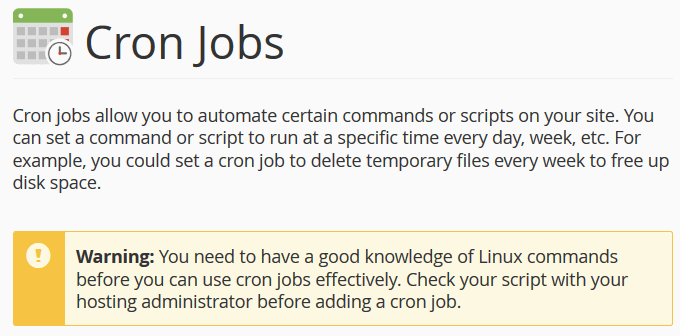
- You will see a warning that you should have a good knowledge of Linux commands to use cron jobs effectively. If you don’t, check with your hosting administrator.
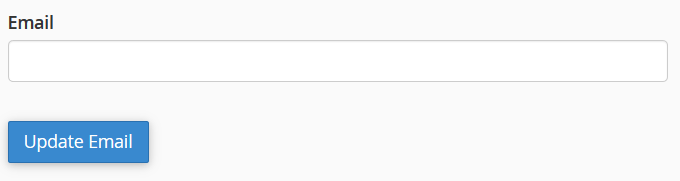
- If you want to receive an email every time a cron job runs a command that produces output, put your email address in the box and click Update Email.
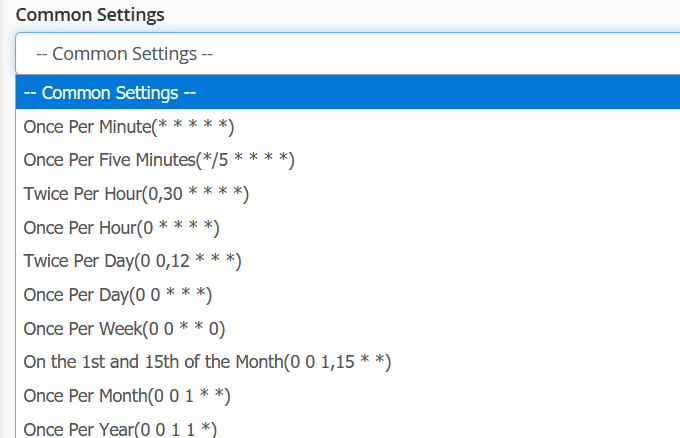
- Choose one of the Common Settings from the dropdown menu to select how often you want to run the backup.
- You can also tweak the other settings such as time and day of the week.
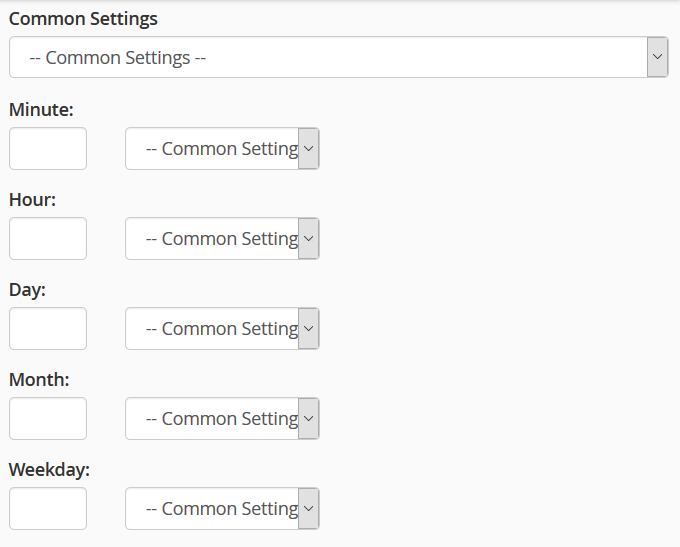
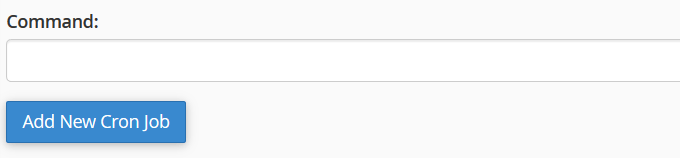
- Now it’s time to put in the command as follows:
/usr/bin/mysqldump -u dbusername -p’dbpassword’ dbname > /home/username/path/backup.sql
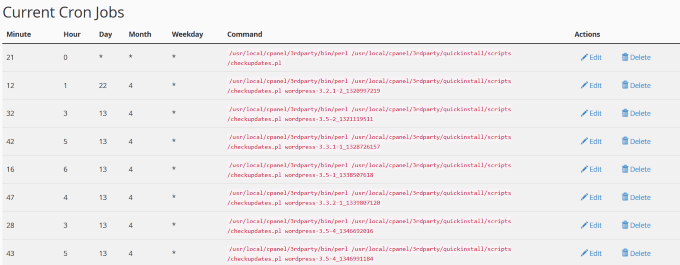
- If you want to change any of your current cron jobs, click Edit. If you no longer want to run any job or make a mistake, click Delete.
Use WordPress (WP) Plugins to Backup MySQL
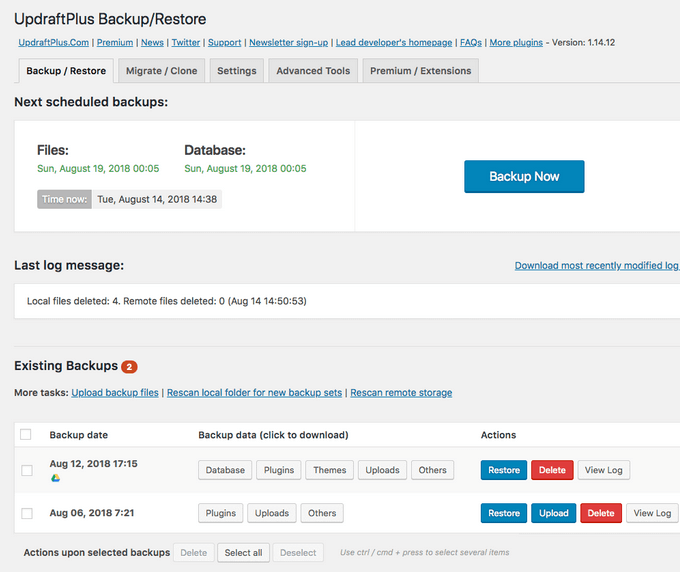
If you are using WP, you can use a plugin to back up your database. UpdraftPlus will back up your database file with a single click. It currently has over two million active installs.
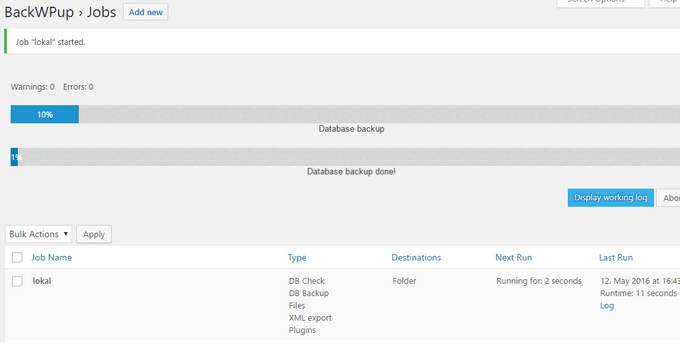
**BackWPup**
Use BackWPup to backup your MySQL database files and even your complete WP installation.
There are many more WP plugins available to back up MySQL. Choose one that works with the current version of WP and is being actively updated.
To avoid losing critical data, regularly backup your MySQL database. If you have a backup, you will be able to restore essential or irreplaceable data should something happen to corrupt your site.