Understanding how to construct formulas is a fundamental step in learning to use Excel. Here is a primer on the syntax of the functions and formulas in MS Excel.
While you can get far by simply copying formulas from other spreadsheets or inserting Excel functions from the dedicated menu, it’s a good idea to gain at least a basic knowledge of how the syntax actually works. That way, you will be able to fix any errors or tweak the formulas to get the most out of your spreadsheet.

What Is the Meaning of Syntax?
Programming languages are designed to let you instruct the computer with structured sentences. Syntax simply refers to the rules of such a structured language, since the computer isn’t smart enough to parse any text that deviates from the expected standard.
Microsoft Excel, while not a programming language, nevertheless has the ability to instruct the program using formulas. And just like any other form of machine instruction, this has its own syntax. Understanding this syntax is key to taking advantage of the capabilities of the spreadsheet application.
What Is a Formula in Excel?
An Excel formula is an expression that can be entered into a cell in lieu of actual data, using mathematical operations or other functions to generate a result. For example, a formula may be written to add all numbers in a column and display the result.
Why use a formula for this? After all, you can manually calculate the result yourself and just enter it in the required field.
The advantage of using a formula instead of a hard value for calculations is that this makes updating the spreadsheet easier. Any time you make any changes in the underlying data that goes into a calculation, Excel will automatically recalculate the results for you.
This means you can easily scale up a formula across hundreds and thousands of cells without losing any accuracy. You can even copy and paste these formulas across workbooks and have Excel automatically adjust the parameters to fit its new location.
Constructing a Basic Formula
You enter a formula in a cell by starting with an equal sign and then typing out the expression. For example, typing this gives you the sum of these two numbers:
= 30 + 40
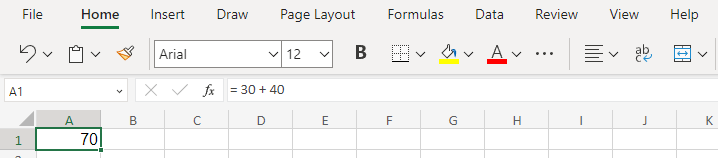
Of course, performing calculations on static numbers like this isn’t particularly useful. To add the numbers contained in a cell, you must use cell references.
Like a square on a chessboard, the cells of a spreadsheet can be referenced by a combination of their alphabetical and numeric positions. The numerical row number increases as you go down the spreadsheet, while the alphabetical column numbers advance toward the right.
You might have spotted the obvious problem with this – alphabets run out fairly quickly, so what about columns after Z? Then we just start combining alphabets, giving us AA, AB, AC, and so on.
Using this reference you can use the value of any cell of the spreadsheet in a formula. Like this:
= A1 + A2
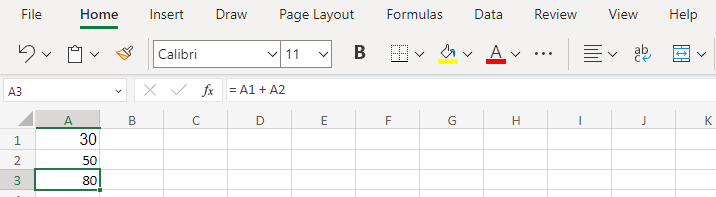
Note that once you hit Enter, the formula will only appear in the formula bar – the cell itself sports the resulting value. So you need to select a cell to determine if its value is derived from a formula or manually entered into it.
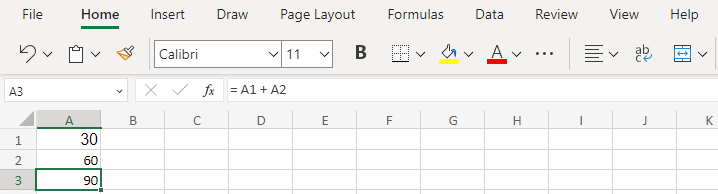
That’s all you need to craft basic formulas that perform calculations on their own. The best part is that if you end up modifying any of the cells being referenced, the result updates on its own.
Introduction to Functions
Cell references and basic arithmetic can take you far, but they still leave much to be desired. It can be tedious writing formulas for adding up hundreds of cells, for example, even if you know the references.
That’s where functions come in. Like any programming language, Excel includes a bunch of built-in functions that can perform complex tasks with a relatively simple syntax.
Functions are invoked by their name followed by any arguments enclosed in brackets (or parentheses, as they are strictly called). For example, you can use the SUM function to add a large number of cells easily:
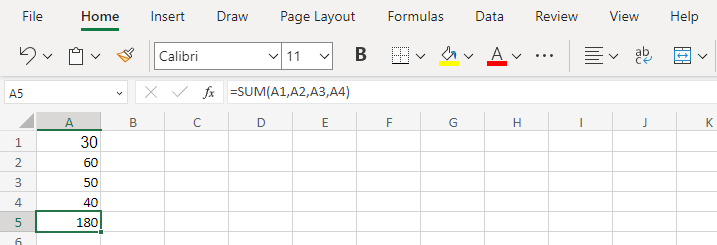
To shorten the formula even further, we can specify a range instead of entering the reference of every cell. For example, you can type A1:A4 to include the entire range of cells from A1 to A4. This can be extended across a row as well, and include as many cells as you want.
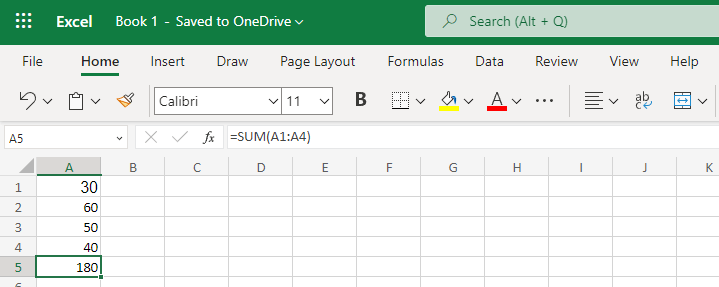
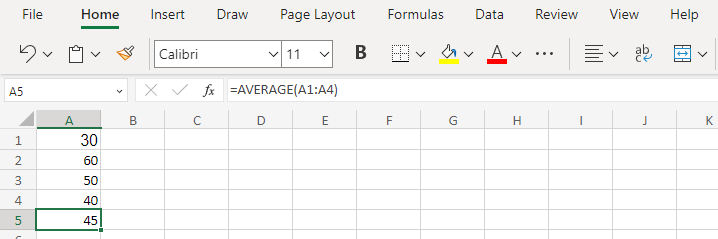
SUM is not the only function you have available. A full list can be obtained by clicking on the ƒ𝑥 symbol next to the formula bar, but here are a few of the more common ones: * AVERAGE – Another basic function, the AVERAGE function returns the average of the range of values entered in it. Very useful for fiscal calculations.
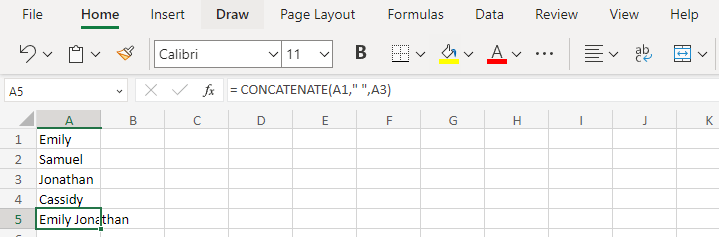
- CONCATENATE – This one works with text rather than numbers. With CONCATENATE, you can join two strings together and output the final value. Useful for generating text with conditional operators and joining them for the final result.
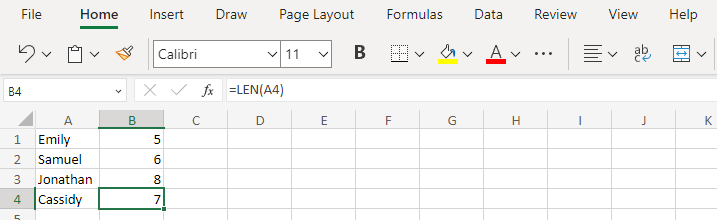
- LEN – The shortened form of Length, LEN simply counts the number of characters in a given string, including spaces. Very situational in its use, (like figuring out if a blank cell actually has spaces) but better than counting the characters manually.
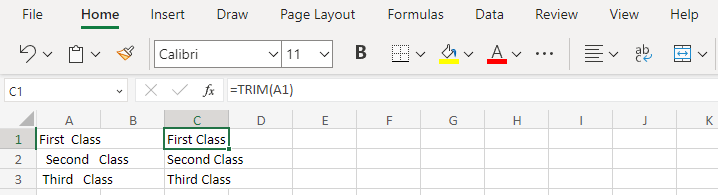
- TRIM – It is quite common to accidentally enter extra spaces in some cells, throwing off the results of some calculations or CONCATENATE operations. The TRIM function can be used to remove all extra spaces, leaving just a single space between every word.
Logical Functions
So far we have seen a bunch of different functions that perform many useful tasks like SUM, AVERAGE, or TRIM. But what about logical comparisons?
Just like any other programming language, Excel’s syntax includes logical operators like IF, AND, as well as OR. The most useful is the IF function, with the other two often used within a logical expression.
The syntax of IF is simple: a logical expression that evaluates to either TRUE or FALSE, followed by the values to be followed in either condition set out in sequence. Of course, all of this goes inside the brackets and is separated by commas. Something like this:
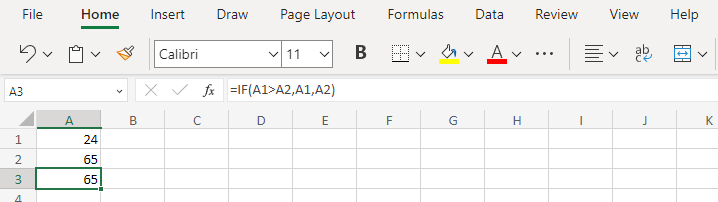
Note that the final argument can be omitted, in which case the function will only return a value if the condition is true. This can be used to construct complex formulas by conditionally including values in a calculation.
The first argument, on the other hand, can take many forms. A logical expression can simply be a comparison of two values using symbols like “