Bluetooth has several functions on your computer besides helping you transfer files between devices or connect to other devices like a Bluetooth speaker or headset.
If you’re using a PC that runs Windows 11/10 and Bluetooth is missing, there are several reasons for that: * Your PC doesn’t support Bluetooth.
- You haven’t enabled Bluetooth on your PC.
- Airplane mode is enabled on your PC.
- Bluetooth drivers are missing or are corrupted.
- Issues in the integration of Bluetooth frameworks or software.
- Conflicts between applications.
This guide covers some troubleshooting steps you can try to restore the Bluetooth icon back on your PC.

**How to Fix the Windows 11/10 Bluetooth Toggle Missing Issue**
If you run into problems trying to connect to a Bluetooth device because you can’t find the Bluetooth icon or toggle, try the quick fixes below before moving to other solutions.
Check if Your PC supports Bluetooth
If the Windows Bluetooth toggle is missing, your PC may lack Bluetooth capability. You need to check for the Bluetooth feature before trying the other troubleshooting steps below.
- Right-click Start > Device Manager.
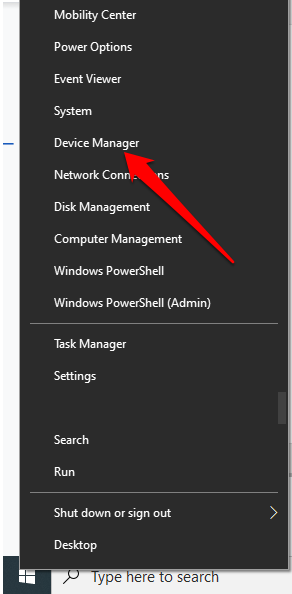
- Check if there’s a **Bluetooth** section in Device Manager. If you see one, select it to expand the section and check if there’s a **Bluetooth adapter(s)** listed under it.
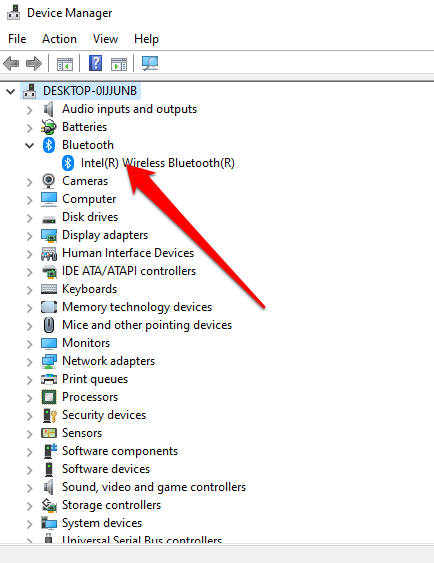
- If there’s no Bluetooth adapter listed there, check under the **Network Adapters** section. If it’s not there either, it means your PC doesn’t support Bluetooth. You can try a different PC and see if it works.
You can also check your PC for the Bluetooth hardware switch. If it has one, you can press it to enable the Bluetooth radio. If it doesn’t have the switch, press the Fn + F5 or F8 key to enable the wireless adapter.
If your PC lacks Bluetooth capability, you can get an external Bluetooth adapter or dongle, plug into a free USB port on your PC, and start using Bluetooth.
Disable Airplane Mode
Airplane mode allows you to quickly disable or turn off all wireless communications like Wi-Fi, Bluetooth, cellular, GPS, or NFC on your computer.
- Select the Network icon on the taskbar.
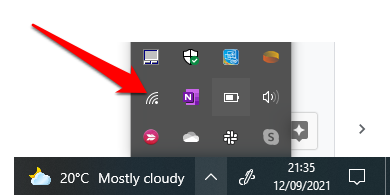
- Next, select **Airplane mode** and disable it.
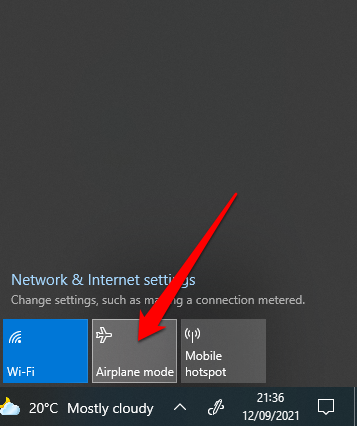
**Check the Action Center Menu**
The Action Center menu contains notifications and shortcuts to key settings. If you can’t find the Bluetooth icon, it could be that the Quick Actions menu has been collapsed to accommodate the multiple notifications Windows 10 needs to display.
Select **Expand **in the **Action Center **menu and check if the Bluetooth icon appears.
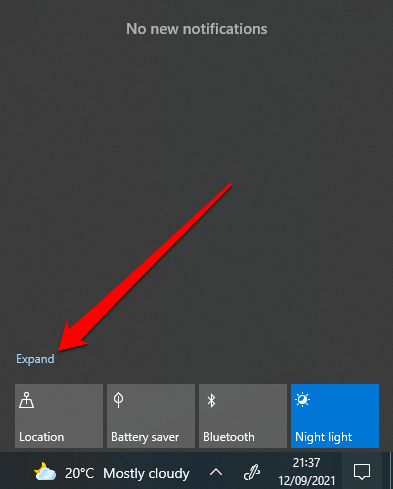
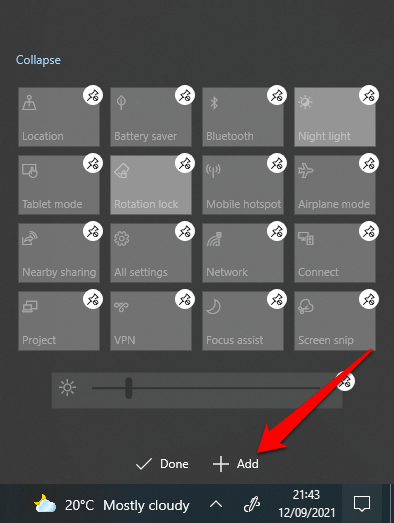
Sometimes you may not see the Bluetooth icon in the Action Center because the shortcut hasn’t been enabled.
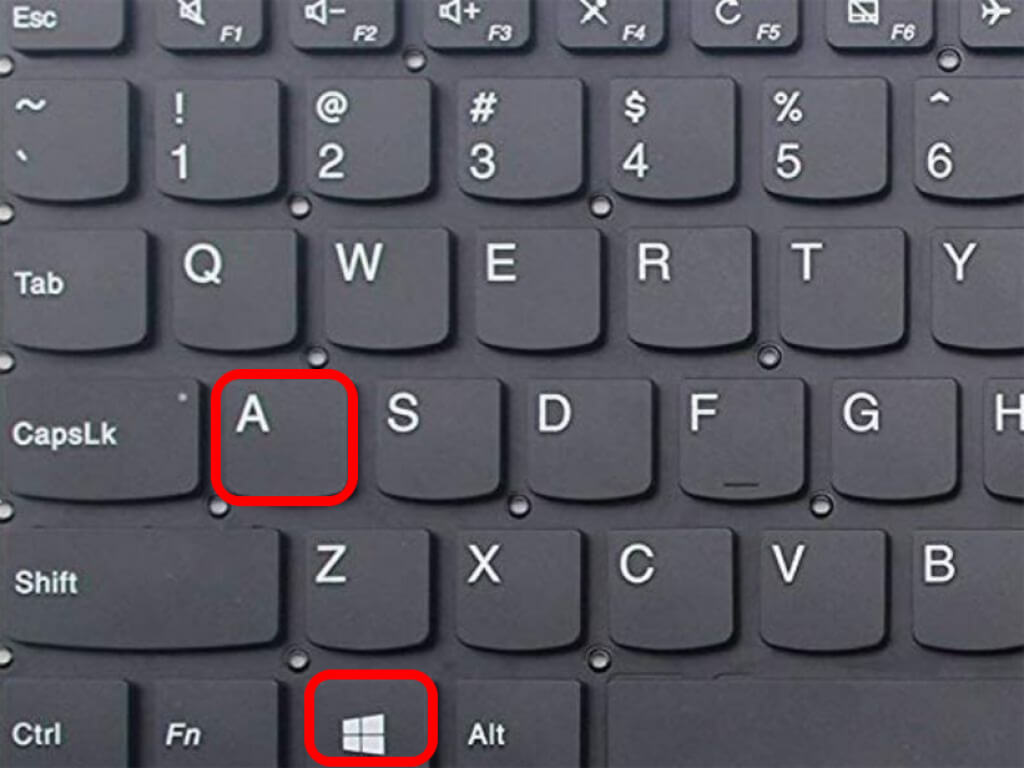
- Open the Action Center by pressing Windows Key + A on your keyboard.
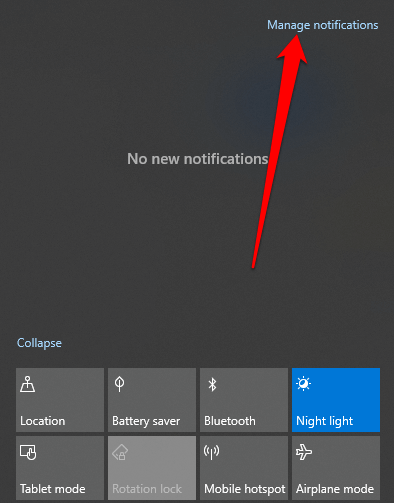
- Next, select **Manage notifications**.
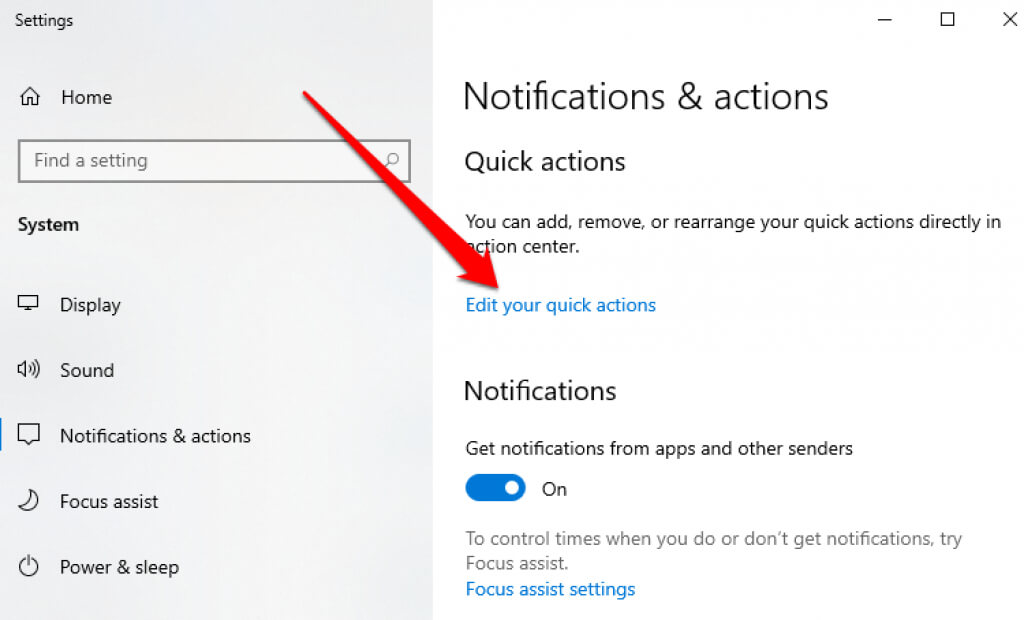
- Select **Edit your quick actions** to open the Action Center menu.
- Next, select **Add** > **Bluetooth** > **Done**.
**Check Bluetooth Settings**
You may have set the Notifications & Actions section correctly, but you still need to check your Bluetooth settings to ensure it’s enabled.
- Select Start > Settings.
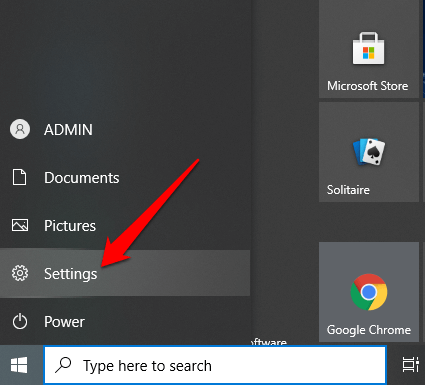
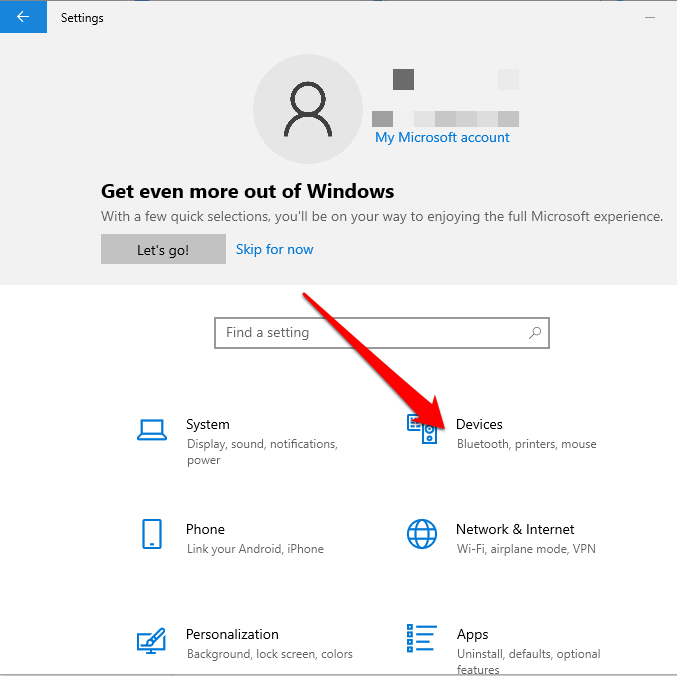
- Next, select **Devices**.
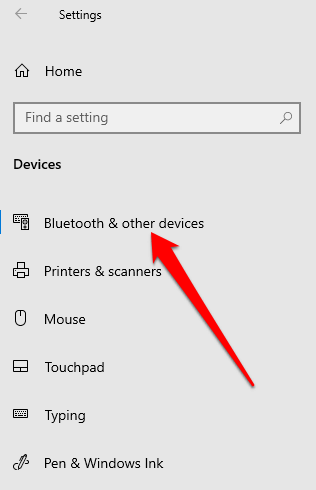
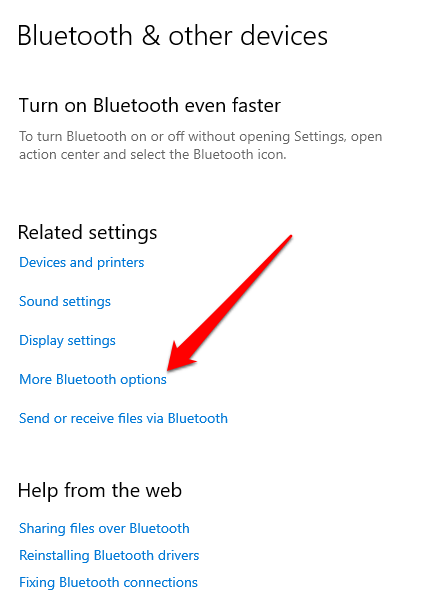
- Select **Bluetooth & other devices**.
- Next, select **More Bluetooth Options** under the **Related settings** section.
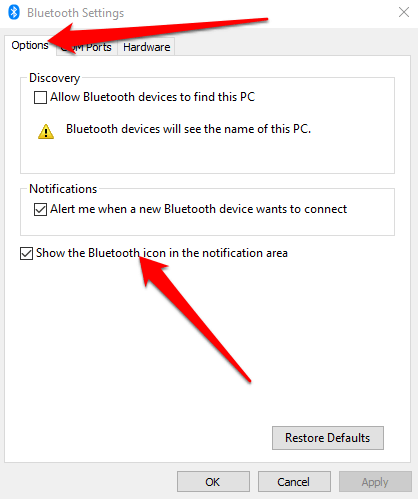
- Check **Show the Bluetooth****icon** in the notification area box under the **Options** tab.
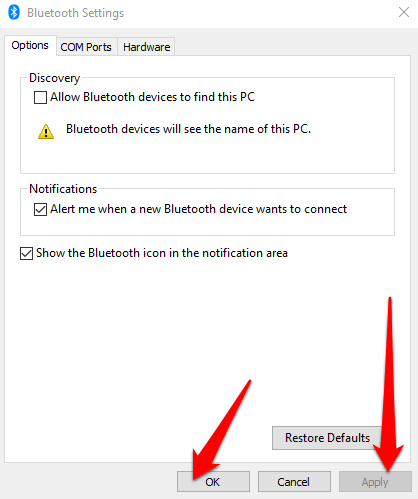
- Select **Apply** > **OK**.
**Run the Bluetooth Troubleshooter**
The Bluetooth Troubleshooter in Windows 11/10 is a built-in feature that scans and fixes specific Bluetooth issues in your PC.
- Select Start > Settings.
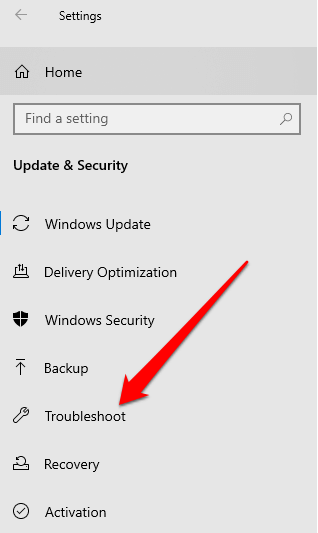
- Next, select **Update & Security**.
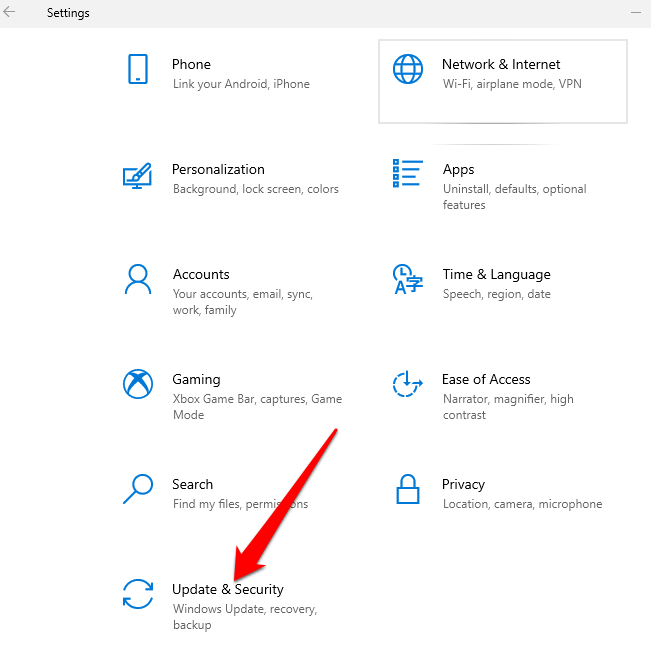
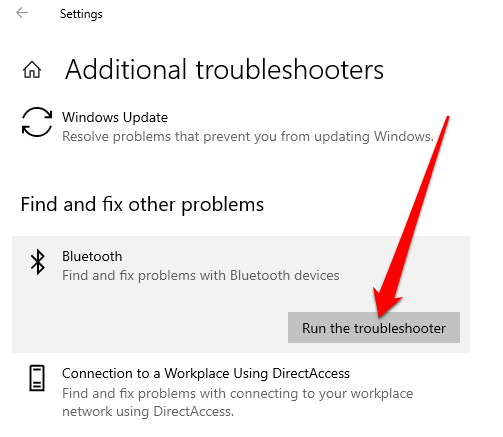
- Select **Troubleshoot** and then select **Additional Troubleshooters** > **Bluetooth** under the **Find and fix other problems** section.
- Next, select **Run the troubleshooter** and follow the prompts. Once the scan completes, check whether Bluetooth is restored.
**Use the Hardware and Device Troubleshooter**
The Hardware and Device troubleshooter scans for and fixes issues with Bluetooth devices. While the setting is hidden in Windows 11/10, you can use Command Prompt to access it.
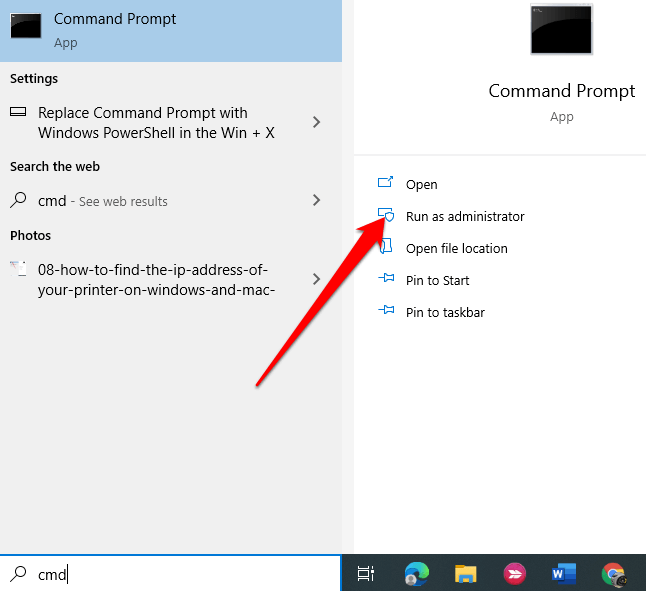
- Type CMD in the search box and select Run as administrator under Command Prompt.
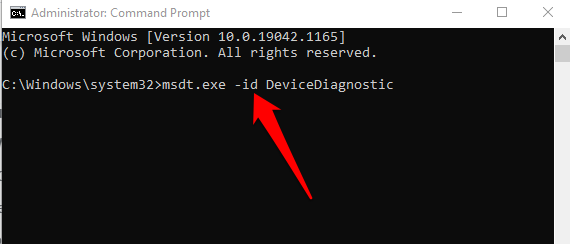
- Next, enter **msdt.exe -id DeviceDiagnostic** to open the **Hardware and Device troubleshooter**.
- Select **Next** to start the scan.
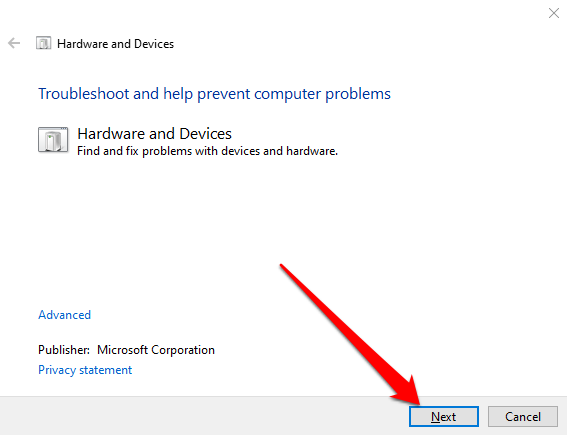
If the troubleshooter couldn’t identify the problem, try the next solution.
Update Bluetooth Drivers
When the Bluetooth drivers are missing, outdated, or corrupted, you may not find or be able to use Bluetooth on your PC. You can resolve the problem by making sure you have the latest Bluetooth drivers.
- Right-click Start >** Device Manager **> Bluetooth > your Bluetooth adapter name (some adapters include the word radio).
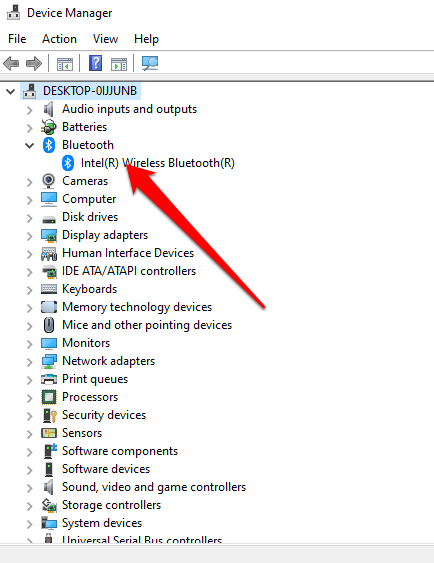
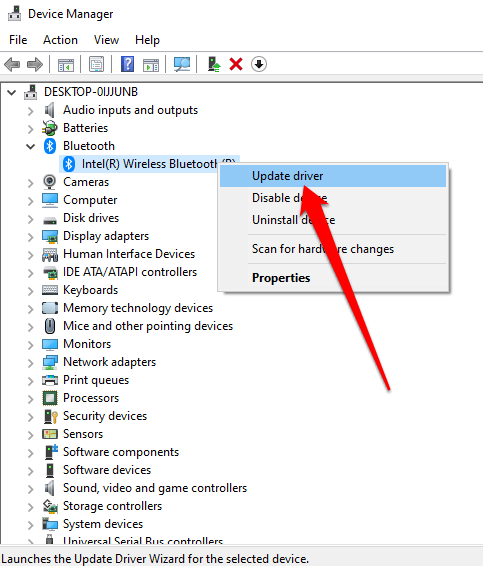
- Right-click the **Bluetooth adapter** > **Update driver**.
- Select **Search automatically for updated driver software** and then select **Close** once the search is complete.
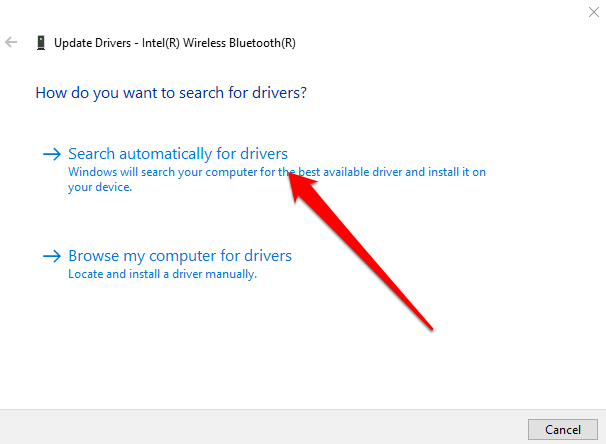
- Once you install the updated drivers, restart your PC and then check if you can see and use Bluetooth again.
Note: If Windows doesn’t find the latest Bluetooth driver, check your PC manufacturer’s official website and get the drivers from there. If you get an executable file (.exe), run and install the drivers from this file.
Uninstall Bluetooth Adapter
If Bluetooth is still missing, try uninstalling the Bluetooth adapter.
- Right-click Start > Device Manager > Bluetooth.
- Right-click your **Bluetooth adapter’s name** and select **Uninstall device**.
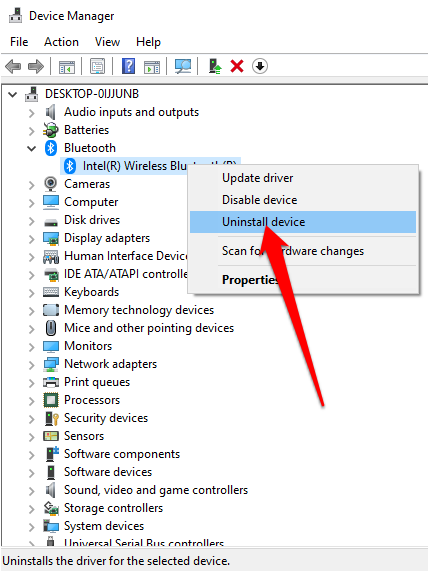
- Shut down your PC, wait for 30 seconds or so and then power it back on. This way, Windows will try to reinstall your Bluetooth adapter’s driver.
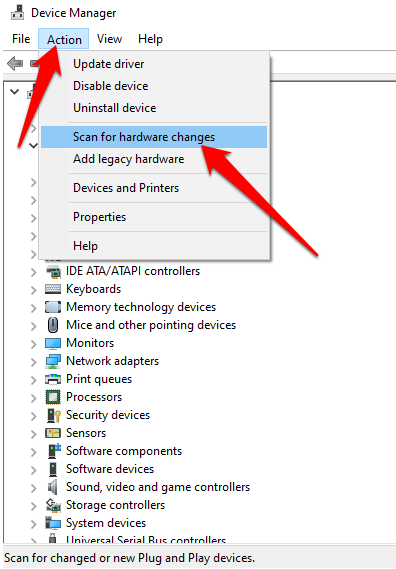
Note: If Windows doesn’t automatically install the driver, go back to the Device Manager window and select Action > Scan for hardware changes.
**Turn Off Fast Startup**
Fast startup ensures that Windows 10 boots up quickly. Sometimes this setting can interfere with the programs you’ve set to run when your PC boots up, so it may be better to disable it.
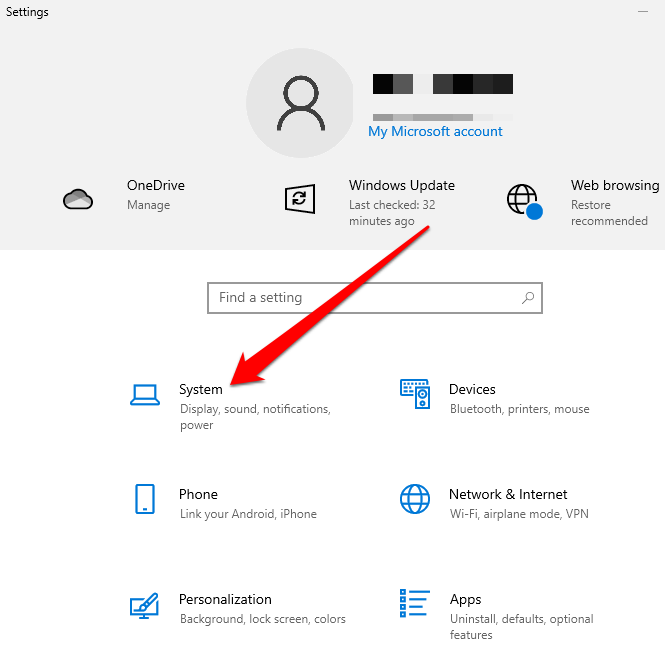
- Select Start > Settings > System.
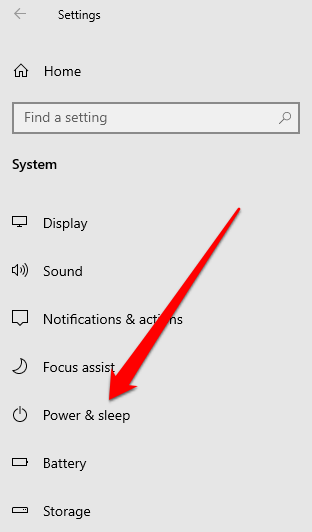
- Next, select **Power & sleep**.
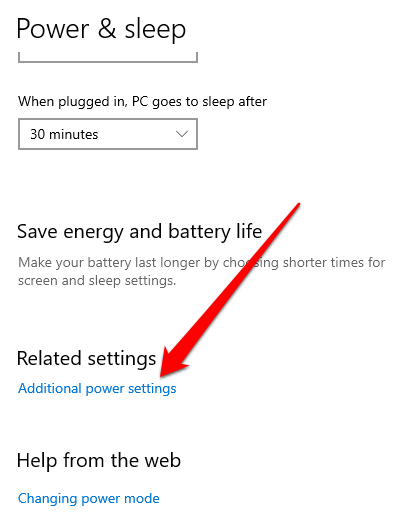
- Select **Additional power settings**.
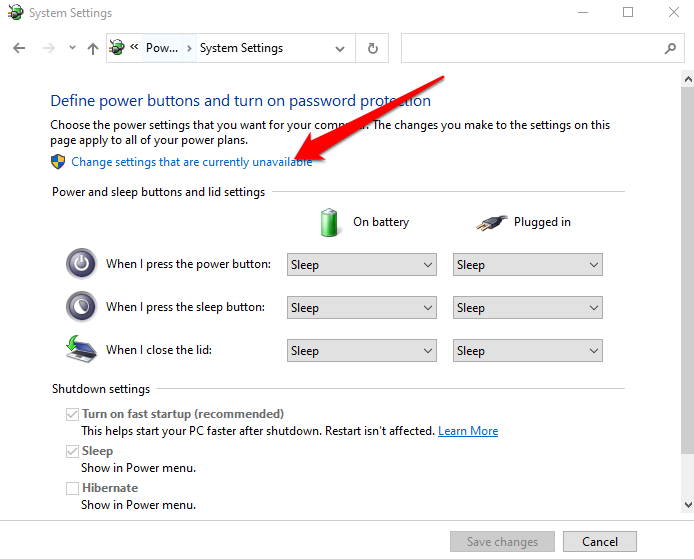
- Next, select**Choose what the power button does **> **Change settings that are currently unavailable**.
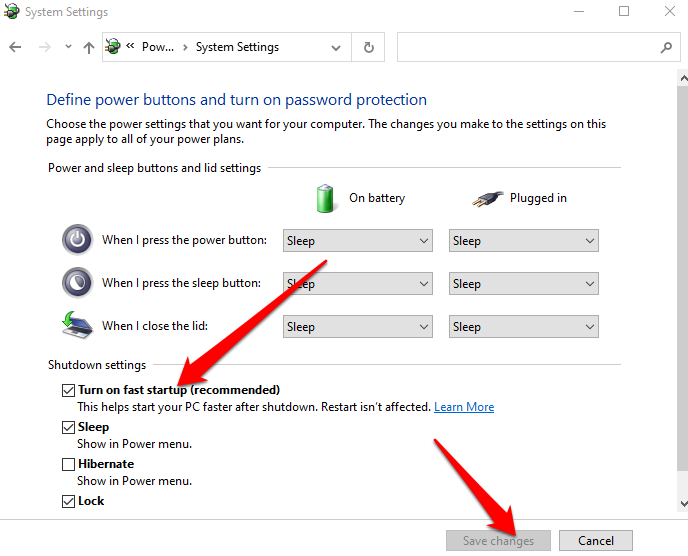
- Deselect the **Turn on fast startup (recommended**) option and then select **Save changes**.
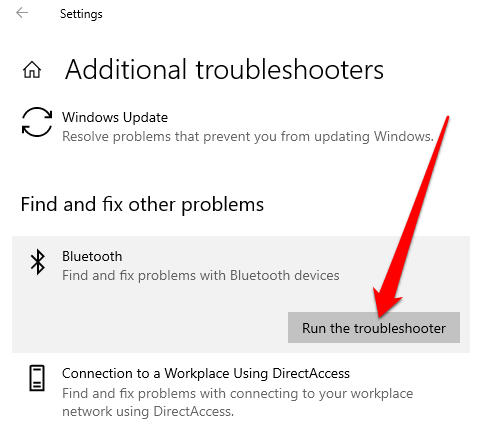
- Go back to **Settings **> **Update & Security **> **Troubleshoot** > **Additional Troubleshooters **> **Bluetooth** > **Run the troubleshooter** from the **Find and fix other problems** menu.
**Check Bluetooth Support Service**
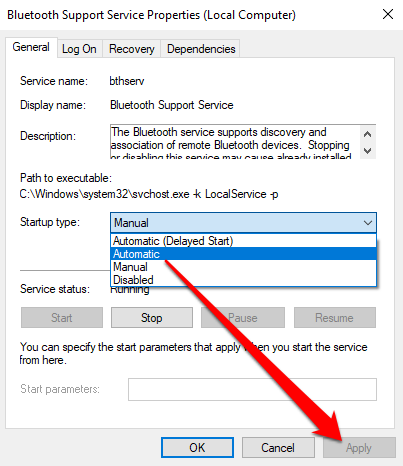
Bluetooth Support Service supports the discovery and association of remote Bluetooth devices so they can work correctly on your PC. Sometimes this feature may be disabled by a third-party app or manual user action, but you can check and enable it again.
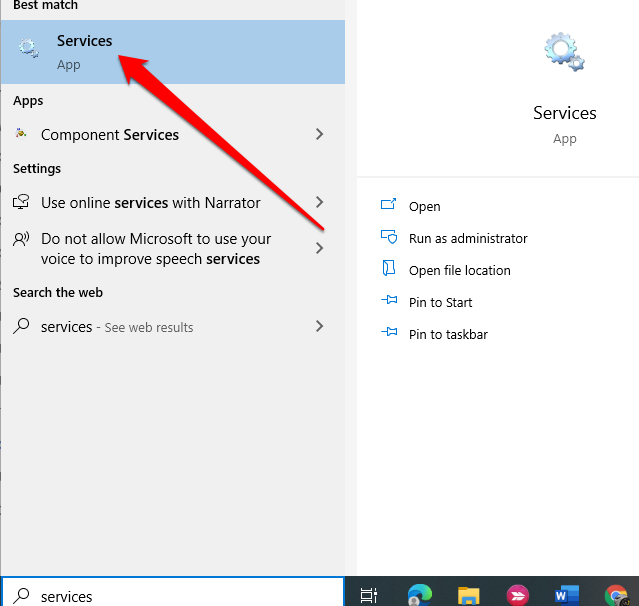
- Type services in the search bar and select the Services option.
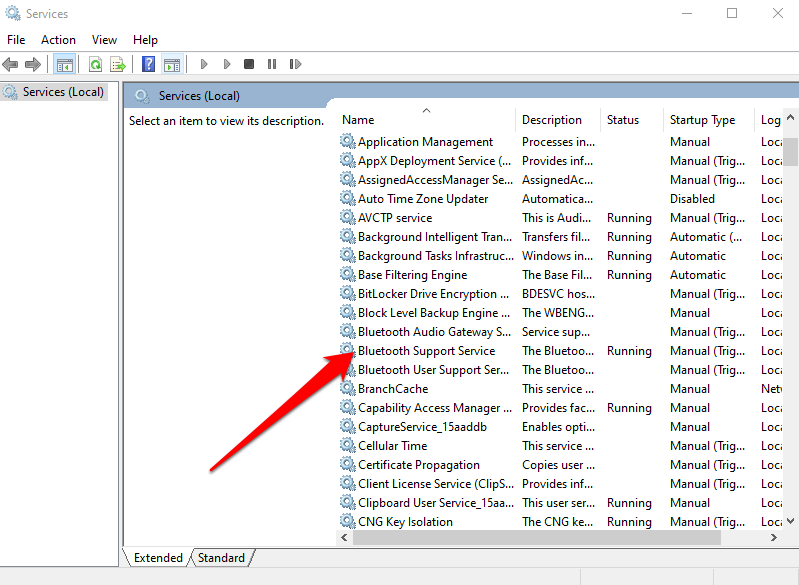
- Double-click the **Bluetooth Support Service**.
- In the **Properties** window, check if the **Service status** is set to **Running**.
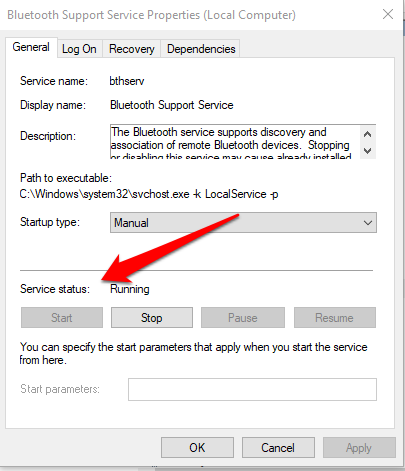
- Select **Stop** and **Start** to restart the setting quickly. If the status isn’t **Running**, select **Automatic** in the **Startup type** drop-down menu.
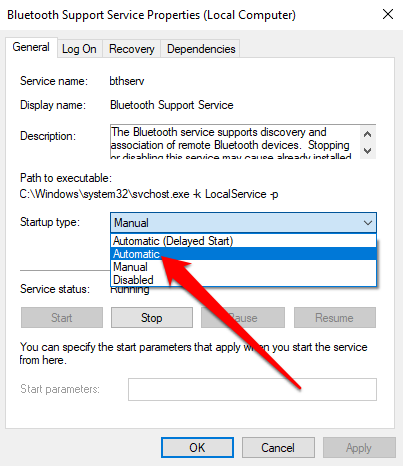
- Next select **Apply** to save the changes.
**Use Startup Repair **
If the Windows 11/10 Bluetooth icon is still missing on your PC, use the Startup Repair feature to resolve any system corruption or other issues that may cause the problem.
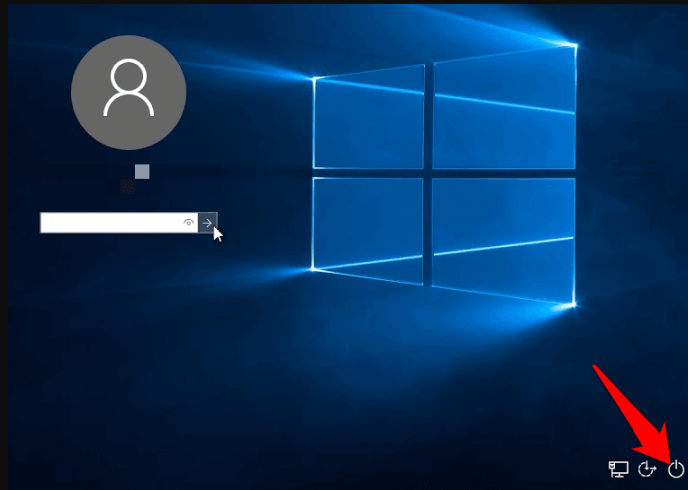
- Press and hold the Shift key at the Windows sign-in screen and then select Power > Restart.
- In the boot screen, select **Troubleshoot** > **Advanced options** > **Startup Repair**.
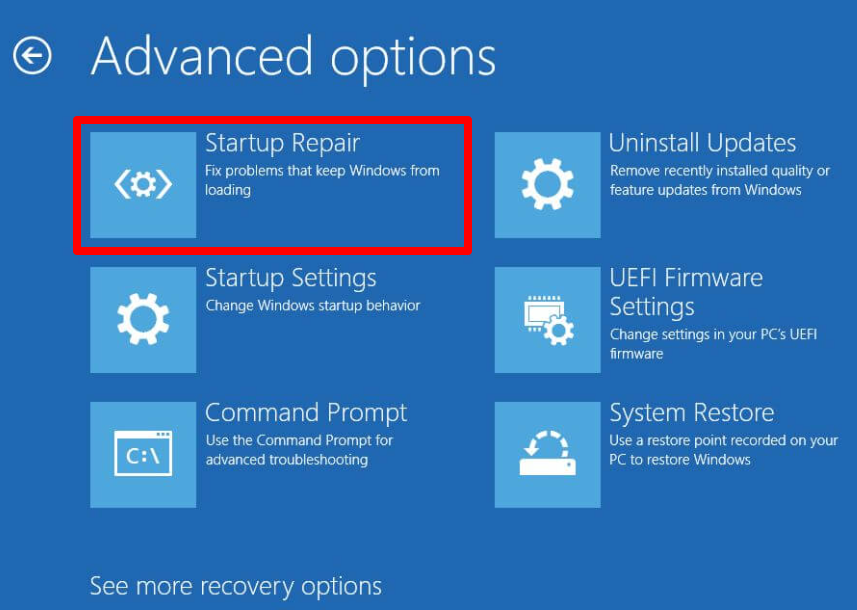
- Select an admin account, enter your login credentials if needed, and select **Continue**. Once the Startup Repair tool has run, reboot your PC.
**Get Back Your Bluetooth Icon **
You probably make heavy use of your desktop to keep important shortcuts to files or apps you use often. When those icons disappear, it can impact your productivity.
The solutions in this guide will help you resolve the Windows 11/10 Bluetooth icon missing problem and ensure your Bluetooth starts working properly again.
Leave a comment and let us know which solution worked for you.