Avast antivirus has been around for a while and is one of the best antivirus options for Mac and Windows PCs alike that you can download for free. While its protection against online threats works well, it has its flaws.
Sometimes the Avast user interface fails to load, or the program just won’t open. Following are the reasons why Avast may not open: * Incompatibility issues that may lead to BSOD errors
- Driver conflicts with other apps
- A broken Avast installation that may have been corrupted
- The service stops running properly

**What to Do When Avast Doesn’t Open on Windows 10**
If you’re using a Windows 10 PC, you have Windows Defender by default, but Avast provides the following:
Below are some fixes you can use when Avast doesn’t open in Windows 10.
**Update Avast and Your PC’s Operating System**
Before trying the other solutions in this guide, check whether the Avast application and your computer’s operating system are up to date.
Follow these steps to check whether you’re running the latest version of Avast antivirus:
- Right-click the **Avast **app icon and select Update > Program.
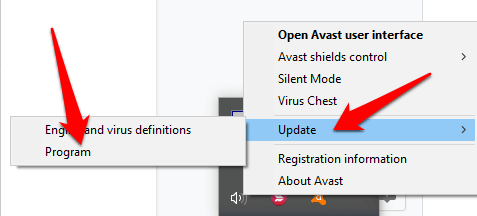
- Select **Check for Updates** and wait while the program checks for and installs updates.
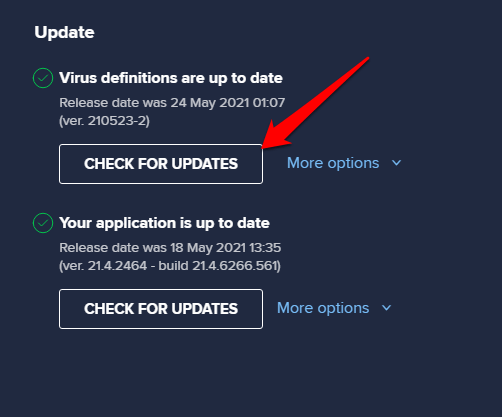
- A status message saying **Your application is up to date** pops up once the update is complete.
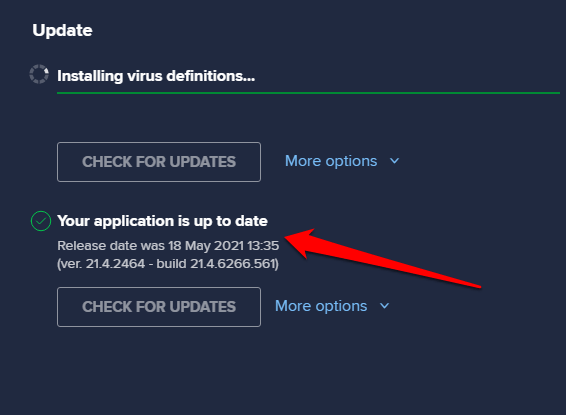
- Restart your computer** **to complete the update.
Be sure to update Windows to the latest OS version, but if Avast still doesn’t open, try the solutions below.
Check Avast Installation
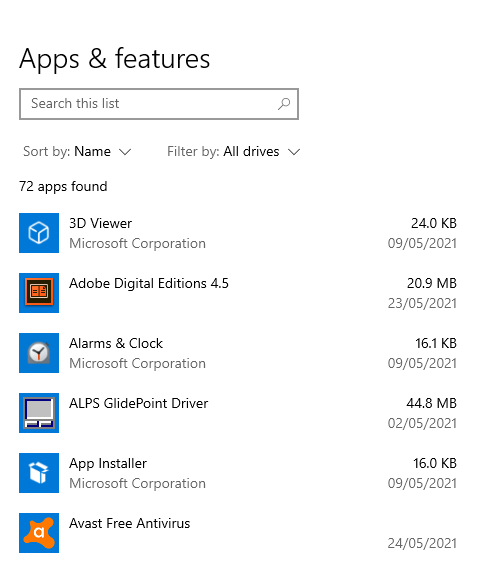
If properly installed, the Avast app will appear in the list of Apps and Features on Windows. If it’s not opening, you may need to verify that the app is properly installed, activated, and up to date.
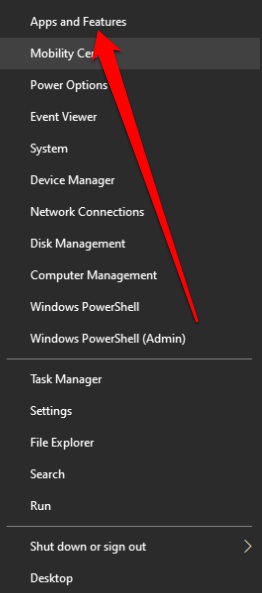
- Right-click Start > Apps & Features.
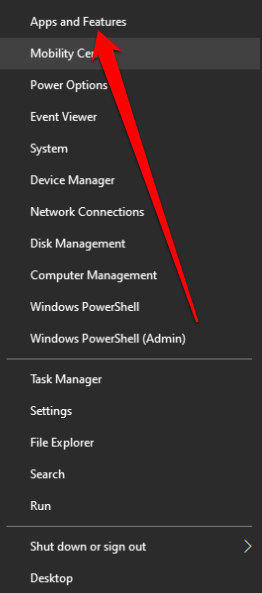
- If Avast doesn’t appear in the Apps & Features list, it’s not installed correctly on your PC, and you’ll have to download and reinstall it.
**Check Your Avast Subscription Status**
The Avast Free Antivirus activates automatically after installation, but you may be prompted to reactivate it after 12 months.
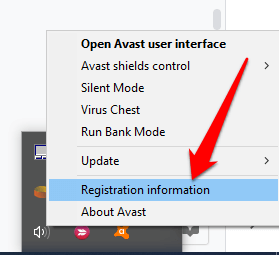
- Right-click the Avast icon in the Windows taskbar area and select Registration****Information.
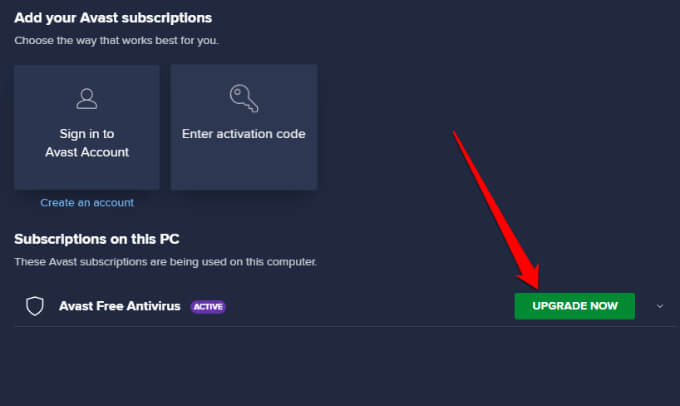
- Select **Upgrade****Now** on the **My Subscriptions** screen.
- In the **Avast Free Antivirus** column, click **Select**.
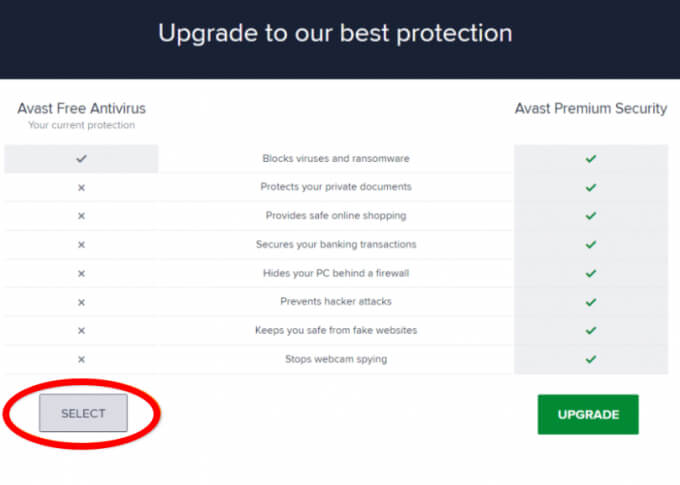
- Select the **X** icon on the new screen to go back to the **My Subscriptions** screen. This activates Avast Free Antivirus for another 12 months.

Note: If you’re using a paid version of Avast Antivirus, follow the instructions for Avast Premium Security or Avast Omni to activate your subscription.
Restart Avast Antivirus Service
When Avast doesn’t open, it could be that the Avast Antivirus service is preventing the program from starting up properly. You can restart the service and check whether it resolves the problem.
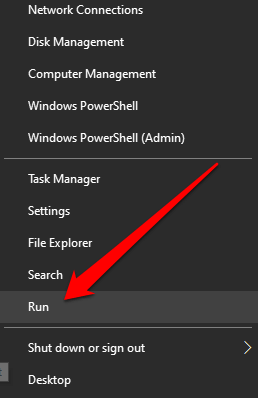
- Right-click Start > Run.
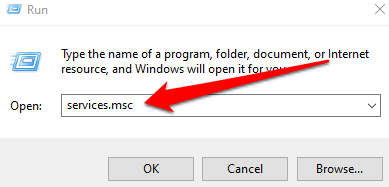
- Type **services.msc** in the Run dialog box and press **Enter**.
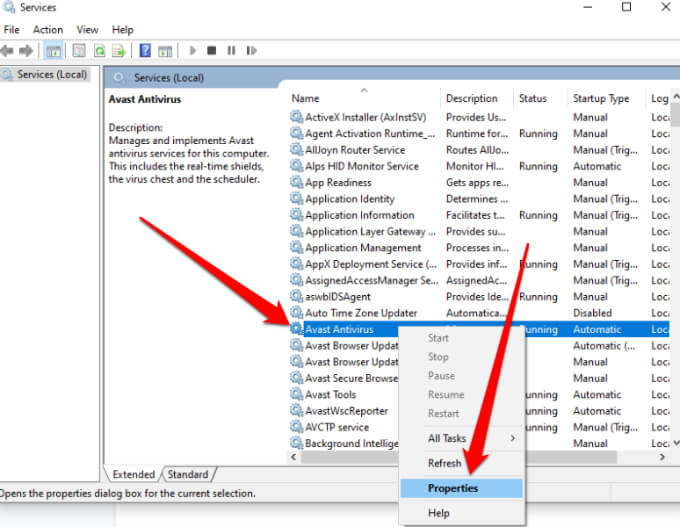
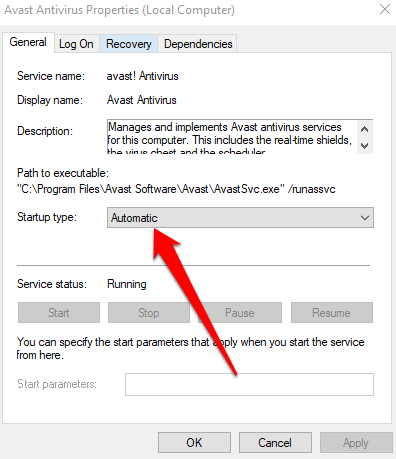
- Find **Avast Antivirus **service in the Services window, right-click the service, and select **Properties**.
- Check the **Service****status** to see if it says **Started** and select **Stop** to stop it from running.
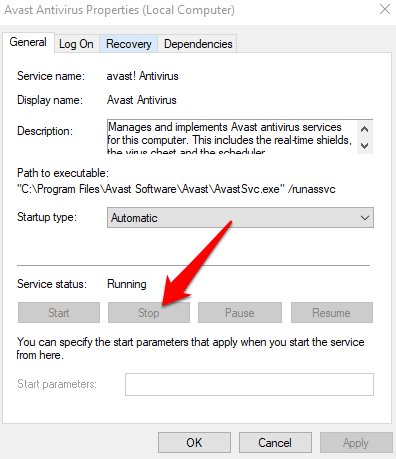
- Set the **Startup type** option to **Automatic** and confirm the dialog box that appears.
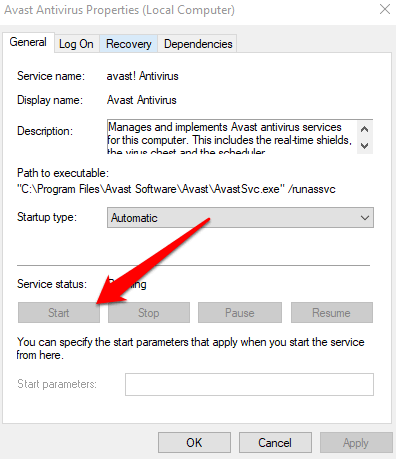
- Select **Start** again to activate the Avast service.
**Repair Avast**
You can use the **Avast Setup wizard **to repair your Avast installation when Avast doesn’t open or work properly.
Repairing Avast will fix or replace program files that may be missing, outdated or corrupted, and reset the software configuration.
**Note: **Repairing Avast may preserve some customized settings and return other settings to default.
- Close any apps or antivirus programs running on your PC and then right-click Start > Apps & Features.
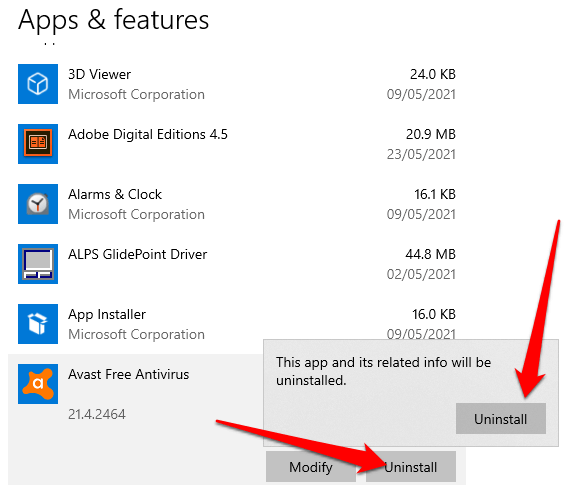
- Select your version of Avast from the left panel in the **Apps & Features** screen, select **Uninstall** and select **Uninstall **again to confirm.
- Select **Repair** in the Avast Setup wizard.
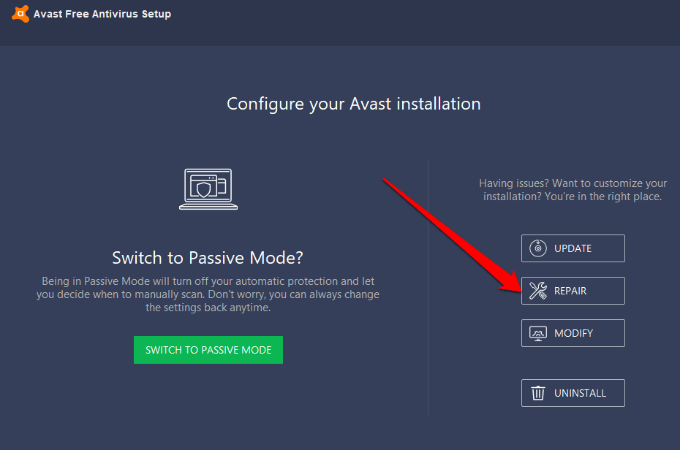
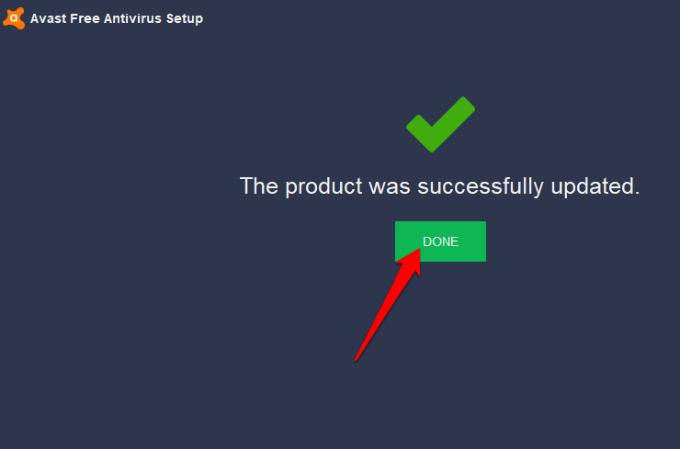
- Select **Yes** to confirm the repair. Once the process is complete, select **Done** or select **Restart computer** if prompted.
**Reinstall Avast**
If the issue persists, use the Avast Uninstall Utility to uninstall Avast Antivirus as it completely removes all files associated with Avast from your PC while Windows runs in Safe Mode.
- Close any app or antivirus running on your PC, and then download the Avast Uninstall Utility tool.
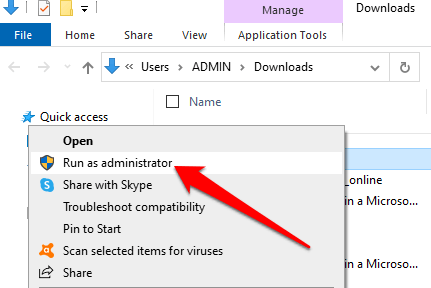
- Right-click the downloaded Avast Uninstall Utility file and select Run as administrator.
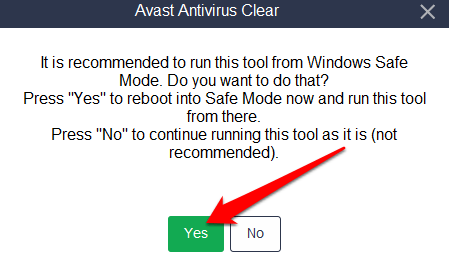
- If prompted by the **Avast Antivirus Clear** dialog to **restart in Safe Mode**, select **Yes**.
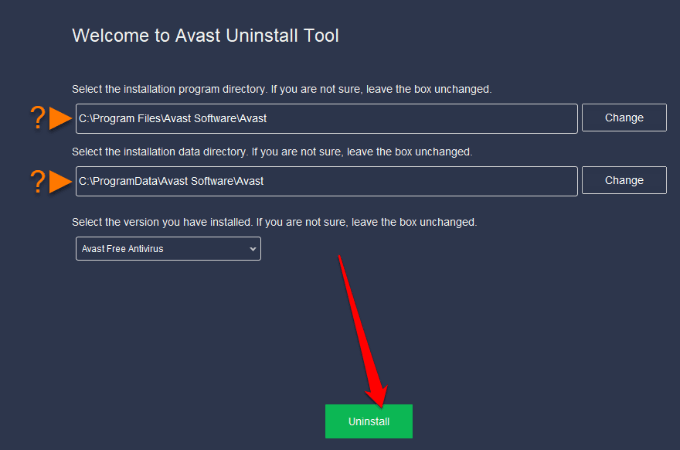
- Select the location of Avast program files and the product edition to uninstall, and then select **Uninstall**.
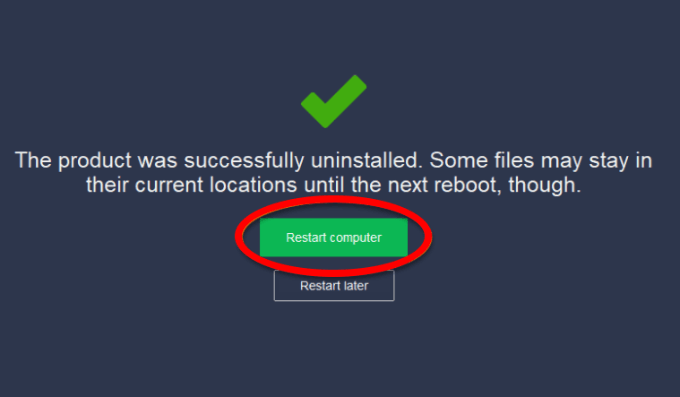
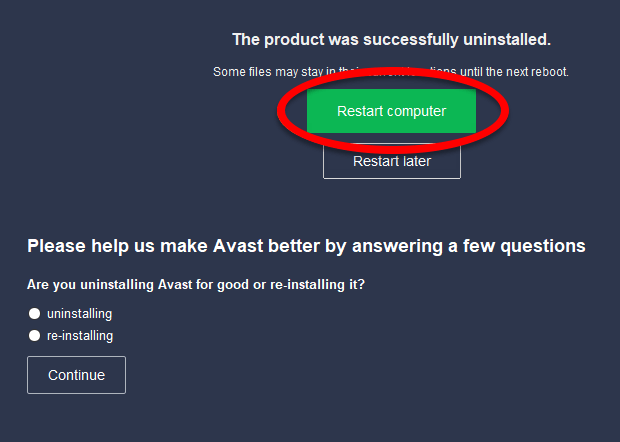
- Once the removal process ends, select **Restart Computer** to complete the uninstallation.
- Now, reinstall Avast and try opening the program on your PC again.
You can also uninstall Avast from your PC via the Windows Start menu.
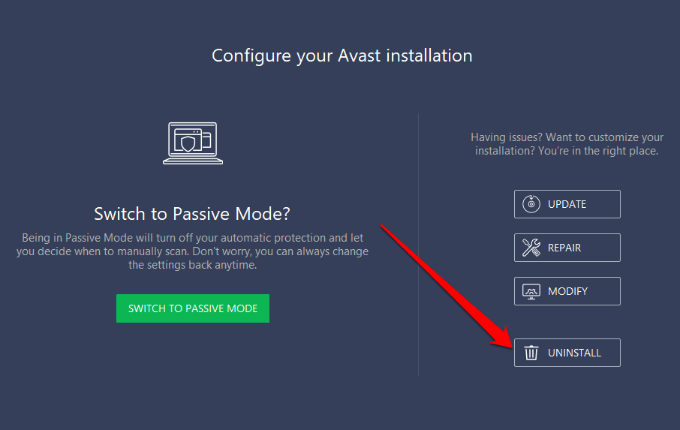
- Right-click Start > Apps & Features > Avast Antivirus > **Uninstall **> Uninstall when the Avast Antivirus setup appears.
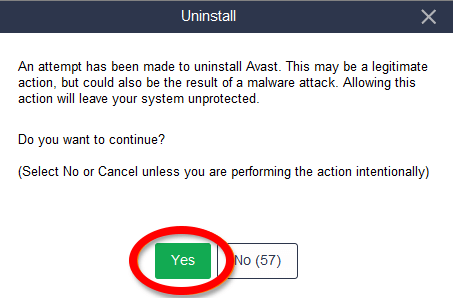
- Select **Yes** to confirm your action.
- Once uninstalled, select **Restart computer** and reinstall Avast.
**Get Avast Working Again**
Avast ranks high in almost every list of best antivirus software. Millions of people use the Avast antivirus software to block threats as it’s user-friendly.
We hope this guide helped you reopen Avast Antivirus on your computer. Leave a comment and let us know which solution worked for you.