Google Sheets is a powerful cloud-based spreadsheet tool that lets you do nearly everything you could do in Microsoft Excel. But the real power of Google Sheets is the Google Scripting feature that comes with it.
Google Apps scripting is a background scripting tool that works not only in Google Sheets but also Google Docs, Gmail, Google Analytics, and nearly every other Google cloud service. It lets you automate those individual apps, and integrate each of those apps with each other.

In this article you’ll learn how to get started with Google Apps scripting, creating a basic script in Google Sheets to read and write cell data, and the most effective advanced Google Sheets script functions.
How to Create a Google Apps Script
You can get started right now creating your first Google Apps script from inside Google Sheets.
To do this, select Tools from the menu, then Script Editor.
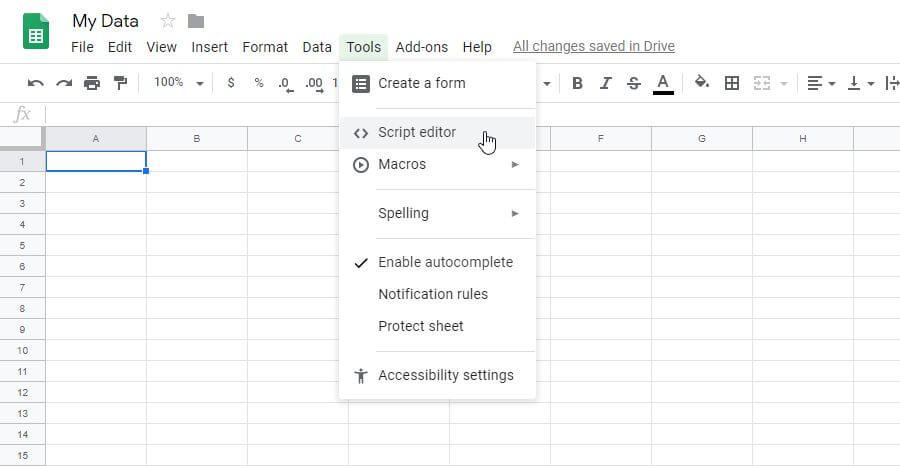
This opens the script editor window and defaults to a function called myfunction(). This is where you can create and test your Google Script.
To give it a shot, try creating a Google Sheets script function that will read data from one cell, perform a calculation on it, and output the data amount to another cell.
The function to get data from a cell is the getRange() and **getValue() **functions. You can identify the cell by row and column. So if you have a value in row 2 and column 1 (the A column), the first part of your script will look like this: function myFunction() { var sheet = SpreadsheetApp.getActiveSheet(); var row = 2; var col = 1; var data = sheet.getRange(row, col).getValue(); }
This stores the value from that cell in the data variable. You can perform a calculation on the data, and then write that data to another cell. So the last part of this function will be:var results = data * 100; sheet.getRange(row, col+1).setValue(results); }
When you’re done writing your function, select the disk icon to save.
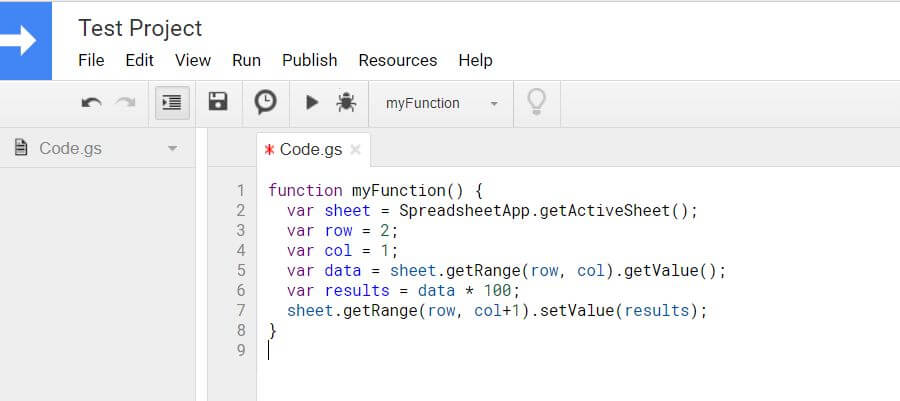
The first time you run a new Google Sheets script function like this (by selecting the run icon), you’ll need to provide Authorization for the script to run on your Google Account.
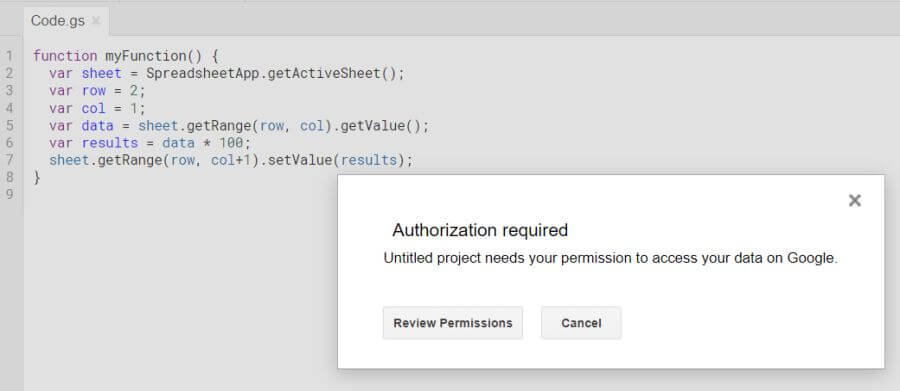
Allow permissions to continue. Once your script runs, you’ll see that the script wrote the calculation results to the target cell.
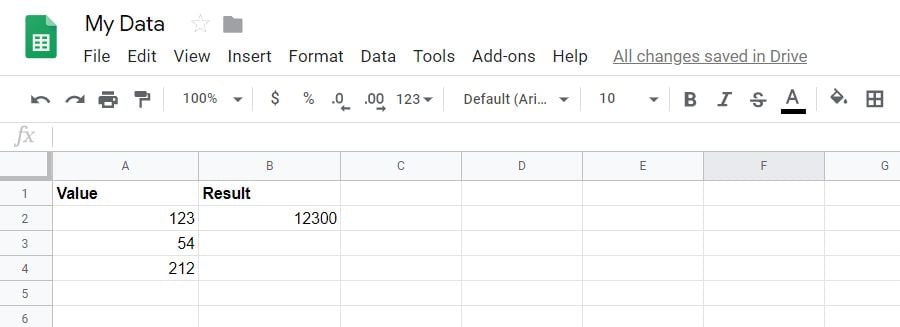
Now that you know how to write a basic Google Apps script function, let’s take a look at some more advanced functions.
Use getValues To Load Arrays
You can take the concept of doing calculations on data in your spreadsheet with scripting to a new level by using arrays. If you load a variable in Google Apps script using getValues, the variable will be an array that can load multiple values from the sheet. function myFunction() { var sheet = SpreadsheetApp.getActiveSheet(); var data = sheet.getDataRange().getValues();
The data variable is a multi-dimensional array that holds all of the data from the sheet. To perform a calculation on the data, you use a for loop. The counter of the for loop will work through each row, and the column remains constant, based on the column where you want to pull the data.
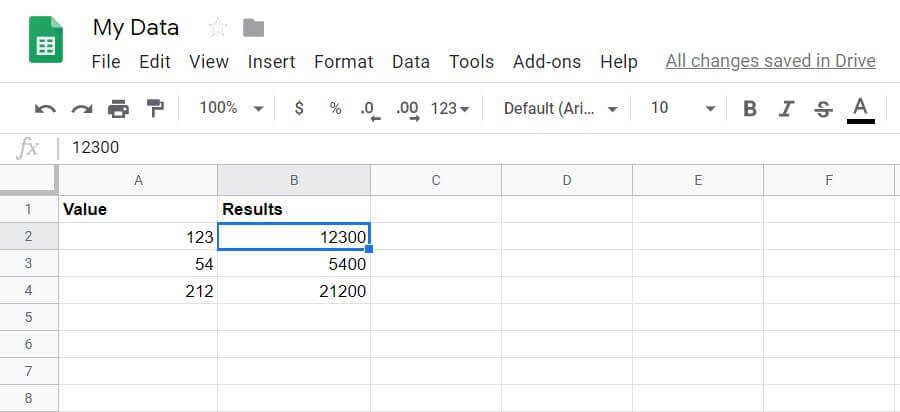
In our example spreadsheet, you can perform calculations on the three rows of data as follows. for (var i = 1; i <data.length; i++) { var result = data[i][0] * 100; sheet.getRange(i+1, 2).setValue(result); } }
Save and run this script just as you did above. You’ll see that all of the results are filled into column 2 in your spreadsheet.
You’ll notice that referencing a cell and row in an array variable is different than with a getRange function.
data[i][0] refers to the array dimensions where the first dimension is the row and the second is the column. Both of these start at zero.
getRange(i+1, 2) refers to the second row when i=1 (since row 1 is the header), and 2 is the second column where the results are stored.
Use appendRow To Write Results
What if you have a spreadsheet where you want to write data into a new row instead of a new column?
This is easy to do with the appendRow function. This function won’t bother any existing data in the sheet. It’ll just append a new row to the existing sheet.
As an example, make a function that will count from 1 to 10 and show a counter with multiples of 2 in a Counter column.
This function would look like this: function myFunction() { var sheet = SpreadsheetApp.getActiveSheet(); for (var i = 1; i