The Amazon Fire Stick comes with many features and there are many third-party apps you can install to extend its functionalities. Occasionally, you may find that your Fire Stick is not working. You may either see a blank screen, issues with streaming content, or the remote to control the features won’t work.
Regardless of the issue, there are multiple ways to fix it when your Amazon Fire Stick is not working.
**Restart Your Fire Stick**
One highly effective method to fix many issues with your Fire Stick is to reboot your stick. This cleans up the temporary files stored on its storage and helps you start afresh.
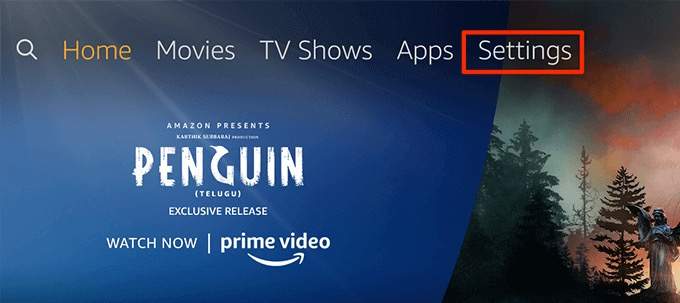
- * While you’re on the main screen, select the Settings option at the top.
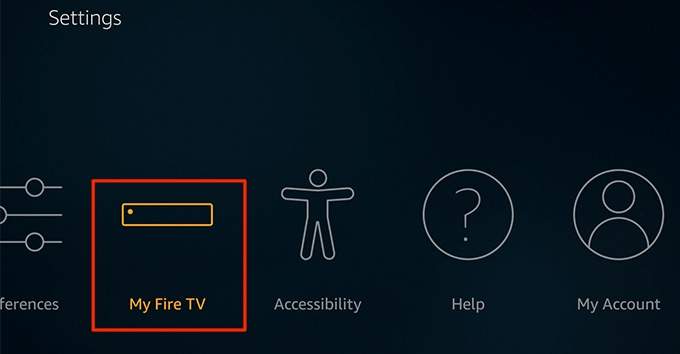
- Scroll to the right and select the option that says **My Fire TV**.
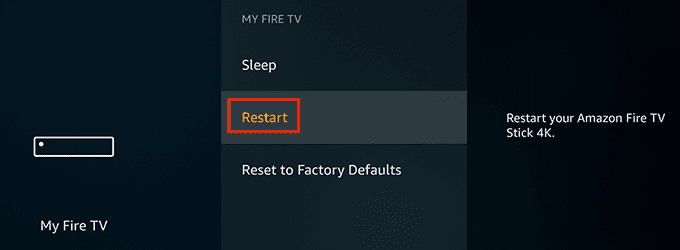
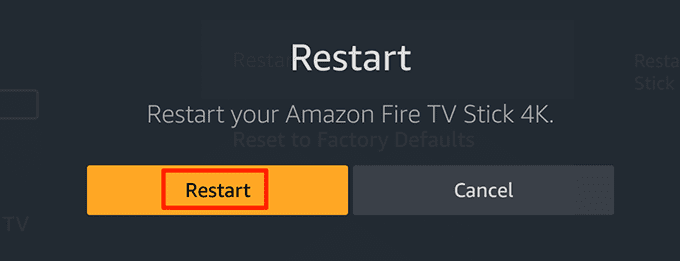
- Scroll down and click the **Restart** option.
- Select **Restart** in the prompt that appears on your screen. Your Fire Stick will reboot.
**Fix Screen Mirroring Issues On The Fire Stick**
If you’re having issues mirroring the screen of your devices to the Fire Stick, you must make sure your devices are compatible with the feature. The Fire Stick doesn’t support the following devices for screen mirroring.
- All Mac computers.
You can use an Android device but it must be running Android 4.2 or later. Earlier versions aren’t supported.
You must also make sure your Fire Stick supports screen mirroring:
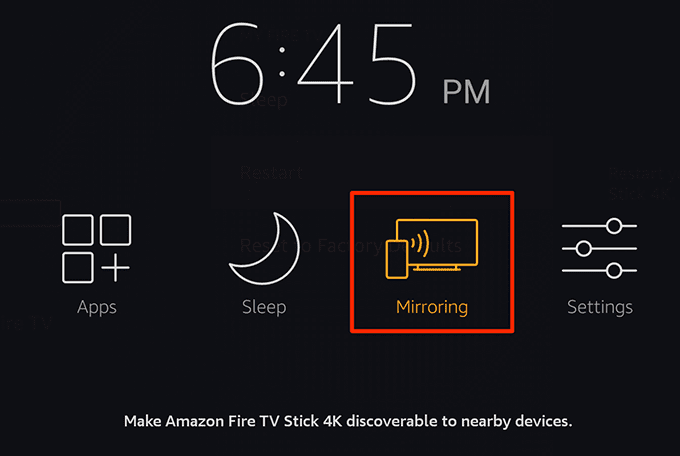
- Press and hold the Home button on your remote.
- If you see the Mirroring option, it means your Fire Stick supports mirroring your devices to the stick.
**Fix The Blank Screen Issue With The Fire Stick**
If you turn on your Fire Stick and it only shows a blank screen, this could be the result of a loose or broken cable connection.
- Make sure you’re using the cables that came with your Fire Stick.
- Ensure the HDMI cable is properly plugged into your TV/screen.
- Replace the HDMI cable if it’s not in good condition.
- Restart your Fire Stick a few times.
Fix Buffering Issues On The Fire Stick
Buffering is a common issue you face while streaming online content. One way to fix that is to turn off the data monitoring option on your Fire Stick.
- Select Settings from the main Fire Stick screen.
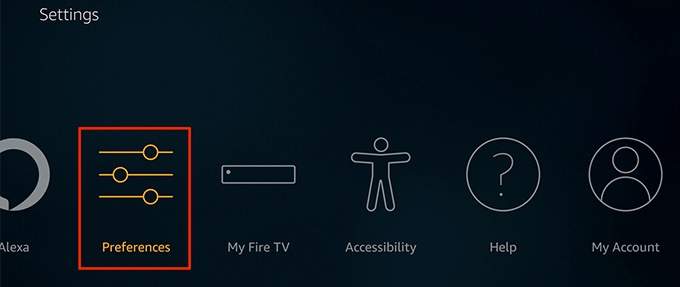
- Scroll to the right and choose the **Preferences** option.
- Click the **Data Monitoring** option.
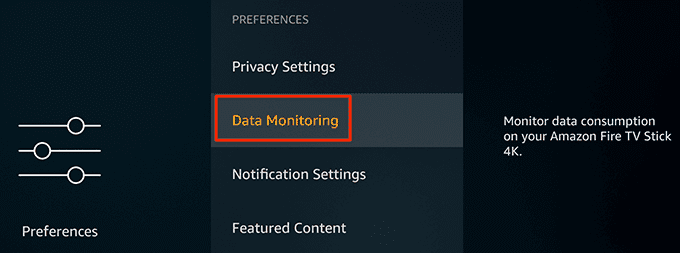
- Select the **Data Monitoring **option.
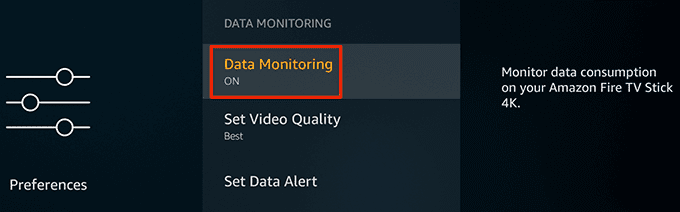
- The option should now be turned off.
**Fix App Crashes On The Fire Stick**
If one or several apps crash too often on your Fire Stick, you can fix that by clearing the cache and data files for those apps. In some cases, you can reinstall the apps to fix their issues.
- Click the Settings option on the main screen.
- Select Applications on the following screen.
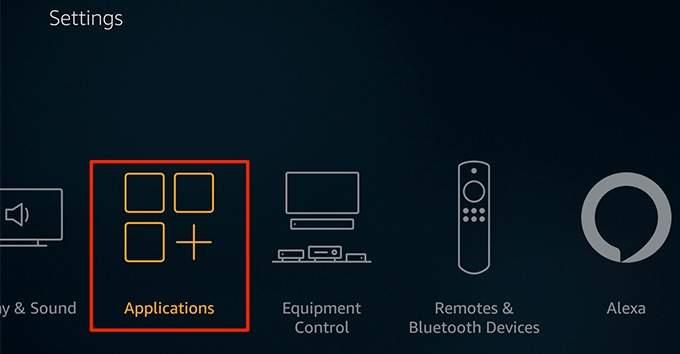
- Choose **Manage Installed Applications** to view your apps.
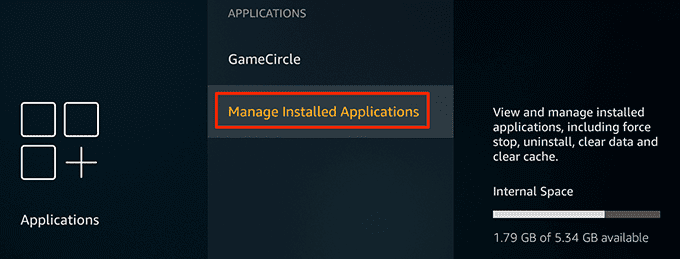
- Select the app that you have issues with and click it.
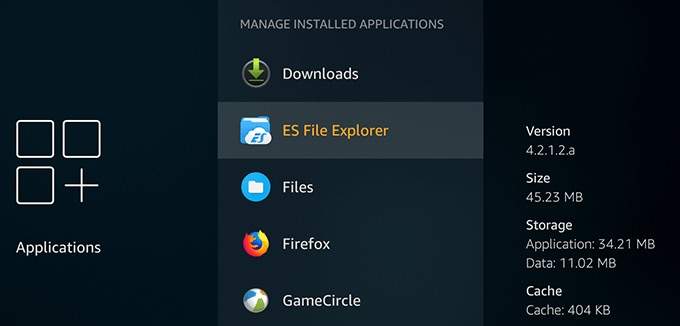
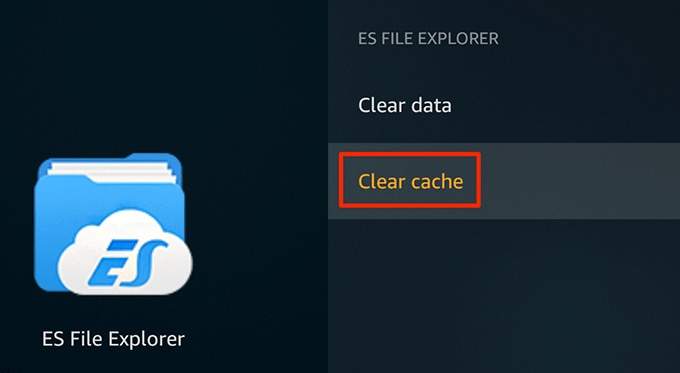
- Scroll down and select the **Clear cache** option.
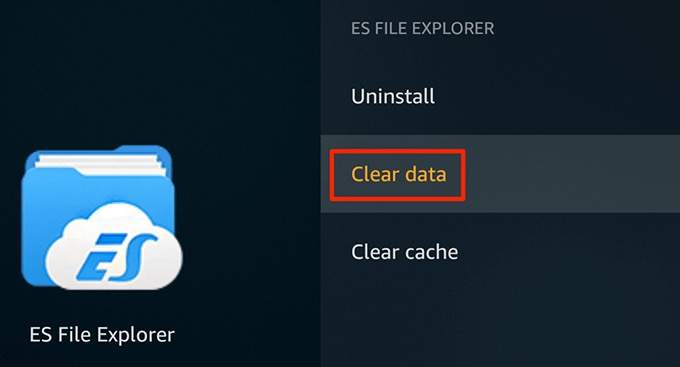
- Select the **Clear data** option as well.
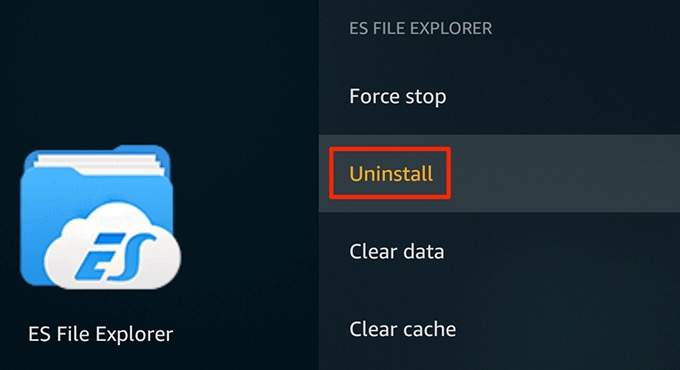
- Launch the app, and if it still causes issues, select **Uninstall** to remove the app.
- Redownload the app to your Fire Stick from the Amazon Appstore.
**Stop The Fire Stick From Reading Your Screen**
If your Fire Stick is reading all the content on your screen out loud, that’s not an issue but a feature that the stick comes with. You can disable the feature to get rid of this annoyance.
- Access the Settings option from the main screen.
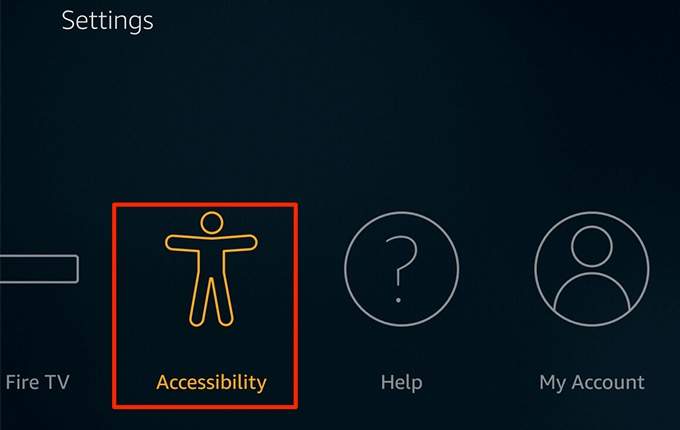
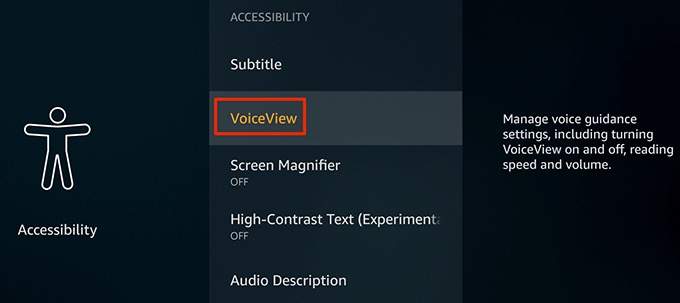
- Scroll right and select the Accessibility option.
- Choose the **VoiceView** option.
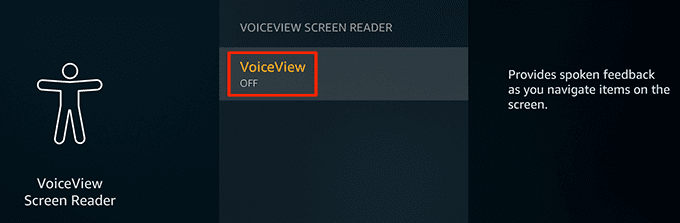
- Turn the **VoiceView** option off.
**Fix Internet Issues On The Fire Stick**
If you have issues connecting to the Internet on your Fire Stick, first make sure that your Internet connection is active and that it works. Then, reboot your modem and re-connect your Fire Stick to it.
You can forget and reconnect to your WiFi network as follows.
- Open the Settings menu from your home screen.
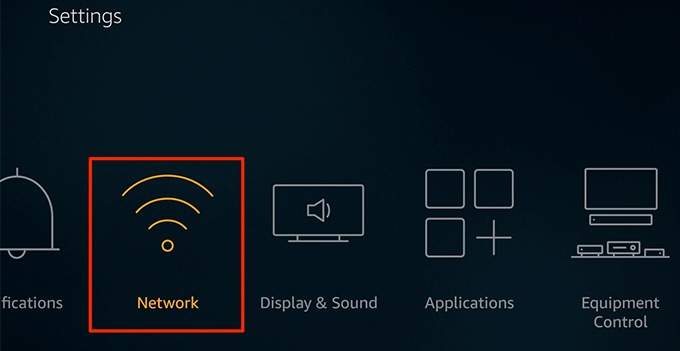
- Select Network on the following screen.
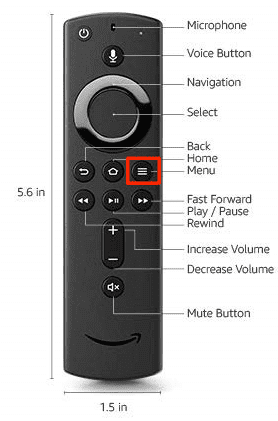
- Select your WiFi network and press the hamburger button on your Fire Stick remote.
- Reconnect to your WiFi network.
**Fix The Fire Stick Remote Issues**
It’s common to have issues with your Amazon Fire Stick remote not working and there are easy ways to fix these issues. More often than not, your remote doesn’t have active and working batteries on it and that’s the reason it’s not working with your stick.
You can confirm it as follows.
- Open the Settings screen on your Fire Stick.
- Select the Remotes & Bluetooth Devices option.
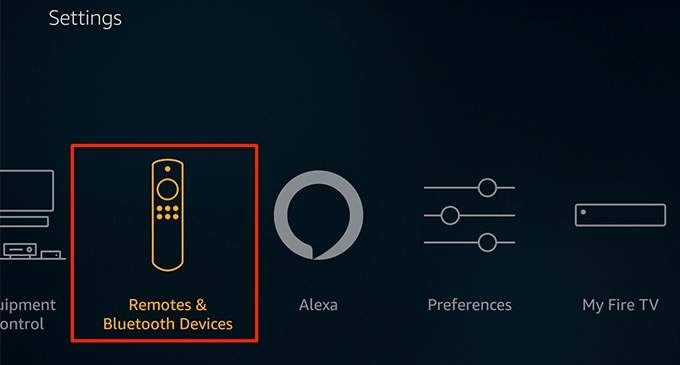
- Click the **Amazon Fire TV Remotes** option.
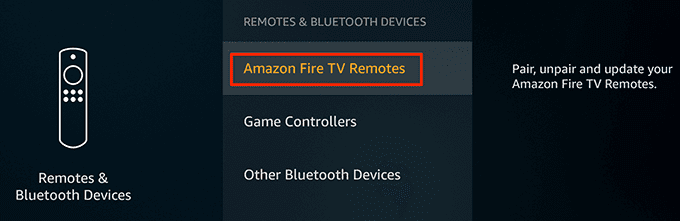
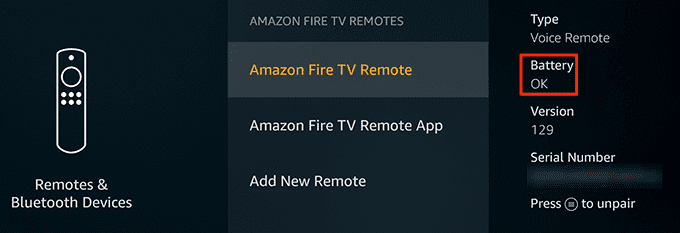
- Select your remote in the list and see what the **Battery** option says. If it says **Dead**, your batteries are dead and you need to replace them.
- Alternatively, you can use the Fire Stick app to control your Fire Stick from your smartphones.
**Update Your Fire Stick**
Like your computers and smartphones, your Amazon Fire Stick receives software updates to fix bugs and improve your experience. If you haven’t updated your stick in a long time, it’s time to do that to fix the issues.
- Launch the Settings menu on your Fire Stick.
- Select the My Fire TV option.
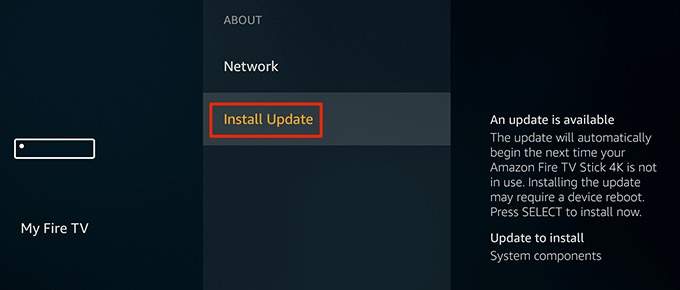
- Click **About** on the following screen.
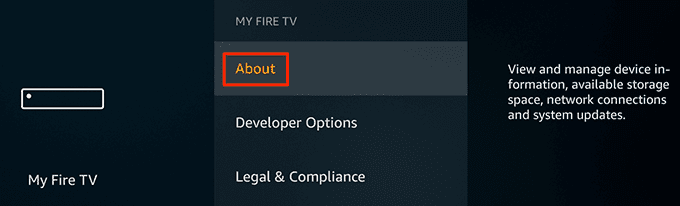
- Select **Install Update** if an update is available to be installed.
**Reset Your Amazon Fire Stick**
If your issues persist, one last thing you can do is to reset your Fire Stick to the factory settings. This will reset all the settings, apps, and preferences on your stick.
- Access the Settings menu on your stick.
- Scroll to the right and select My Fire TV.
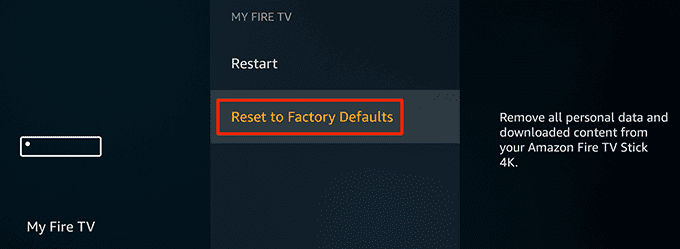
- Scroll down and click the Reset to Factory Defaults option.
- You’ll get a prompt asking if you want to reset the stick. Click **Reset** to continue.
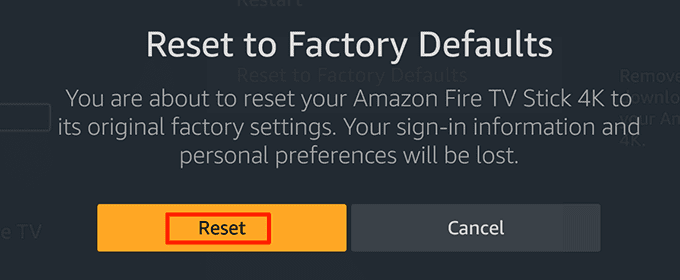
Your Fire Stick will then require you to re-link your Amazon account with it.
What’s your preferred way to watch online content? Do you use a device like Amazon Fire Stick to access online content? Let us know in the comments below.