Screen recordings are useful in both business, educational and personal environments. They allow you to create a range of presentations, video tutorials, and how-to guides for multiple uses.
Here, we will look at the features, pros, and limitations of 10 best screen recorders for Linux, and how to get the most out of your software.
**SimpleScreenRecorder**
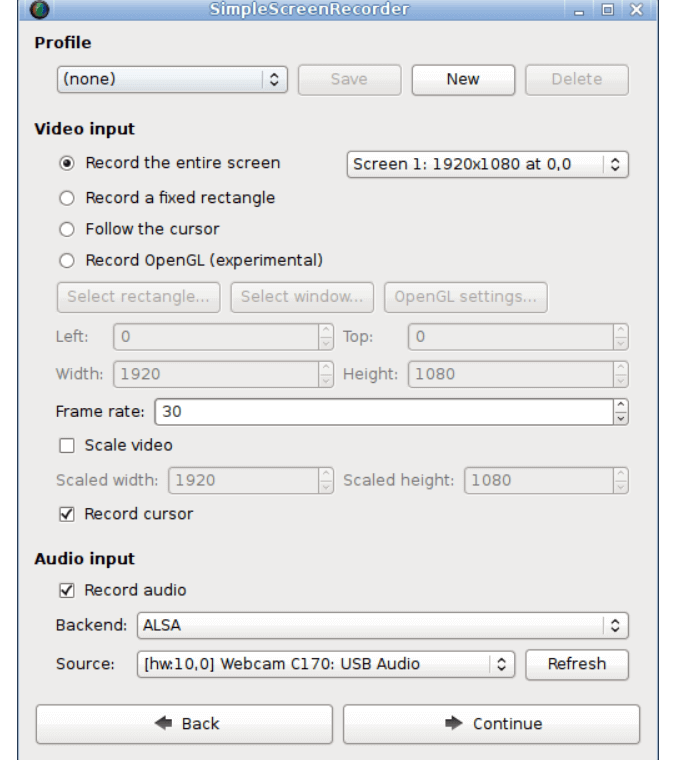
SimpleScreenRecorder is a free Linux screencast application used to record your favourite PS4 games, your screen, and programs.
A developer created the software to make it simple to use with a straightforward user interface.
**Features**
* Faster than many other programs such as ffmpeg/avconv and VLC. * Ability to preview your work in real-time while recording. * Record your entire screen or part of it. * Pause and resume recording at any time by pressing a hotkey or clicking a button. * Supports several different file formats and codecs. * See statistics such as bit rate, file size, and actual frame rate while recording. * Default settings are sensible, so there is no need to change anything unless you want to.**Pros**
* Works on any Linux distribution. * Unlike some other programs, video and audio synchronize properly. * If your computer is too slow, the program will reduce the video frame rate instead of using up all your RAM as some other programs do. * Includes tool-tips for areas where you need clarification so you don’t have to read the documentation.**Limitations**
* When you pause and resume a recording, it results in the creation of two files. One is the recording before the pause, and the other is the recording after you restart it. * Doesn’t have built-in webcam recording.**Kazam**
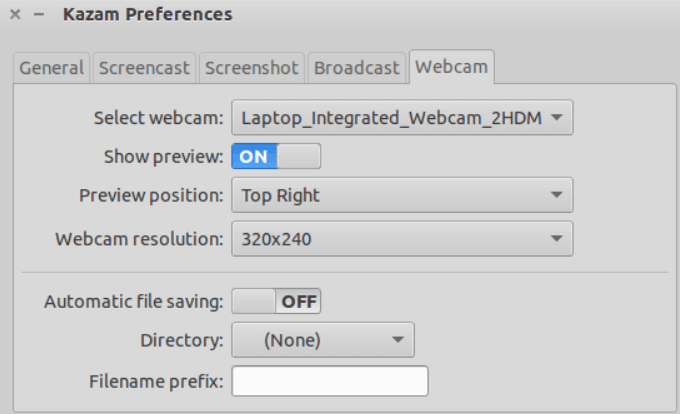
Another free screen recorder for Linux is Kazam. Use it to capture your screen in WebM, VP8, and h264 formats.
**Features**
**Pros**
* Easy to use. * Comes with minimal configurations and made for newbies. * Multiple video output formats. * Supports delay timer. * Compact and simple user interface.**Limitations**
* Minimal configuration settings options for more advanced users. * Can’t record from webcam.**recordMyDesktop**
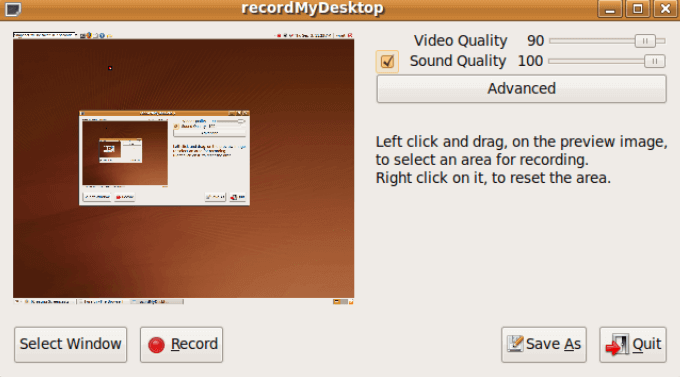
recordMyDesktop is a lightweight and powerful screen-casting app with synchronized audio.
There are two main parts of the software. The first part involves screen capture and encoding while recording. The second part opens the presentation for editing.
**Features**
**Pros**
* It is a lightweight tool. * Can be used from a command line (recordmydesktop). * Clear GUI with basic functions and direct user options.**Limitations**
* Doesn’t have options for alternative output video formats. * The interface is not polished. * Can’t record from webcam.**Open Broadcaster Software Studio (OBS)**
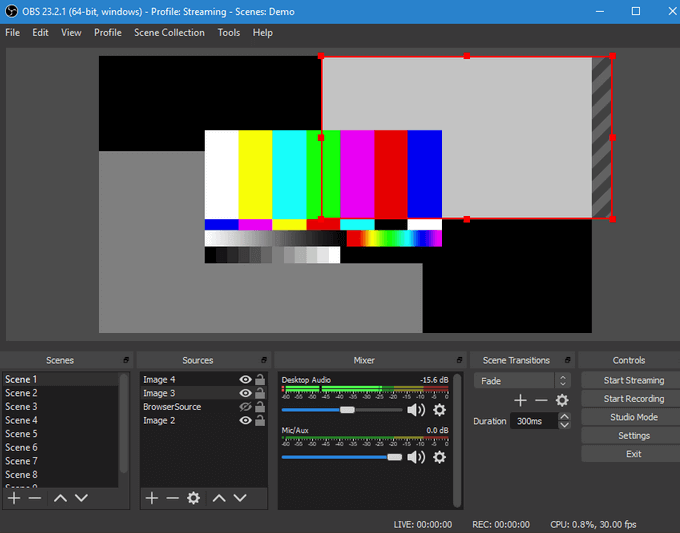
OBS is a widely used free and open-source screen recorder. It will work on Windows, Mac, and Linux.
**Features**
**Pros**
* Easy to use and powerful configuration options. * Streamlined setting panel. * Access to capture cards and webcam while recording. * Developers can use APIs to code plugins and extend the functionality. * Includes everything you need within this single application.**Limitations**
* Difficult for new users. * Because of its vast functionality, it will take some time to learn how to use the program and understand its terminology.**ScreenStudio**
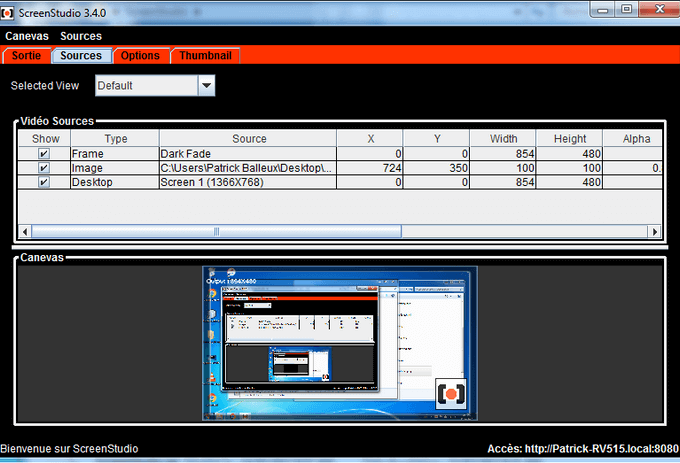
ScreenStudio is a free open source screen recorder for Linux with an easy to use interface. It is made available under the GPL license.
**Features**
**Pros**
* Straightforward installation. * Ability to capture footage from connected webcams. * Add customized images, frames, and labels. * Capture audio either from the internal Linus system input or your microphone. * Add background music to your videos.**Limitations**
* Users can’t pause and resume recordings like some of the other screen recorders allow. * Large dependency size. * Requires JRE 8.0.**Green Recorder**
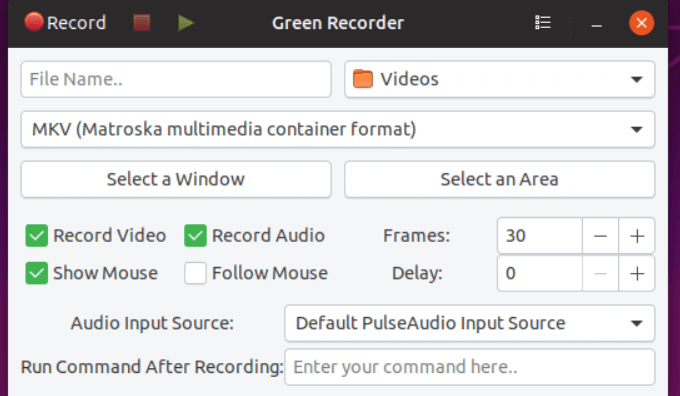
Green Recorder is one of the earliest Linux screen recording tools to provide support for the Wayland display server.
**Features**
**Pros**
* Users can save default preferences. * Choose the audio input source. * Can generate GIF images from recorded raw video file. * Easily play a recorded video with a recently added play button.**Limitation**
There is no webcam recording support.
**Vokoscreen**
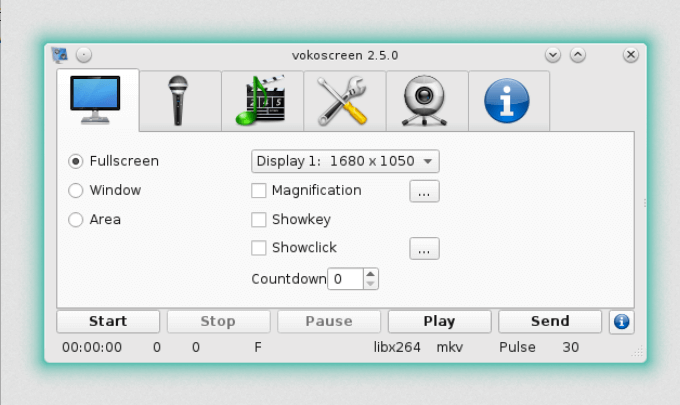
Vokoscreen is an easy to use and simple Linux screen capture app for screencasting.
**Features**
**Pros**
* GUI is available in 40 languages. * Watch recordings immediately. * Automatically detects rate of the microphone. * Recording time, file size, and fps are displayed while recording. * Can hide the mouse cursor.**Limitations**
* Currently only supports PPA installation. * Occasional issues with audio synchronization.**VLC Media Player**
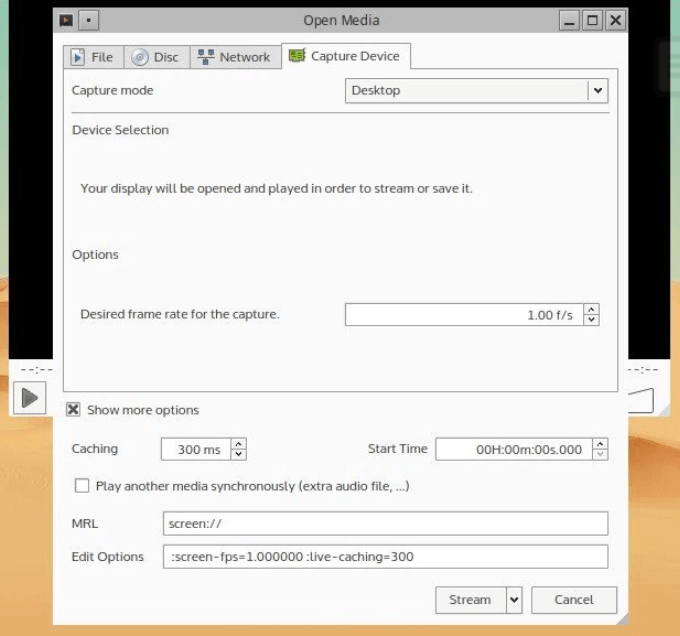
VLC is a free, open-source, popular and powerful Linux Multimedia Player. It is full of features, including screencasting and can be used with Chromecast.
**Features**
**Pros**
* Can expand functionality using plugins. * Highly customizable. * Includes tools to tweak video and audio playback.**Limitations**
* The standard interface isn’t stylish. * Editing metadata isn’t as straightforward as some other tools.**Freeseer**
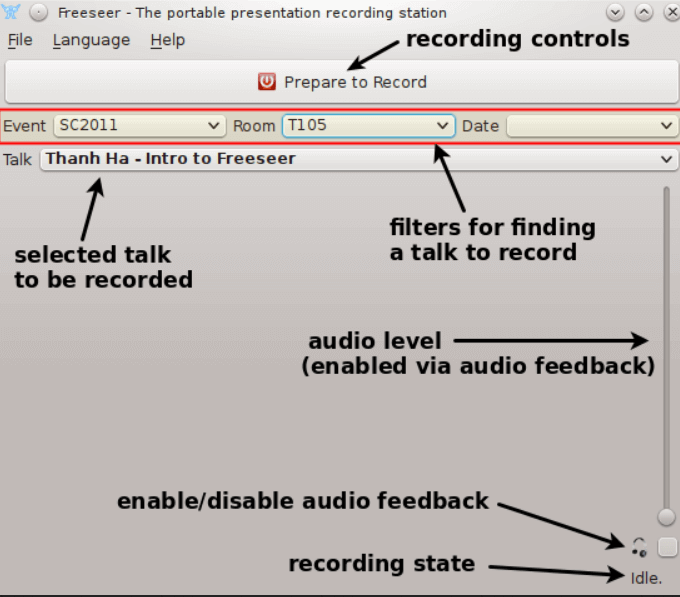
Another free screen recording cross-platform app is Freeseer. Like all free and open-source programs, developers add plugins and new features to enhance the functionality of the app.
**Features**
**Pros**
* Can pause and resume recording. * Manage conference discussions by adding placeholders for each participant. Then can add the conversation of the participant to the corresponding placeholder.**Limitation**
It only supports the Ogg output format.
**Wink**
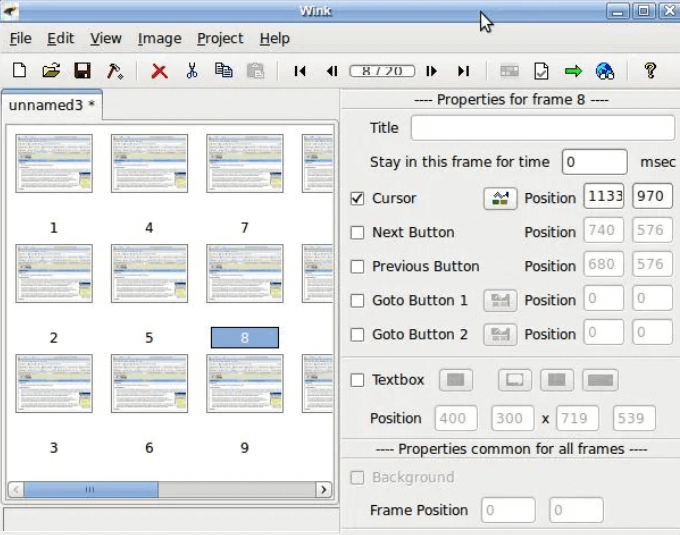
Wink is a software tool to create interactive tutorials and presentations.
**Features**
**Pros**
* Easy to use. * Add text boxes, annotations, and arrows. * Lets you record your voice while recording the screen.**Limitation**
It’s not really a video recorder. Tutorials capture frames and export them to Flash.